HubSpot popup: build one and connect it to HubSpot
 By Mert Özeren
HubSpot's pop-up forms are now pop-up CTAs: as of September 2026, HubSpot builds pop-ups with its CTA tool, on Marketing Hub or Content Hub Starter and above. For a HubSpot popup without that upgrade, build it in Popupsmart: its HubSpot connection needs only a static list, which every HubSpot plan includes, and adds each lead, phone number and SMS consent to that list.


Connection at a glance
- Sends leads to
- HubSpot
- What you need
- A HubSpot login that can connect appsA static list in HubSpot
- Fields sent
- EmailPhone and SMS consentAny form field
What the HubSpot connection does
The HubSpot connection sends everyone who submits your popup to HubSpot as a contact and adds them to one static list, with the fields you match to HubSpot properties. You pick the list and the field matches per campaign; the account connection is saved once and offered again in the next campaign.
The connection starts switched on and you can pause it at any time. Popupsmart collects the lead and doesn't send email or SMS: your HubSpot workflows, emails and sales pipeline carry on as before.
Does HubSpot have its own pop-up forms?
HubSpot has pop-ups, but no separate pop-up forms tool any more: its older pop-up forms are a legacy tool, and HubSpot's knowledge base now redirects its pop-up form articles to the CTA and forms guides. According to HubSpot's guide to creating CTAs, you go to Marketing → CTAs, click Create and choose a banner, pop-up box or slide-in on the Pop-ups tab. The CTA tool needs a Marketing Hub or Content Hub Starter, Professional or Enterprise subscription, a CTA on a site outside HubSpot needs the HubSpot tracking code or HubSpot's WordPress plugin, and one CTA can hold one HubSpot form.
| HubSpot's built-in popup | Popupsmart | |
|---|---|---|
| Where it runs | HubSpot pages, and other sites once the HubSpot tracking code or WordPress plugin is installed | Any website that accepts the Popupsmart embed code, plus a Shopify app and an optional WordPress plugin |
| Triggers and targeting | Button click, page scroll, exit intent, elapsed time or inactivity; URL and query parameter rules; device, country and browser language on Professional and Enterprise | Exit intent, scroll, time on page, URL and device targeting |
| Where the leads go | HubSpot contacts, through a HubSpot form inside the CTA | HubSpot, or any of the 19 destinations the help center lists |
| A/B testing | Professional and Enterprise, as an opt-in beta, per HubSpot's CTA A/B testing guide | From the Advanced plan |
| Price | Part of Marketing Hub or Content Hub Starter and up | Free plan: one website, one live popup, 5,000 pageviews a month; paid plans from $39 a month |
| How many popups | Not documented | One live popup on the free plan; unlimited on paid plans |
If your site runs on HubSpot or carries its tracking code, and you already pay for Marketing Hub or Content Hub Starter or above, a pop-up CTA keeps the whole lead journey inside HubSpot and needs nothing else. Popupsmart earns its install when you're on HubSpot's free CRM, when the same popups have to run on several websites (3 on the Basic plan, up to unlimited on Expert), or when some popups should send leads to an email tool instead of HubSpot.
Before you start
- A HubSpot account, and a login that can connect apps to it.
- A static list in HubSpot. HubSpot now calls lists segments: under CRM → Segments, each one is either active or static, and Popupsmart needs a static one. According to HubSpot's guide to active and static segments, segments come with every HubSpot plan.
- A verified website on your Popupsmart account.
Among people who published a campaign in the 90 days to 16 September 2026, the median time from signup to the first published campaign was 32.5 minutes, and 287 of 332 published within a day, according to Popupsmart's own product data. It covers every platform and tool, so treat it as a guide, not a HubSpot promise.
How to create a HubSpot pop-up form in Popupsmart
Popupsmart builds the popup in its own editor, with no plugin, developer or code. Build the popup first; the next section connects it to HubSpot.
Step 1: Create your account and verify your website
Create your free Popupsmart account and add the website your popup will run on. Verify it with the website verification guide: a campaign only runs on a verified website.
Step 2: Build a popup with a form
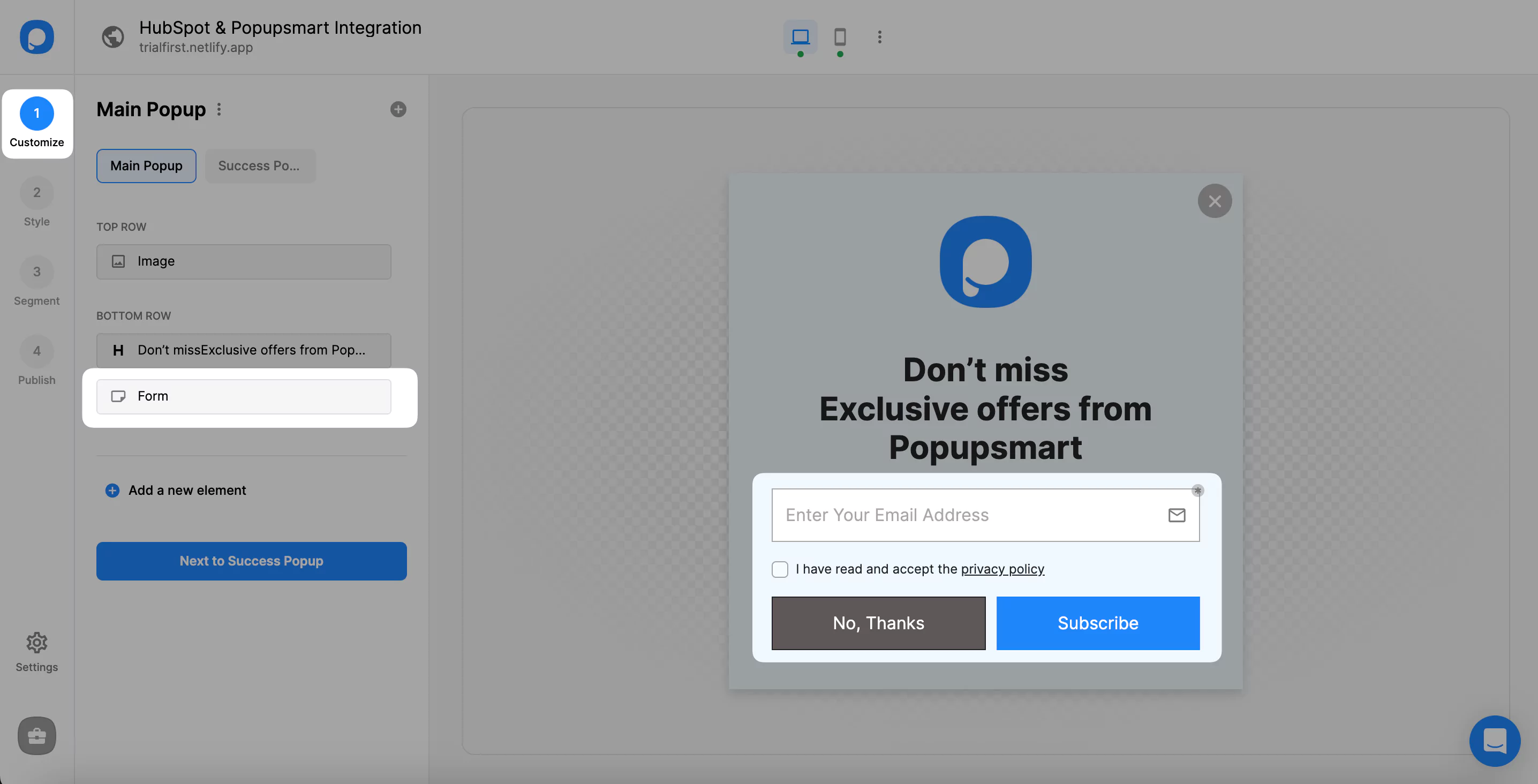
Click New Campaign and choose a template with a form input element, or start from a blank popup and add one in the Customize step. The form decides what reaches HubSpot: an email, and perhaps a name, a phone number or a company. My advice is to ask the sales team which fields they actually use before you add any.
Step 3: Choose who sees it and when
Set the targeting and trigger rules: exit intent, scroll depth, time on page, new or returning visitors, device, location or specific URLs, alone or combined. A demo request can wait for the pricing page; a newsletter signup can run on the blog. In Popupsmart's 2026 benchmark, popups that wait before appearing convert 0.83% against 0.61% for popups shown the instant the page loads (median campaign), a lean rather than a proven gap, and exit intent shows no statistically reliable advantage.
Step 4: Publish and add the embed code
Connect the popup to HubSpot first (next section). Then publish it from the Publish step and paste the Popupsmart embed code into your site once; every campaign you build later runs from the same line.
HubSpot popup ideas
- Callback requests on service pages: popups that increase phone calls.
- Webinar or event signups: B2B lead generation popups.
- Qualifying questions before a lead reaches sales: popup survey examples.
- A coupon or last offer for visitors about to leave: exit-intent popup examples.
How to connect Popupsmart to HubSpot
The HubSpot connection is a sign-in, not a key. You connect your HubSpot account once, then choose a static list in each campaign.
Add HubSpot to your campaign
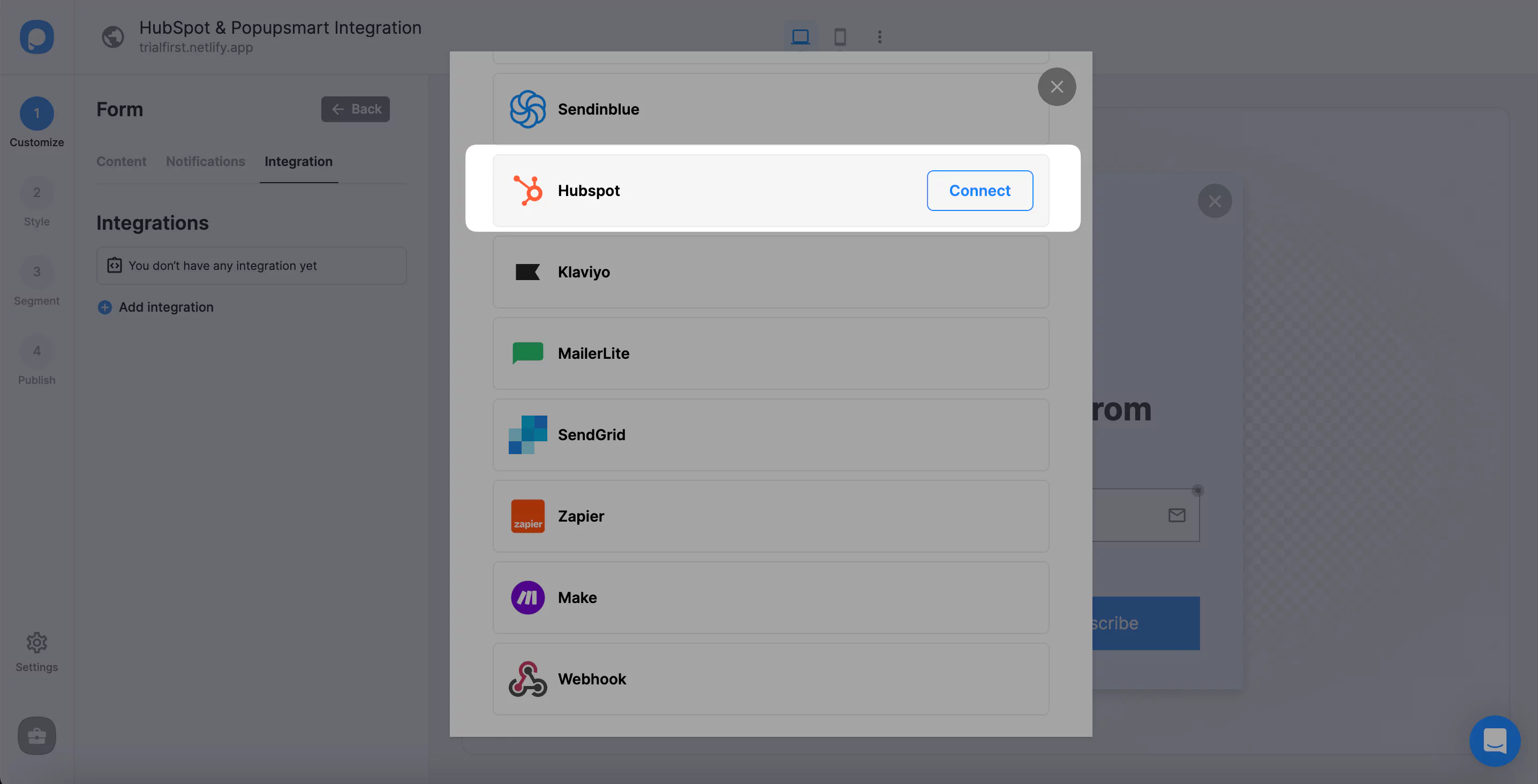
In the Customize step, click the form element and click + Add integration.
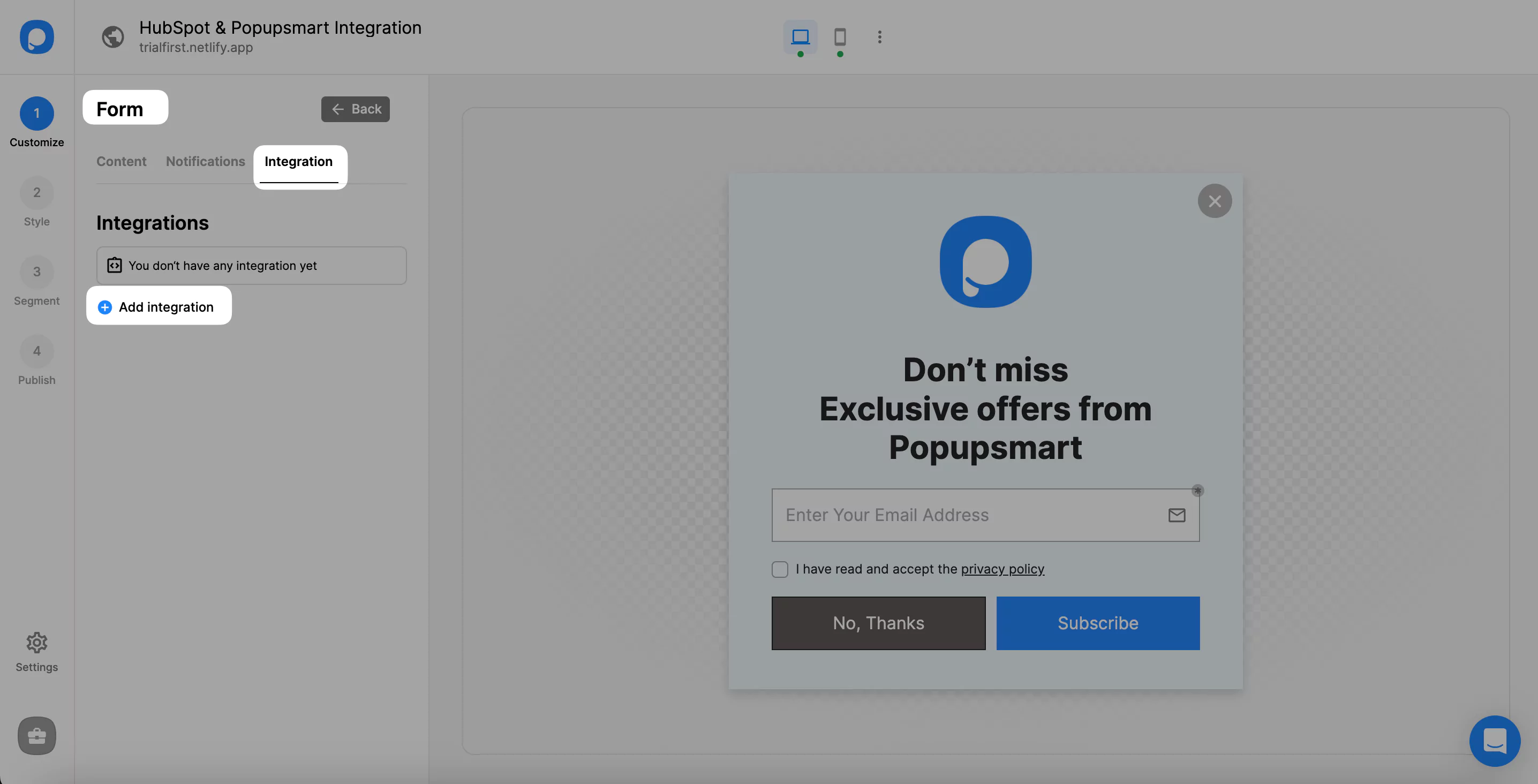
Find HubSpot and click Connect.
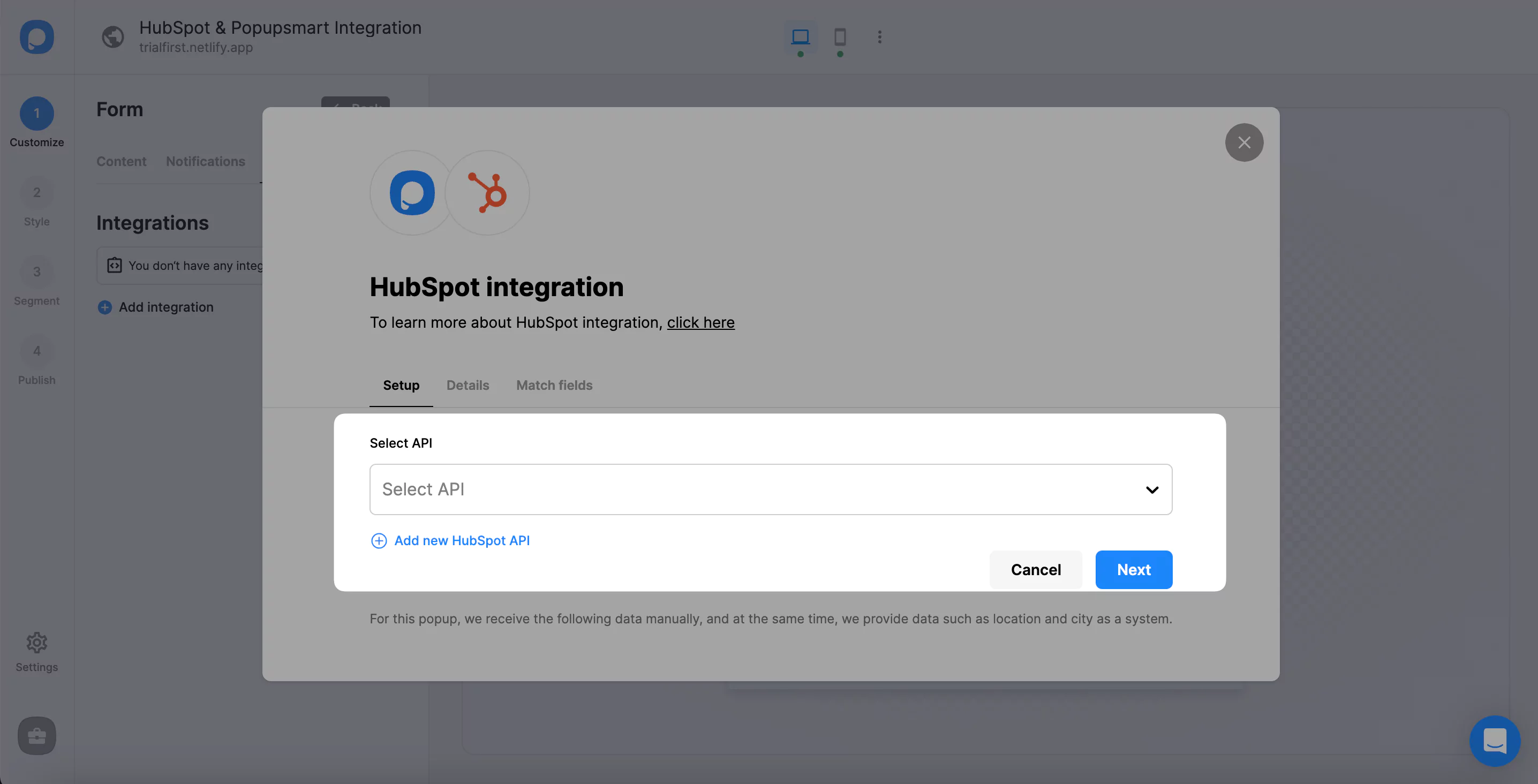
Under Setup, pick a saved HubSpot connection from the dropdown, or choose add a new HubSpot API for your first one.
Connect your HubSpot account
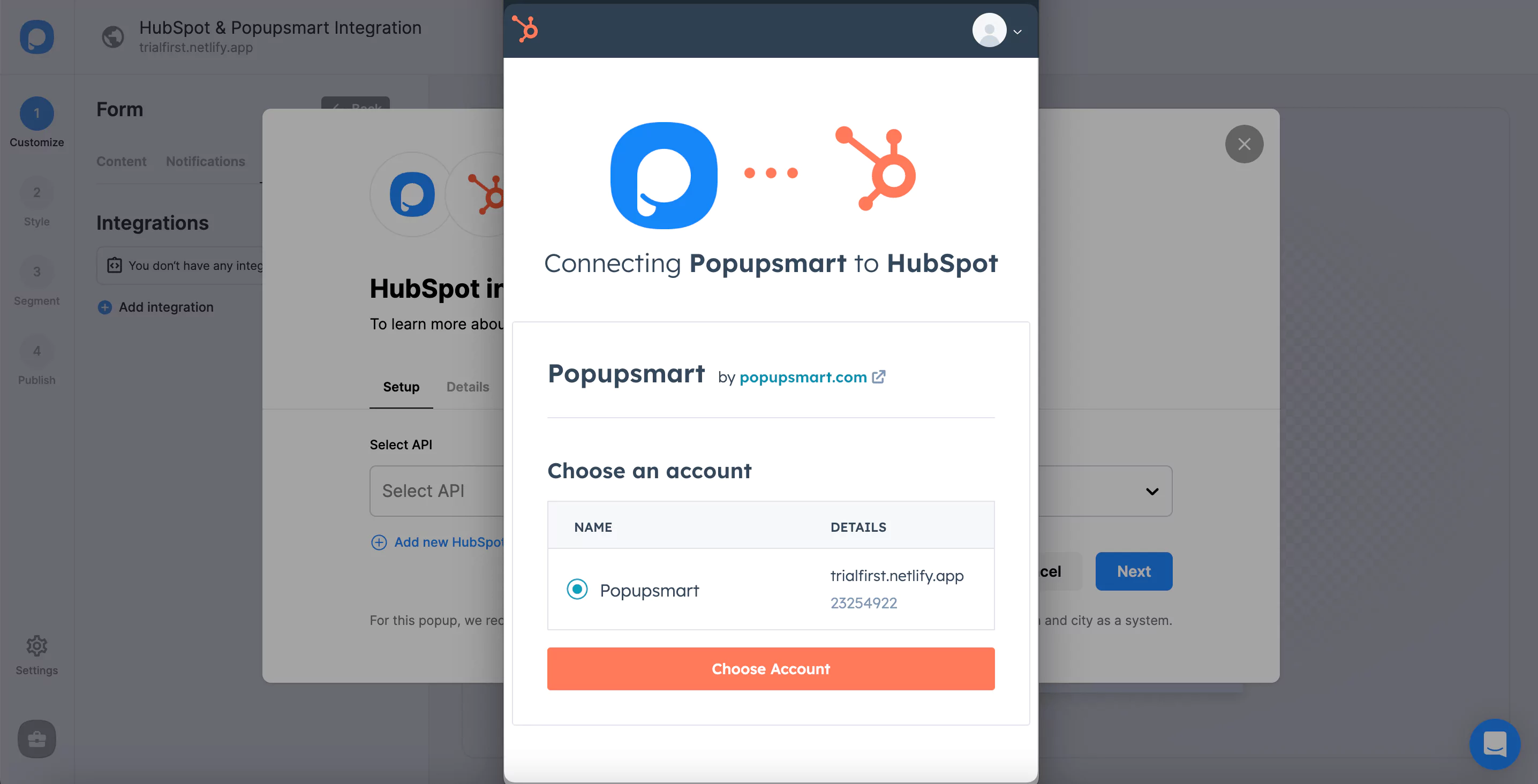
A window opens to link Popupsmart to HubSpot. Choose your HubSpot account and click Connect Account; Popupsmart then takes you to Details.
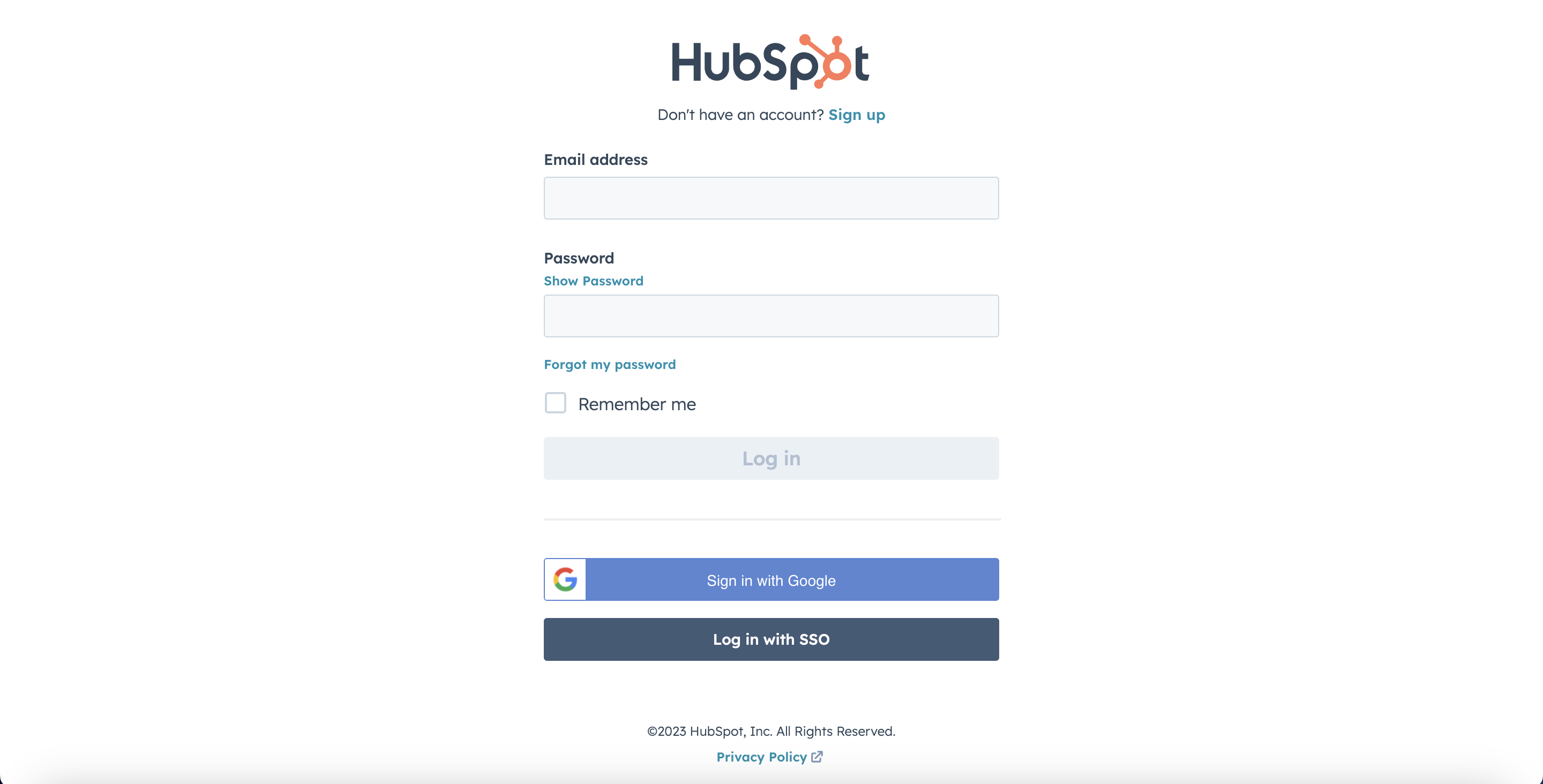
If this is your first connection, the window asks you to log in to HubSpot before it lists your accounts.
Choose your static list
In Details, choose the HubSpot list your leads should join and click Next.
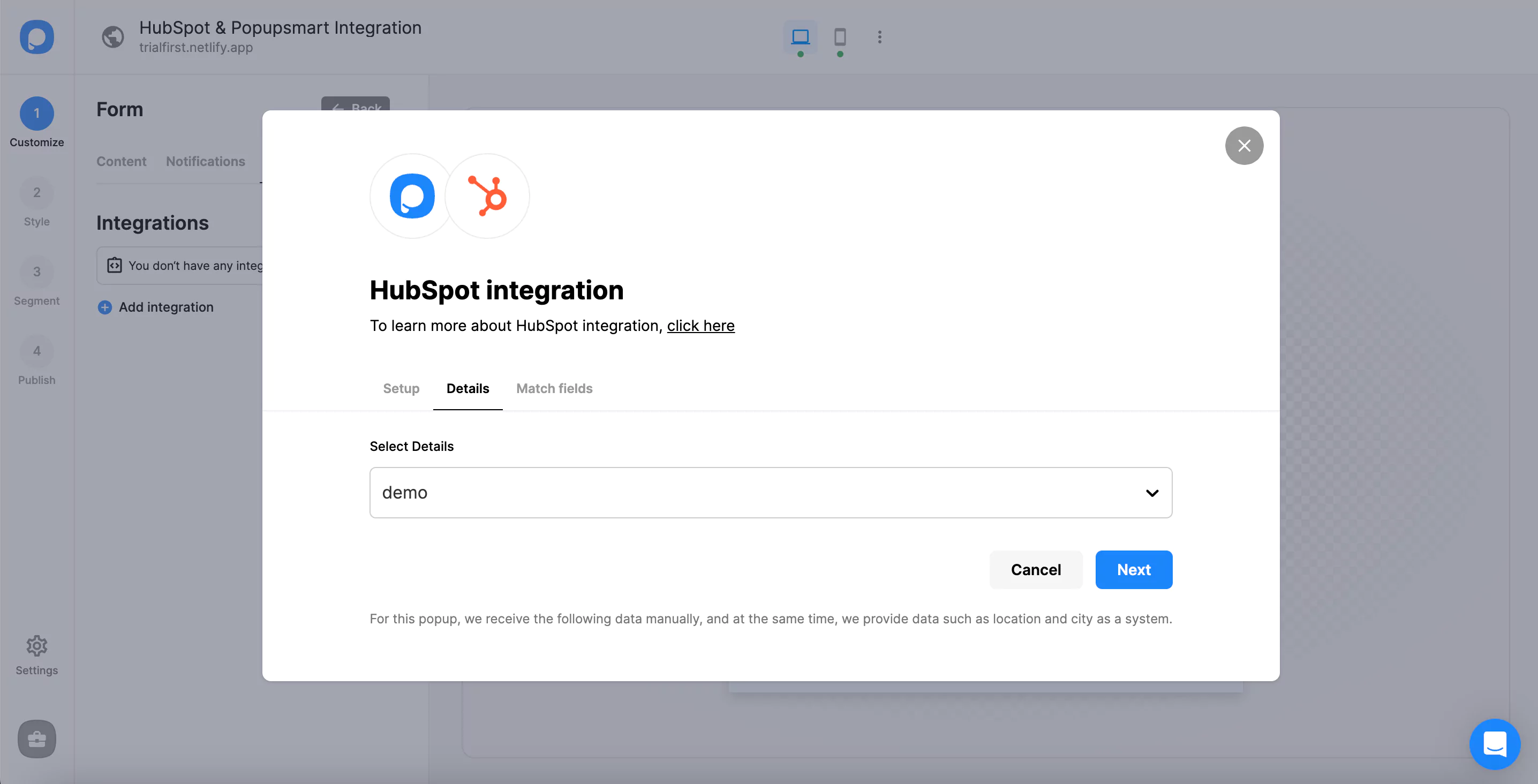
Match popup fields to HubSpot properties
Match each popup input to the HubSpot property it should fill, then click Save.
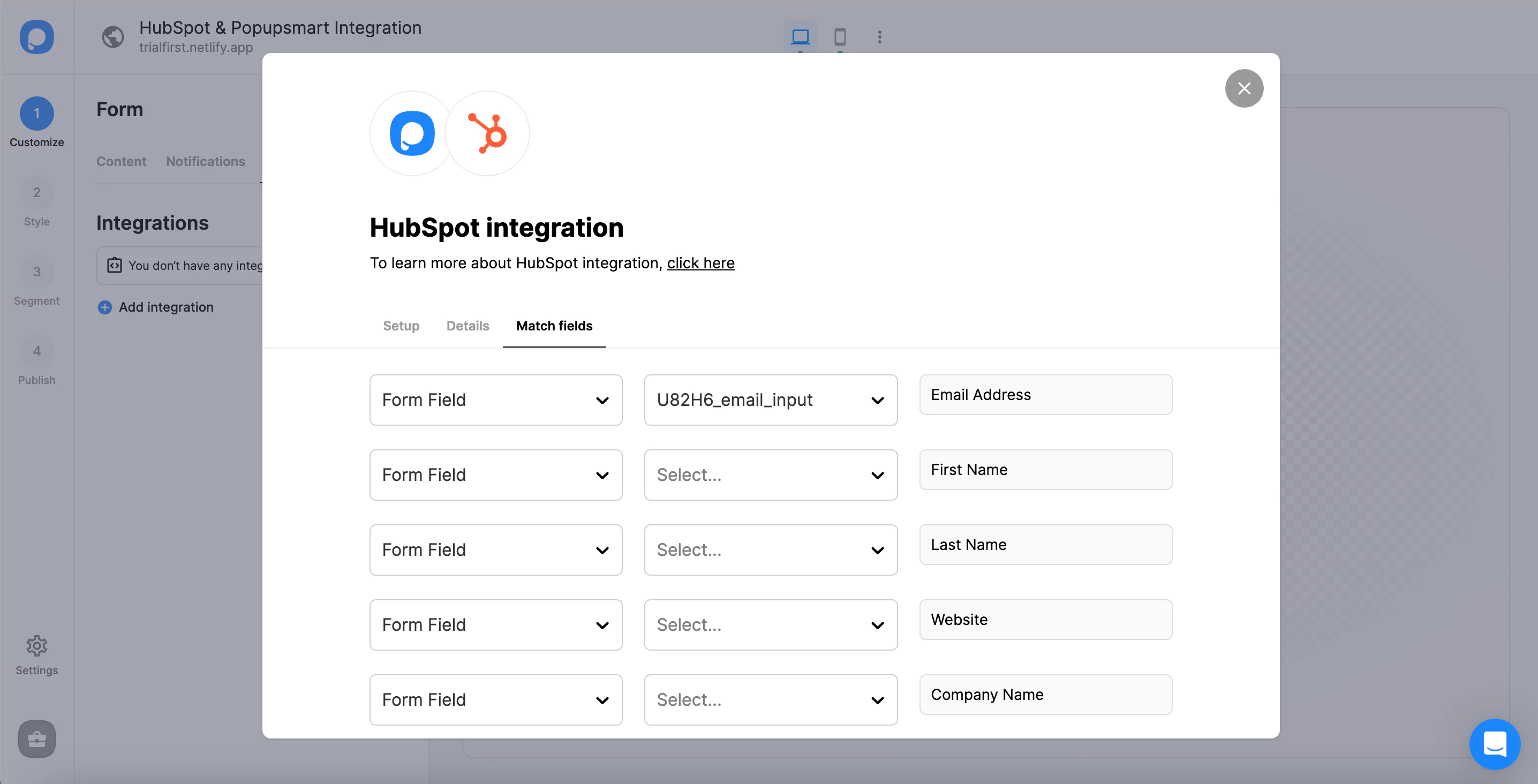
The fields on offer depend on the elements in your popup:
- Form field: an input in your popup. If the popup has none, the dropdown shows "No options".
- System field: data Popupsmart records on its own, such as the browser or device of the person who filled in the popup.
- API field: data you pass to the Popupsmart JS API, sent on to HubSpot with the rest of the submission.
- Static field: a fixed value you type yourself, handy for marking where a lead came from, such as "demo-request" or "exit-intent".
Match the email input to HubSpot's email property. If the popup asks for a phone number and SMS consent, match those too; both reach HubSpot the same way.
The connection is on by default. Pause or edit it from the three-dot menu, and manage every connection from the Settings section of your Popupsmart dashboard, where you can also set one up outside a campaign.
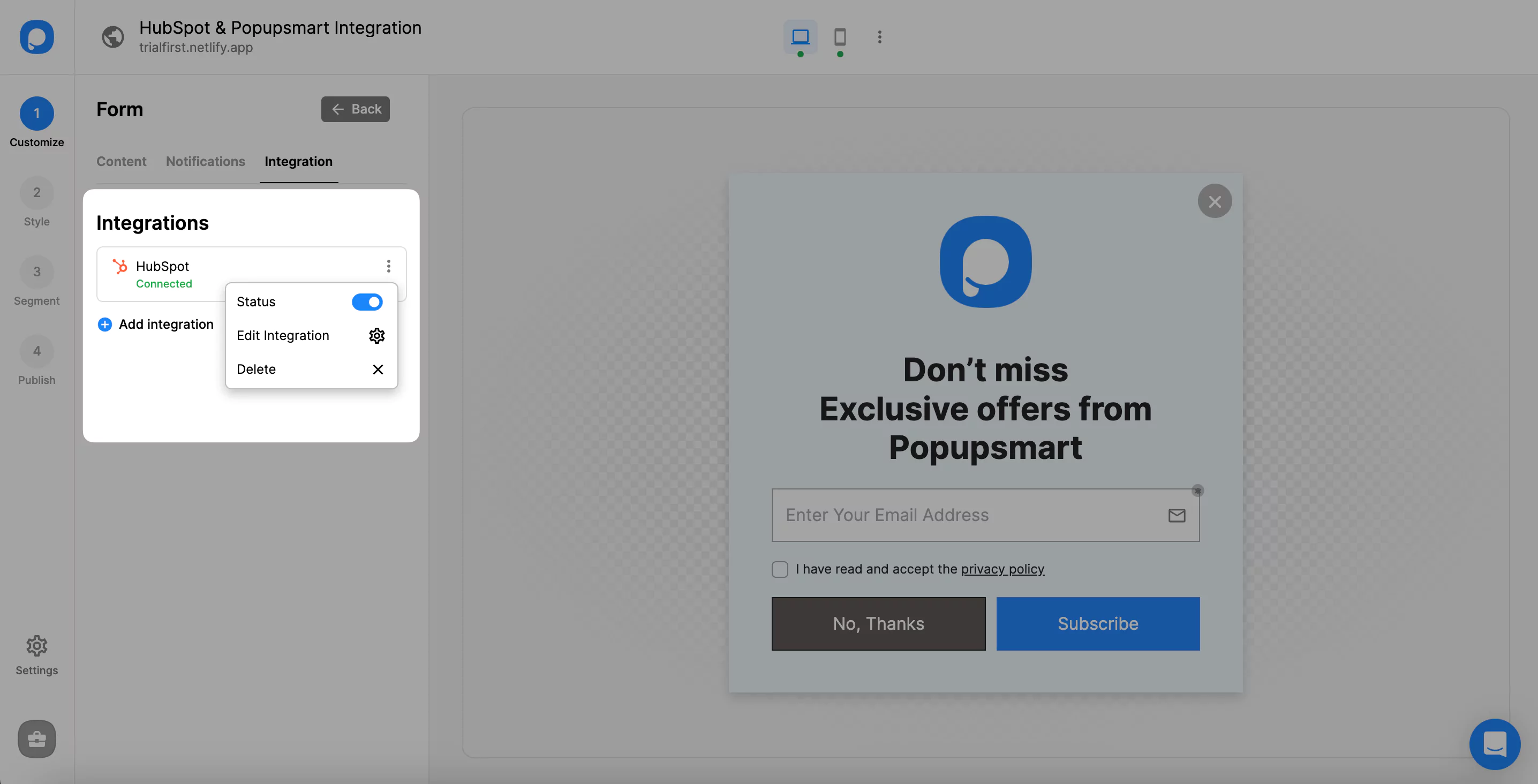
Test the connection before you publish
A test submission is the only proof that the HubSpot connection works. Publish the campaign to a page you control, fill in the popup with an address you own, then search your HubSpot contacts for it and open the static list to check it joined. HubSpot matches contacts by email address, so an address that's already in HubSpot updates that contact instead of creating a new one. Delete the test contact afterwards.
Double opt-in and consent
Email consent for a HubSpot popup lead is handled by HubSpot's own subscription settings, so set those up in HubSpot rather than in Popupsmart. Send a test lead and check the new contact's subscription status to see how your leads arrive.
Where your visitors' law asks for explicit consent, add a consent checkbox to the popup's form and match it to a HubSpot property, so each contact record shows what the person agreed to. SMS consent goes to a property of its own.
Why is a HubSpot pop-up not displaying?
A HubSpot pop-up that doesn't display is usually missing the tracking code, unpublished, or held back by its own targeting or frequency settings. A Popupsmart popup that doesn't display is usually unpublished, on an unverified website, or waiting for its trigger.
For a HubSpot pop-up CTA, check:
- The tracking code. A CTA on a site outside HubSpot needs the HubSpot tracking code or HubSpot's WordPress plugin.
- The publish state and schedule. HubSpot can start a CTA later and unpublish it on a set date.
- The URL rules. The page has to match the CTA's website URL or query parameter rule.
- The frequency. With Don't show again, a visitor who has seen the CTA once won't see it again.
- Small screens. A CTA can be switched off on small screen sizes.
For a Popupsmart popup, check that the campaign is published, that the website is verified, that the embed code is on the page only once, and that the trigger has fired: an exit-intent or scroll popup waits for that action.
Leads not reaching HubSpot? Check these
- The list is active, not static. Choose a static list in the Details section.
- The wrong HubSpot account is connected. If your login reaches more than one account, check the one you chose in the Connect Account window.
- The email input isn't matched. Match it to HubSpot's email property.
- The contact already existed. HubSpot updated the existing record; search for the address instead of counting new contacts.
- The connection is paused, or the campaign isn't live. Switch the connection back on from the three-dot menu, and check that the campaign is published on a verified website.
Still stuck? Contact Popupsmart support with the campaign name and we'll look at the connection with you.
HubSpot popup FAQ
What is a pop-up form in HubSpot?
A pop-up form in HubSpot was a lead-capture form that appeared after an action, such as visiting a page or spending time on it. HubSpot has since moved pop-ups into its CTA tool: a pop-up CTA is a banner, pop-up box or slide-in, and it can hold one HubSpot form.
Does HubSpot's free plan have pop-up forms?
Not as of September 2026. HubSpot builds pop-ups with its CTA tool, and its guide lists that tool for Marketing Hub and Content Hub Starter, Professional and Enterprise. Popupsmart's free plan is permanent, not a trial: one website, one live popup and 5,000 pageviews a month, with Popupsmart branding, and the HubSpot connection is included on it.
The Popupsmart pricing page compares it with the paid plans.
What are HubSpot forms used for?
HubSpot forms collect details from website visitors and turn each submission into a contact in HubSpot. HubSpot also tracks a visitor's activity before they convert and tries to link it to the new contact once the form is submitted.
Do I need a HubSpot API key to connect Popupsmart?
No. You connect by signing in to HubSpot from Popupsmart and choosing your account in the Connect Account window. There is no key to create or paste.
Why doesn't my HubSpot list appear in Popupsmart?
It is most likely an active list. Popupsmart adds leads to static lists only, so an active list doesn't show in the Details dropdown or returns an error. Create a static segment under CRM, then Segments, in HubSpot and choose it.
Do phone numbers and SMS consent reach HubSpot?
Yes. Match the popup's phone input and SMS consent to HubSpot properties in the Match fields step, and both arrive on the contact with the email address. Popupsmart collects them; it doesn't send email or SMS itself.