How to add a popup to Webydo
 By Mert Özeren
To add a popup to a Webydo site, paste Popupsmart's embed code into the Bottom of <body> field of the all-pages custom code settings, then save and publish the site. Popupsmart then builds, targets and publishes every popup from its dashboard, so there's nothing to install in Webydo.


Setup at a glance
- Runs on
- Webydo
- Where the code goes
Pages → </> → all pages → Bottom of <body>- Add-on
- No add-on needed

Before you start
Adding a popup to Webydo takes three things, and none of them is a developer:
- Access to the site in the Webydo editor, as its designer or owner. As of September 2026, Webydo presents itself as "The Business OS"; the editor labels in this guide are the ones in the video below.
- A free Popupsmart account. The free plan covers one website and one live popup, so you can finish this guide without paying.
- The address your visitors use for the site. If it has a custom domain, that's the one Popupsmart verifies.
How to add a popup to Webydo
The embed code goes into the code settings every page shares, once. After that you build, change and publish popups in Popupsmart without opening Webydo again. The video shows the whole process, and the steps below follow it.
Step 1: Copy your embed code
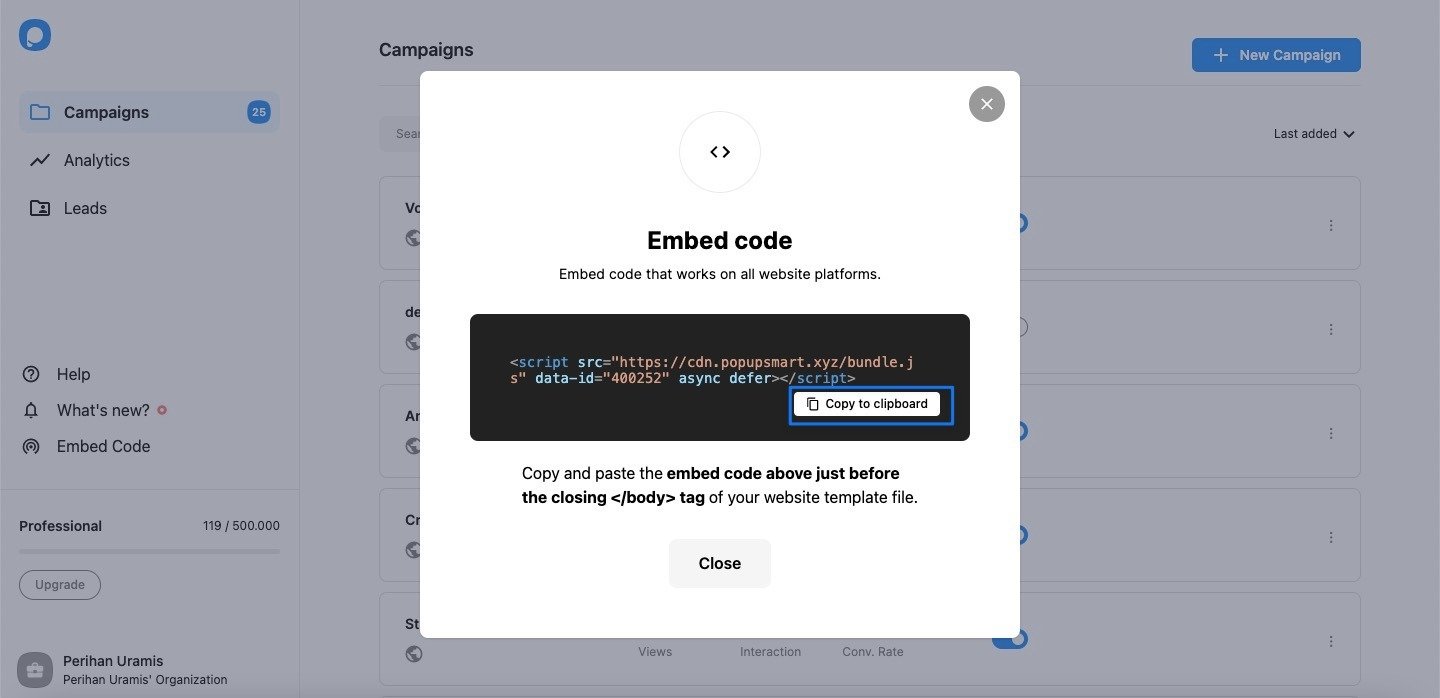
Sign in to Popupsmart and click Embed Code in the left menu.
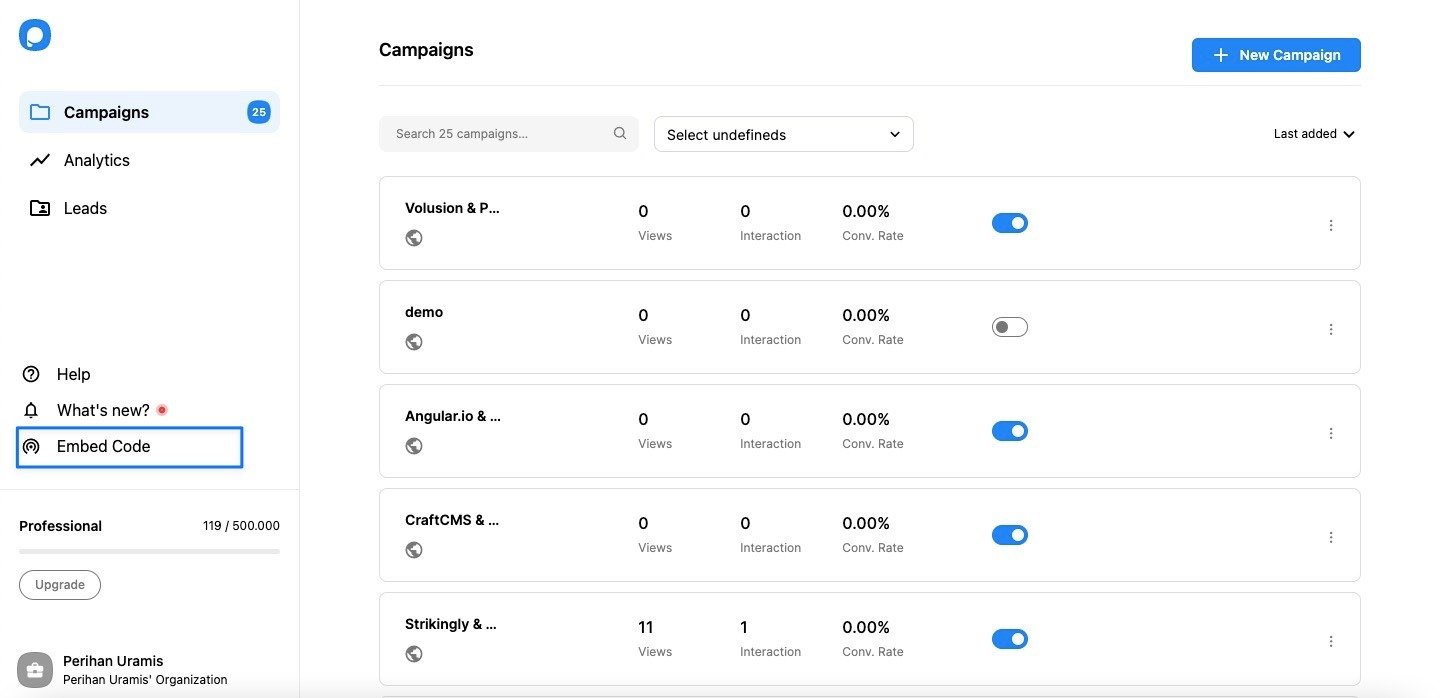
Click Copy to clipboard. The code is one line, <script src="https://cdn.popupsmart.com/bundle.js" data-id="…" async defer></script>, and the data-id belongs to your account.
Step 2: Paste the code into your Webydo site's custom code
In the Webydo editor, click Pages, or the + button, to open Pages & Navigation. Click the code icon, </>, next to any page in the list; the video uses About Us.
The code window has two tabs: one adds code to that page only, the other to all pages. Choose all pages, so every page loads Popupsmart, and paste the embed code into the Bottom of <body> field. Click Save, then Publish the site: the code reaches your visitors only after a publish. My advice is to use the all-pages tab even for a popup meant for one page, and pick that page in Popupsmart instead.
If your Webydo editor looks different from the video, look for the site-wide custom code setting and its bottom-of-body field; the embed code works the same way there.
Step 3: Add and verify your website
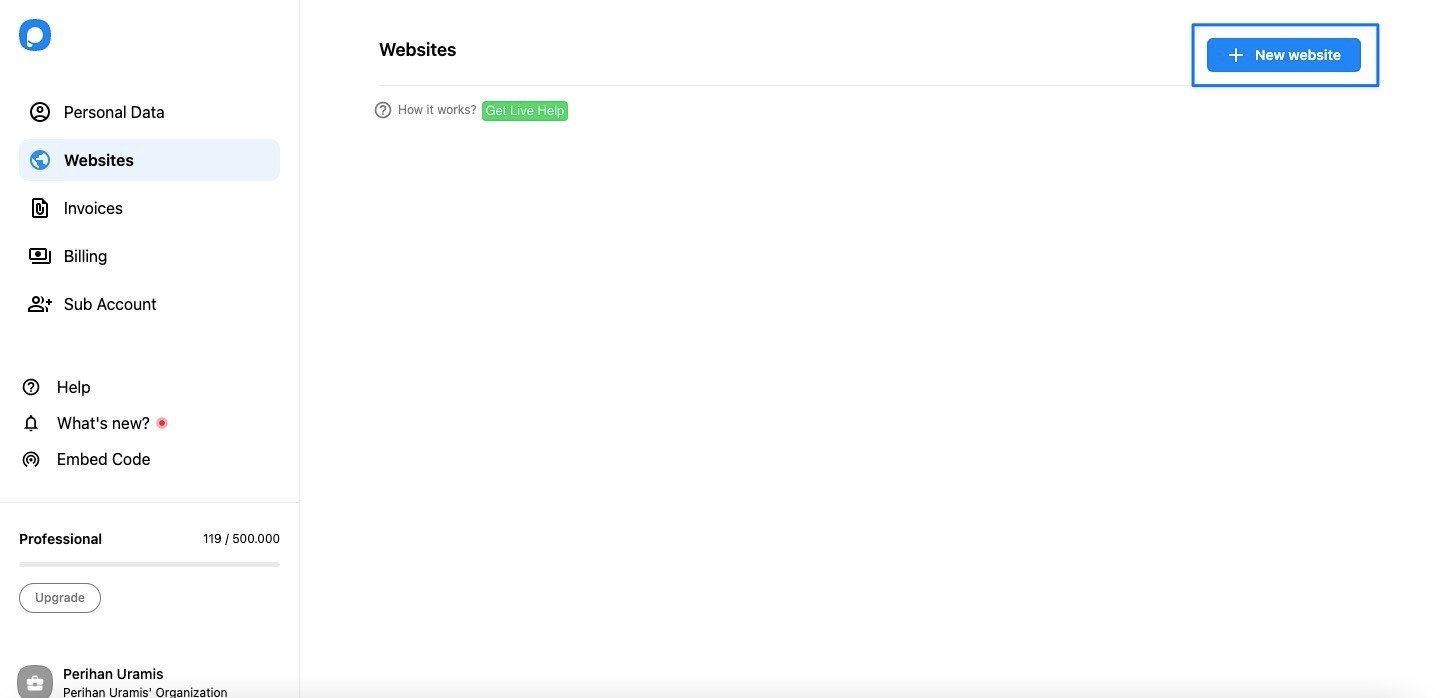
Back in Popupsmart, hover over the profile icon at the bottom left and click Websites.
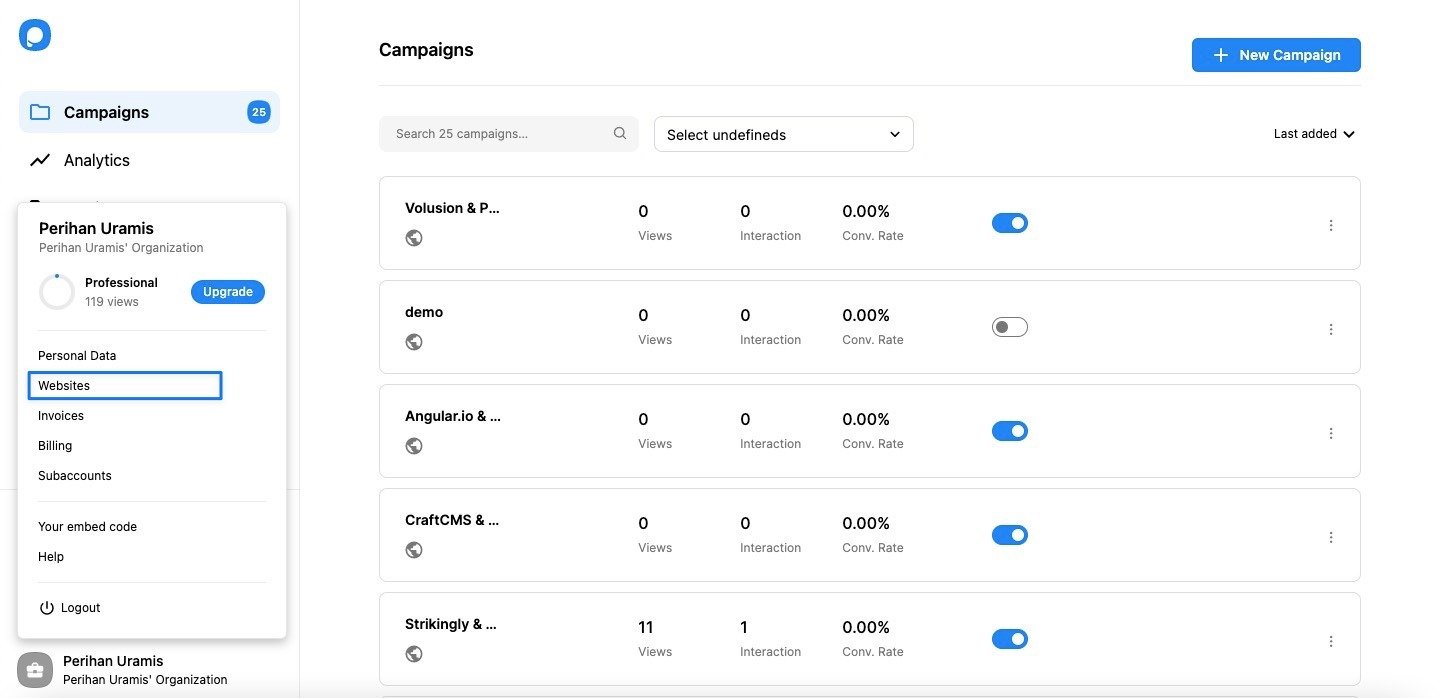
Click + New website.
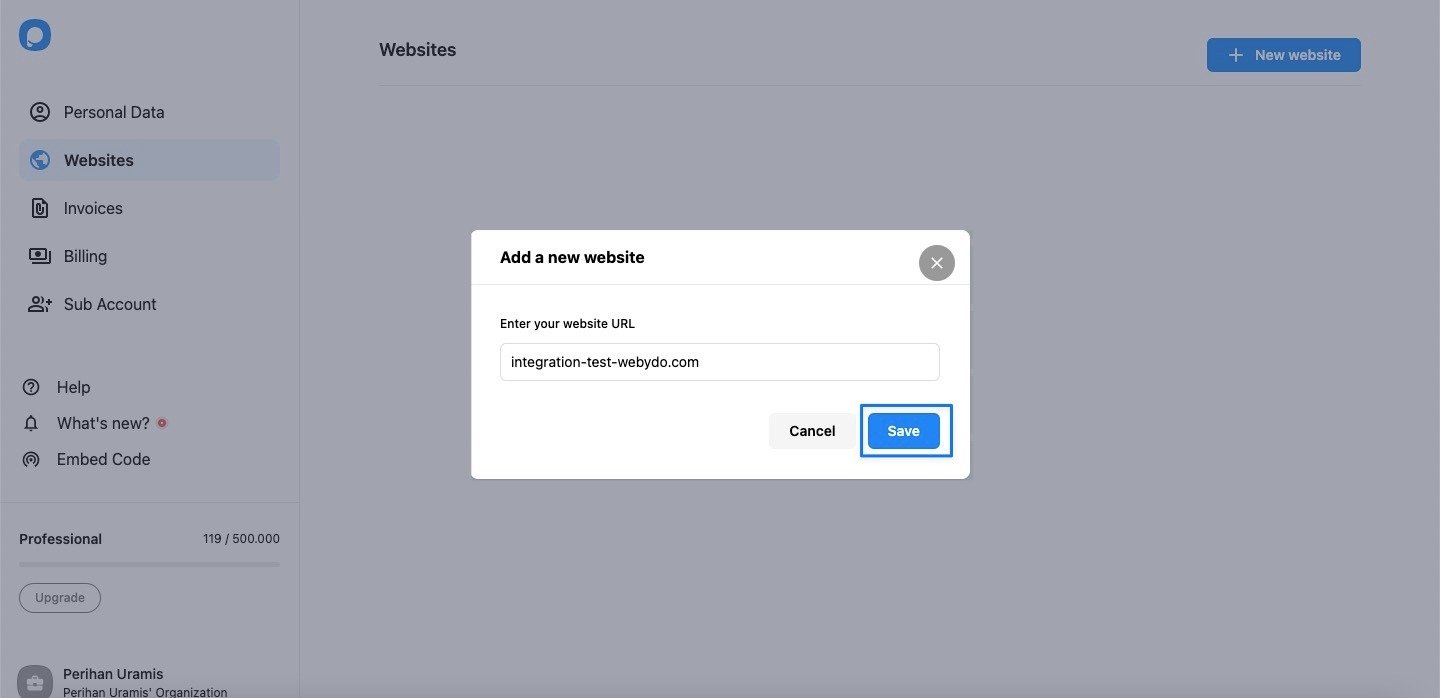
Enter your site's address and click Save.
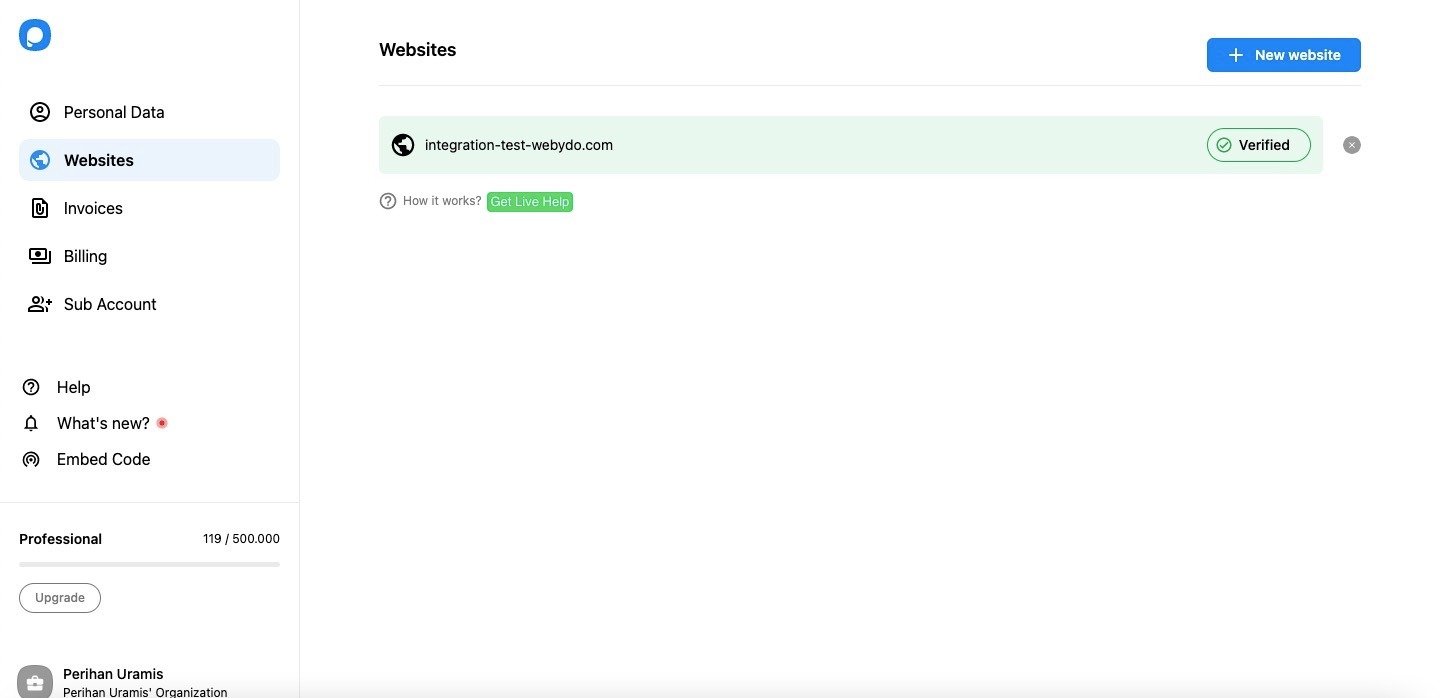
Popupsmart checks the site for your embed code, and a site with the code live shows as Verified.
If it shows as Unverified, click Unverified, then Verify website, and go back to the dashboard and click Refresh. The guide to verifying your website covers the other cases.
Step 4: Create your popup
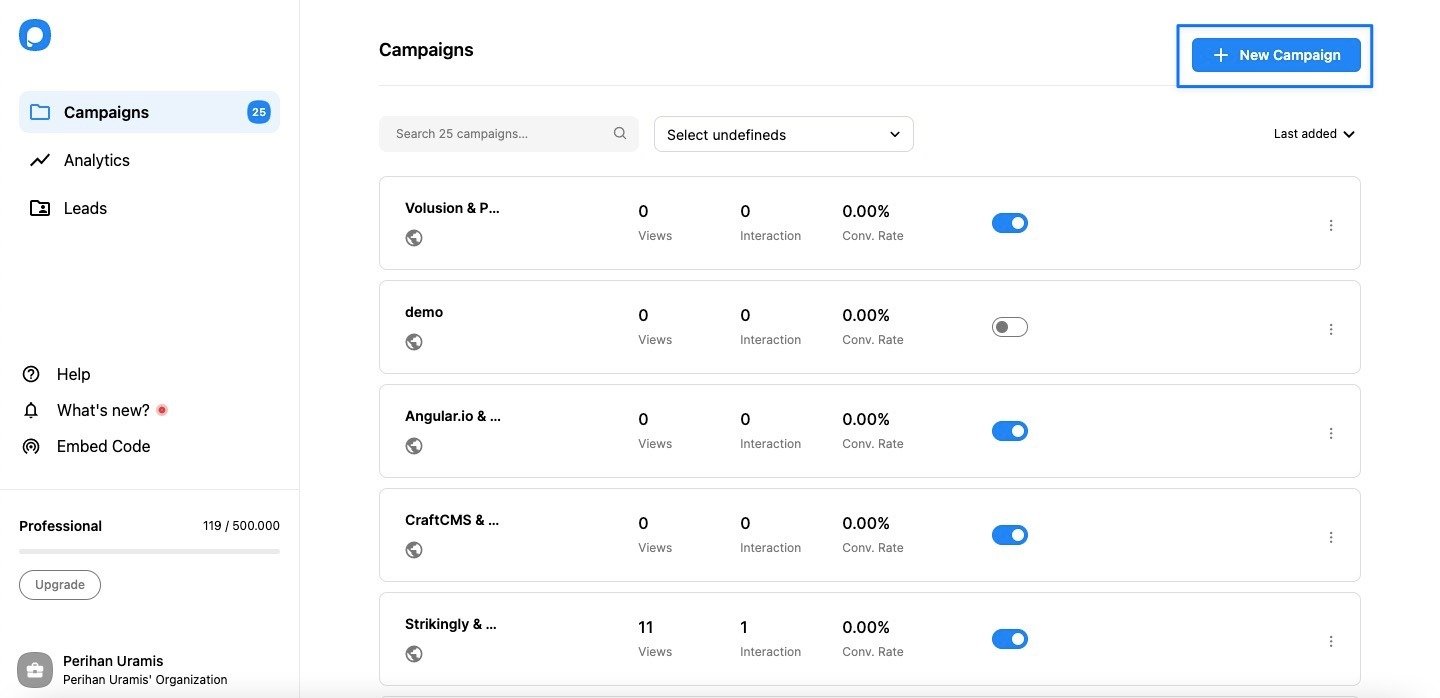
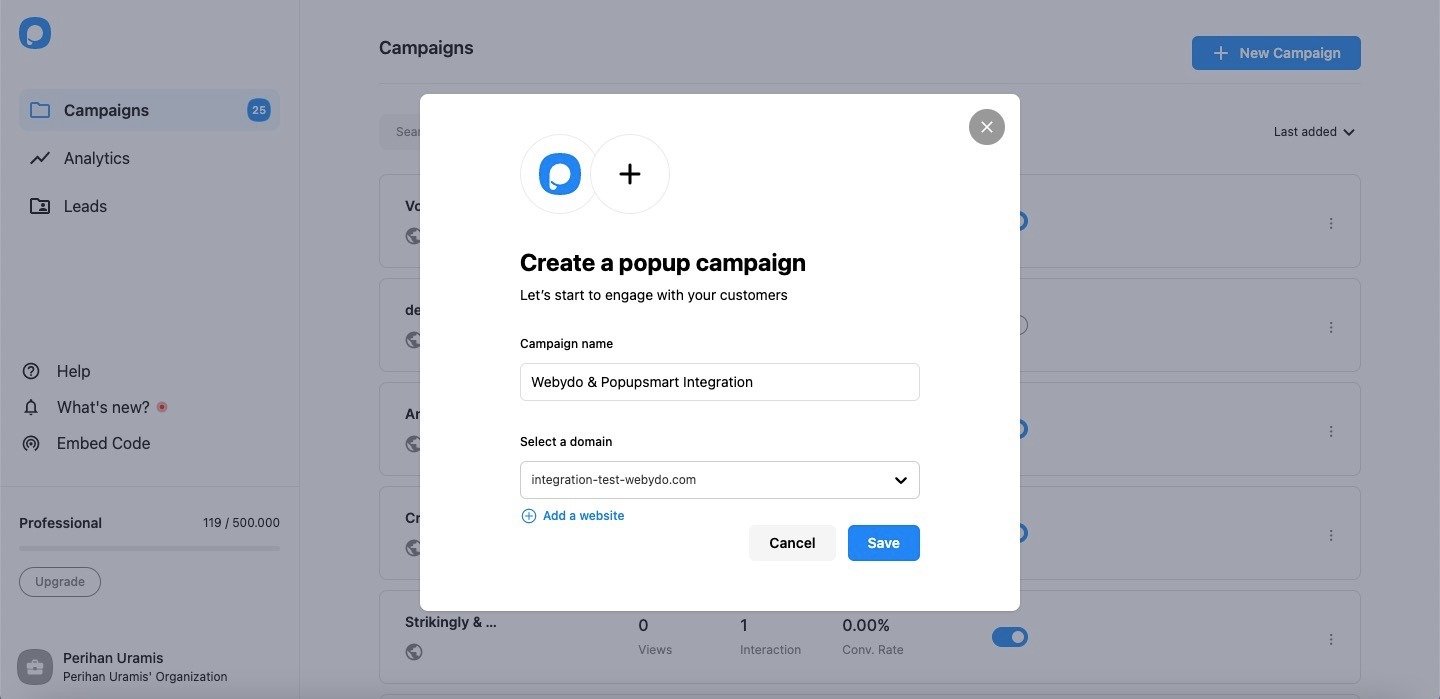
On the Campaigns page, click + New Campaign.
Name the campaign, choose your Webydo site under Select a domain and click Save.
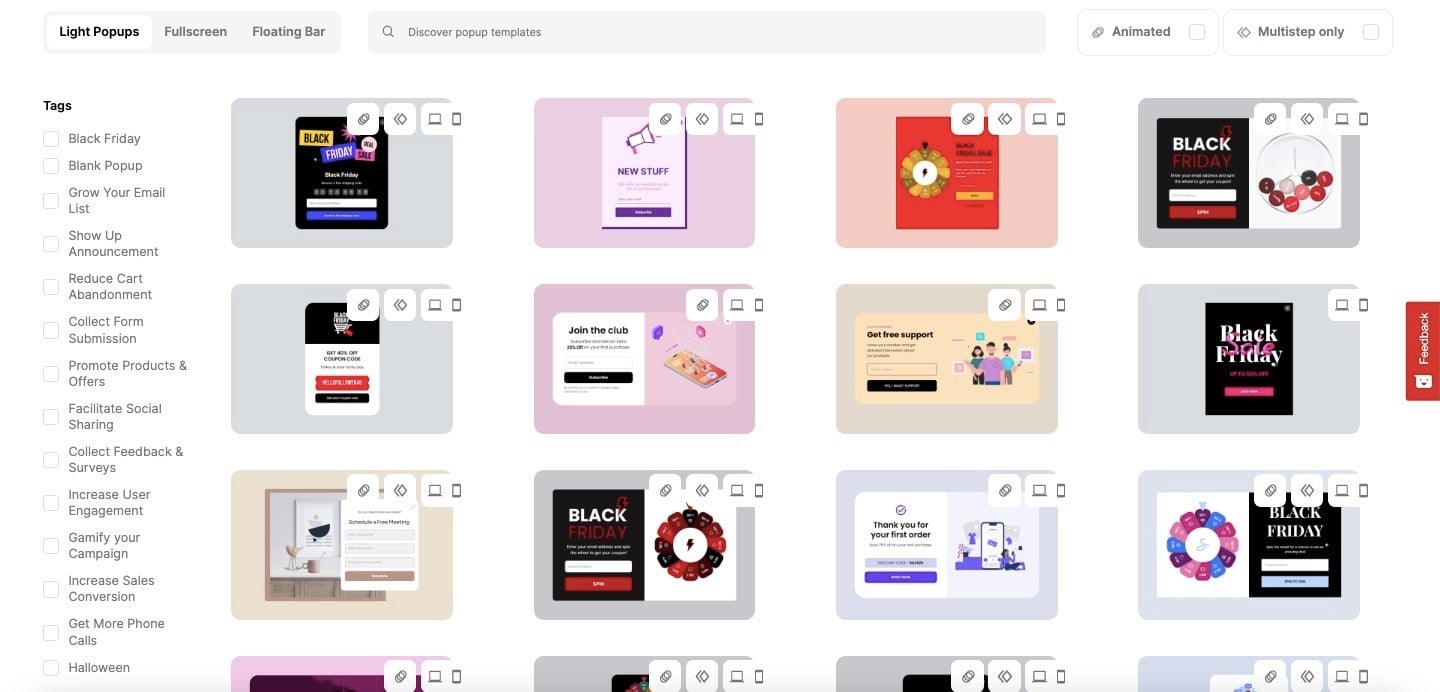
Pick a template. The tabs at the top split them into light popups, full-screen popups and floating bars, and the tags on the left sort them by goal.
Step 5: Publish and check the popup on your site
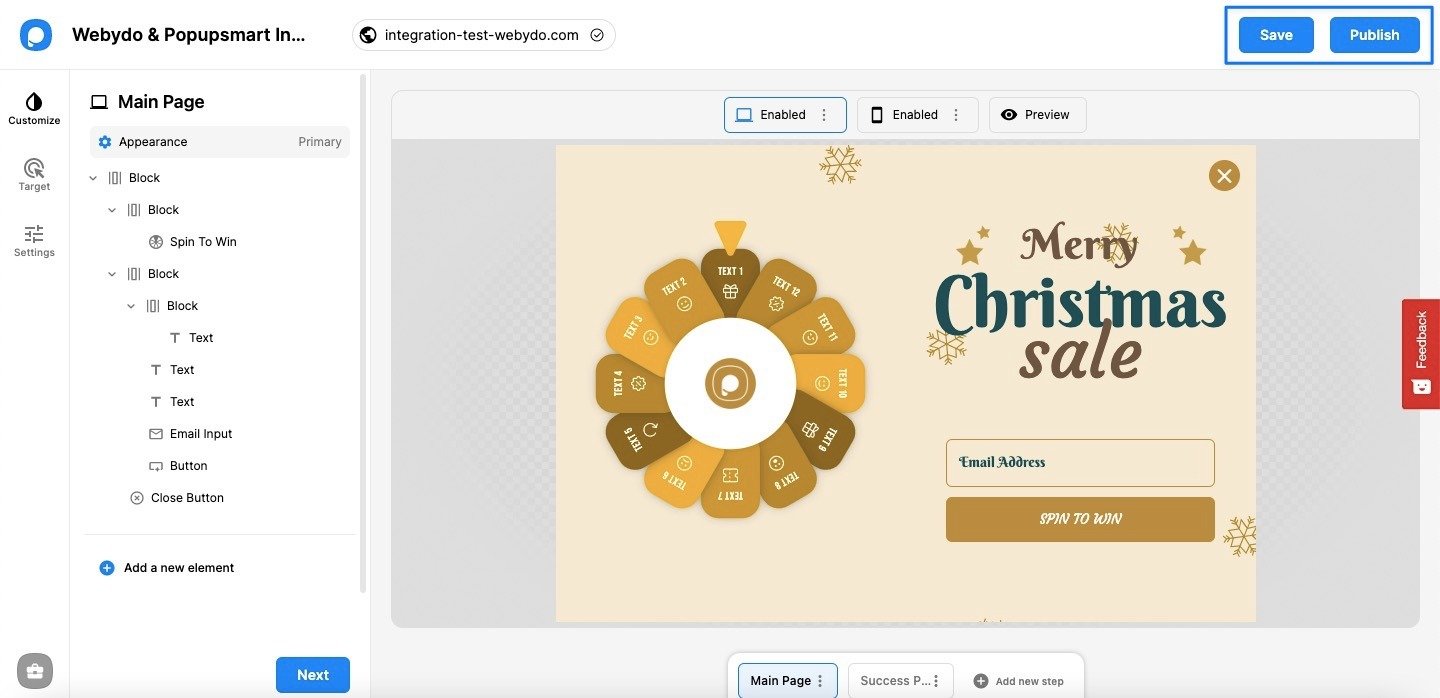
Change the template's copy, colours and form fields to match your site, then click Save and Publish.
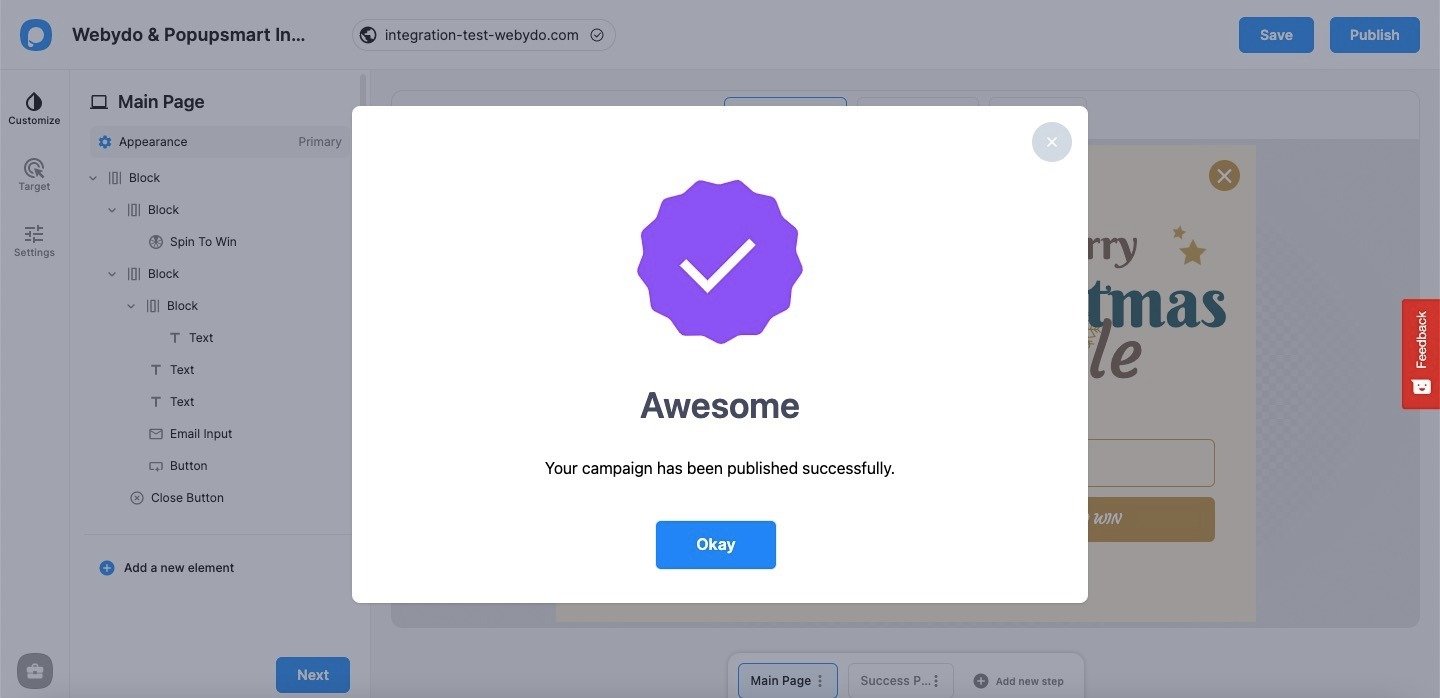
Popupsmart confirms that the campaign is published. Open your site in a private window and load a page; the popup appears when its trigger fires.
Does Webydo have a built-in popup?
Not one that Webydo documents: as of September 2026, Webydo's own pages list a website builder, a store, a CRM and SEO tools, but no popup builder. What Webydo does have is forms: according to Webydo's Native CRM page, forms you design on the canvas send each submission into its built-in CRM, and an auto-responder can follow a sign-up.
If a form on the page is all the site needs, Webydo's own form and CRM keep the leads in one place. A popup adds what an inline form can't: a trigger such as exit intent or scroll depth, a rule for which pages and visitors see it, and delivery to an email tool such as Mailchimp or Klaviyo. A developer could write a modal into Webydo's custom code field, but every change would mean editing code and publishing again. Popupsmart handles those rules from one dashboard for every site you look after.
How do you show a popup only on some Webydo pages?
A Webydo popup reaches only the pages you pick when the embed code stays on all pages and each campaign carries its own targeting rule, such as "the URL contains /services" or "the visitor is about to leave". The code only loads Popupsmart. Pasting it on one page's tab instead limits every future popup to that page, and moving it means opening Webydo and publishing again.
Choose the moment with the page. In Popupsmart's 2026 benchmark, popups that wait before appearing convert 0.83% against 0.61% for popups shown the instant the page loads (median campaign), a lean rather than a proven gap, and exit intent shows no statistically reliable advantage. When a popup fires deserves a deliberate choice on every campaign.
Popup ideas for a Webydo site
Webydo sites are often built by a designer for a client's business, so start from what the business needs from its visitors:
- Newsletter signups for a studio, shop or blog: the email popup guide.
- Consultation and callback requests for service businesses: popups that increase phone calls.
- A launch or event, with a countdown and a signup: countdown timer popup examples.
Send your Webydo popup leads to your email tool
Popupsmart can send every email address and name a popup collects to the tool you or your client already use. You connect it in the campaign's Integration section. The Mailchimp popup guide and the Klaviyo popup guide walk through a connection; the help center lists 19 destinations, and a webhook, Zapier or Make covers a tool that isn't one of them.
Does a popup slow down a Webydo site?
A Popupsmart popup doesn't hold up a Webydo page: the embed code loads asynchronously (async defer), so the browser finishes building your page before it fetches Popupsmart. It sits at the bottom of the page's body, after your own content, and adds nothing to how Webydo builds or serves the site.
Popup not showing on Webydo? Check these
- The site wasn't published. Saving the code isn't enough; publish the site so the live pages carry it.
- The code is on one page only. If you used the single-page tab, other pages don't load Popupsmart. Move the code to the all-pages tab.
- The website isn't verified. A campaign runs only on a verified website; see Step 3.
- The address doesn't match.
www.example.comandexample.comare different sites to a browser, and so are a custom domain and any other address the site answers on. Add the address your visitors actually use. - The trigger hasn't fired yet. An exit-intent or scroll trigger waits for the visitor to leave or scroll; test in a private window and behave like a visitor.
Webydo popup FAQ
Is there a free way to add a popup to Webydo?
Yes. Popupsmart's free plan is permanent, not a trial: one website, one live popup and 5,000 pageviews a month, with Popupsmart branding. It is enough to install the code and run your first popup on a Webydo site.
The Popupsmart pricing page compares it with the paid plans.
Do I need coding skills to add a popup to Webydo?
No. You paste one line of code into your site's custom code settings once. Everything else, from the design to the targeting, happens in Popupsmart's visual editor.
Do I need a Webydo add-on for popups?
No. Popupsmart runs from the embed code in your site's custom code, so there is nothing to install in Webydo and nothing to maintain when the editor changes.
Can I add popups to my clients' Webydo sites?
Yes. Add each client's site under Websites in your Popupsmart account, paste the embed code into each site, and build campaigns per website. The free plan covers one website; paid plans cover more.
The Popupsmart pricing page lists how many websites each plan includes.
How long does it take to add a popup to Webydo?
The Webydo side is one paste into the custom code settings and a publish; the rest is building the popup. Among people who published a campaign in the 90 days to 16 September 2026, the median time from signup to the first published campaign was 32.5 minutes, and 287 of 332 published within a day, according to Popupsmart's own product data. That figure covers every platform, not Webydo alone.
Will my Webydo popup work on mobile?
Yes. Popupsmart popups are responsive, the editor has a mobile view for checking the layout, and a device rule can show a popup on desktop, on mobile or on both.