How to add a popup with Google Tag Manager
 By Mert Özeren
To add a popup with Google Tag Manager, paste Popupsmart's GTM embed code into a Custom HTML tag, fire it on All Pages, then submit and publish the container. Popupsmart then loads on every page, and you build, target and publish each popup from the Popupsmart dashboard without another container change.
To track those popups, Popupsmart's Google Analytics 4 integration sends display, close and interaction events.


Setup at a glance
- Runs on
- Google Tag Manager
- Where the code goes
GTM → Tags → New → Custom HTML → All Pages- Add-on
- No plugin needed

Before you start
A Google Tag Manager popup needs a working container and a Popupsmart account; a developer isn't on the list.
- A Google Tag Manager container whose code is installed on every page of your site. A tag only runs where the container runs.
- Access to that container with permission to publish changes.
- A free Popupsmart account. The free plan covers one website and one live popup, so you can finish this guide without paying.
- The address your visitors use for the site, which Popupsmart verifies after the install.
How to add a popup with Google Tag Manager
Copy the GTM version of your embed code, put it in a Custom HTML tag that fires on all pages, then submit and publish the container. You set this up once; every popup after that is published from Popupsmart.
Step 1: Copy the GTM embed code
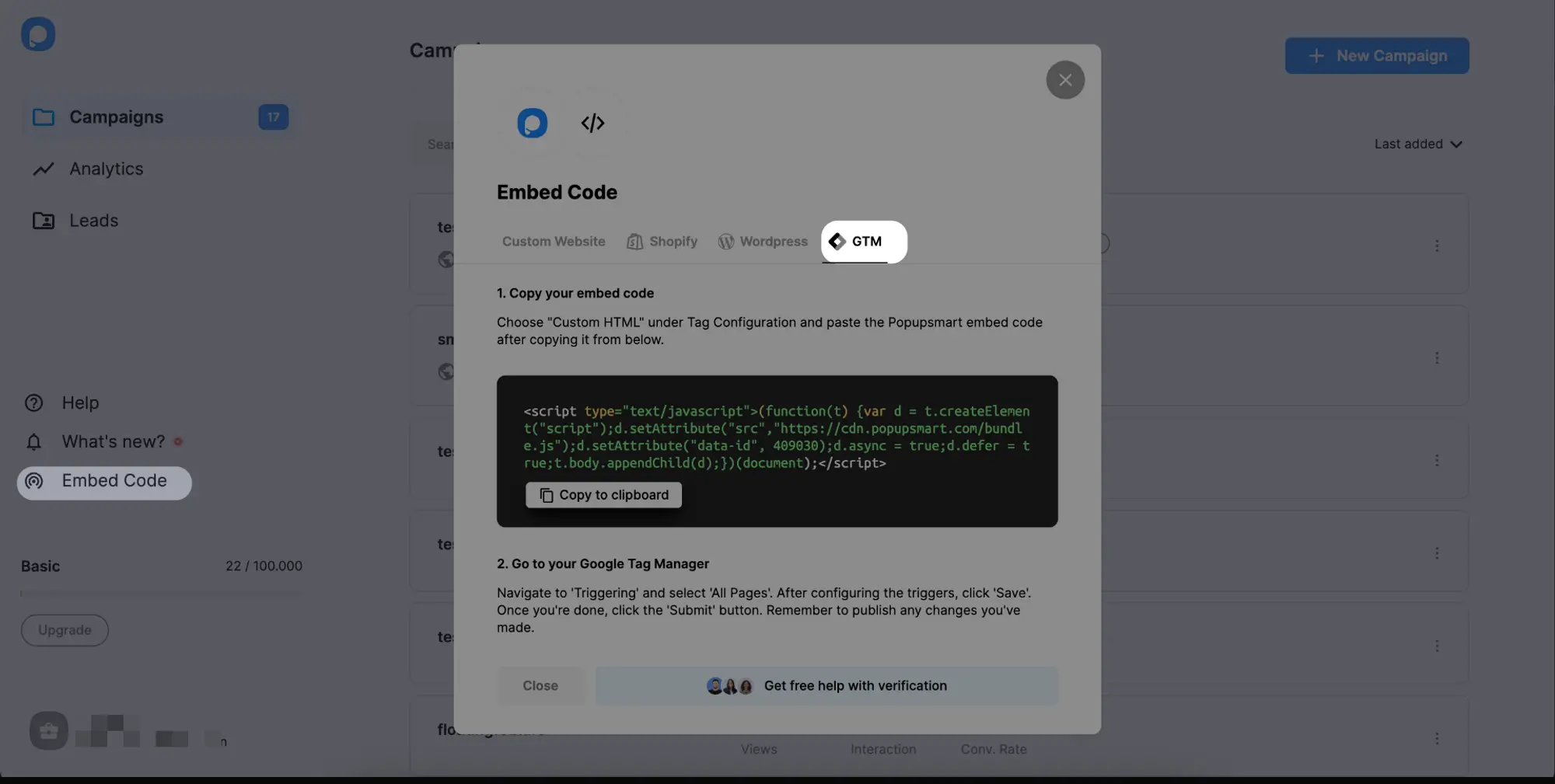
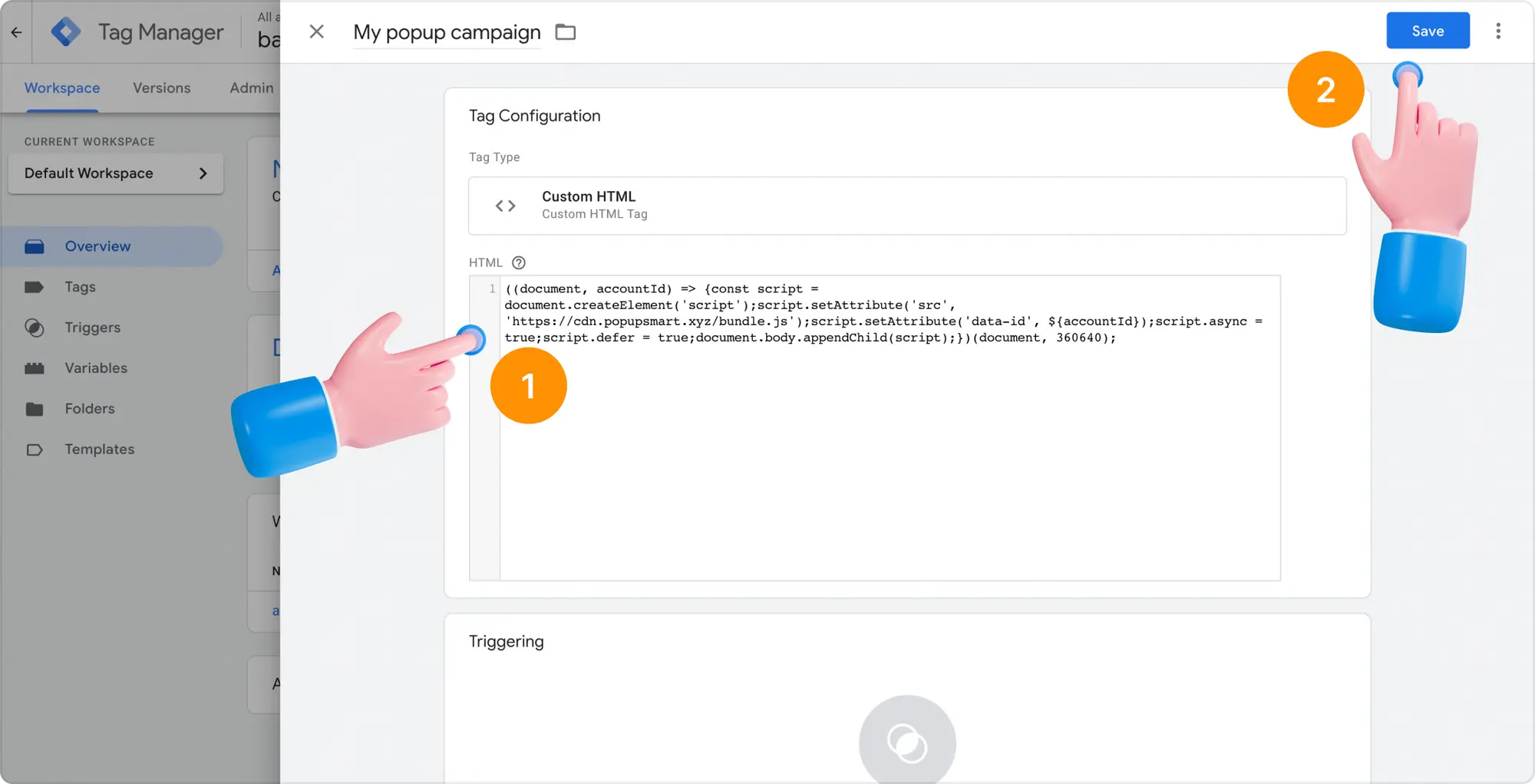
Log in to your Popupsmart account and click Embed Code in the left-hand menu. Open the GTM tab and click Copy to clipboard. The GTM code is a short script that adds Popupsmart's script to the page with async and defer; use it rather than the code on the Custom Website tab.
Step 2: Create a new tag
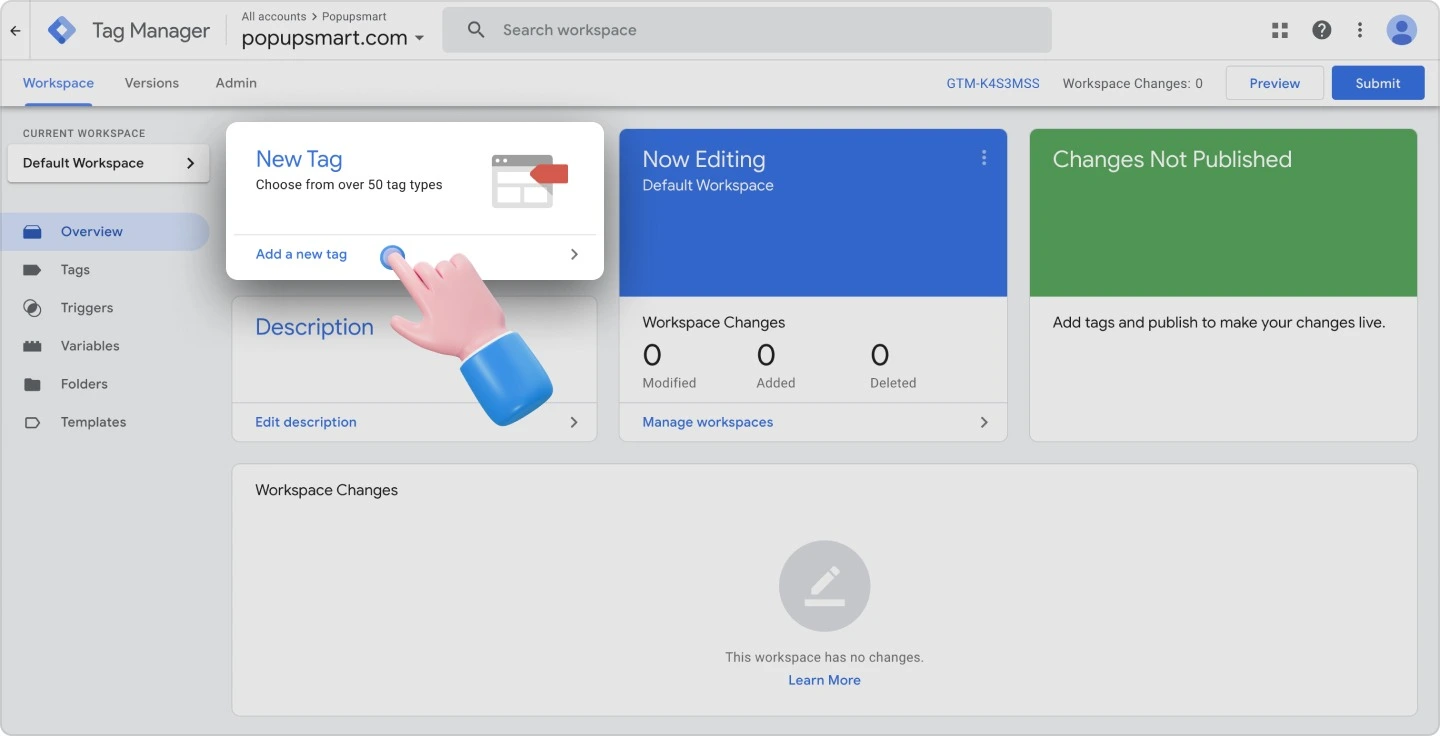
In another tab, open your Google Tag Manager workspace and click Add a new tag.
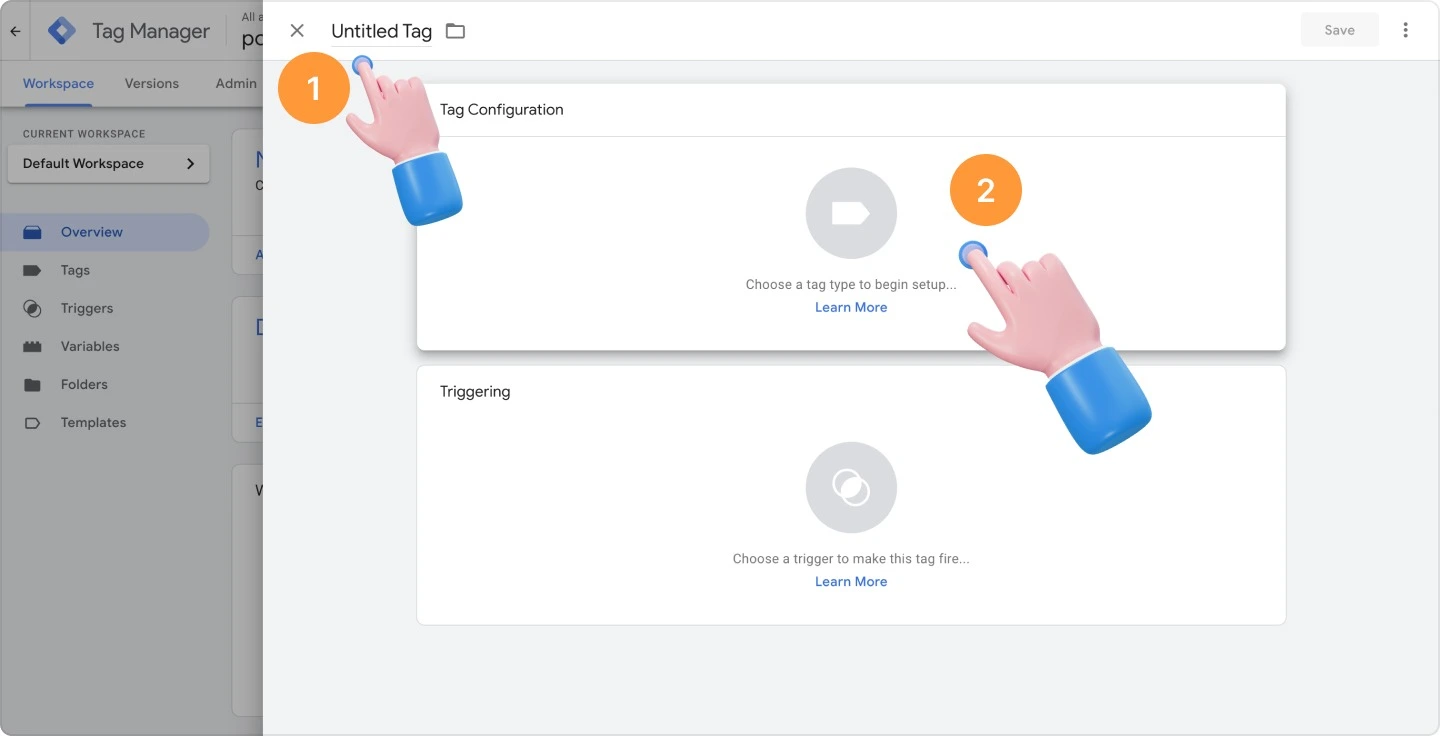
Replace Untitled Tag with a name you'll recognise, such as "Popupsmart", and click Tag Configuration.
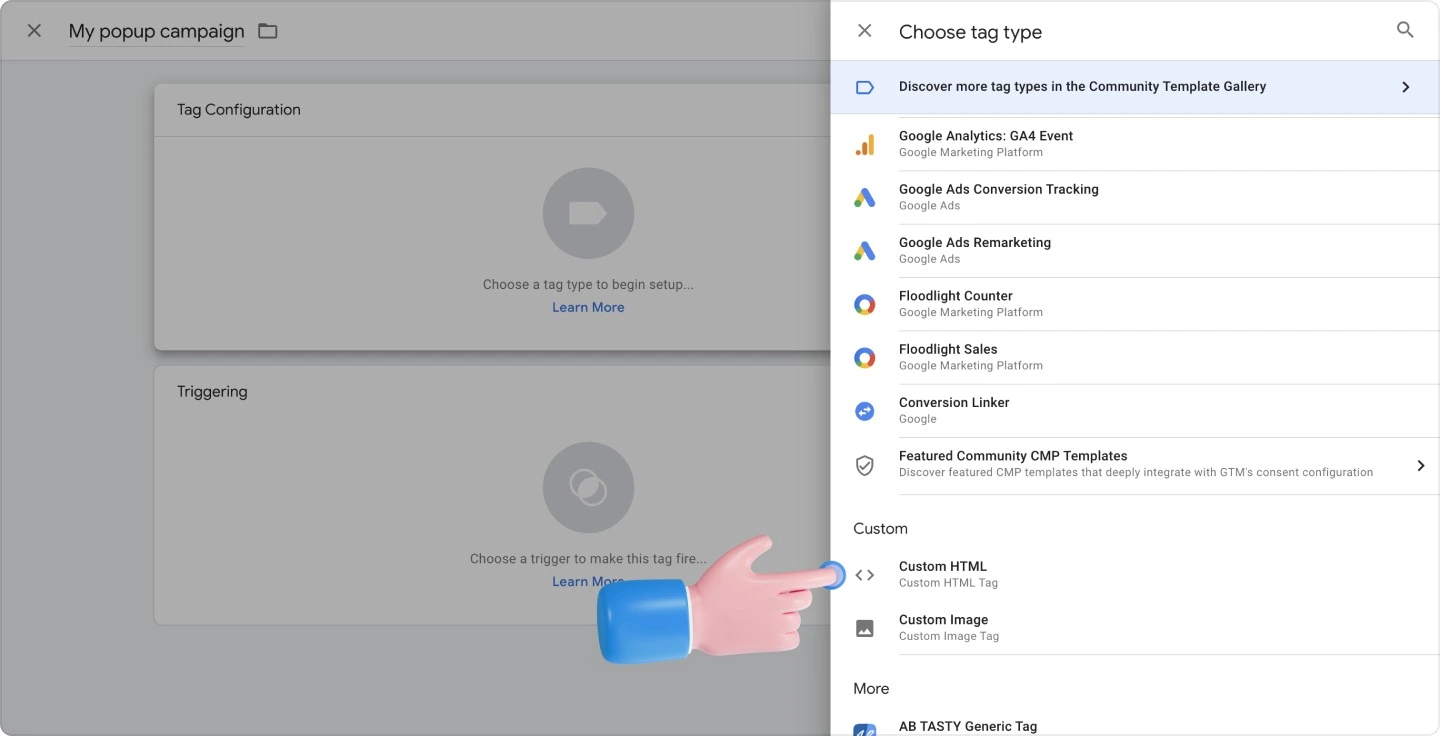
Step 3: Choose Custom HTML and paste the code
Choose Custom HTML as the tag type.
Paste the Popupsmart code into the empty HTML field.
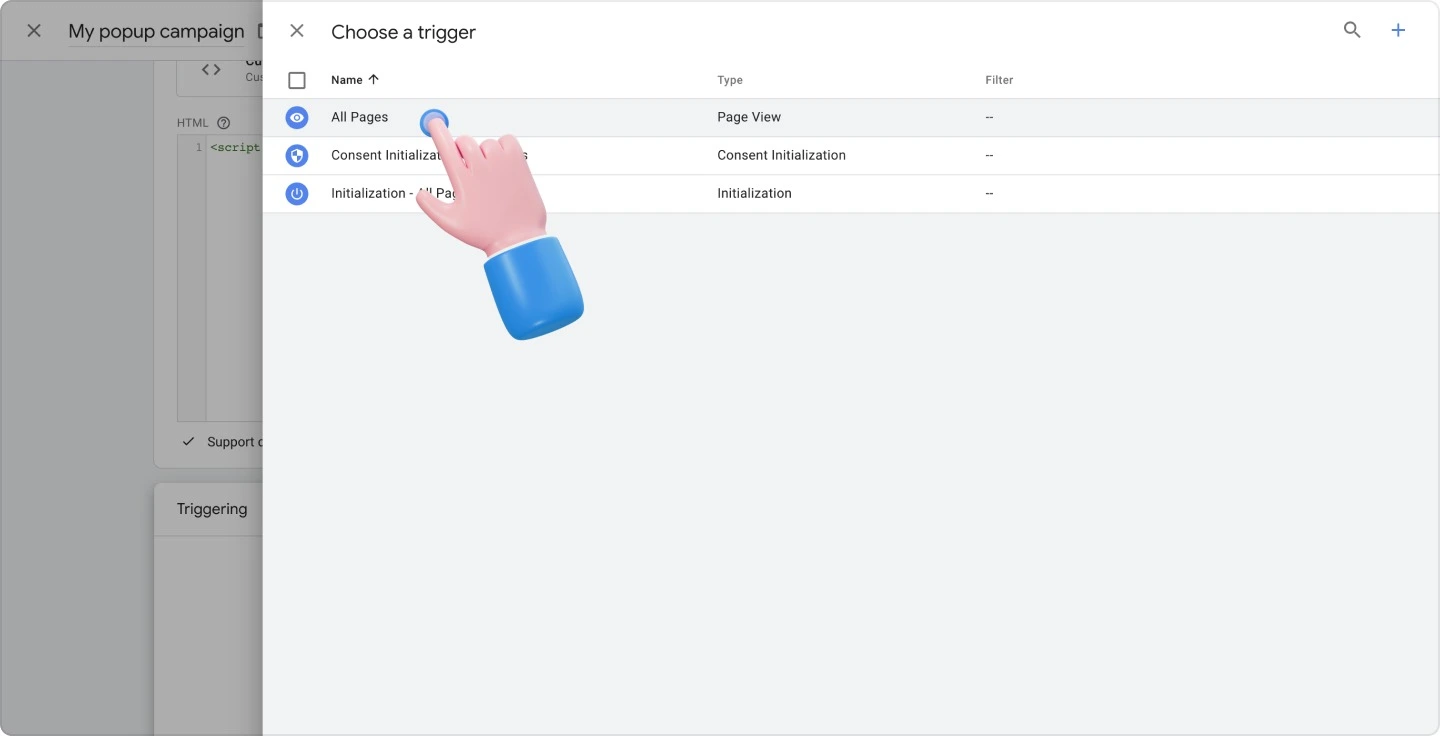
Step 4: Fire the tag on all pages
Scroll down, click Triggering and choose All Pages, then save the tag. All Pages loads Popupsmart everywhere, and you choose where each popup shows inside Popupsmart.
Step 5: Submit and publish the container
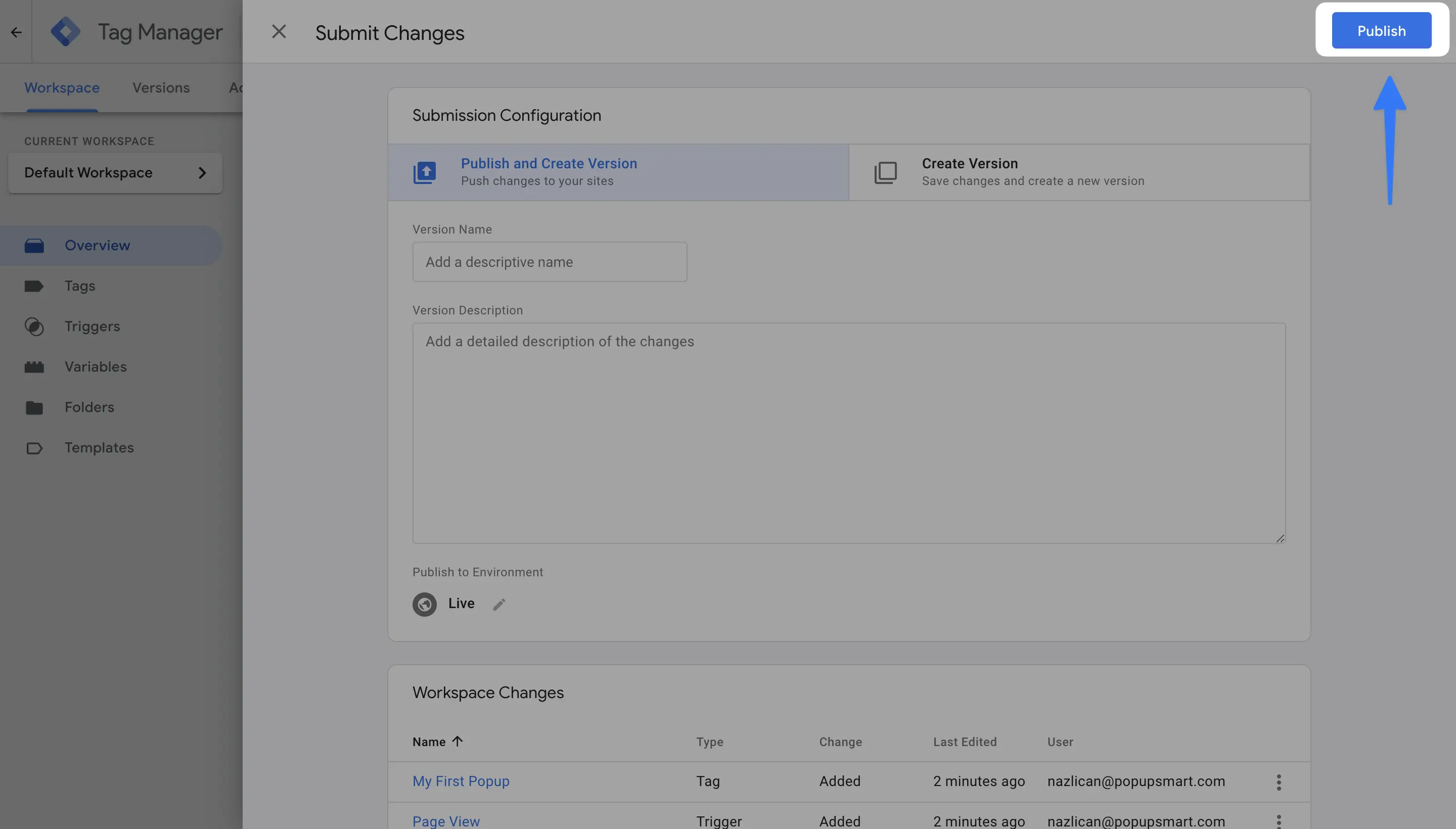
A saved tag doesn't run until you publish the container. Click Submit at the top right.
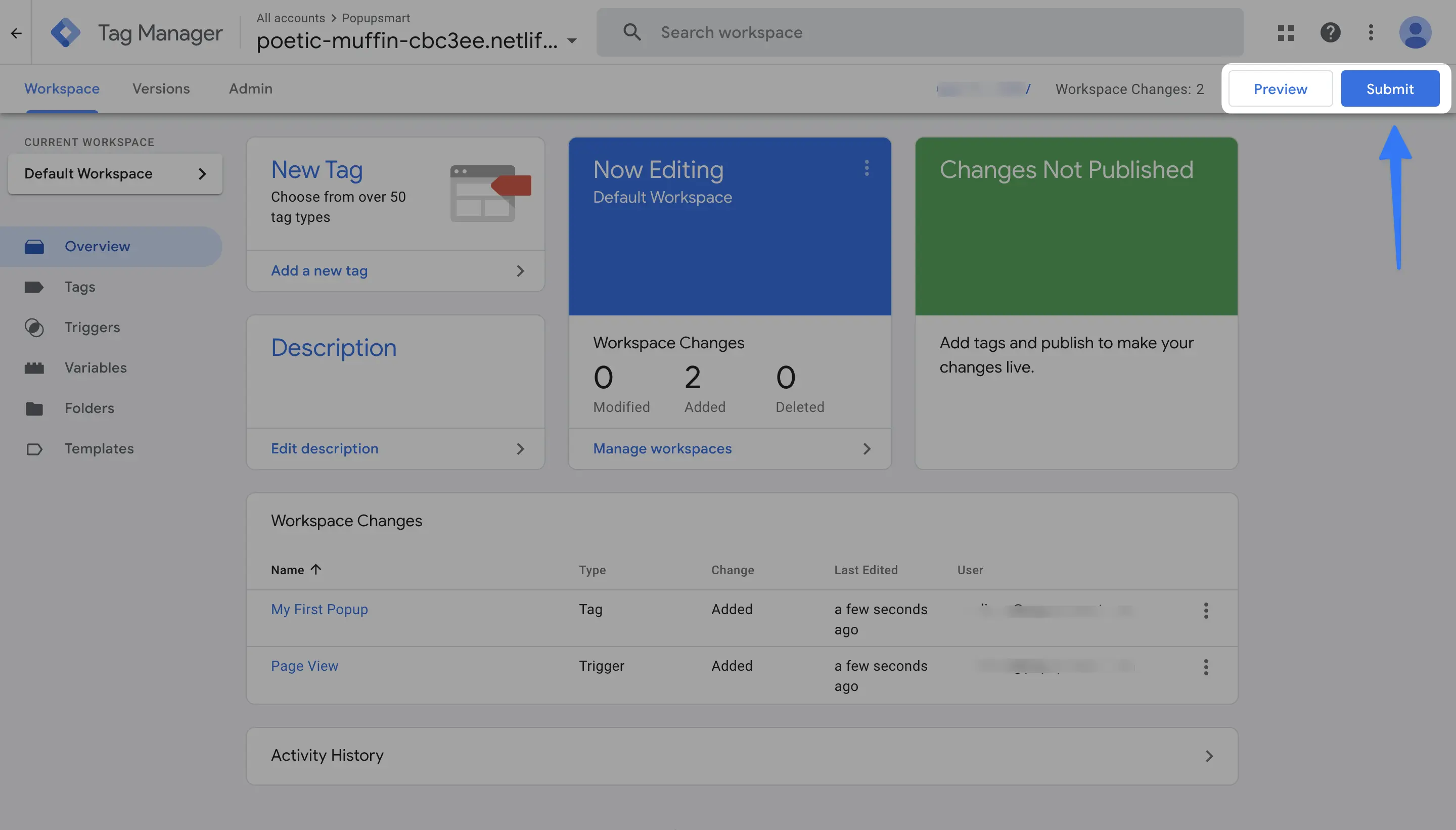
Give the version a name if you like, and click Publish.
Step 6: Add and verify your website
Back in Popupsmart, click your account at the bottom left, open Websites, click New Website, enter your site's address and click Save. If the site shows as Unverified, click Unverified, then Verify website, and refresh the dashboard. Turn off any ad blocker first: the help center notes that ad blockers interfere with verification through GTM. The guide to verifying your website covers the other cases.
Step 7: Create and publish your popup
Click New Campaign, choose your website and pick a template. Change its copy, colours and form fields, set who sees it and when, and click Publish. Then open your site in a private window; the popup appears when its trigger fires.
Does Google Tag Manager have a built-in popup?
No. Google Tag Manager is a tag manager, not a popup builder: according to Google's help page on custom tags, a Custom HTML tag holds code provided by a tag vendor or your own HTML and JavaScript. A Google Tag Manager popup is therefore either one someone hand-codes into a tag, or a popup tool's code that the tag loads, as in this guide.
| A popup hand-coded in a Custom HTML tag | Popupsmart | |
|---|---|---|
| What you build | Your own HTML and JavaScript, pasted into the tag's HTML field | A popup from a template, edited in a visual editor |
| When it shows | The tag's trigger, such as All Pages or Some Page Views, plus any timing your code adds | Exit intent, scroll depth or time on page, with URL and device rules |
| Where the leads go | Wherever your code sends them | The help center lists 19 destinations, including HubSpot, Mailchimp and Klaviyo |
| Tracking in GA4 | Tags you build yourself, for example on an Element Visibility trigger | Display, close and interaction events from Popupsmart's GA4 integration |
| A/B testing | Only what you code | From the Advanced plan |
| Making a change | Edit the tag, then submit and publish a new container version | Edit and republish the campaign; the GTM tag stays as it is |
| Price | Google Tag Manager is free | Free plan: one website, one live popup, 5,000 pageviews a month; paid plans from $39 a month |
A hand-coded tag is enough when a developer owns the container and the popup is one fixed message, such as a cookie notice or a maintenance banner. Popupsmart earns its install when marketers change offers, pages and triggers without a developer or a new container version, or when the leads have to reach an email tool.
How do you track popups with Google Tag Manager?
Popupsmart tracks its own popups in Google Analytics 4: the GA4 event integration sends popupsmart_display, popupsmart_close and popupsmart_interaction, so you don't have to find the popup's code and build a trigger for it. The help center's guide to setting up event integration in Google Analytics 4 covers both setups, and both need Google Analytics already installed on your site.
- GA4 installed on the site directly. After you design the popup, open Settings, switch on Integrate with Google Analytics and publish the campaign.
- GA4 installed through Google Tag Manager. Download the container file linked in the help center guide. In Google Tag Manager, open Admin, then Import Container, choose your Existing workspace and Merge, and leave Overwrite conflicting tags, triggers, and variables selected. Then Submit and Publish.
The events show up under Realtime in GA4 and, over time, under Reports → Lifecycle → Engagement → Events. If you'd rather build tracking by hand, Google's Element Visibility trigger fires when a chosen element becomes visible on screen; the integration saves you from maintaining that selector.
When GA4 goes through Google Tag Manager, what I check first is the variable named GA4 Tracking ID in the imported container: the help center says it has to hold the same measurement ID as your GA4 data stream. If the two differ, the events won't reach the property you're looking at.
How do you show a popup only on some pages with Google Tag Manager?
Keep the tag on All Pages and choose the pages in Popupsmart. Which pages show a popup is a targeting rule on each campaign, such as "the URL contains /blog" or "the visitor is about to leave", and you can change it without publishing a new container version.
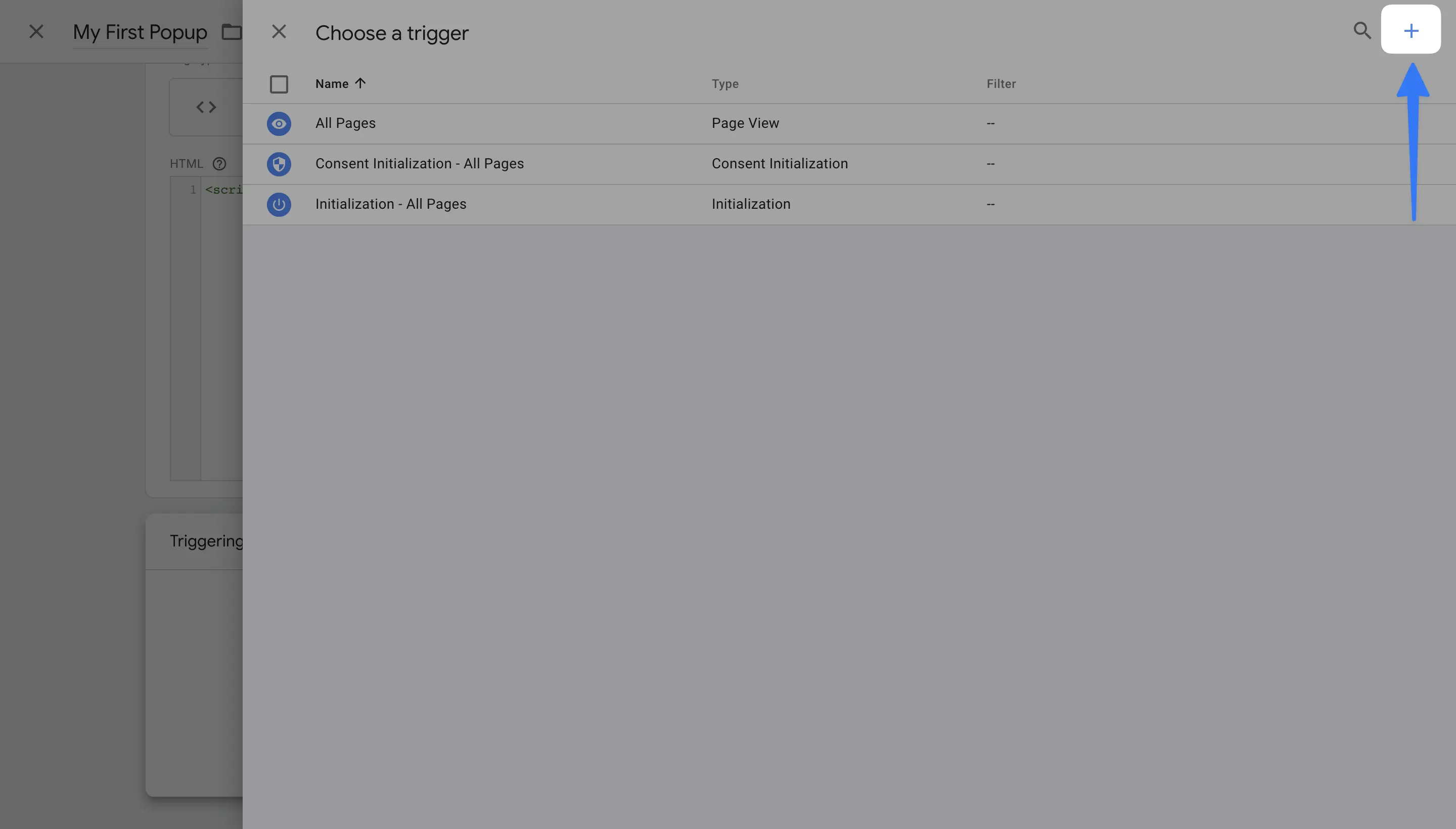
You can narrow the GTM trigger instead. After clicking Triggering, click the + icon at the top right.
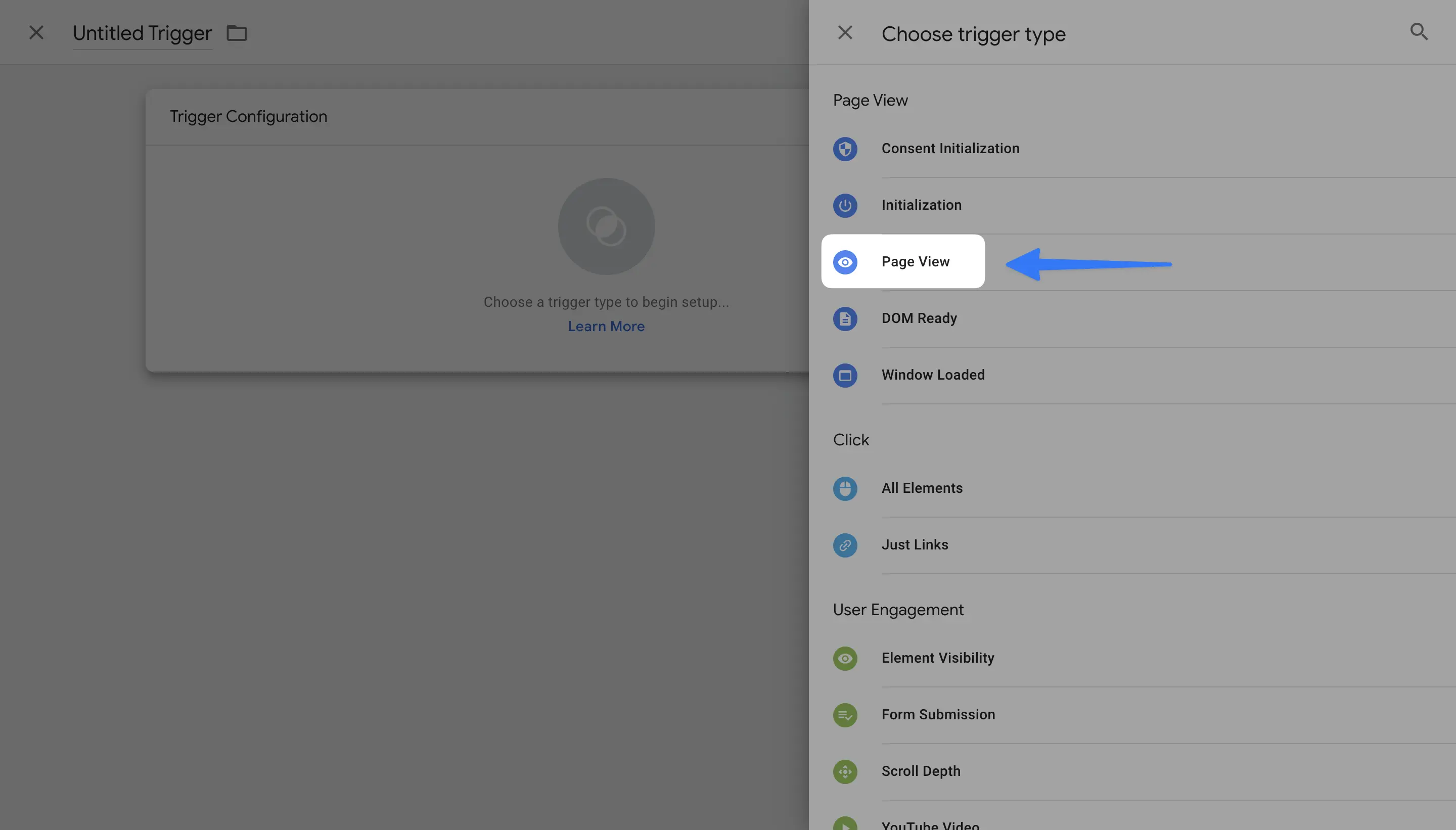
Under Trigger Configuration, choose Page View as the trigger type.
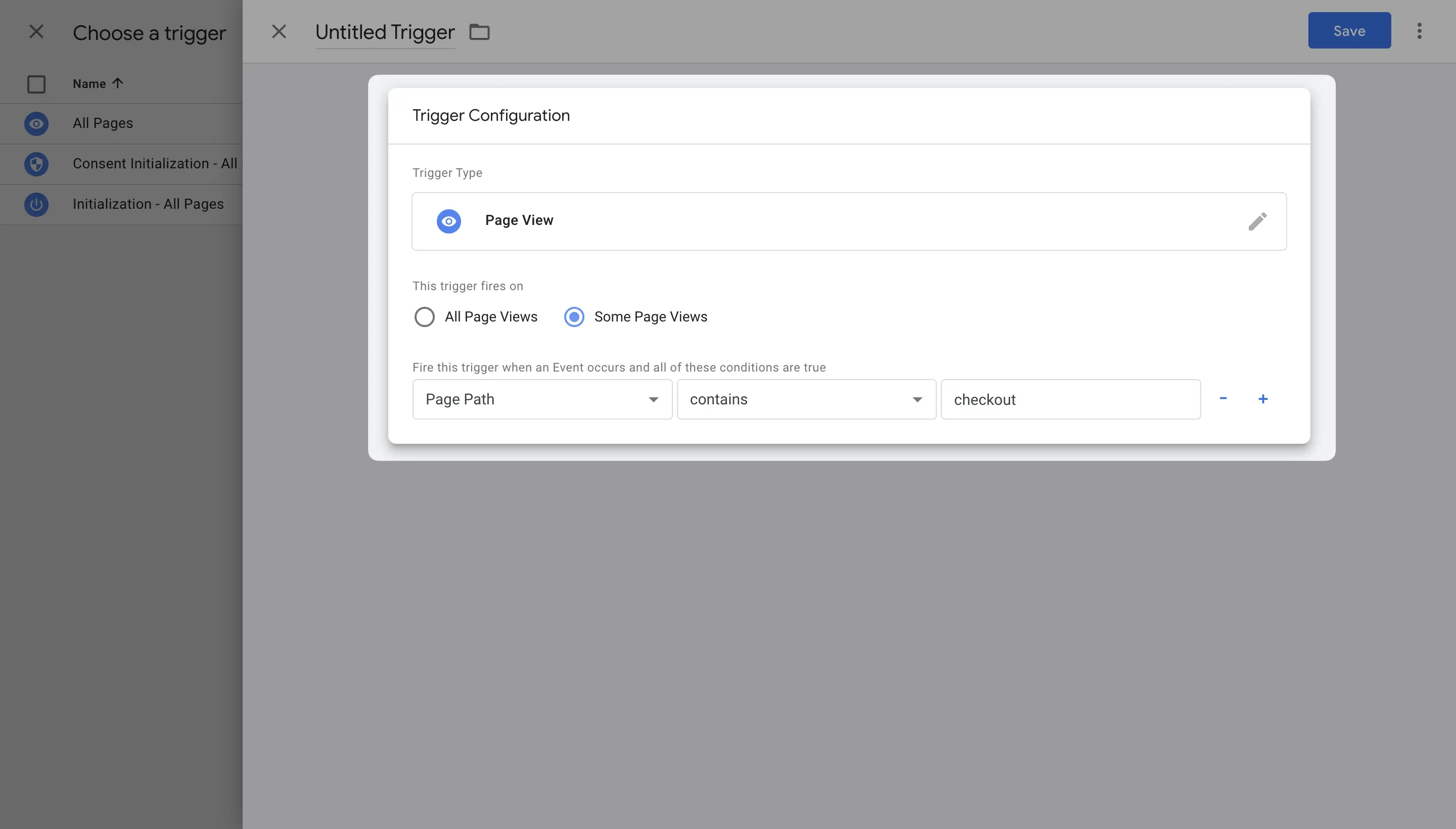
Choose Some Page Views, set the conditions, such as a Page URL rule, and click Save.
The help center explains the trade-off. With All Pages, Popupsmart counts pageviews across the whole site, whichever pages your popups use. With a narrower trigger, every page a campaign targets must be in the trigger, or the popup won't show there. My advice is to keep All Pages and do the page choice in Popupsmart, so moving a popup never needs a container release.
Pages are half of the rule; timing is the other half. In Popupsmart's 2026 benchmark, popups that wait before appearing convert 0.83% against 0.61% for popups shown the instant the page loads (median campaign), a lean rather than a proven gap, and exit intent shows no statistically reliable advantage. When a popup fires is worth deciding on purpose, so choose the trigger when you choose the pages.
Google Tag Manager or the embed code: which should you use?
Use Google Tag Manager if your team already manages tags there. The Popupsmart tag then sits with the rest, and marketers can add or pause it without a site release. The direct embed code doesn't depend on Google Tag Manager loading, and some platforms have a simpler route of their own: the Shopify popup guide covers the Popupsmart Shopify app, and the WordPress popup guide covers the optional Popupsmart plugin. Whichever you choose, install Popupsmart once per site, so each page loads one copy of the script.
Popup ideas for a site with Google Tag Manager
A GTM install works on any kind of site, so start from the job the page has:
- Newsletter signups on blog and content pages: the email popup guide.
- Webinar or event registrations: B2B lead generation popups.
- A last offer for visitors about to leave: exit-intent popup examples.
- Calls from mobile visitors: popups that increase phone calls.
Send your popup leads to your email tool
Popupsmart can send every email address a popup collects to the tool you already use, so the leads don't sit in Popupsmart. You connect it in the campaign's Integration section. The HubSpot popup guide and the Mailchimp popup guide walk through a connection; the help center lists 19 destinations, and a webhook, Zapier or Make covers a tool that isn't one of them.
Does a popup added with Google Tag Manager slow down a site?
A Popupsmart popup added through Google Tag Manager doesn't hold up your pages: the GTM code adds Popupsmart's script with async and defer, so the browser finishes building your page before it fetches Popupsmart. The popups themselves are built and stored in Popupsmart, not in your container.
Popup not showing with Google Tag Manager? Check these
- The container isn't published. A saved tag stays in the workspace until you click Submit and Publish.
- The tag doesn't fire on that page. Use Google Tag Manager's Preview mode to see whether the Popupsmart tag fires, and check that a Some Page Views trigger includes the page.
- The GTM container isn't on that page. Templates or sections without the container code can't run the tag.
- An ad blocker stops GTM. Turn it off when you verify and test.
- The code is installed twice. Keep the GTM tag, or the embed code, app or plugin, not both.
- The website isn't verified, or the address doesn't match. A campaign runs only on a verified website, and
www.example.comandexample.comare different sites to a browser.
Still stuck? Contact Popupsmart support with your site's address and the campaign name.
Google Tag Manager popup FAQ
Is there a free way to add a popup with Google Tag Manager?
Yes. Google Tag Manager is free, and Popupsmart's free plan is permanent, not a trial: one website, one live popup and 5,000 pageviews a month, with Popupsmart branding. Together they cover the install and your first popup.
The Popupsmart pricing page compares it with the paid plans.
Which embed code do I use in Google Tag Manager?
Use the code on the GTM tab of Popupsmart's Embed Code window. It is a short script made for a Custom HTML tag that adds Popupsmart's script to the page, and it carries your own account ID.
Do I need coding skills to add Popupsmart with Google Tag Manager?
No. You copy the code from Popupsmart, paste it into a Custom HTML tag, choose a trigger and publish. The design, targeting and publishing of each popup happen in Popupsmart's visual editor.
Can I track Popupsmart popups in GA4 without Google Tag Manager?
Yes. Popupsmart's help center covers two setups. If GA4 is installed on your site directly, you switch on Integrate with Google Analytics in the campaign's Settings and publish; the container import is only for sites where GA4 runs through Google Tag Manager.
How long does it take to set up a popup with Google Tag Manager?
Among people who published a campaign in the 90 days to 16 September 2026, the median time from signup to the first published campaign was 32.5 minutes, and 287 of 332 published within a day, according to Popupsmart's own product data. The figure covers every install method, so treat it as a guide rather than a promise for a GTM install.
Is it safe to add Popupsmart through Google Tag Manager?
Yes. The tag loads the same Popupsmart script as the embed code, from Popupsmart's own CDN, and only people with publish access to your container can put a change to it live.