 ChatGPT
 Perplexity
 Claude
 Grok
Grok Google AI Mode
One such solution is offered by Shopify!
With new abandoned cart automation, a built-in feature of Shopify, you can reconnect with your customers and bring them back.
So, let's create an email together, see how you can edit it, and reinforce it with examples!
What are Shopify Cart Abandoned Emails?
Cart abandonment in Shopify is when potential customers add items to their cart but leave without purchasing.
Whether from casual browsing, high costs, or a complex checkout, these represent missed sales opportunities.
That's where the Shopify cart abandonment email feature comes in.
You can recover lost sales by setting up an abandoned cart recovery feature in Shopify and customizing it based on your relationship with your customer.
Note: Shopify's help center (checked October 2026) lists abandoned checkout recovery for two sales channels only: the Online Store and the Buy Button. The old Plus Wholesale Channel is no longer on that list.
Why Send Abandoned Cart Emails in Shopify?
Sending abandoned cart emails directly from within Shopify has several advantages that can be attractive for your ecommerce strategy:
Data Synchronization: Ensures customer data and cart information are synchronized and up-to-date.
Consistency in Branding: Sending emails from Shopify allows you to maintain consistent branding across all customer touchpoints.
Tracking and Analytics: Shopify's analytics tools can track the performance of your abandoned cart emails, giving you insights into open rates, click-through rates, and conversion rates.
Cost Effectiveness: Small businesses on a tight budget benefit from Shopify's built-in abandoned cart recovery feature, eliminating the need for additional paid email marketing services.
Encourage Action with Limited Offers: In Shopify, you can add limited-time offers to your abandonment emails. And here's a good reason to do so: A statistic reveals that 63% of people open an email specifically to find a discount.
Direct Cart Links: Shopify's abandoned cart emails include direct cart links that take customers back to their cart with preloaded information, streamlining the path to purchase.
What is a Shopify abandoned checkout?
A Shopify abandoned checkout is a checkout that a shopper started, typed their email address into, and then left without paying. Shopify counts it as abandoned once it has stayed incomplete for more than ten minutes after the shopper gave that email (Shopify help center, checked October 2026).
That email address is what separates an abandoned checkout from an abandoned cart. A shopper who adds products and never opens checkout usually leaves no way to contact them. A shopper who abandons checkout has handed you an address, and Shopify's recovery email goes there with a link back to the checkout they left.
Where to find abandoned checkouts in Shopify admin
In your Shopify admin, go to Orders > Abandoned checkouts. Each row is one checkout, and two columns show where it stands. Email status tells you whether a recovery email went out. Recovery status says recovered once the shopper places the order.
Shopify's help center adds a few rules about this list:
- Checkouts older than three months are deleted from the admin automatically.
- No recovery email goes out if the shopper hit a payment processing error.
- Abandoned checkouts are turned off by default for Shopify B2B.
How to send the abandoned checkout email manually or automatically
Manually. Open Orders > Abandoned checkouts, click the checkout number, then click the customer's email under the customer information. Your own email app opens with the checkout link already in the message. It's worth the time for a handful of large orders you'd rather follow up personally.
Automatically. Shopify documents the automatic email inside its Shopify Messaging app, the app formerly called Shopify Email:
-
Go to Apps > Messaging and click Automations.
-
On Abandoned checkout emails by Shopify, click the menu icon, then Edit settings.
-
Select Send abandoned checkout emails automatically.
-
Under Send to, choose which shoppers get the email.
-
Under Send after, choose how long Shopify waits after the checkout is abandoned. This is the timing setting.
-
Click Save. To change the wording, click Customize email, which opens the Abandoned checkout notification template.
Shopify also offers a newer abandoned checkout automation, listed as Recover abandoned checkout under Create automation (the setup steps below). There, the wait is a step in a Shopify Flow workflow: click the automation, click Edit workflow, change the wait, then click Apply changes. Check two defaults. It sends only to customers subscribed to email marketing until you set the To: field to All customers, and a second abandoned checkout automation starts with a 10-hour wait. Switching to it is permanent. Shopify also says these emails don't count towards your Shopify Messaging email sends.
Why shoppers abandon checkout, and what to fix first
The email wins back some of these orders; a smoother checkout leaves fewer to chase. Baymard Institute's survey of US online shoppers (its list was last updated in September 2025) puts extra costs such as shipping, tax and fees at the top of the reasons people abandon during checkout. Slow delivery, not trusting the site with card details, being made to create an account, and a long or complicated checkout come next.
On Shopify, most of those come down to a few settings and pages:
- Show the full cost early. Put shipping rates or your free-shipping threshold on product and cart pages.
- Let people buy as guests. If your store makes shoppers sign in before checkout, make accounts optional.
- Turn on express checkout. Shopify's accelerated checkouts (Shop Pay, Apple Pay, Google Pay, PayPal and Amazon Pay) save payment and shipping details, and their buttons can sit on product pages so shoppers skip the cart.
- Make trust easy to see. Link your shipping and return policies where shoppers review their order.
- Test the checkout on a phone after every theme or app change. A checkout error loses orders no email brings back.
There's one shopper the email can't reach: the one who leaves before typing an address. An on-site popup is the way to catch them. Popupsmart's exit-intent trigger reads mouse movement on desktop and how fast a visitor scrolls up on mobile, and its Shopify segment can target visitors by cart total or by the products in their cart. So a shopper with a full cart can see a free-shipping reminder or an offer on the way out. For ideas, see 15 Cart Abandonment Popup Examples for 2026 and 13 Best Shopify Exit Intent Popup Apps.
How to Set Up Shopify Abandoned Cart Email
🌟 First, we'd like to remind you that "enabling the new abandoned checkout automation" is a permanent change in Shopify.
When you enable it, you can either automatically or manually send cart abandonment emails to your customers.
While Shopify store owners can contact customers individually when they abandon their carts, this can be quite time-consuming.
Despite the effort, choosing this personalized approach can add a personalized touch and increase customer engagement and loyalty.
Here are 2 ways of setting up abandoned cart emails in Shopify:
1. Setting Up New Abandoned Cart Email Automation in Shopify
In the following sections, we'll guide you through setting up this feature:
1. Start by logging into your Shopify admin area.
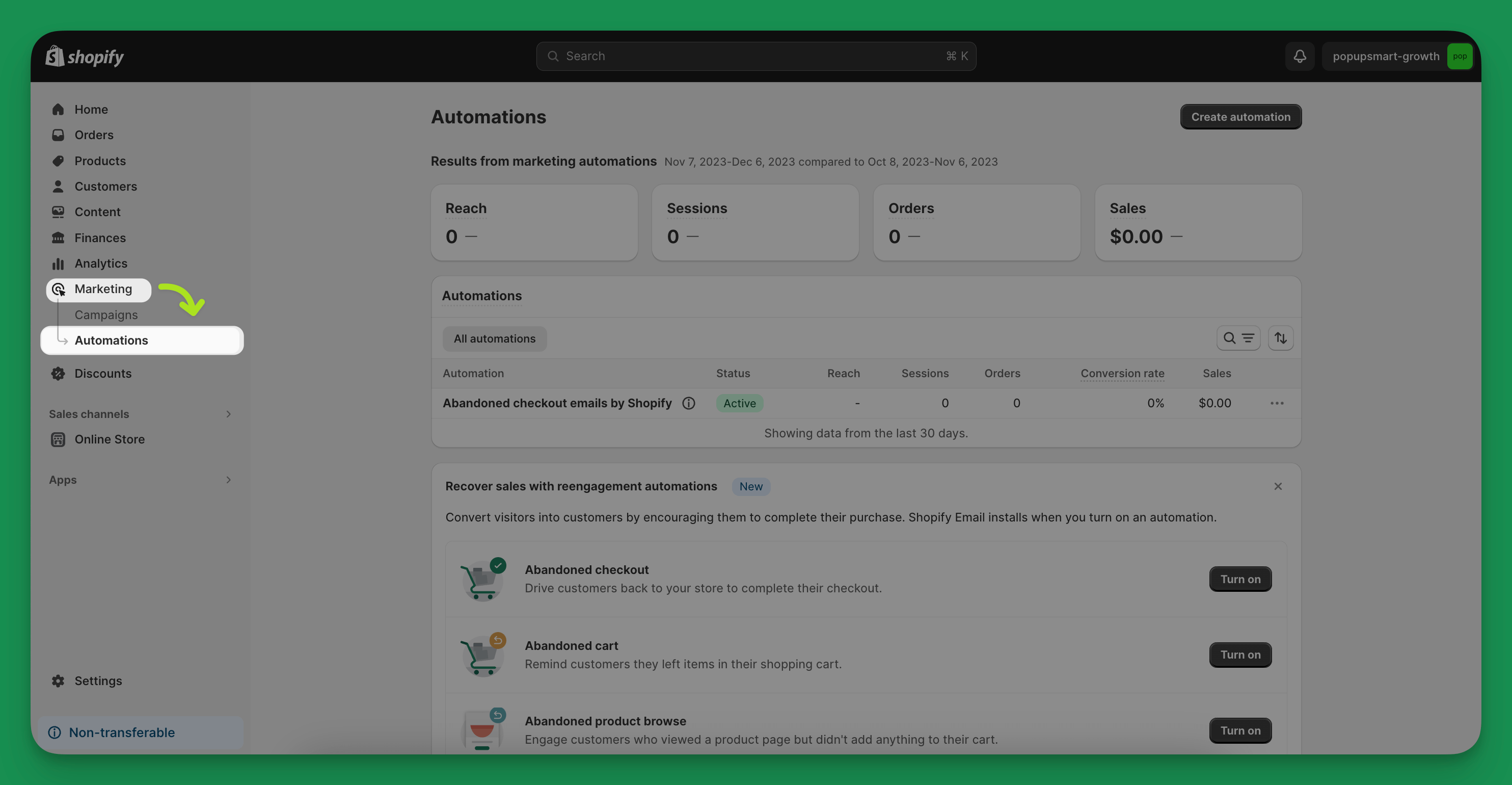
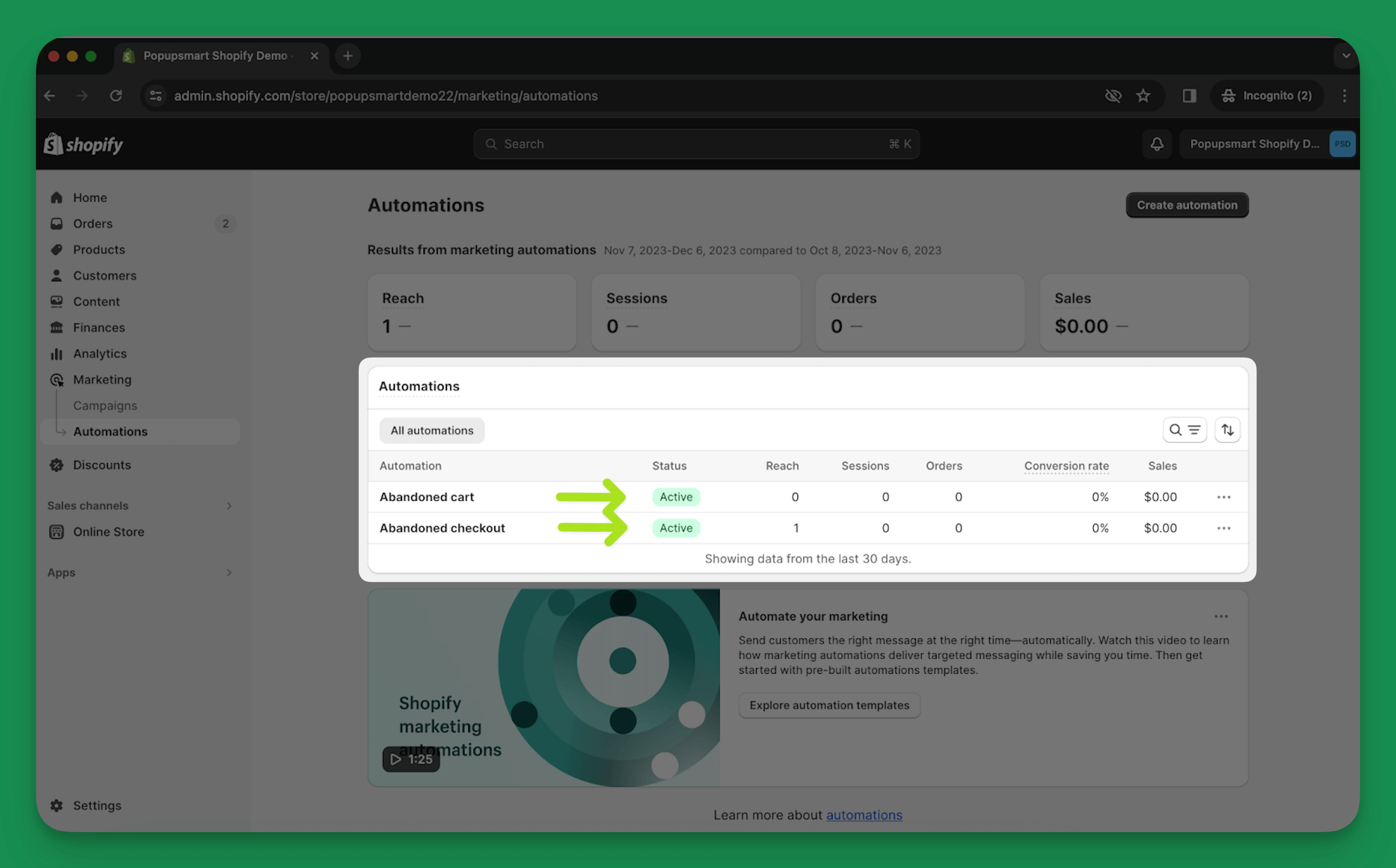
2. Once you're in, head to the ’Marketing’ section and click ’Automations.’ Shopify's help center (October 2026) now puts automations under Apps > Messaging > Automations; the screenshots here show the older Marketing menu.
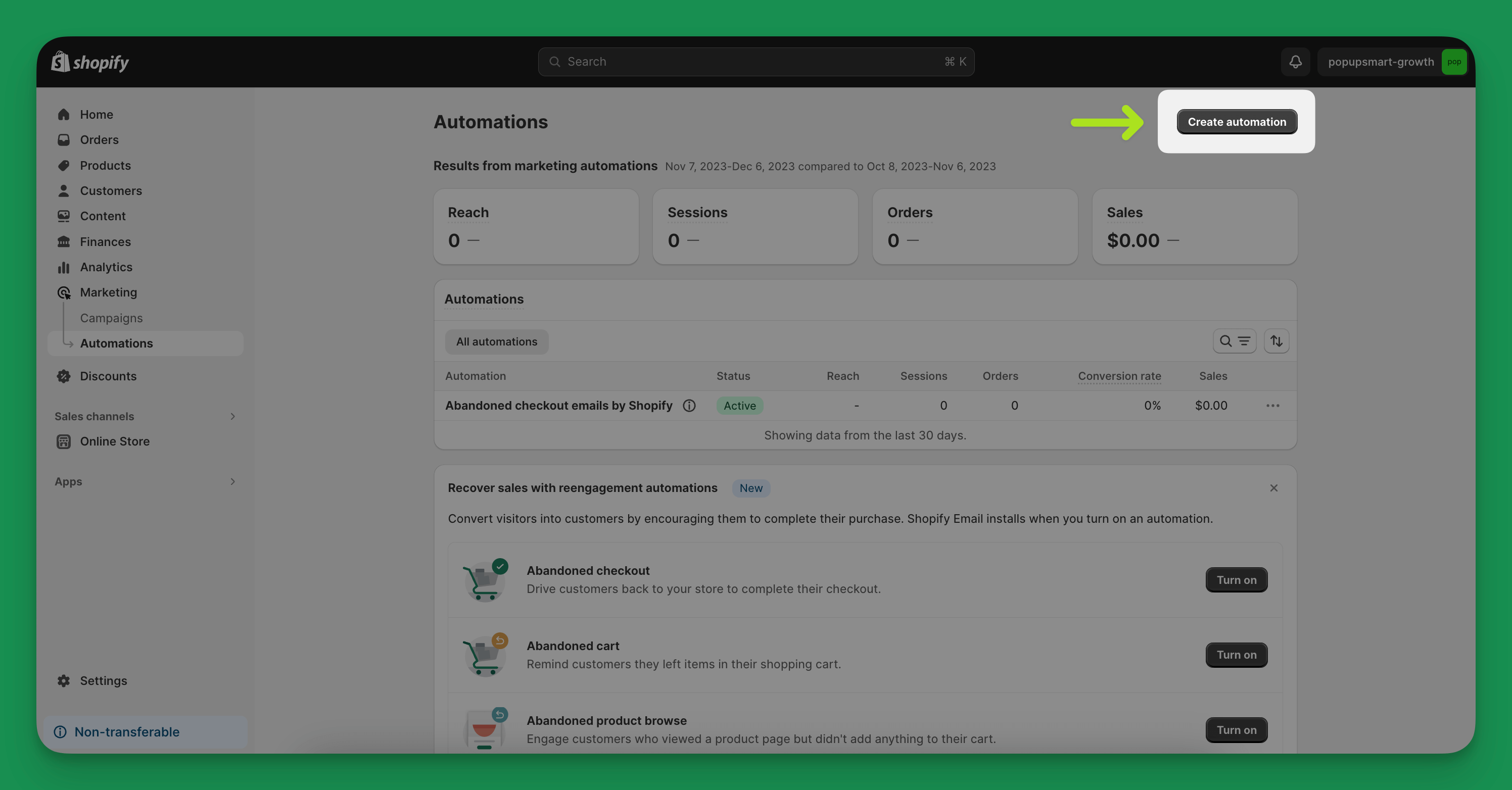
3. Here, you'll find an option to create a new automation. Click on ‘Create automation’ to get started.
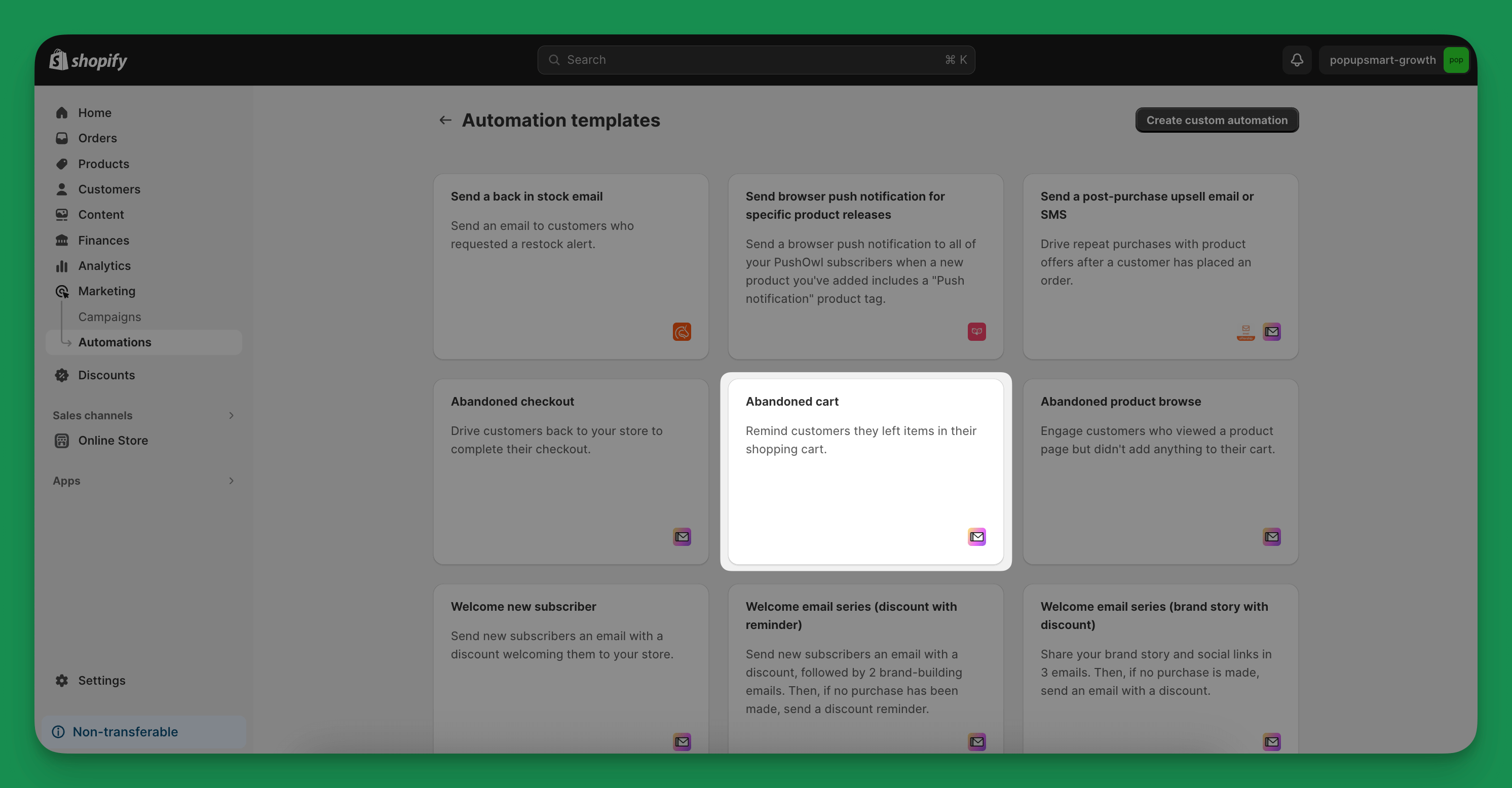
4. Shopify offers various templates for different purposes. For your needs, choose the ’Abandoned cart’ template. Shopify's current list names three: Recover abandoned checkout, Recover abandoned cart and Convert abandoned product browse. For shoppers who left at checkout, pick Recover abandoned checkout.
5. When you click on the desired template, a popup will appear showing the template workflow you selected.
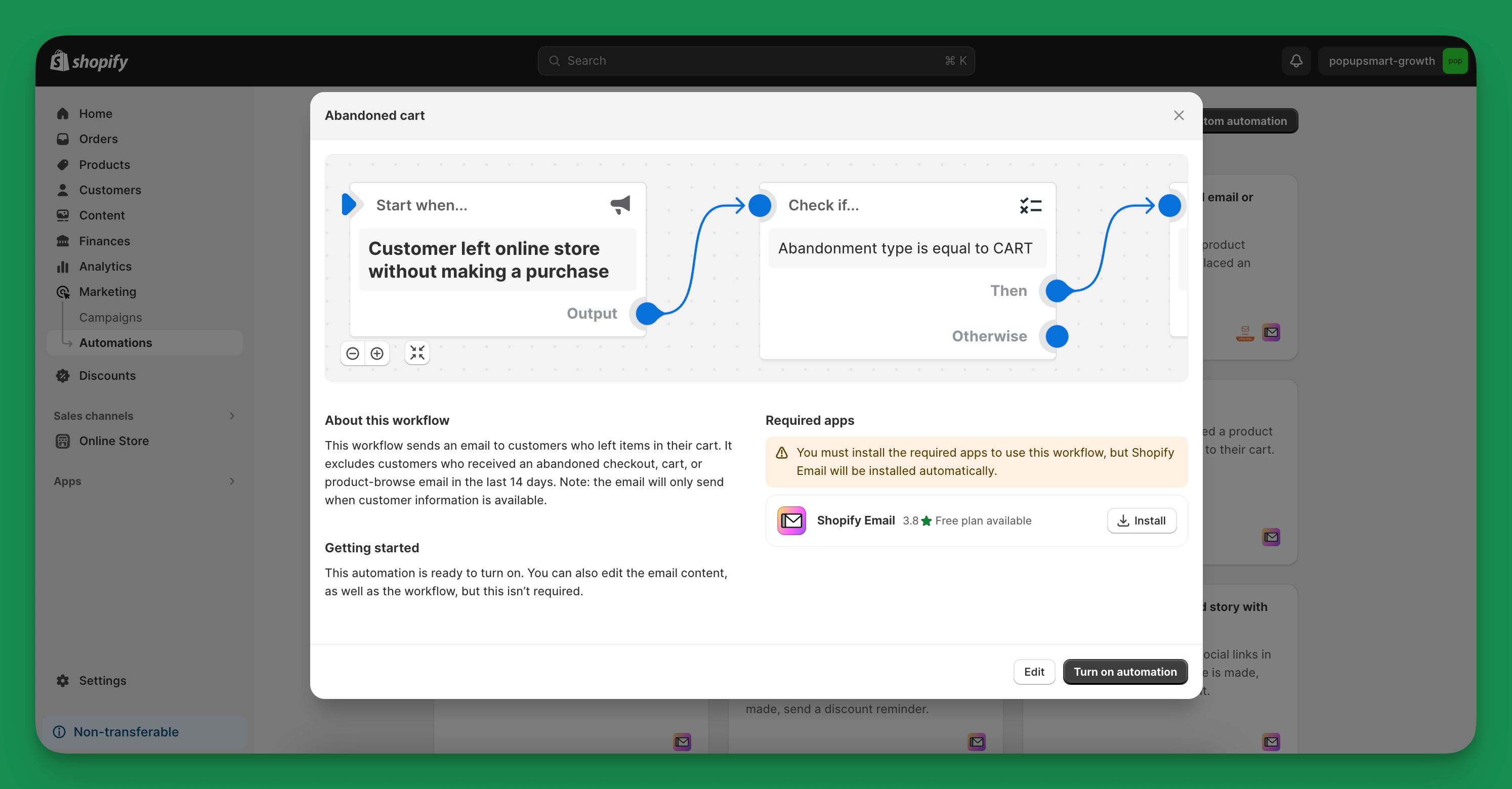
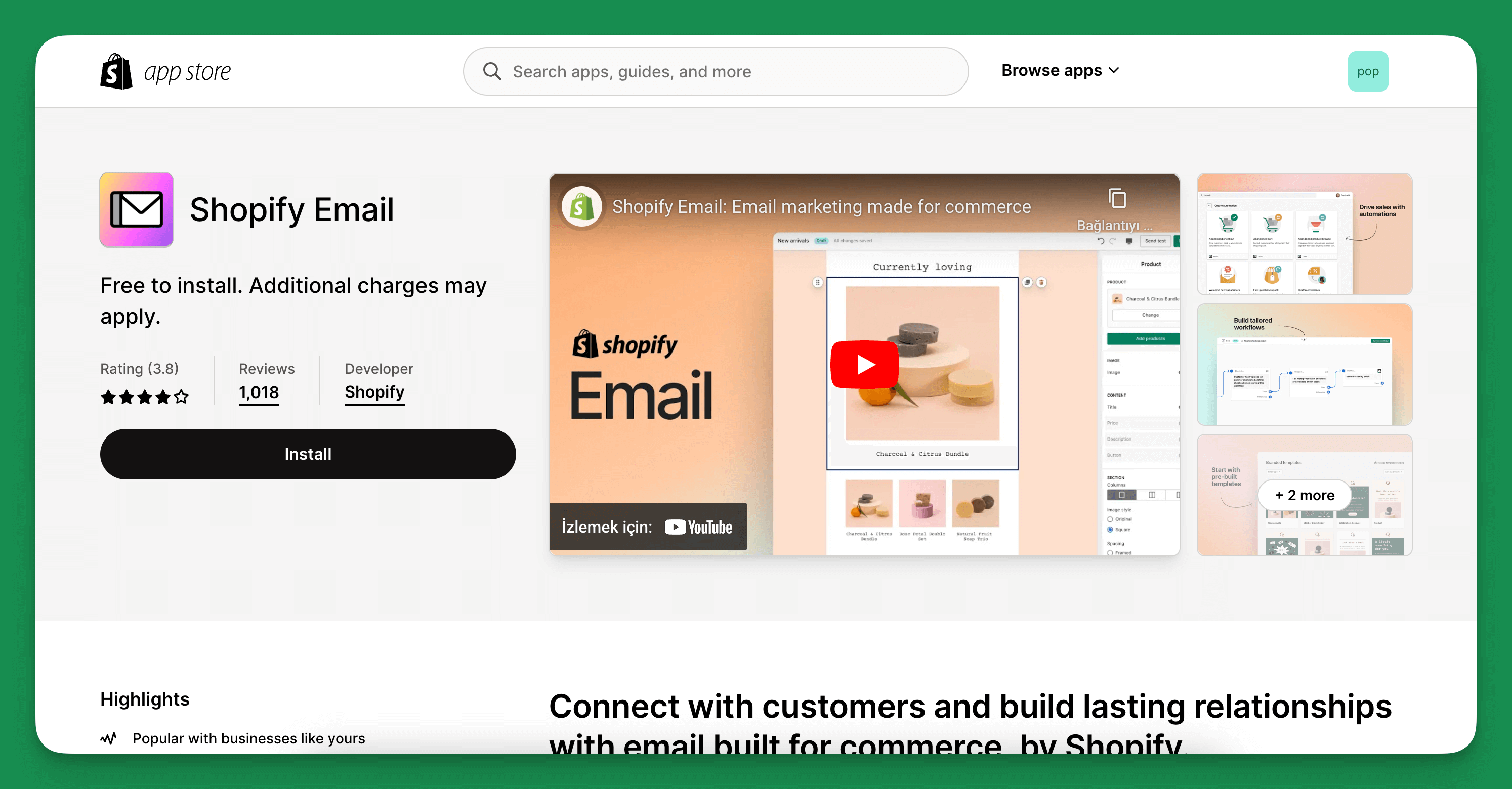
6. To turn automation on, you must install the Shopify Email App first. Shopify has since renamed it Shopify Messaging.
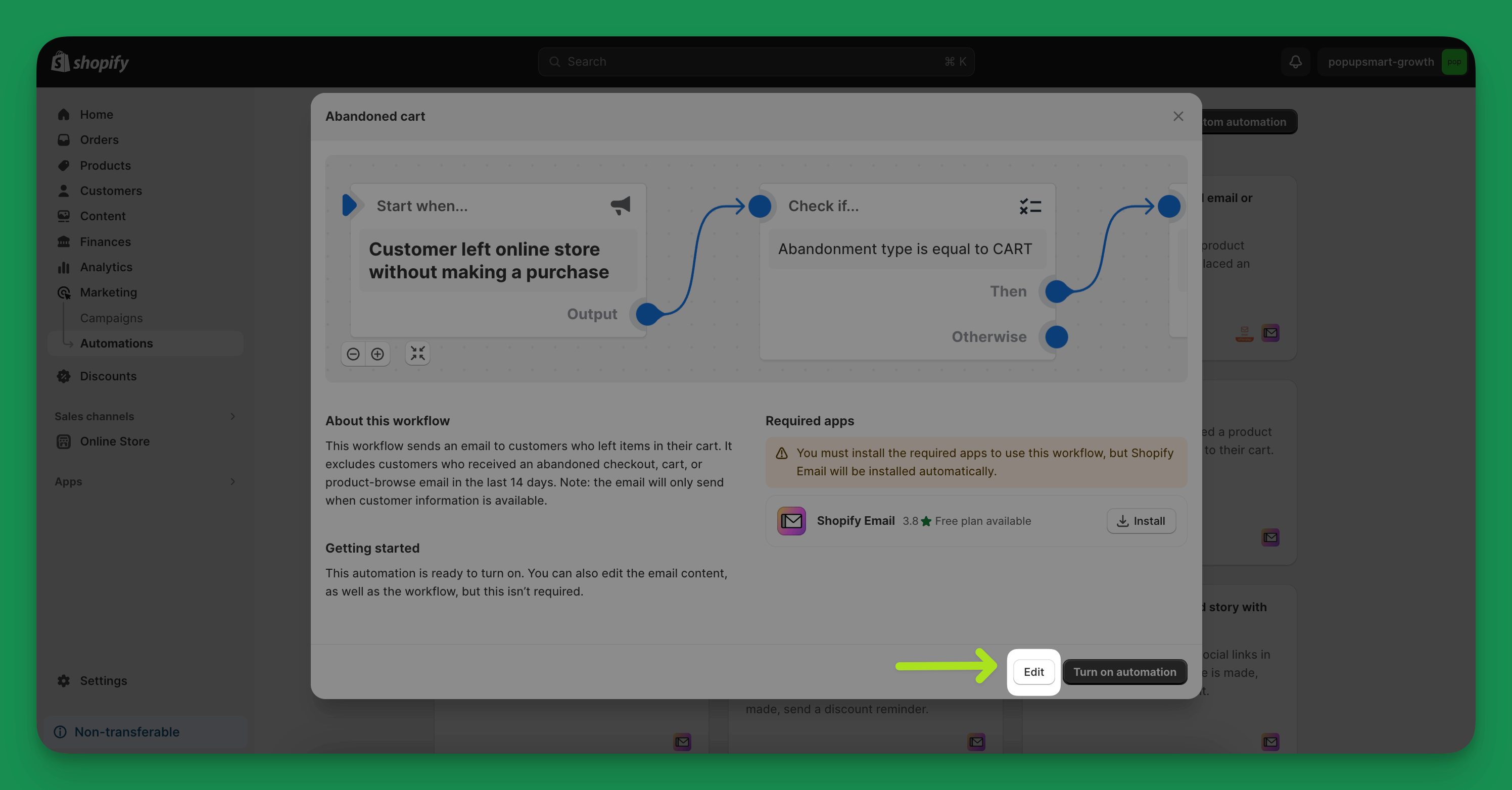
7. Want to make it uniquely yours? Click ’Edit’. This is your chance to change the email content and adjust the automation workflow to suit your business needs better.
Note: Can't wait to start editing? Hold on, just a quick scroll down this blog, and a thorough guide on editing awaits you. 🙂
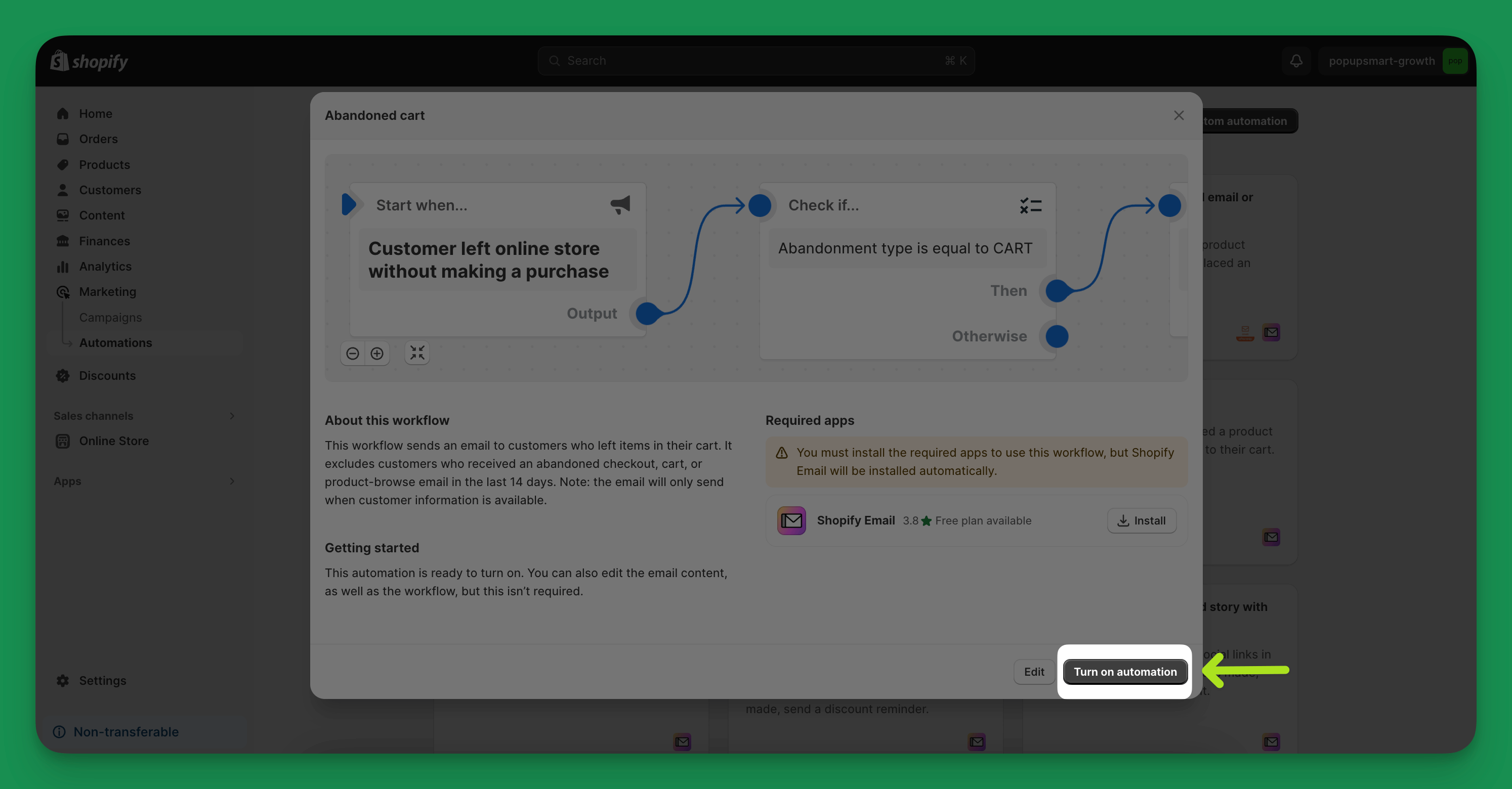
8. When you're happy with how everything looks, activate your automation by clicking ‘Turn on automation.’
9. A summary or confirmation page might appear. Go ahead and click ‘Continue’ to finalize everything.
2. Sending Manually Cart Abandonment Emails to Customers in Shopify
Shopify offers an effective way to track abandoned carts, allowing you to reach out to each customer with emails manually.
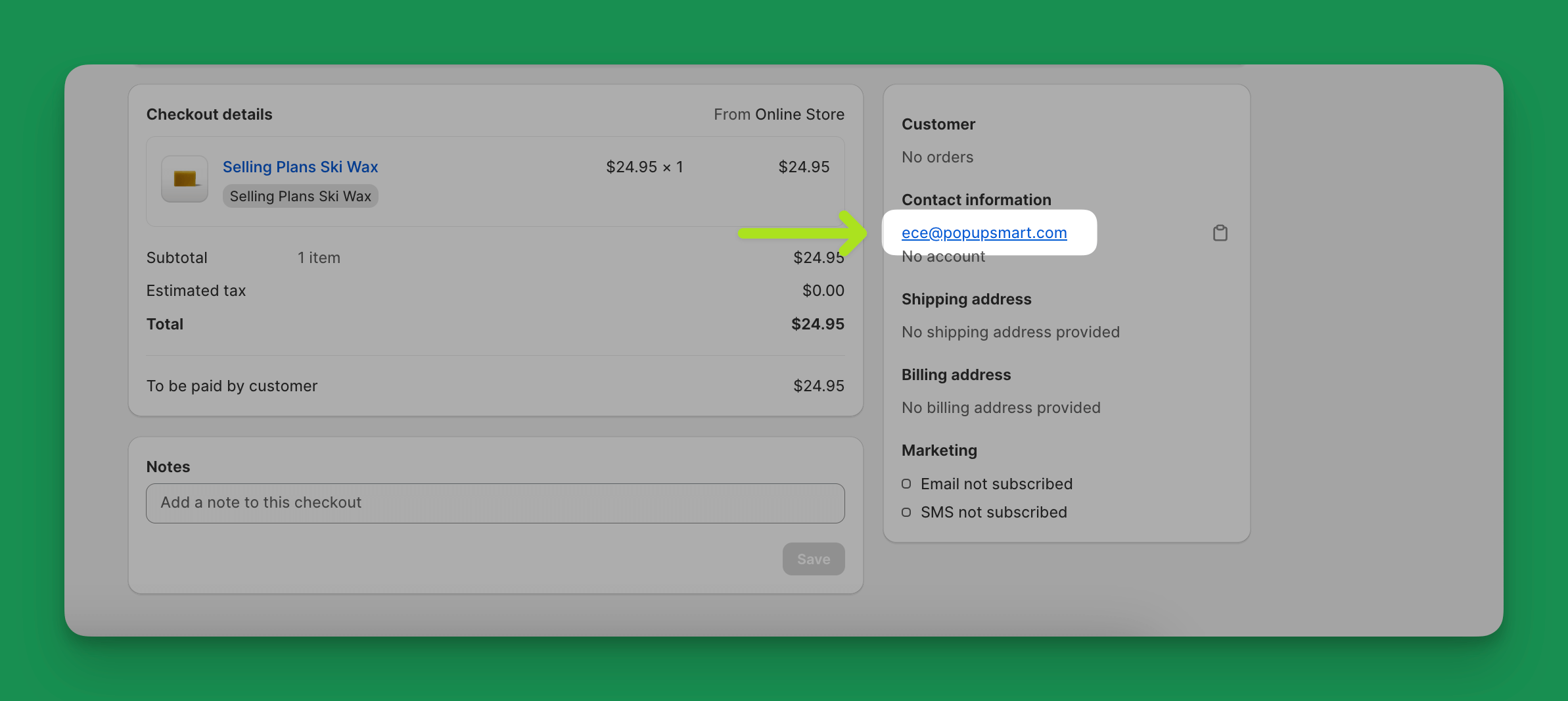
Note: You can view customers who abandoned their carts in Shopify from the "Abandoned Checkouts" tab. In Shopify's current help center, clicking the customer's email in step 3 opens your own email app with the checkout link filled in. Steps 4 to 8 show the in-admin email screens from an older admin.
Here's how you can do it on Shopify:
1. Go to your Shopify admin and click on 'Orders'. Then, choose 'Abandoned checkouts' from the list.
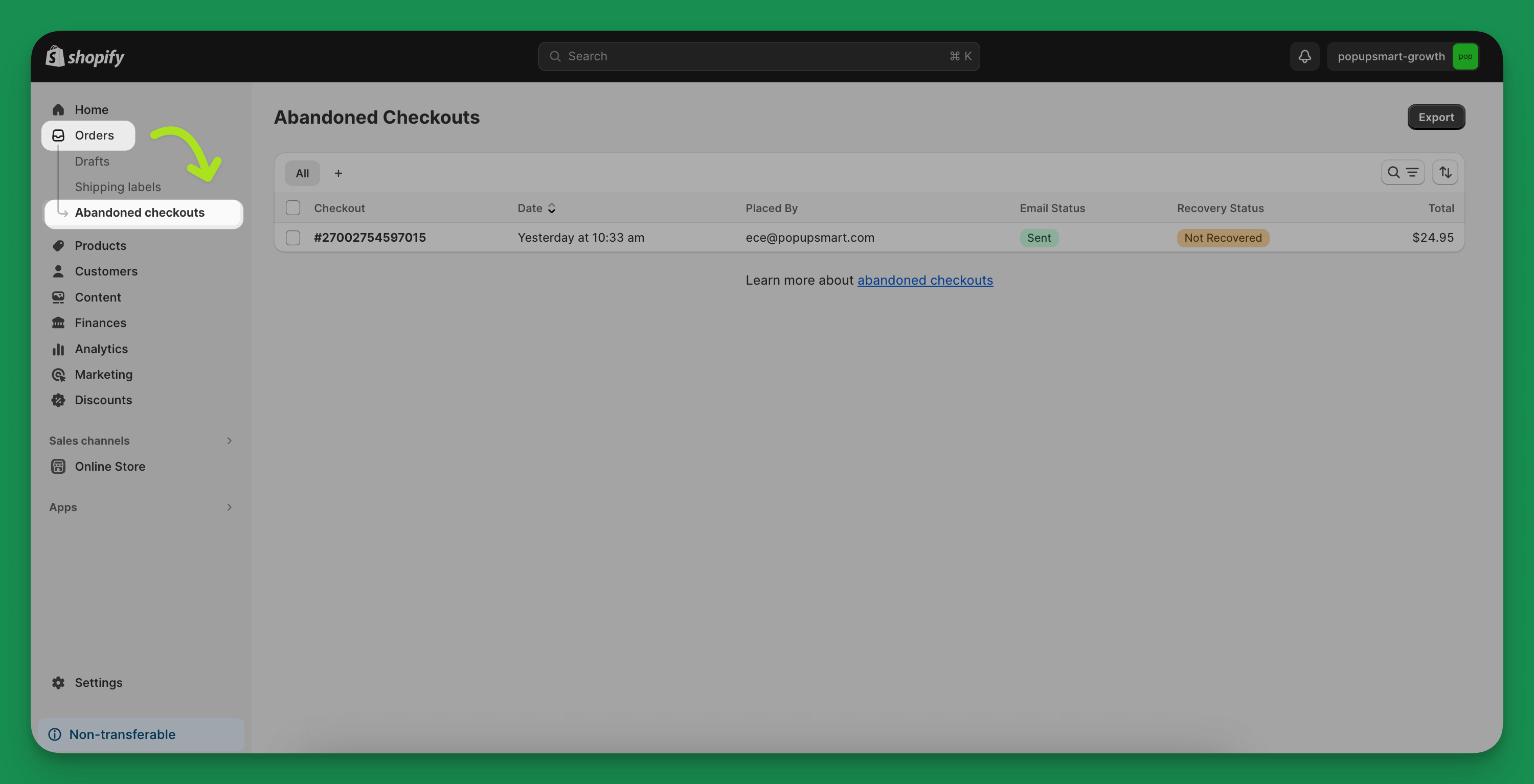
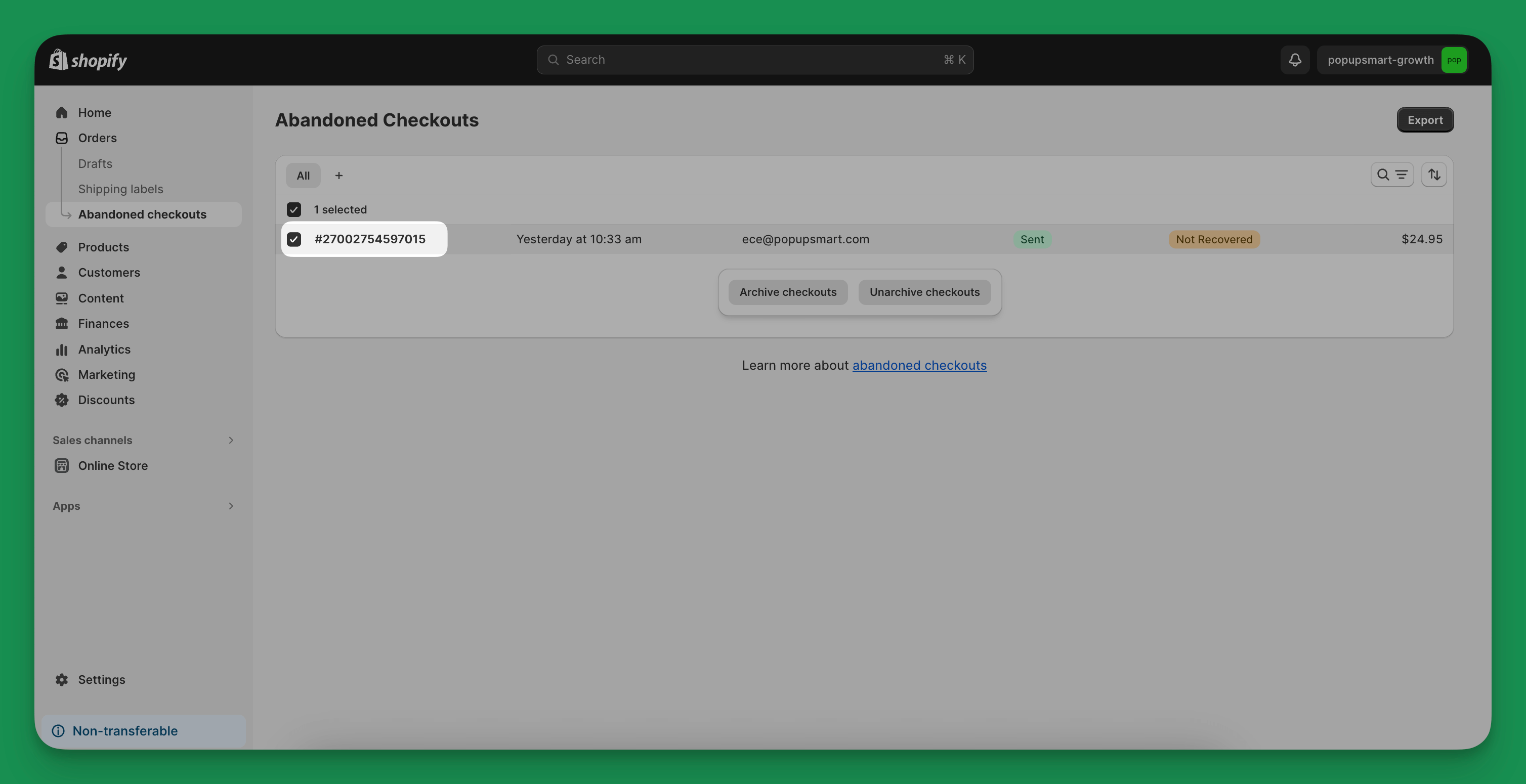
2. You'll see a list of all the abandoned checkouts. Click on the specific checkout number you are interested in recovering.
3. Under the customer's details, find their email address. Click on it to start creating your personalized email for them.
4. In this step, you can add a custom message; if you want, you can edit the template in notifications.
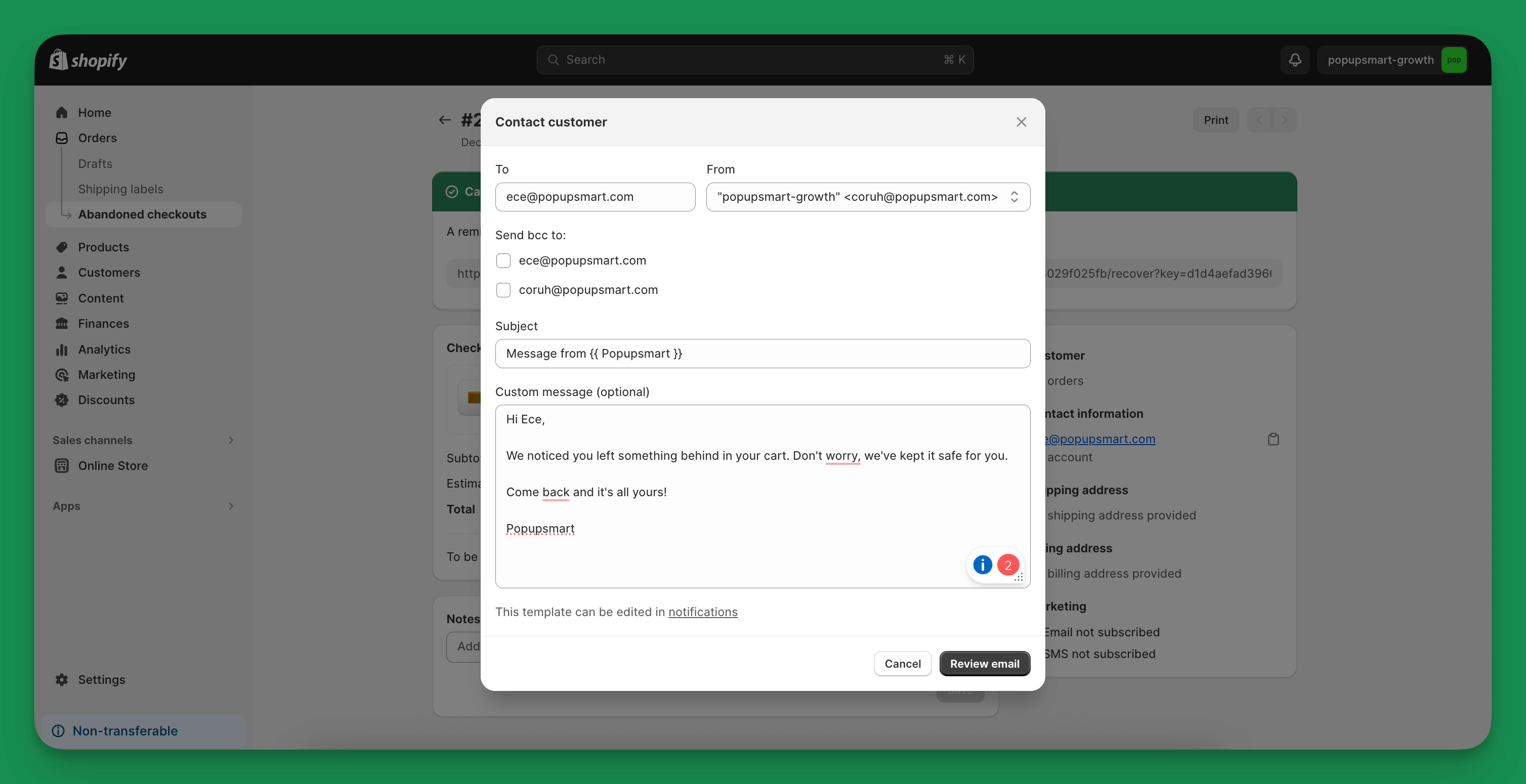
5. If you click on "notifications" under the custom message, you will be presented with a page to customize the email.
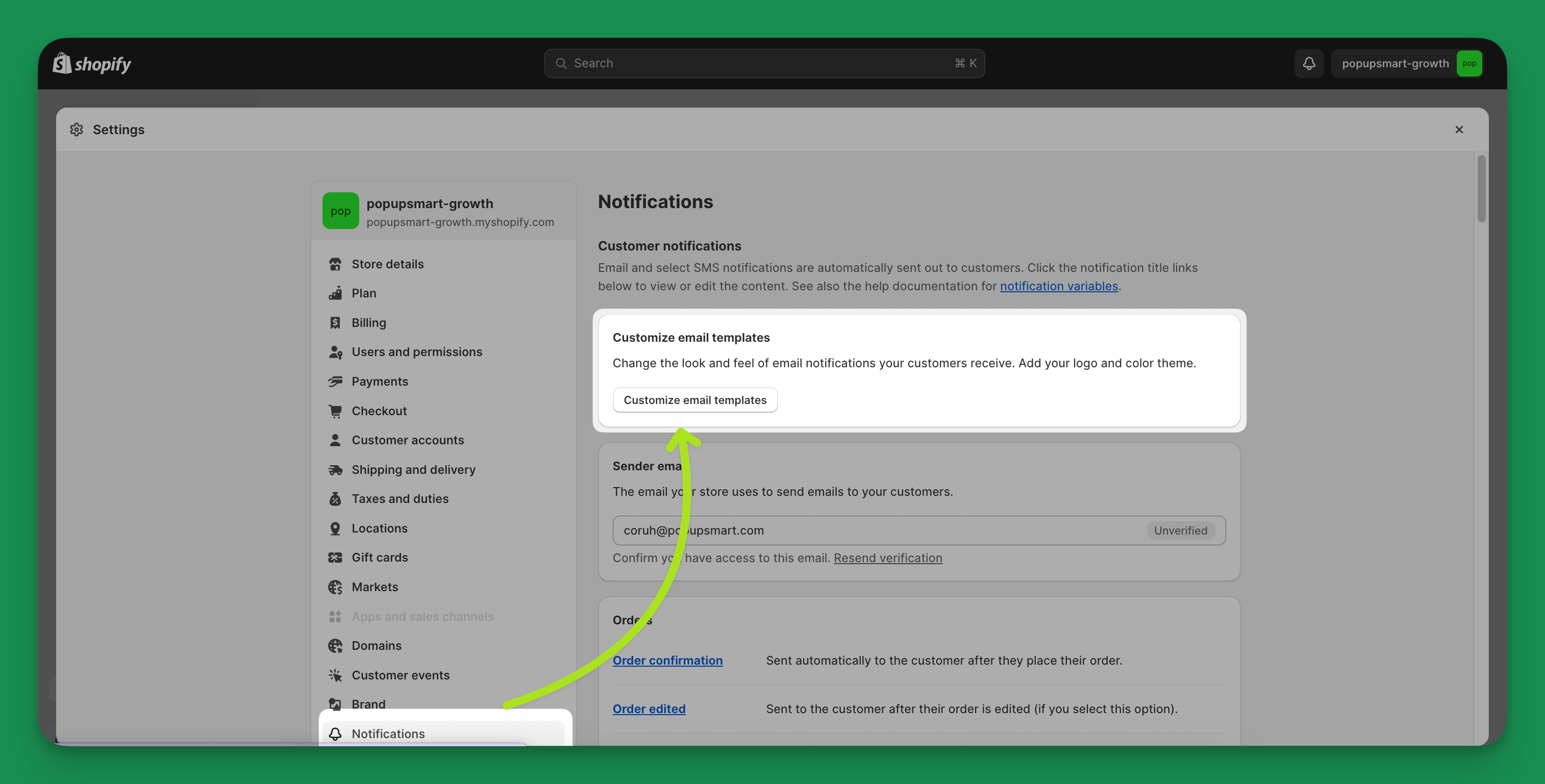
6. Here you can add your brand logo and choose how you want your buttons to look.
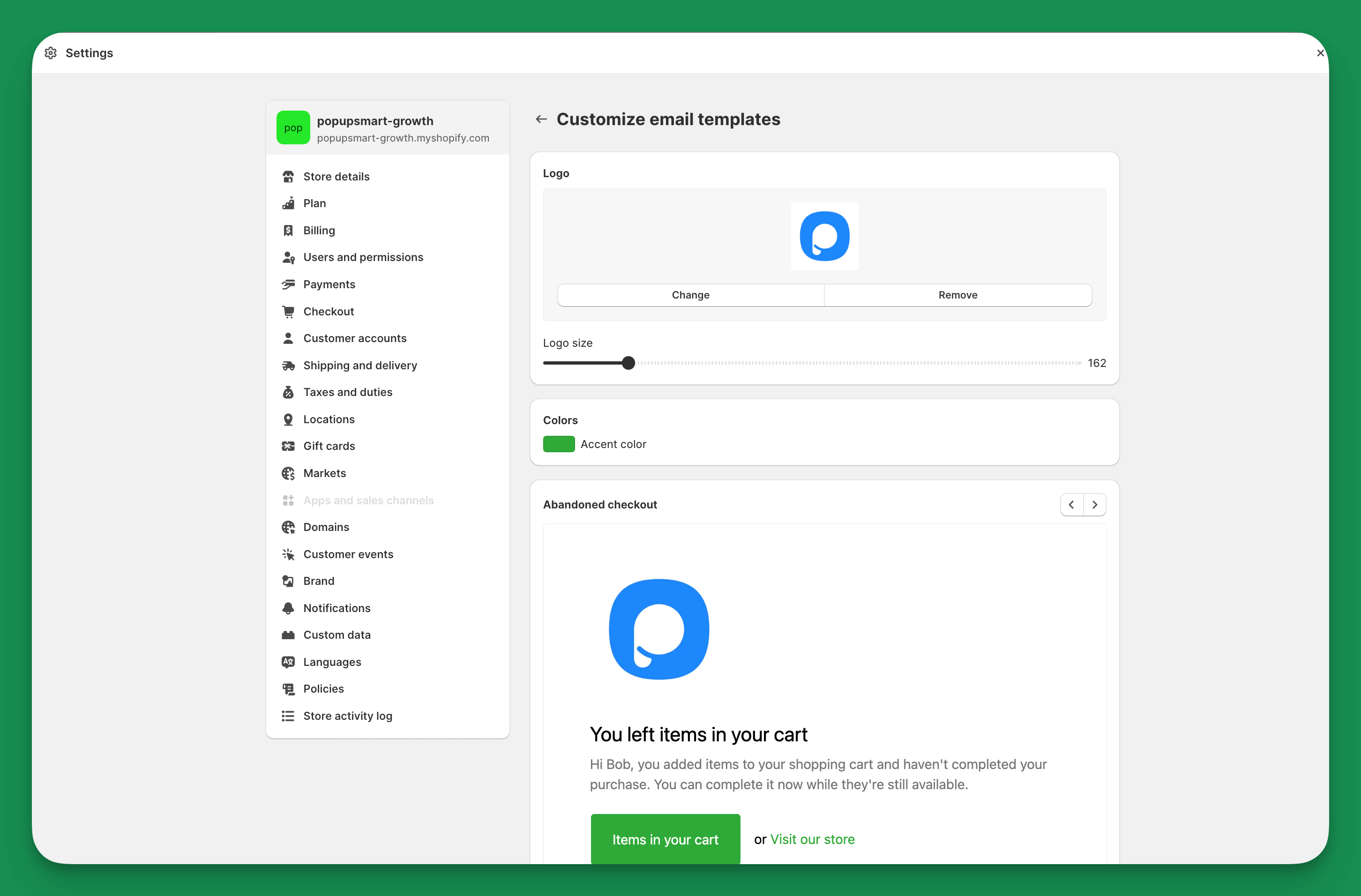
Note: Don't forget to click Save first to see the preview below. 🙂
7. If the template you want is ready, you can now go back and see the preview of the mail you will send.
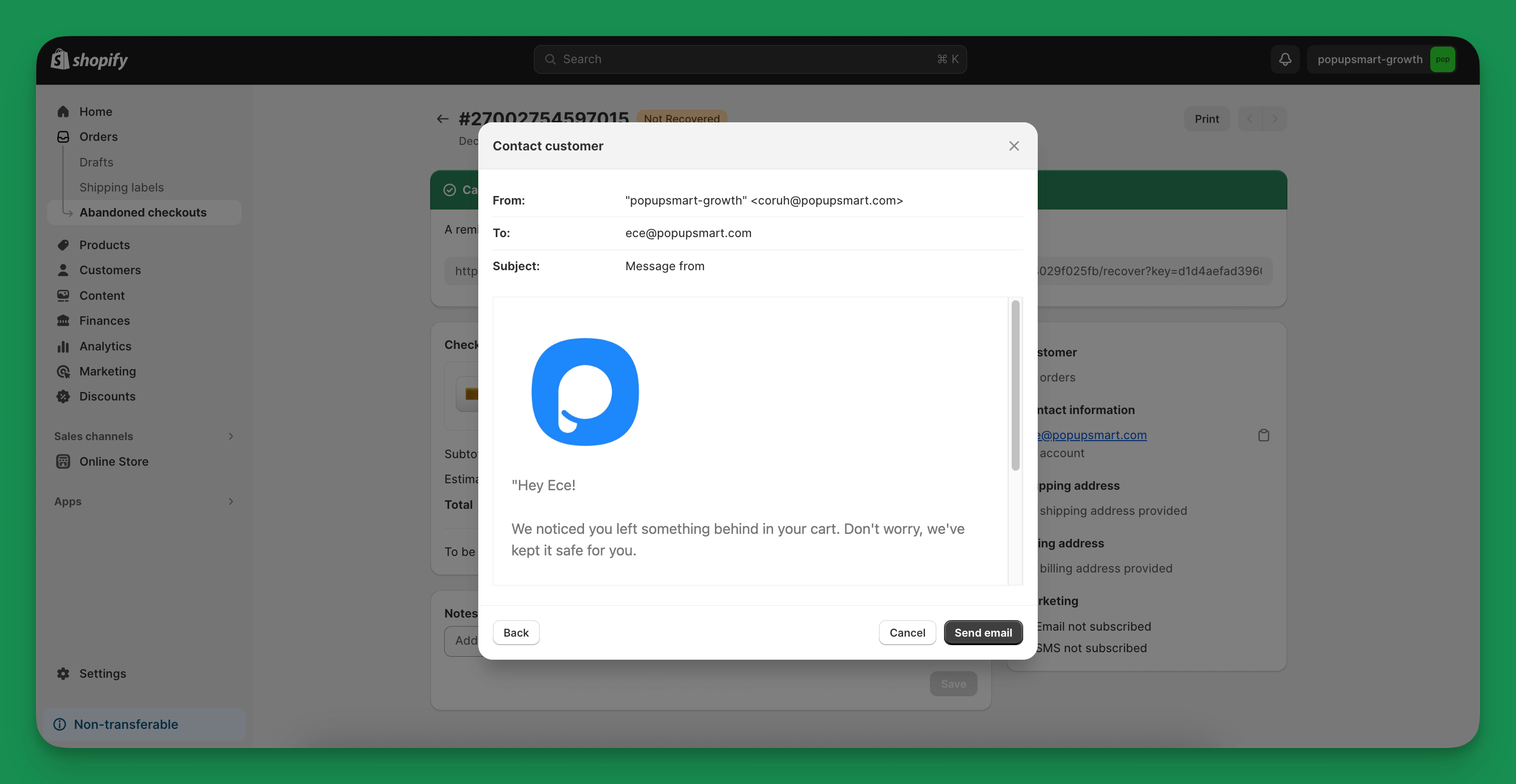
8. If everything is to your liking, you only have to press the "Send email" button. And that's it!
How to Edit Shopify Cart Abandoned Emails?
You've just turned on Shopify's new abandoned cart feature, and it's time to bring your unique touch to it!
Without further ado, let's get started:
1.Accessing the Automation Template:
- Go to your Shopify admin, click 'Marketing', then 'Automations' (or Apps > Messaging > Automations in Shopify's current admin).
- Choose 'Create automation' and select 'Abandoned cart’ template.
2.Editing Recipients and Content:
- Click 'Edit > Edit email'.
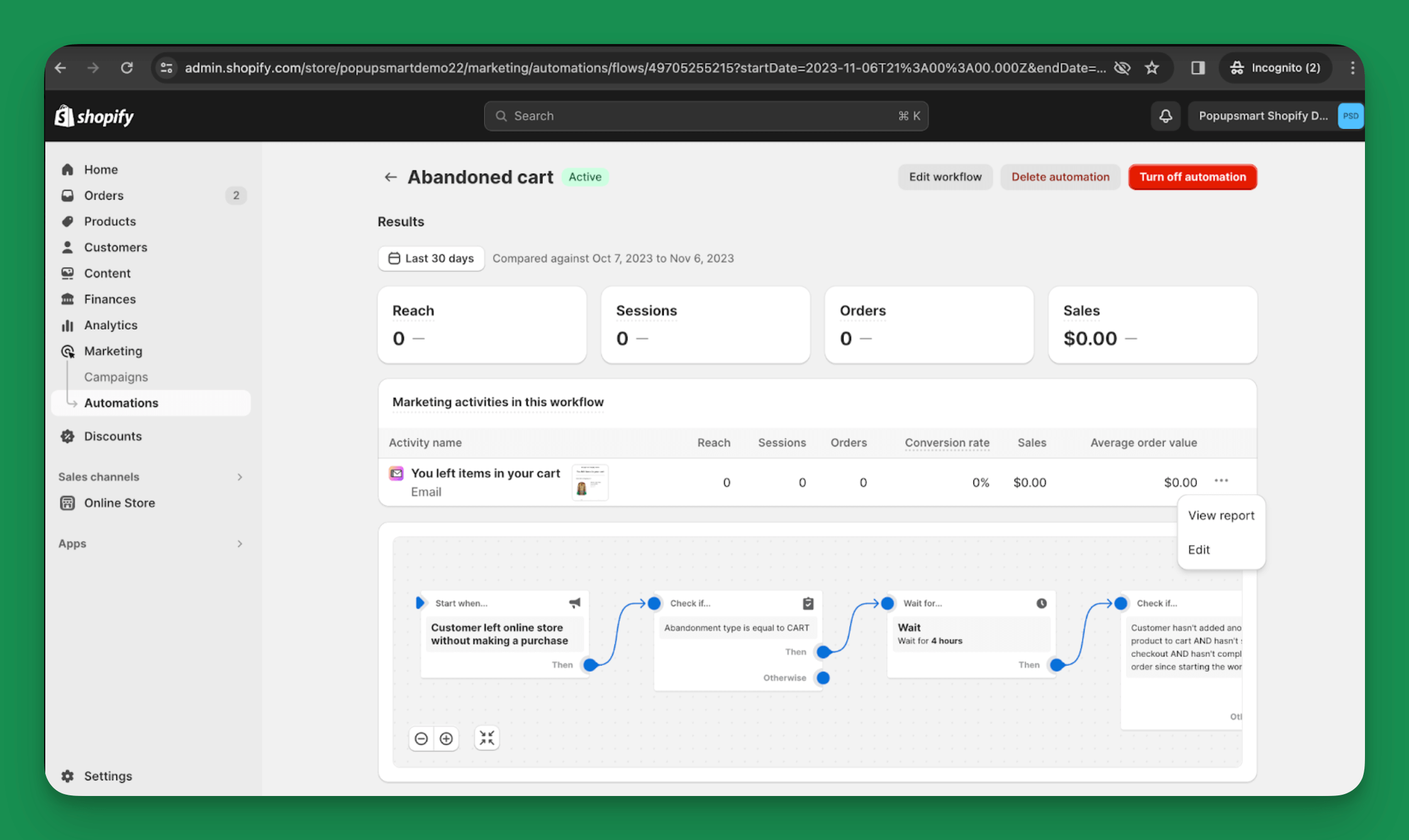
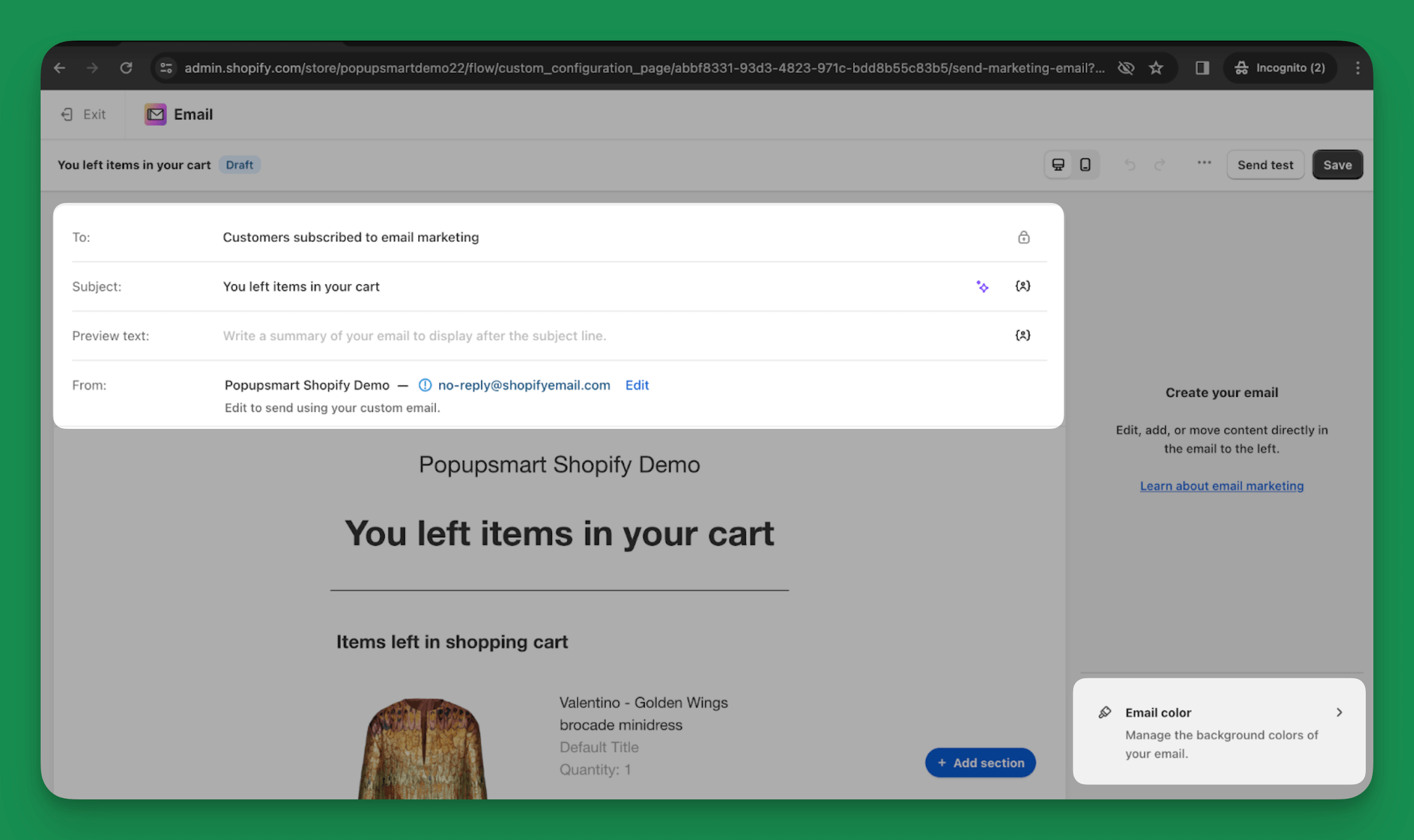
- To: field – Change from default (subscribed customers) to 'All customers' for wider reach.
- Subject Line: Example - Change from “You left something behind” to “Come back for a special surprise!”.
- Preview Text: Add a teaser like “Your cart is waiting with a 10% discount!”.
- From: Edit the sender's email address for brand consistency.
3. Design and Personalization:
- Use Shopify’s section editor to add logos, texts, and change color schemes.
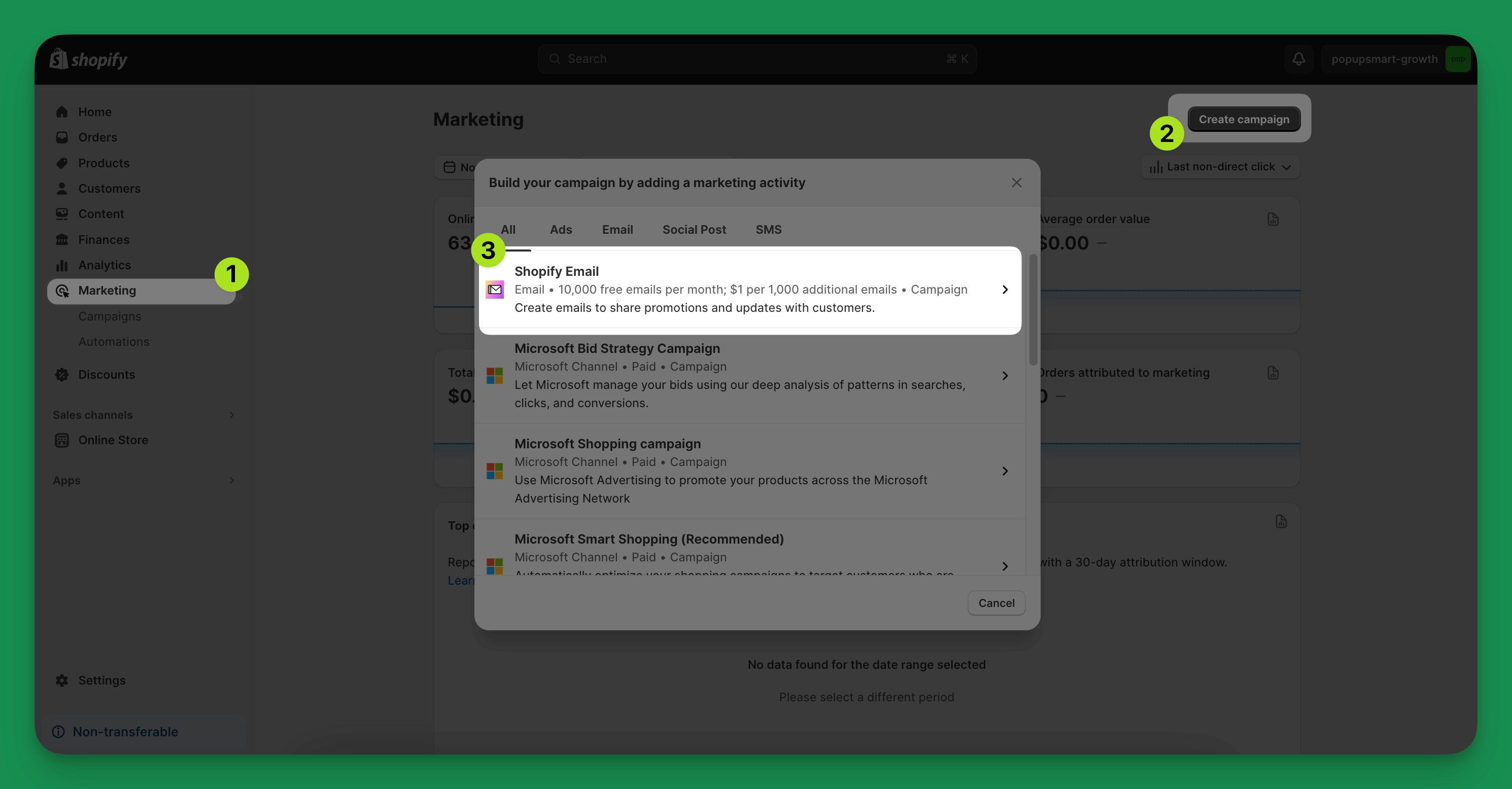
- Go to 'Marketing', click 'Create campaign' then 'Shopify Email'.
- Choose a template and start editing
- Text Section: Change font, color, and alignment. Example - Set Heading 1 in Arial font for a clean look.
- Button: Adjust size, style, and color. Example - Make the checkout button green for visibility.
- Image: Edit width and background color. Upload images with a maximum of 20MB size.
- Header: Include your store logo for brand recognition.
- Product Display: Highlight up to 9 products from the abandoned cart.
- Express Checkout: Customize for a quick purchase option, especially effective for single-product carts.
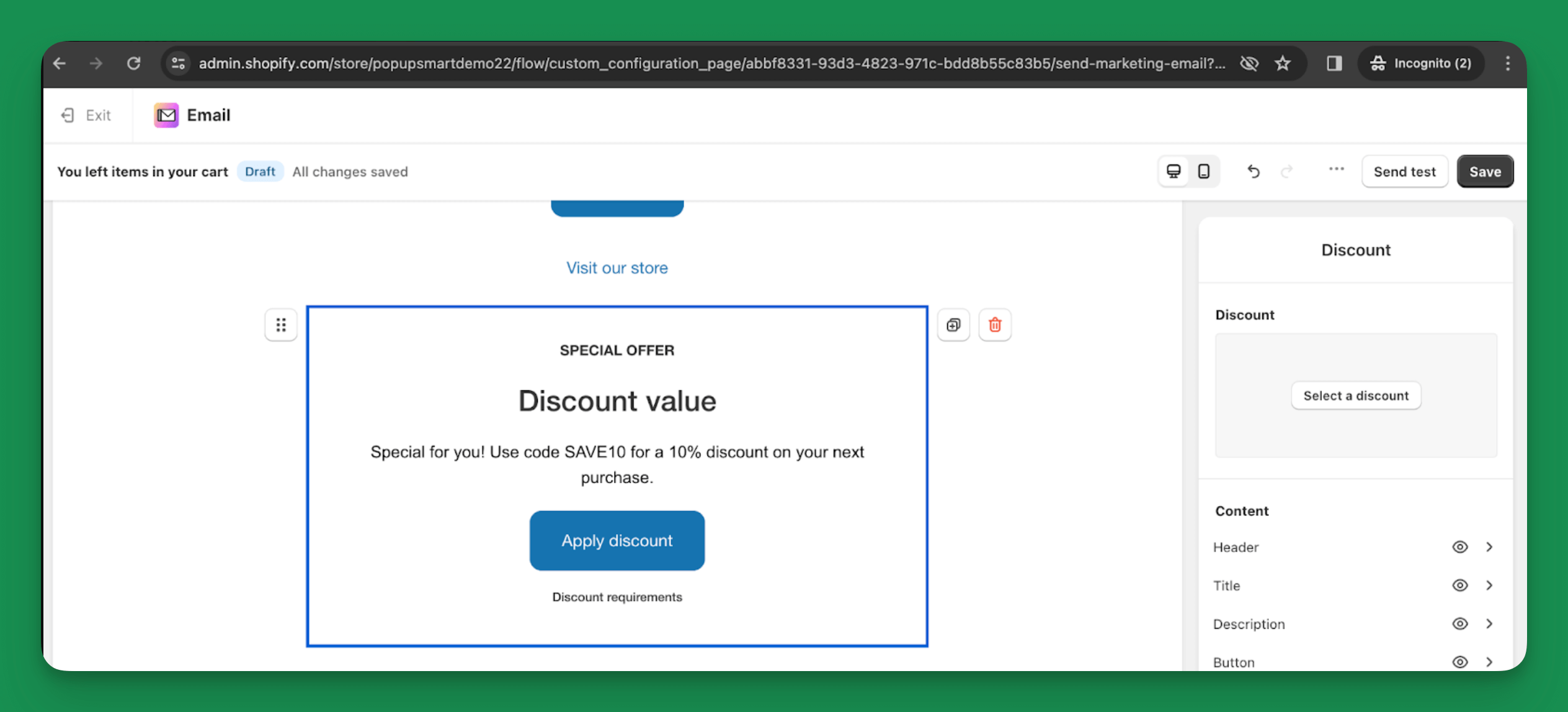
4. Adding Incentives:
- In the email editor, look for an option to add a new section or block. This is usually represented by a '+' icon or 'Add section'.
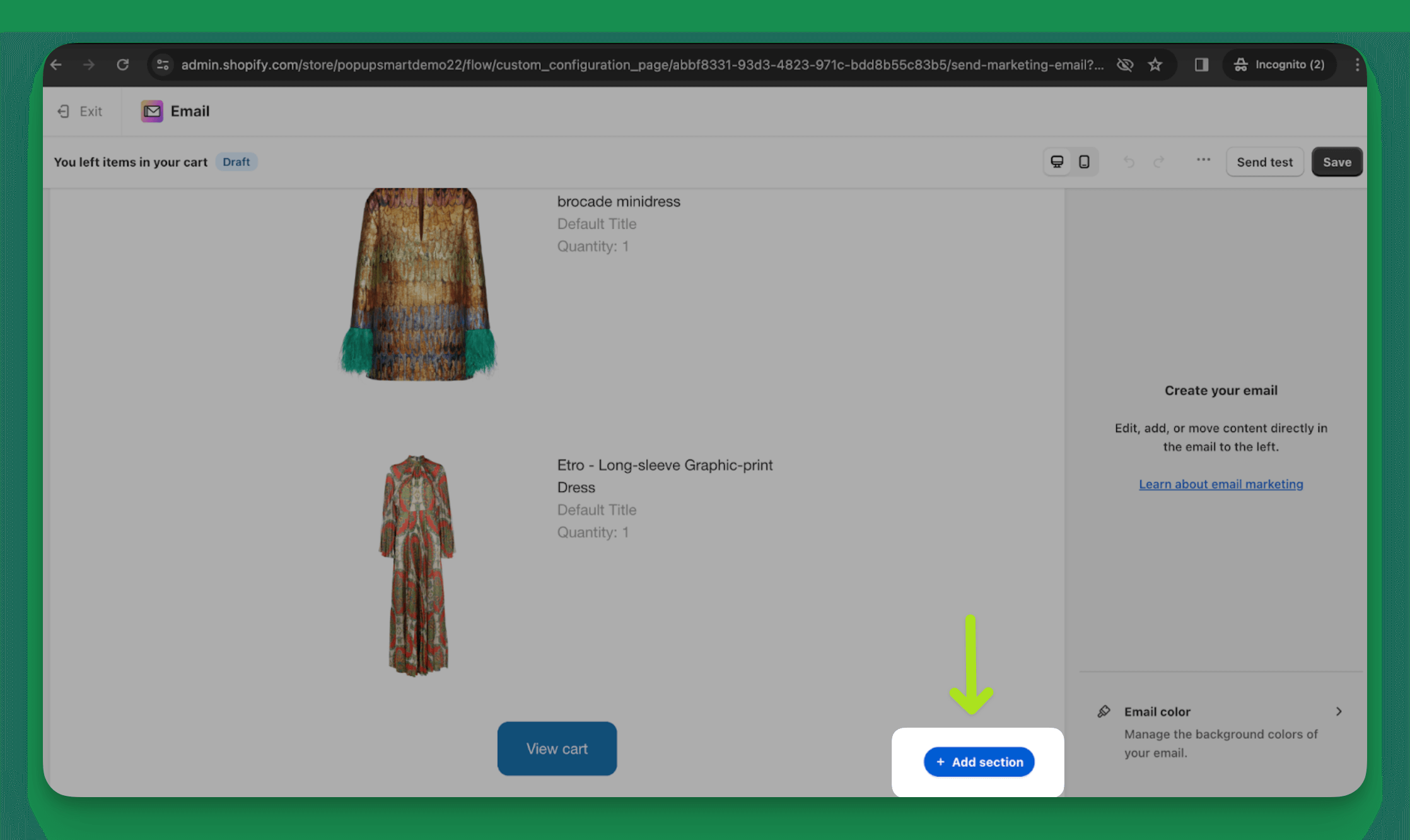
- Choose the 'Discount' option from the list of sections you can add.
- Once the discount section is added, you can customize the text to announce the discount offer. For example, you might write, “Special for you! Use code SAVE10 for a 10% discount on your next purchase.”
5. Footer Customization:
- Customize the font and colors and include important links or social media icons.
Note: The footer can’t be removed but can be tailored to your store's theme.
6. Personalization Techniques:
- Personalize subject lines and email body with customer-specific details like first name or city-Example: “Hey [First Name], your [Product Name] is waiting!”
- Set default values for personalization when specific customer data is unavailable.
7. Saving and Testing:
- Click 'Save' after editing.
- Send a test email to check how it appears in the customer’s inbox.
Shopify Cart Abandonment Email Examples
Alright, you've got your Shopify cart abandonment emails all set up and know how to make them your own.
Now, let's check out four different examples of cart abandonment emails.
They'll give you some great ideas for making your emails even better and help you connect with your customers in a friendly way.
Here we go!
1. Food52
Let's begin with Food52's cart abandonment email example.
Subject Line: Oooh, good choice! We set it aside for you.
It is successful because it uses a catchy subject line.
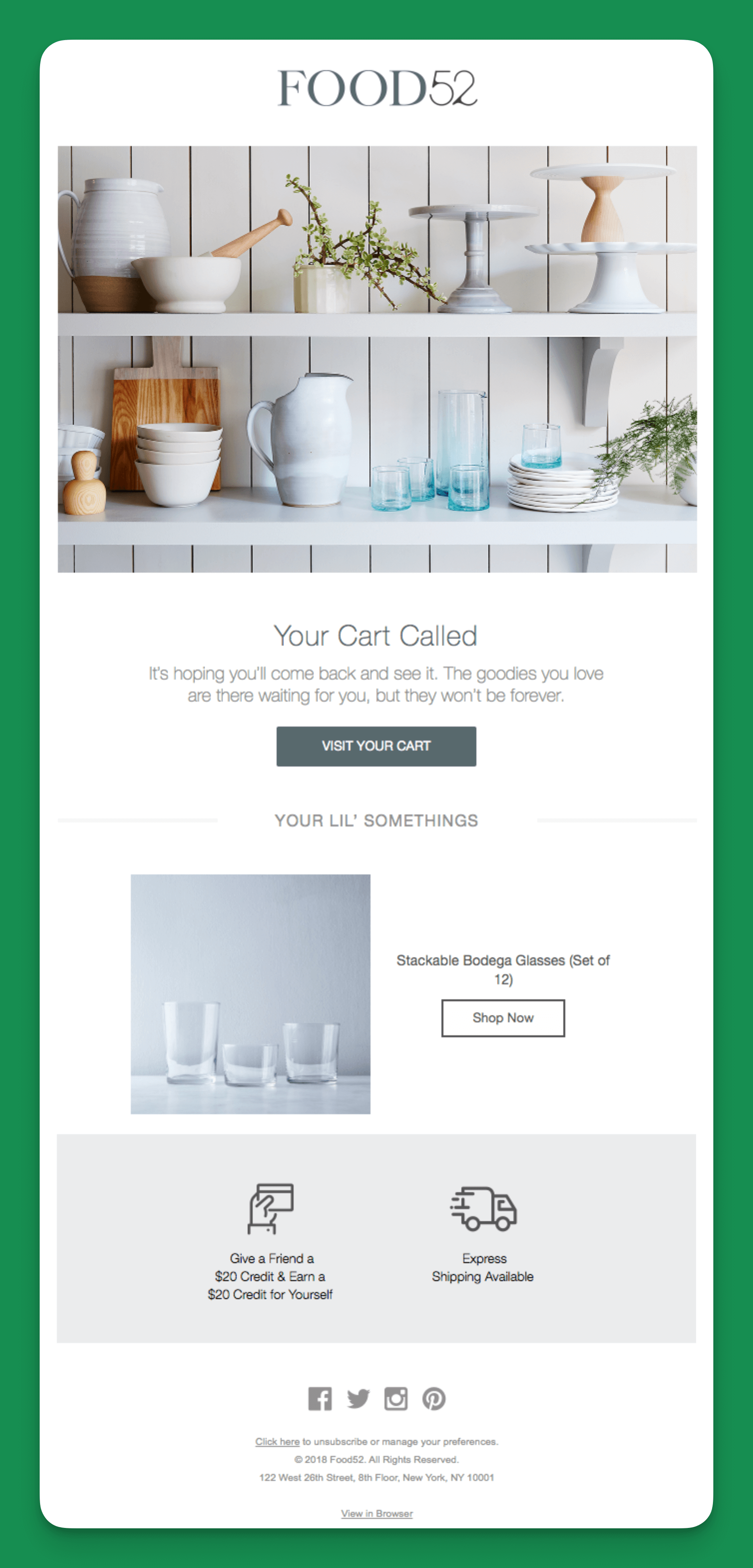
And the headline, "Your cart called," immediately grabbing the customer's attention.
It has a playful copy that continues, "It's hoping you'll come back and see it."
The email also includes a clear and prominent "Visit Your Cart" button, making it easy for the customer to return to their cart and complete their purchase.
2. Rudy's Barbershop
Subject Line: Don't let free shipping go to waste
Rudy's Barbershop's cart abandonment email appears well-crafted and effective in promoting a sale or limited-time offer.
The headline, "Don't put this off like a software update," is clever and relatable.
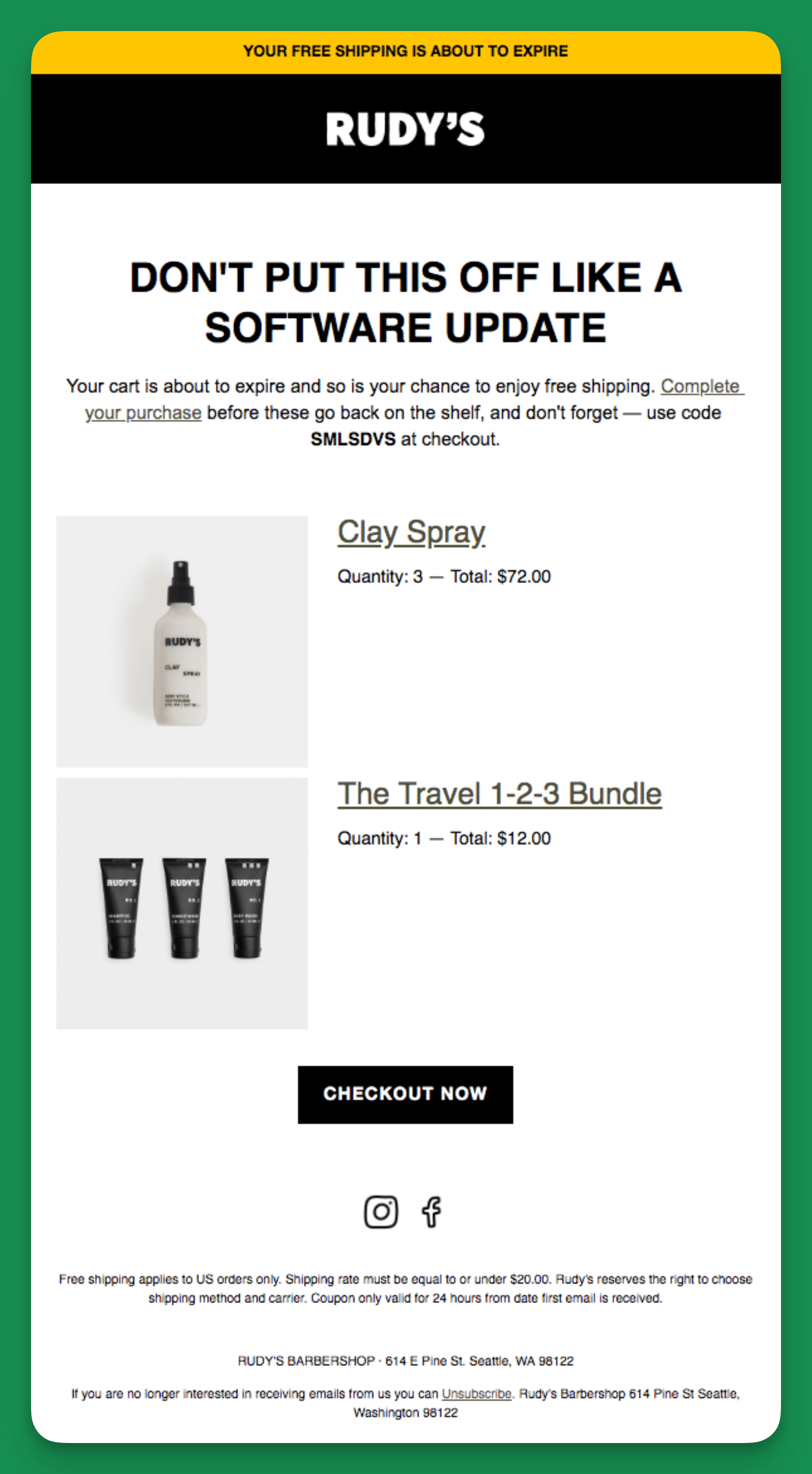
Including a code to use at checkout, product images, and a "Checkout Now" button makes it easy for recipients to complete their purchases.
The bright yellow banner "Your free shipping is about to expire" also effectively draws attention to the expiring offer.
3. Society 6
Subject Line: Cart reserved (with the best offer available)
Society 6's subject line "Cart reserved (with the best offer available)" effectively captures attention by promising a discount.
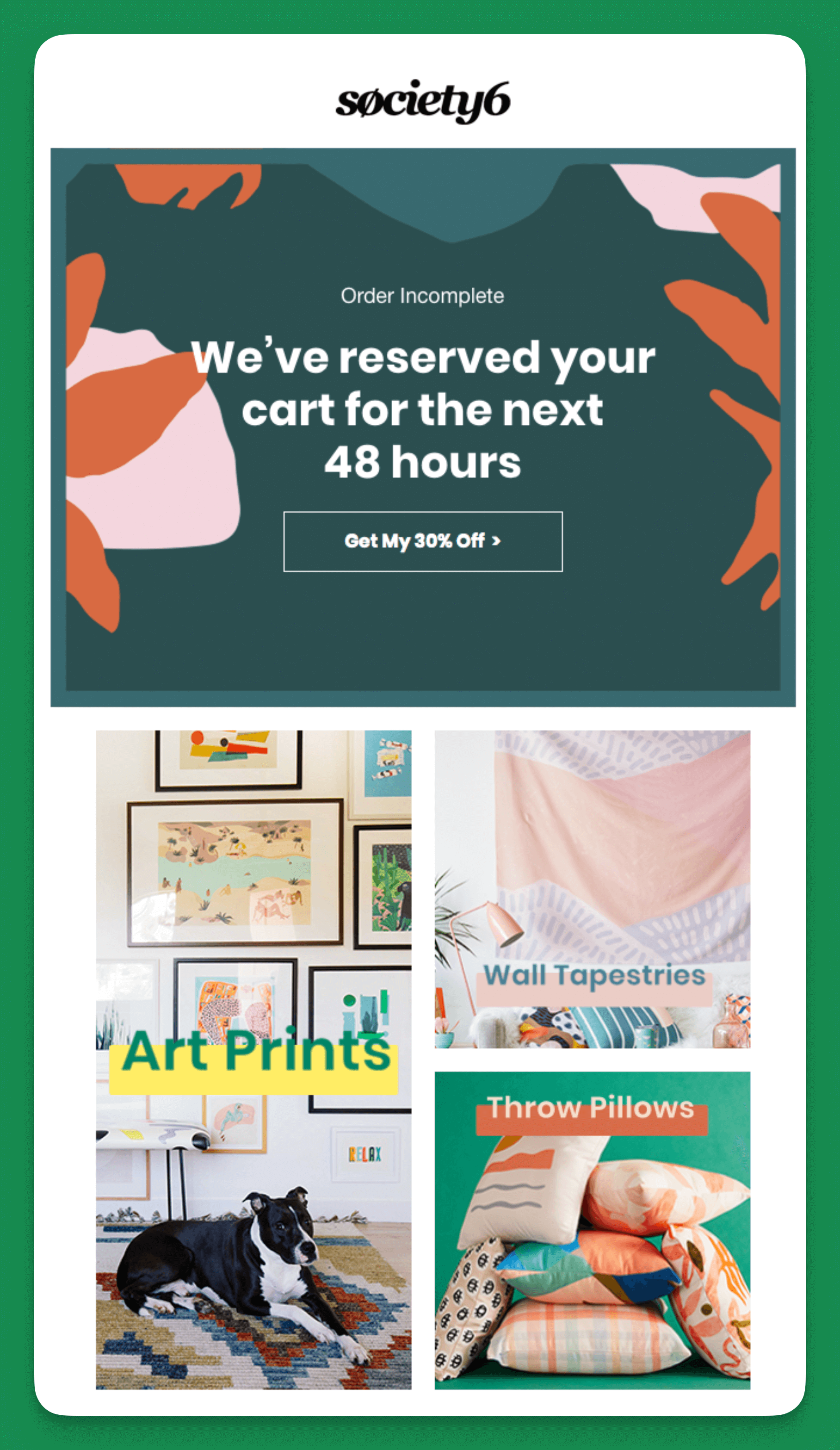
It stands out because it balances urgency with a reassuring tone, stating, "We've reserved your cart for the next 48 hours."
This not only prompts quick action but also gives a sense of security to the customer.
The email prominently highlights a 30% discount, compelling customers to complete their purchase and making the deal hard to pass up.
4. Haoma
Subject Line: Any questions?
Haoma's cart abandonment email is a good example because featuring popular items can tempt customers to buy more, which helps upselling and cross-selling.
You can explore further with How to Upsell and Cross-Sell on Shopify? (11 Best Practices).
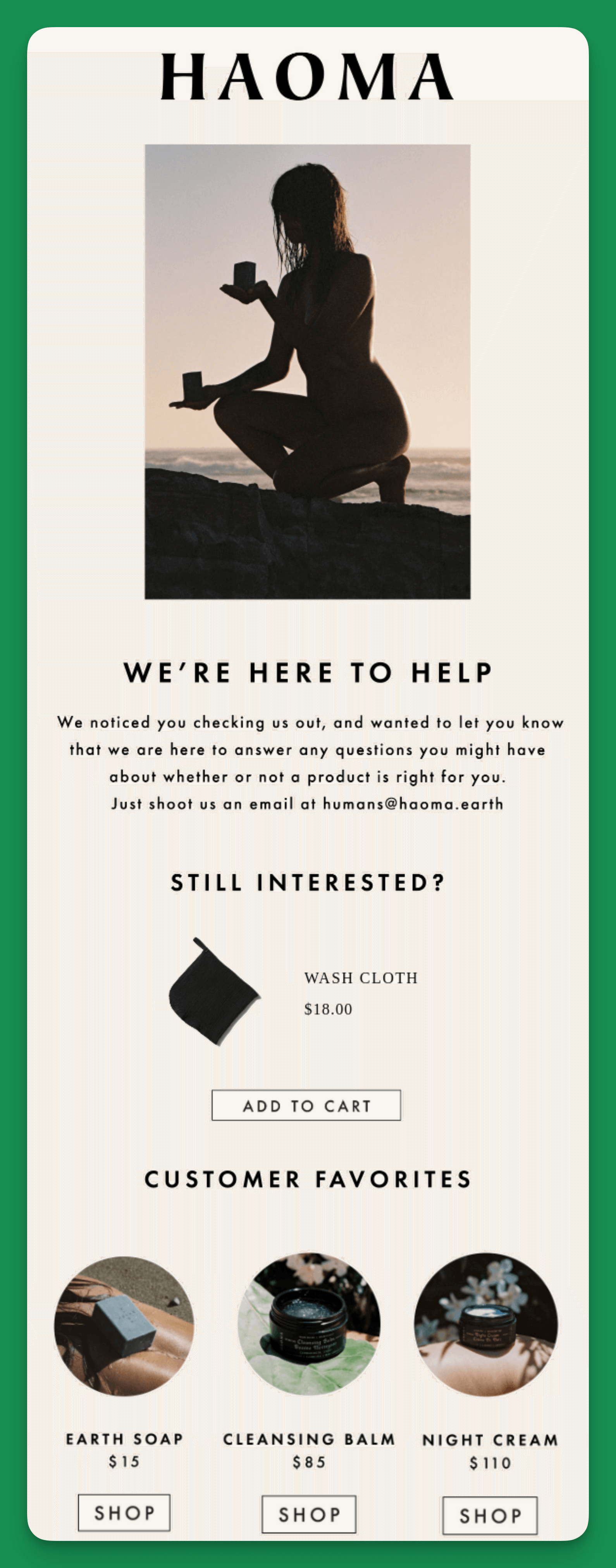
The subject line "Any questions?" is a bit vague. It doesn't create urgency or highlight a benefit, which are strategies that can increase email open rates.
A more click-worthy subject line could be something like "Still thinking it over? Let’s make it easier for you."
To Sum Up
Setting up and editing abandoned cart emails in Shopify is a practical way to reconnect with customers who haven't completed their purchases.
By using the built-in automation feature, you can craft personalized and compelling emails that encourage customers to return to their carts.
Remember to test different strategies, such as offering discounts or showcasing products, to find what works best for your store and your customers.
With these tools and examples as inspiration, you're well on reducing cart abandonment and increasing your Shopify sales.
Frequently Asked Questions

1. What Are the Tips for Shopify Cart Abandonment Emails?
Crafting compelling abandoned cart emails requires a personal touch. Elevate your Shopify recovery strategy with these concise yet impactful tips:
- Customer Reviews: Integrate Yotpo or Judge.me to automatically showcase product reviews in your emails.
- Interactive Elements: Explore Popupsmart for advanced customization, including polls and surveys in emails.
- Gamified Popups: Add a fun twist with Popupsmart's gamified popups for discounts or special offers.
- Loyalty Programs: Integrate Smile.io like apps to run a loyalty program in your Shopify store.
- Social Impact: In your emails, highlight your brand's commitment to causes like sustainability or charity. For example, "Complete your purchase, and we'll donate 5% to ocean conservation efforts."
2. What Are Some of the Best Shopify Abandoned Cart Recovery Apps?
Some of the best Shopify cart abandonment recovery apps are:
- Abandoned Cart Recovery Email by Care Cart
- Smart Cart Recovery by Gravitate
- Abandoned Cart Recovery by Marsello
You can also use a popup builder to help you reduce cart abandonment more smartly and simply.
3. How Does Shopify's Abandoned Cart Feature Compare to Third-Party Apps?
Shopify's abandoned cart feature is user-friendly and well-integrated into its platform, offering essential functionality.
However, third-party apps can provide extra features like SMS alerts and detailed customer segmentation, making them a good option for those seeking more advanced capabilities.
It's important to weigh each option's features against your specific business needs.