SendGrid popup: build one and connect it to your SendGrid list
 By Mert Özeren
Popupsmart's SendGrid integration adds everyone who fills in a popup to the SendGrid Marketing Campaigns list you choose. Build the popup in Popupsmart, connect it with a SendGrid API key and match its fields; SendGrid then sends your newsletters and automations to those contacts, while Popupsmart decides who sees the popup and when.


Connection at a glance
- Sends leads to
- SendGrid
- What you need
- A SendGrid API keyA list in SendGrid Marketing Campaigns
- Fields sent
- EmailFirst and last nameAddress fields


What the SendGrid connection does
The SendGrid connection adds everyone who submits your popup to one list in SendGrid Marketing Campaigns, with the fields you choose. You pick the list per campaign and match each popup field to a SendGrid contact field: the email to Email, names to First name and Last name, and address fields where your form collects them.
The lists live in Marketing Campaigns, so the connection feeds your newsletters and automations, not the Email API you may use for receipts. It is saved once, reused by your next campaign, and paused, edited or deleted from the campaign.
Popupsmart is not an email marketing platform. It captures contacts and hands them to an email service provider; it does not send campaigns or run drip sequences.
Does SendGrid have its own pop-up forms?
SendGrid has signup forms, but its documentation doesn't describe a popup. According to SendGrid's guide to managing signup forms, you build up to 15 forms under Marketing → Signup Forms and share each as a hosted Landing Page link or a Direct Embed iframe. As of September 2026, SendGrid's product page for the forms mentions pop-up forms, but the docs describe only those two options.
| SendGrid's signup forms | Popupsmart | |
|---|---|---|
| How it's shown | A hosted landing page, or an iframe embedded in a page | A popup on your site |
| When it shows | Wherever you embed it, or when someone opens the link | Exit intent, scroll depth or time on page, with URL and device rules |
| How many | Up to 15 forms | One live popup on the free plan; unlimited on paid plans |
| Where contacts go | The list set in Add contacts to | A SendGrid list, or any of the 19 destinations the help center lists |
| Consent | Consent checkboxes and privacy policy links | A consent checkbox you add to the form |
| Price | Included with any Marketing Campaigns plan | Free plan: one website, one live popup, 5,000 pageviews a month; paid plans from $39 a month |
For a form on a page, in a footer or behind a link in an email, SendGrid's signup forms may be all you need. Popupsmart earns its install when the form has to open as a popup at a chosen moment, such as on exit intent, only on some pages, or on more than one website.
Before you start
- A SendGrid account with Marketing Campaigns.
- A contact list in SendGrid. Go to Marketing → Contacts, choose New List from the Create menu, name it and click Save List. The connection can't be completed without a list.
- A verified website on your Popupsmart account.
- Access to Settings → API Keys in SendGrid, where you'll create the key.
How do you create a SendGrid popup?
A SendGrid popup is a Popupsmart campaign with an email field, built without a plugin, a developer or code. Build the popup first; the next section connects it to SendGrid.
Step 1: Sign in and start a campaign
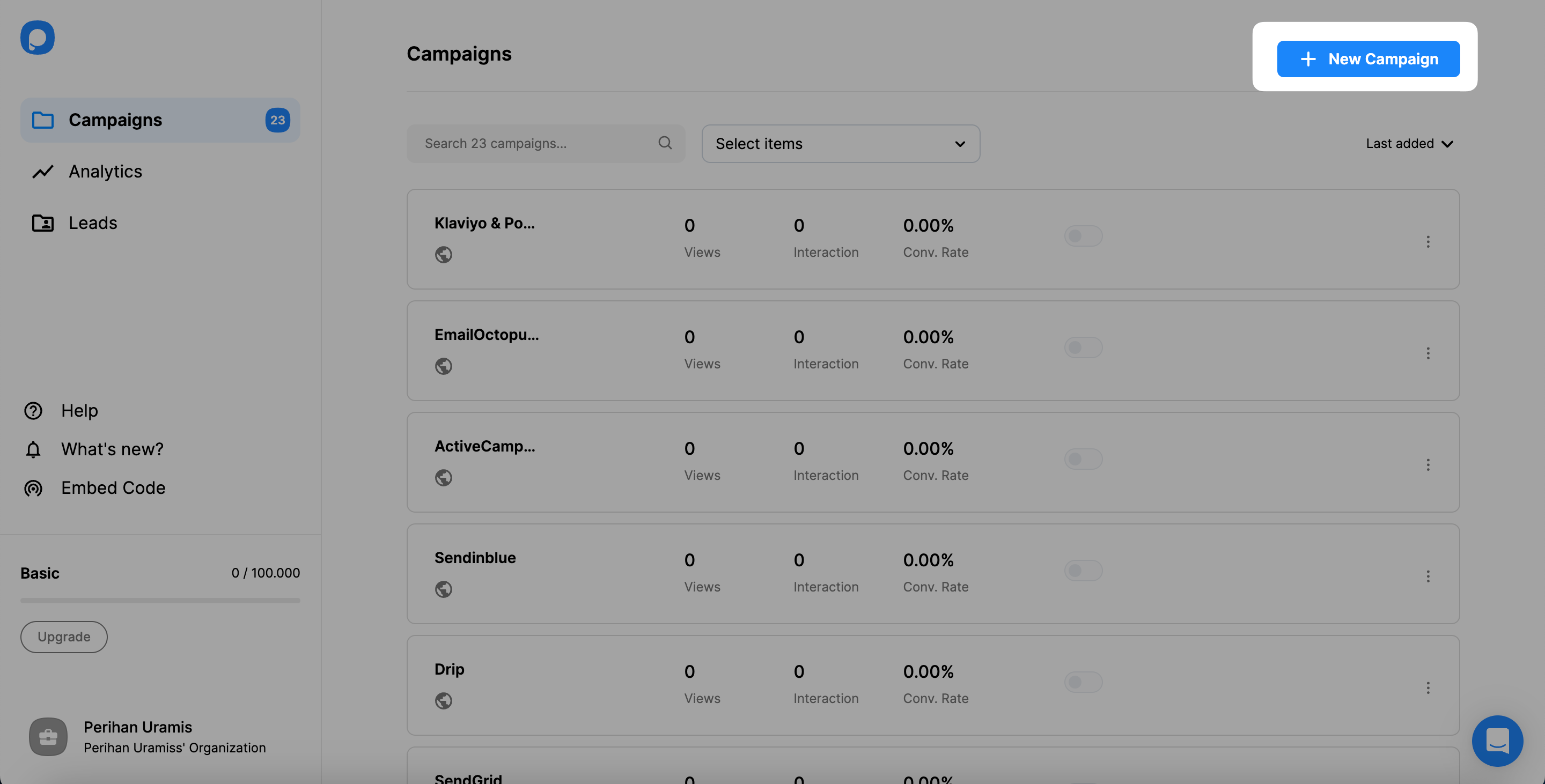
Sign in to your Popupsmart account, or create a free one, and add the website your popup will run on. Then click + New Campaign on the Campaigns page.
Step 2: Choose a template and keep an email field
Pick a template or a blank popup; for list growth, start from the templates tagged Grow Your Email List. The popup needs an email form input, since that is the field SendGrid receives; add name fields if you want them in SendGrid too.
Step 3: Choose who sees it and when
In the Segment step, combine targeting and trigger rules such as scroll depth, time on page, exit intent, new or returning visitors, device and URL. In Popupsmart's 2026 benchmark, popups that wait before appearing convert 0.83% against 0.61% for popups shown the instant the page loads (median campaign), a lean rather than a proven gap, and exit intent shows no statistically reliable advantage.
Step 4: Publish and add the embed code
Connect the popup to SendGrid (next section), then click Publish in the Publish step and paste the Popupsmart embed code into your site once. Every campaign you build afterwards runs from that same line.
SendGrid popup types that work well
- Newsletter signup, triggered on scroll or time on page: the email popup guide.
- Exit-intent offer for visitors about to leave: exit-intent popup examples.
- Event or webinar signup: B2B lead generation popups.
How do you connect Popupsmart to SendGrid?
The SendGrid connection takes an API key from SendGrid and one list. You set it up inside the campaign, on the form element's Integration tab in the Customize step.
Add SendGrid to your campaign
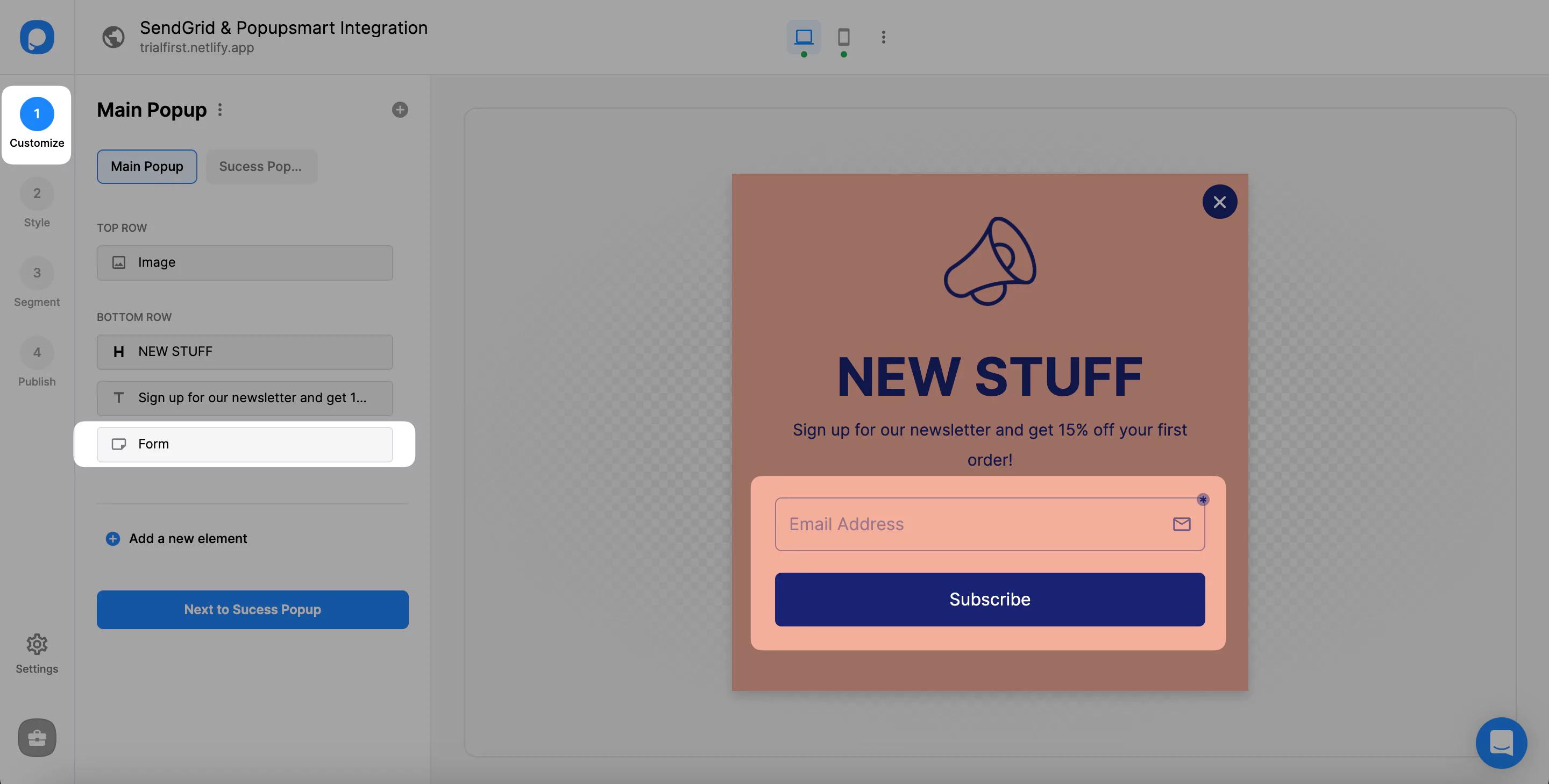
In the editor, click the popup's form input element. This is what tells Popupsmart which data to collect and pass to SendGrid.
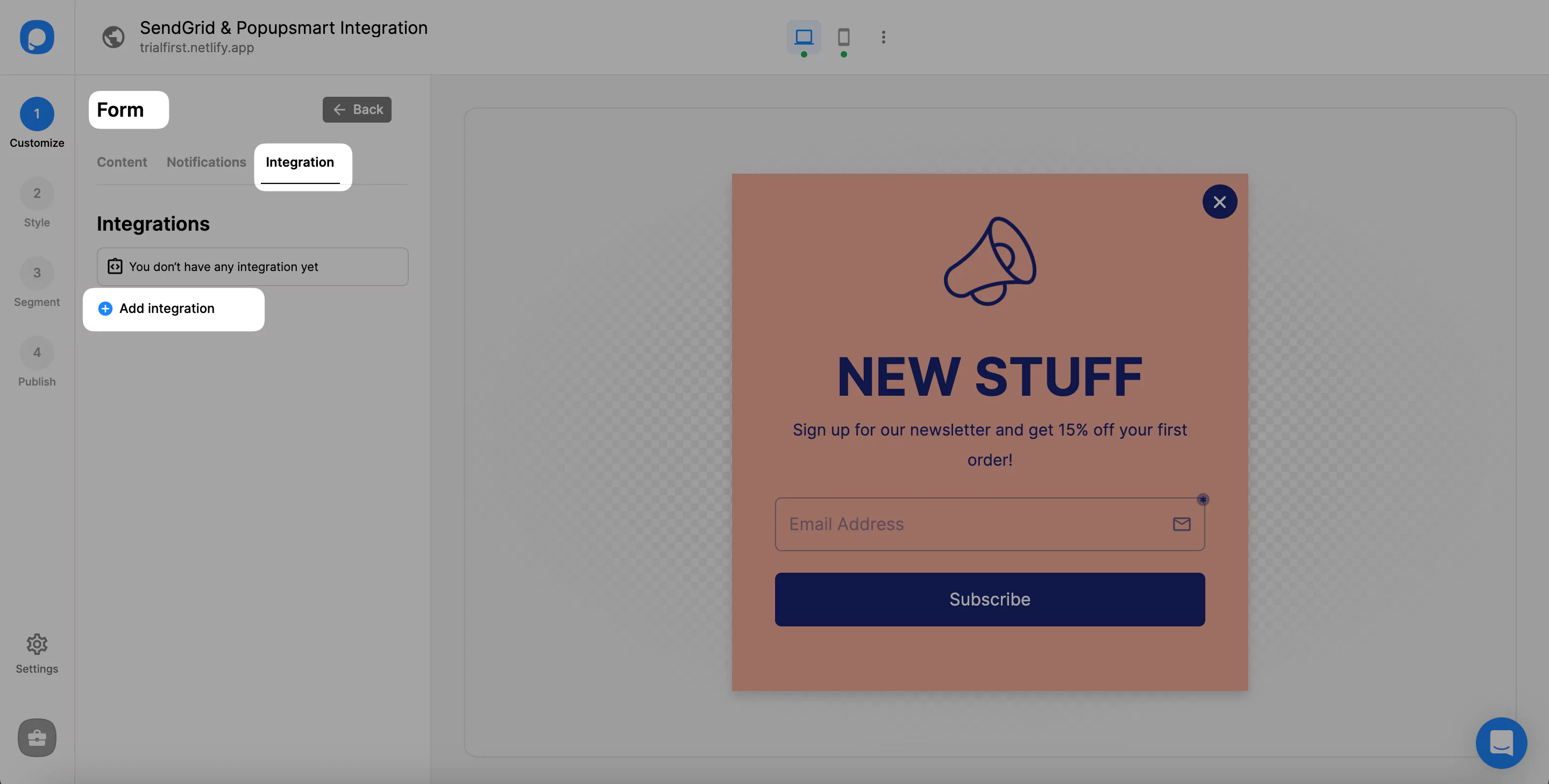
Open the Integration tab and click Add integration.
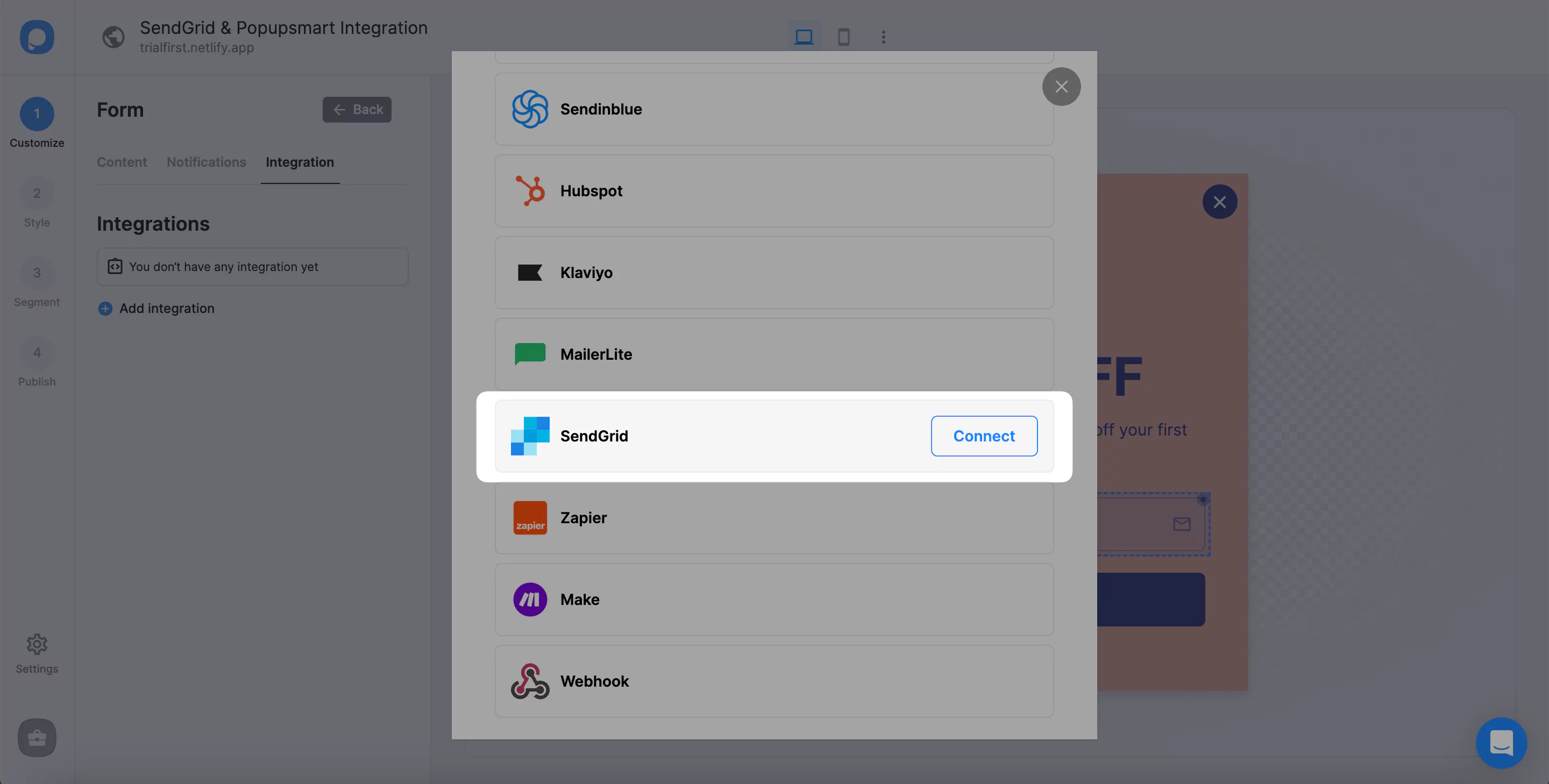
Find SendGrid in the list and click Connect.
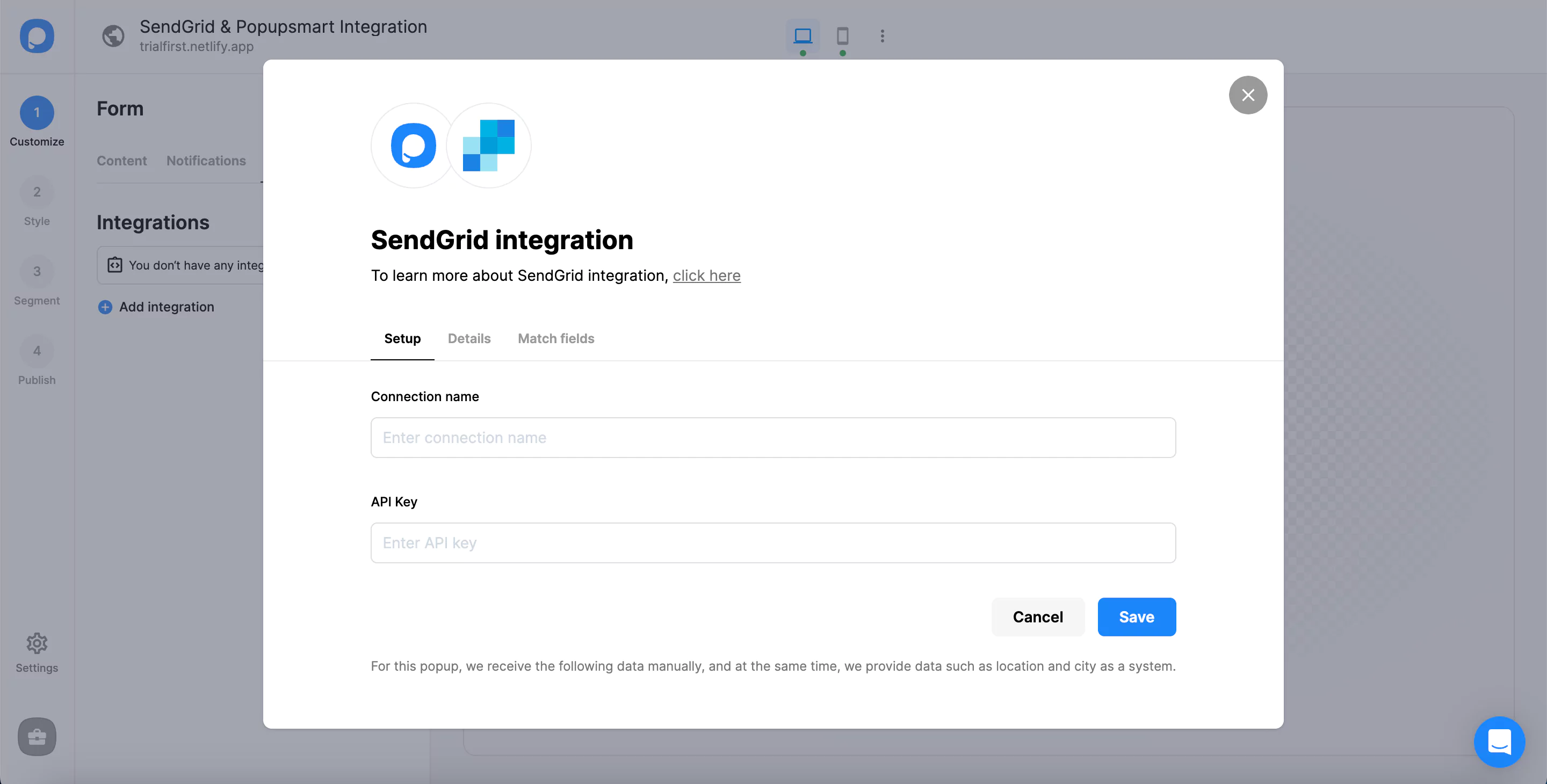
For your first SendGrid connection, add a new SendGrid API key; the Setup tab asks for a connection name and the key.
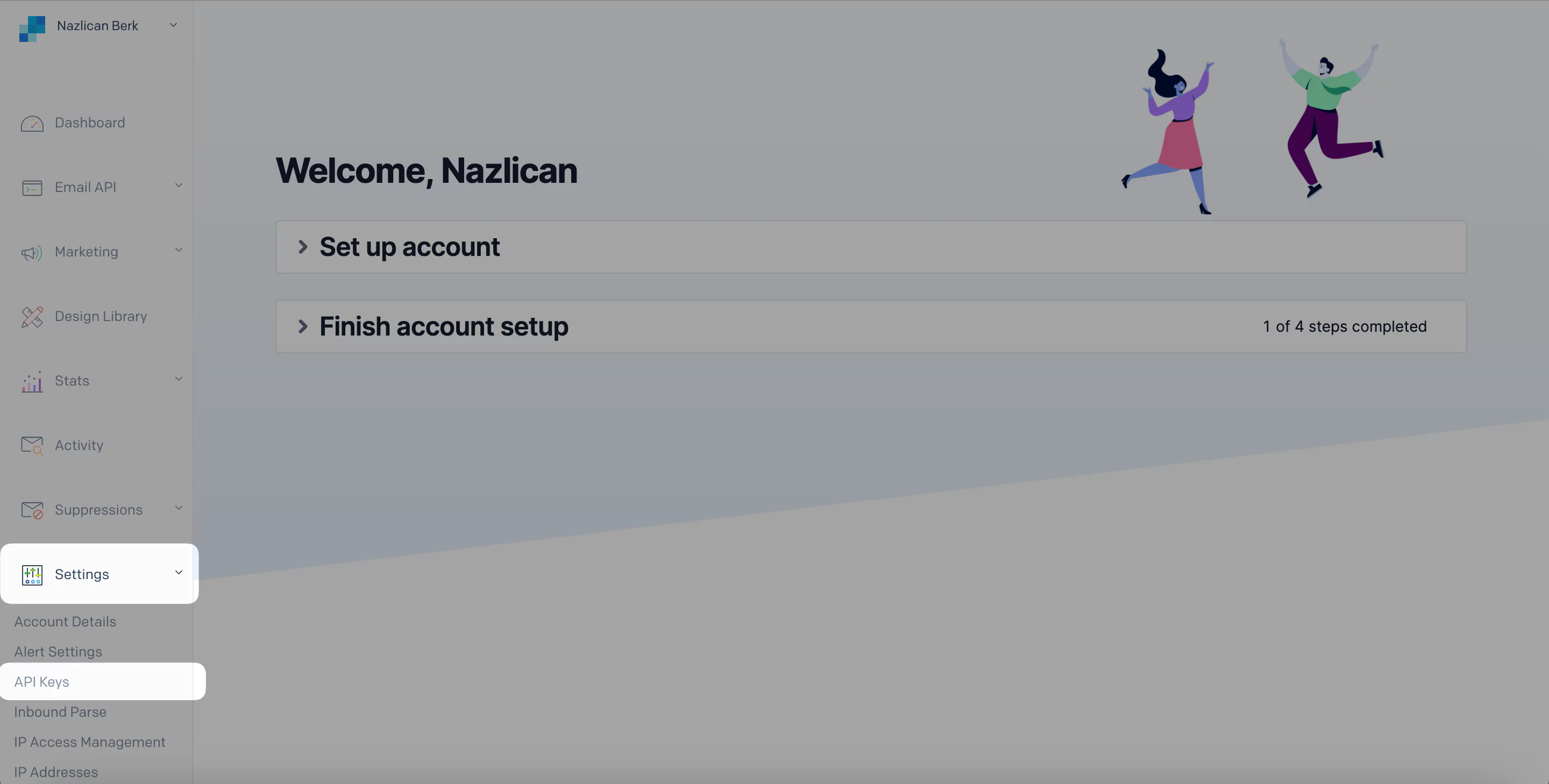
Where to find your SendGrid API key
Log in to SendGrid, open Settings in the left menu and click API Keys.
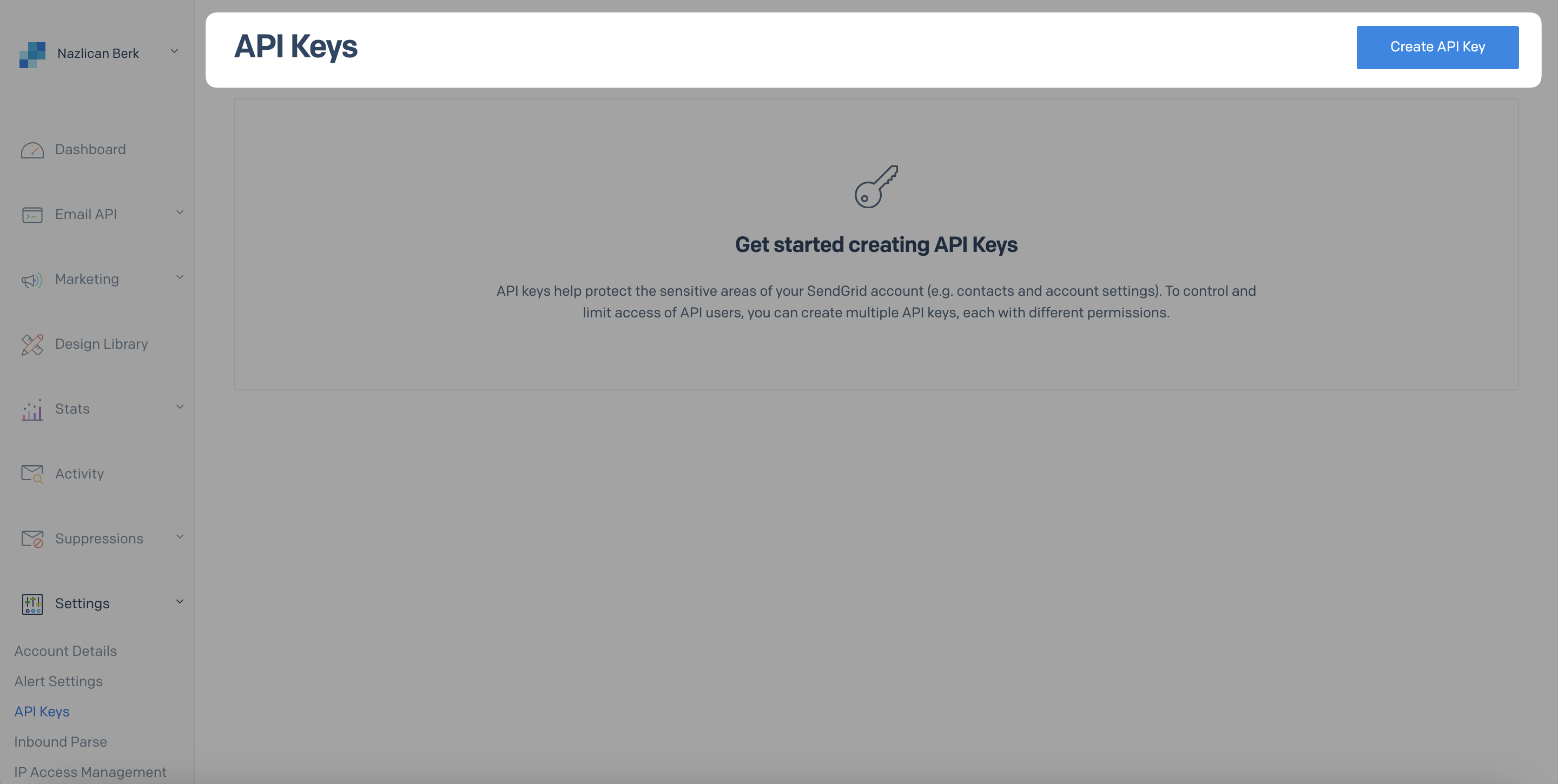
Click Create API Key at the top right of the API Keys page.
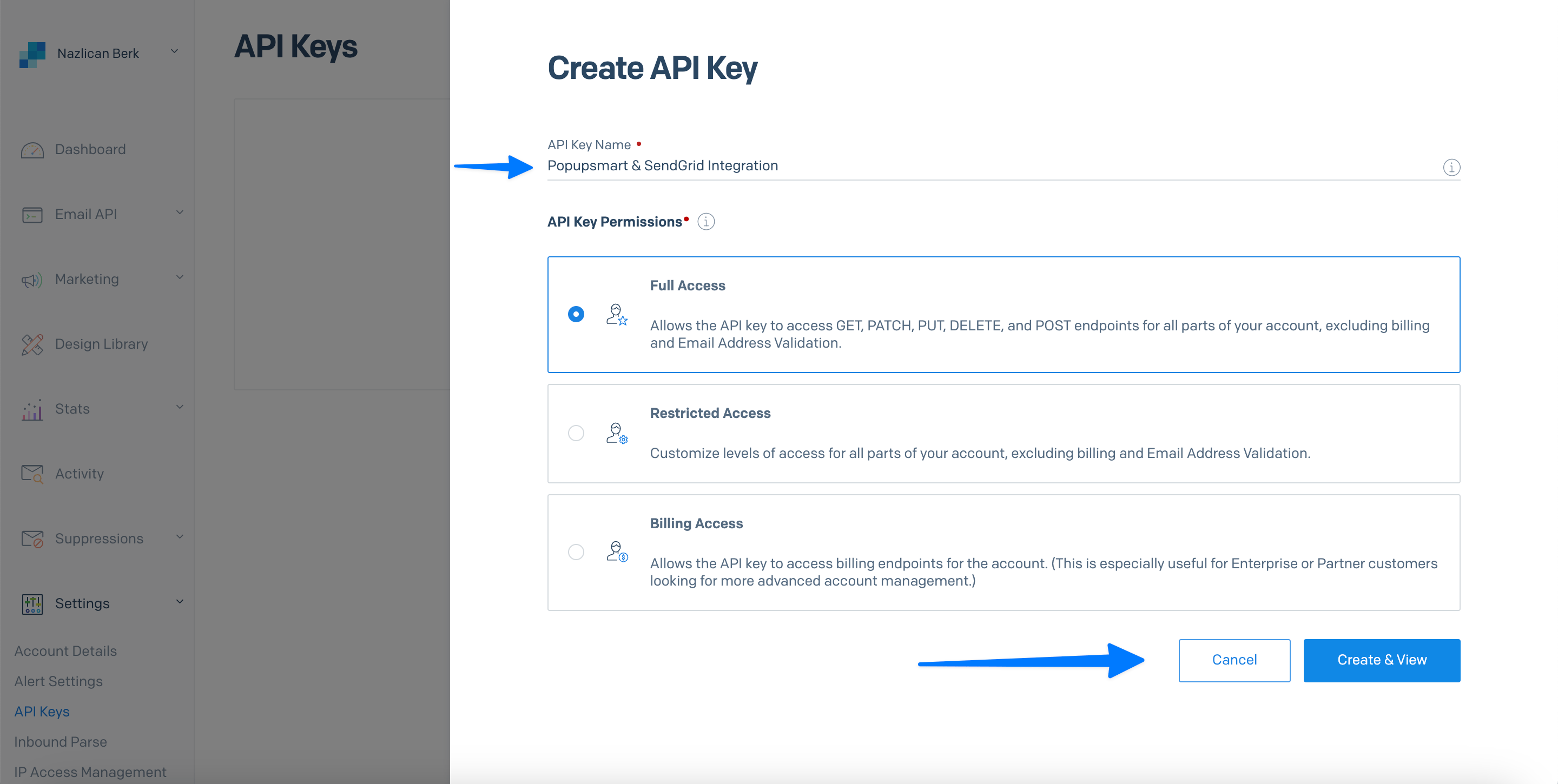
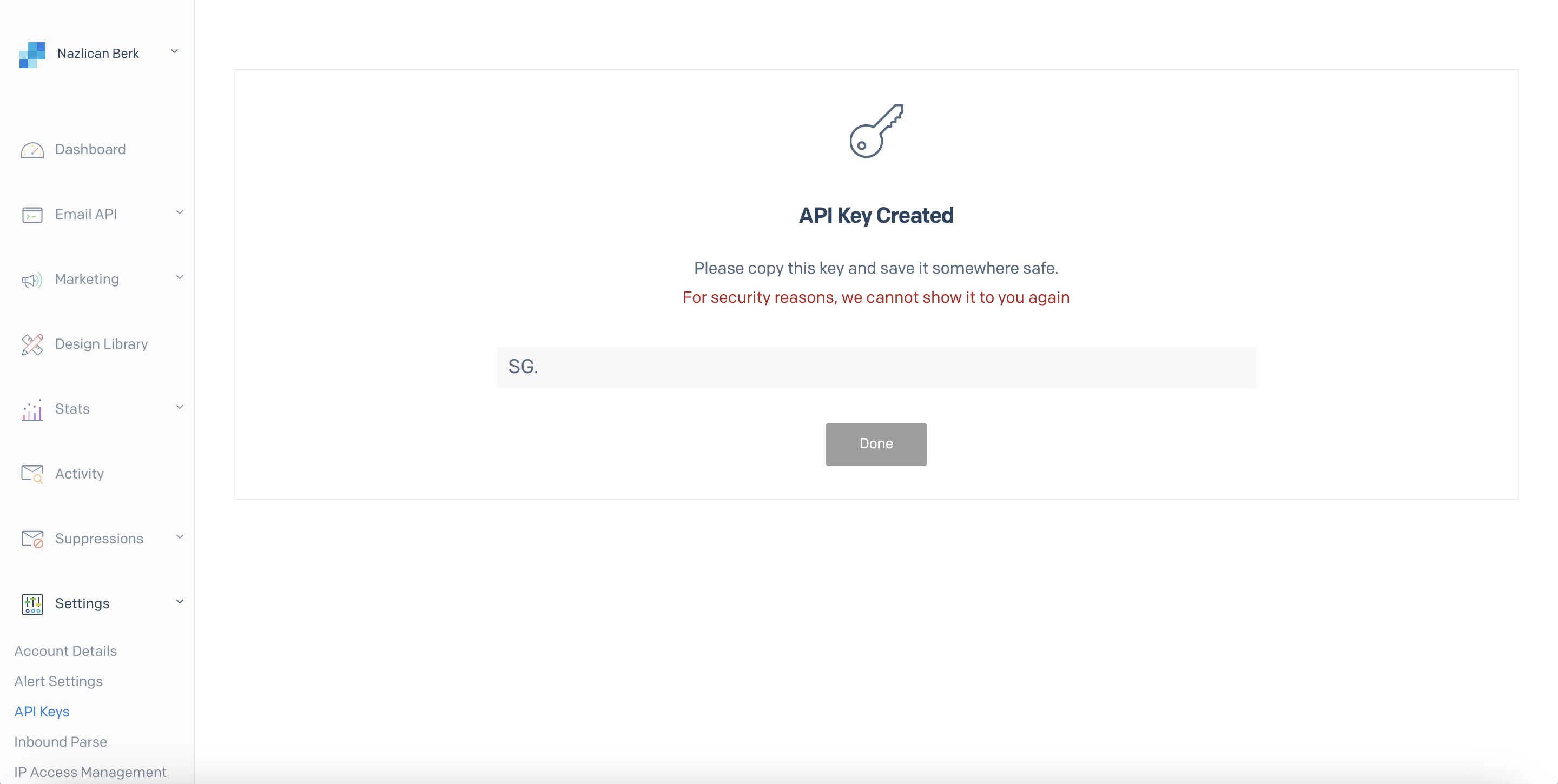
Name the key, choose its permissions and click Create & View. The screenshot uses Full Access; a key with narrower permissions must still be able to read your Marketing Campaigns lists and add contacts to them.
Click the key to copy it. According to SendGrid's API keys guide, a key is shown only once, at creation, so paste it into Popupsmart before you leave the page.
Save the connection and choose your list
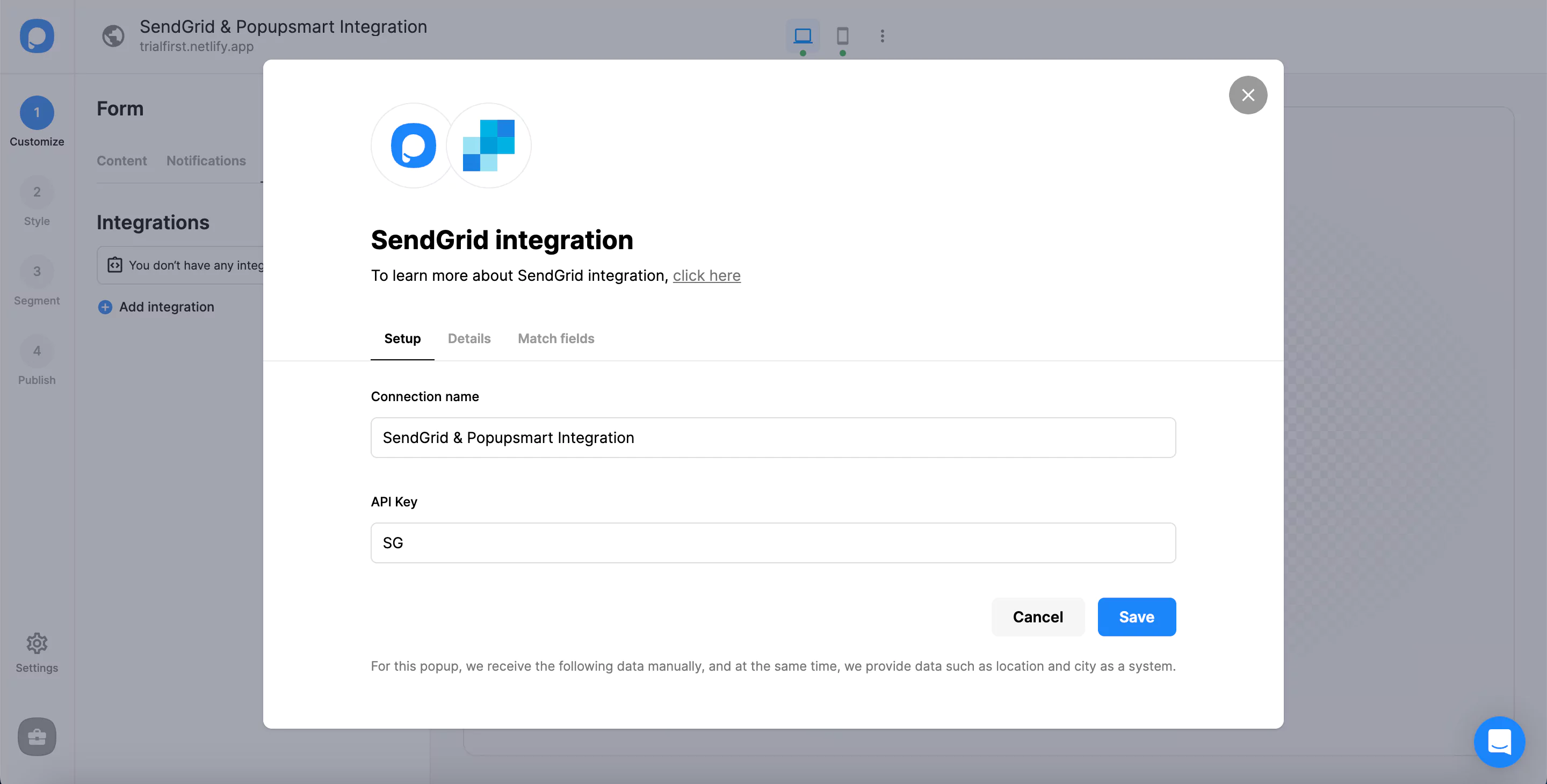
Back in Popupsmart, name the connection, paste the API Key and click Save.
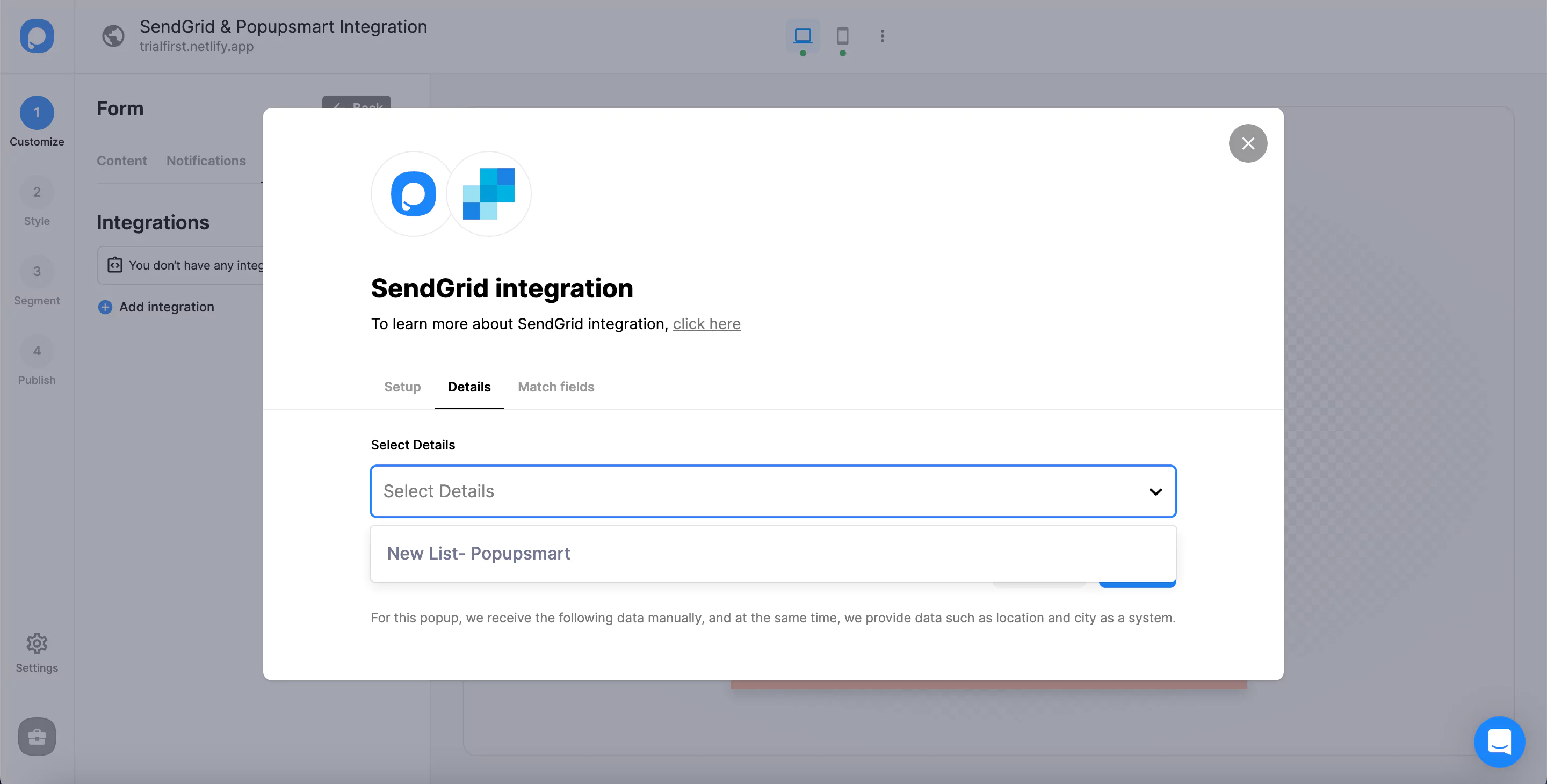
On the Details tab, your SendGrid lists appear in the Select Details dropdown. Choose the list your signups should join and click Next. If the dropdown is empty, create a list in SendGrid first.
Match popup fields to SendGrid fields
On the Match fields tab, match each popup input to the SendGrid field it should fill, then click Save. The fields on offer depend on the elements in your popup:
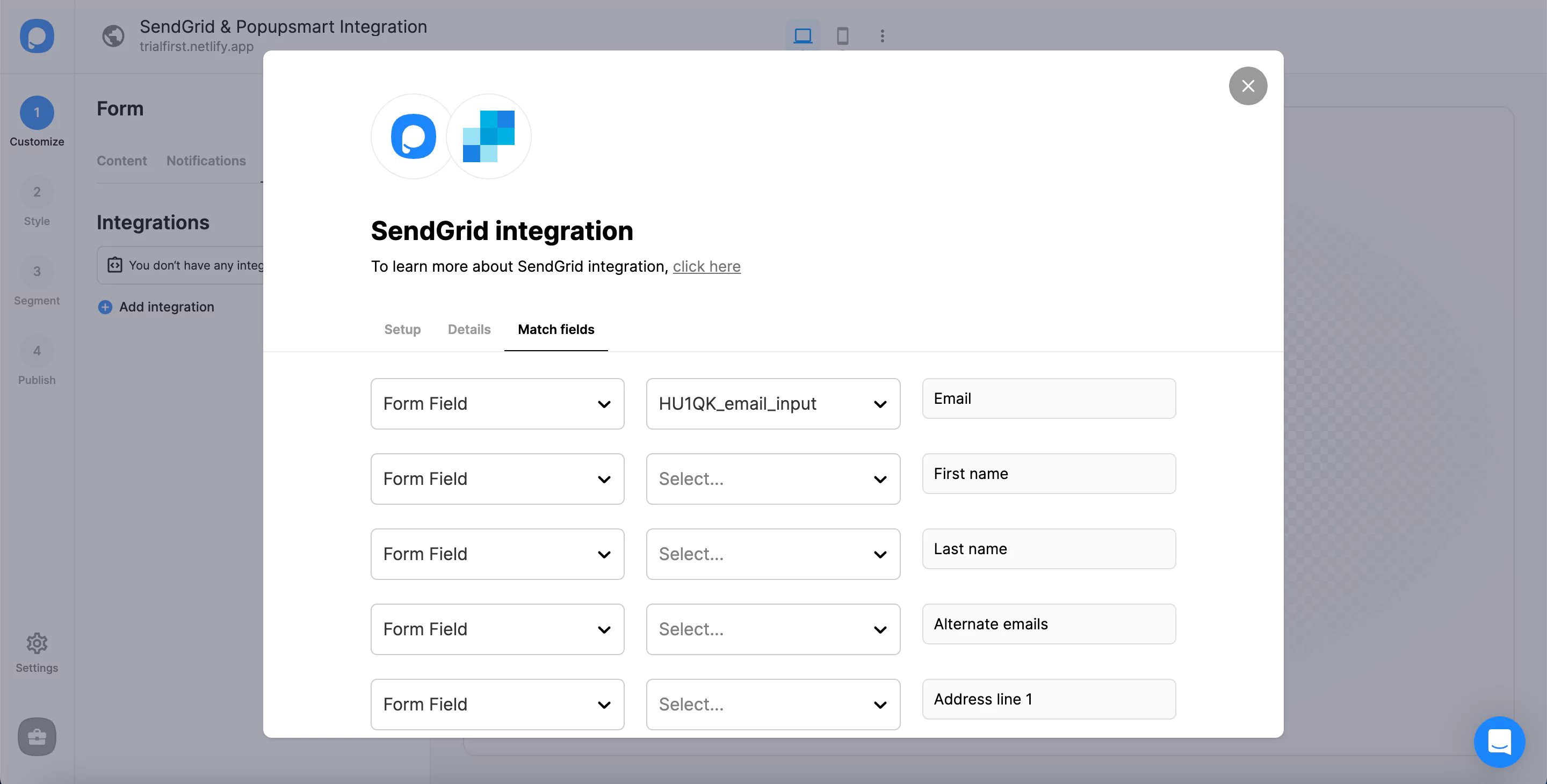
- Form field: an input in your popup. If the popup has none, the dropdown shows "No options".
- System field: data Popupsmart collects on its own, such as the visitor's browser or device.
- API field: data you pass to the Popupsmart JS API.
- Static field: a fixed value you set, such as "newsletter", to tag where a contact came from.
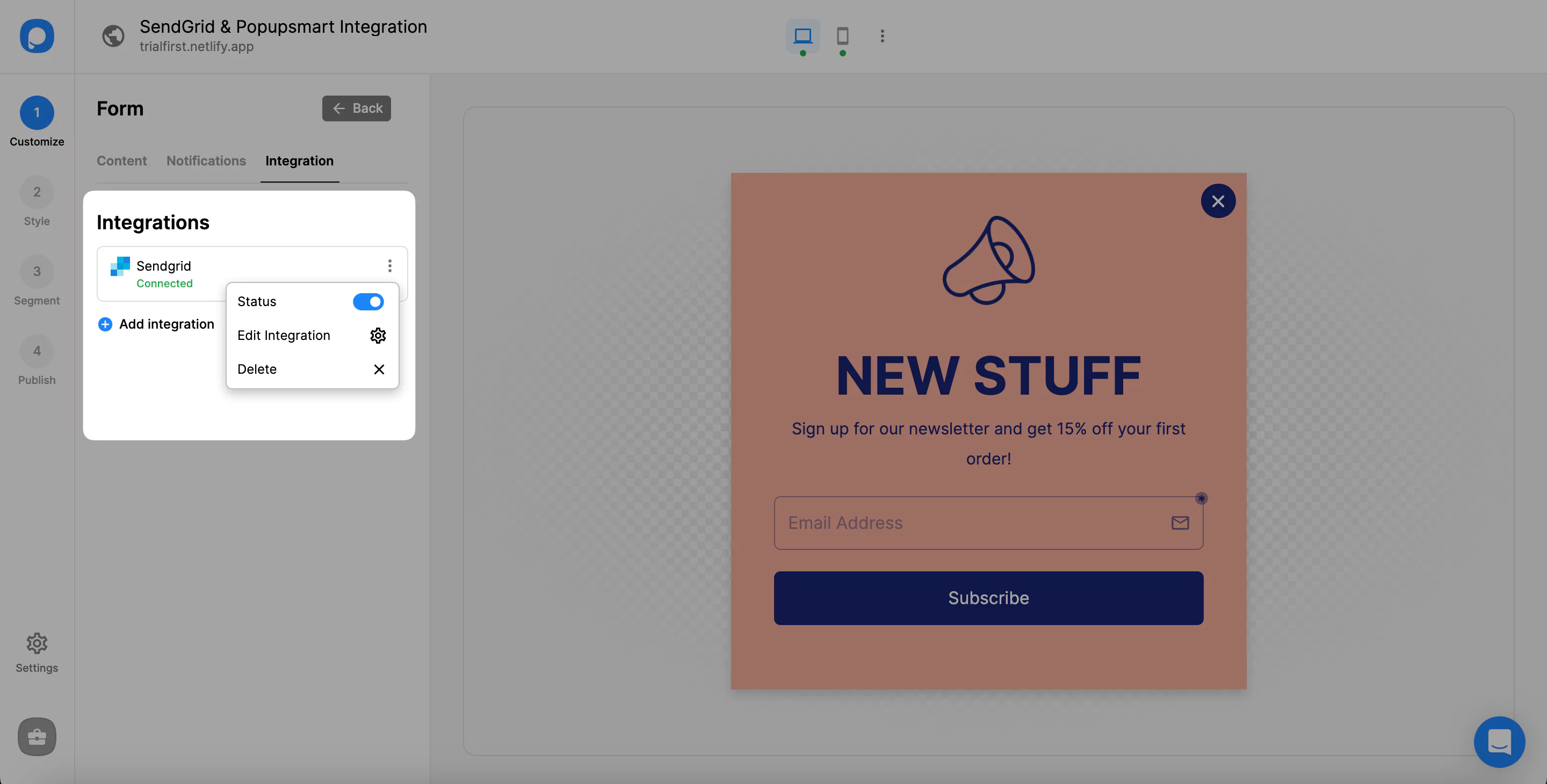
The connection is switched on by default. Its three-dot menu holds the Status switch, Edit Integration and Delete, and the Settings section of your dashboard lists every connection.
How do you test the SendGrid connection?
A test signup is the only proof that the SendGrid connection works. Publish the campaign to a page you control, fill in the popup with an address you own, then open your list under Marketing → Contacts. SendGrid queues new contacts, so when I test a new SendGrid connection with a customer, I give the signup some time before calling the connection broken. Check the matched fields, then delete the test contact.
Double opt-in and consent
Popupsmart adds each signup to your SendGrid list through SendGrid's API; what happens next is set up in SendGrid. For a confirmation or welcome email, build a SendGrid automation that starts when a contact joins the list, and switch it on before you publish the popup, because an automation only picks up contacts added after it goes live. Where your visitors' law asks for explicit consent, add a consent or privacy policy checkbox to the popup's form.
Subscribers not reaching SendGrid? Check these
- No list is chosen, or the list was deleted in SendGrid. Pick a list again on the Details tab.
- The API key was deleted or can't write contacts. Create a new key with the permissions above and paste it in through Edit Integration.
- The email input isn't matched. Match the popup's email input to SendGrid's Email field.
- SendGrid is still processing. New contacts are queued; give a fresh signup some time.
- The connection is paused. Switch Status back on from the three-dot menu.
- The campaign isn't live. Check that it's published and that the website is verified.
Still stuck? Contact Popupsmart support with the campaign name and we'll look at the connection with you.
SendGrid popup FAQ
What is SendGrid?
SendGrid is Twilio's email platform. It has two parts: the Email API, which developers use to send transactional email such as receipts and password resets, and Marketing Campaigns, which keeps your contacts and lists and sends newsletters and automated series. Popupsmart adds popup signups to a Marketing Campaigns list.
Does Popupsmart send my emails through SendGrid?
No. Popupsmart adds contacts to a SendGrid Marketing Campaigns list, and SendGrid sends your newsletters and automations to them. Popupsmart doesn't send email or SMS itself.
Do I need coding skills to connect Popupsmart to SendGrid?
No. The connection only needs an API key created in your SendGrid account and pasted into Popupsmart. There is no plugin to install and no code to write beyond the single Popupsmart embed line on your website.
Do Popupsmart's SendGrid popups slow down my website?
No. Popupsmart loads through a single asynchronous embed code, so your pages render normally while your SendGrid popups run on top of them.