Klaviyo popup: build one and connect it to your Klaviyo list
 By Mert Özeren
To add a Klaviyo pop-up, publish one of Klaviyo's own sign-up forms, or build the popup in Popupsmart and connect it with a Klaviyo private API key. Popupsmart then sends every email address, phone number and SMS consent the popup collects to the Klaviyo list you choose, ready for your flows.


Connection at a glance
- Sends leads to
- Klaviyo
- What you need
- A Klaviyo private API keyA list in Klaviyo
- Fields sent
- EmailPhone and SMS consentAny form field


What the Klaviyo connection does
The Klaviyo connection adds everyone who submits your popup to one Klaviyo list, with the fields you choose. You pick the list per campaign, and you match each popup field to a Klaviyo field, so an email lands in Email, a phone number in Phone Number, and SMS consent in its own property.
The connection is saved once and reused: the next campaign picks the same Klaviyo credentials from a dropdown. You can pause or edit it from the campaign whenever you want.
Popupsmart is not an email marketing platform. It captures contacts and hands them to an email service provider; it does not send campaigns or run drip sequences. Klaviyo keeps running your flows and campaigns as before.
Does Klaviyo do pop-ups?
Yes. Klaviyo's sign-up forms include popup, flyout, full-page, embedded and banner forms, built under Website → Sign-up forms. According to Klaviyo's guide to getting started with sign-up forms, a form goes live only on a website integrated with Klaviyo, with sign-up forms enabled. As of September 2026, Klaviyo's pricing page lists web forms on its free plan, which covers up to 250 active profiles.
| Klaviyo's built-in popup | Popupsmart | |
|---|---|---|
| Where it runs | A website integrated with Klaviyo; on Shopify, through the Klaviyo app embed | Any website that accepts the Popupsmart embed code, plus a Shopify app and an optional WordPress plugin |
| How many popups | Several can be live; a display priority decides which appears first | One live popup on the free plan; unlimited on paid plans |
| Triggers and targeting | Exit intent, time delay, scroll depth, pages viewed; visitors, lists and segments, URL, UTM parameters, location, device, cart contents, per Klaviyo's targeting and behavior guide | Exit intent, scroll, time on page, URL and device targeting |
| Where the leads go | One Klaviyo list, or two when a form collects email and SMS on separate steps | Klaviyo, or any of the 19 destinations the help center lists |
| A/B testing | Yes; the plan is not documented in the guides above | From the Advanced plan |
| Price | Web forms are on Klaviyo's free plan and up | Free plan: one website, one live popup, 5,000 pageviews a month; paid plans from $39 a month |
Klaviyo's sign-up forms come with the account and target on Klaviyo's own profile data, such as list membership and cart contents. If Klaviyo is your only email tool and one store is your only site, they may be all you need. Popupsmart earns its install when the same popups have to run on several websites (3 on the Basic plan, up to unlimited on Expert), when you want popups for other jobs, such as calls, announcements and surveys, in the same place, or when you'd like to keep your popups if you ever change email tools.
How do you add a Klaviyo popup to Shopify?
A Klaviyo popup reaches a Shopify store in one of two ways: Klaviyo's own sign-up form through the Klaviyo app embed, or a Popupsmart popup through the Popupsmart Shopify app, connected to Klaviyo with an API key.
- Klaviyo's sign-up form. Integrate Shopify with Klaviyo, then turn on the Klaviyo app embed in your theme's App embeds tab and click Save. Klaviyo's Shopify guide explains that this switch enables onsite tracking and sign-up forms. Publish the form, and it appears on the store.
- A Popupsmart popup. Install Popupsmart's Shopify app, switch on its app embed in the theme editor, then build the popup and connect Klaviyo as this guide shows. The Shopify popup guide has every click, and the embed-code alternative.
Klaviyo also notes that, depending on your Shopify customer privacy settings, it may not identify visitors from the EU, EEA, UK and Switzerland who haven't given consent, so profile-based targeting doesn't apply to them. My advice is to run one of the two on a store, not both on the same pages: if you move list capture to Popupsmart, set the Klaviyo popup to Draft rather than deleting it, so it stays in your account.
Before you start
- An active Klaviyo account.
- A list in Klaviyo. Go to Lists and Segments under the Home tab and create one if you haven't already. The connection can't be completed without it.
- A verified website on your Popupsmart account.
How to create a Klaviyo popup in Popupsmart
Popupsmart builds the popup without a plugin, a developer or a line of code. Build the popup first; the next section connects it to Klaviyo.
Step 1: Create your account and verify your website
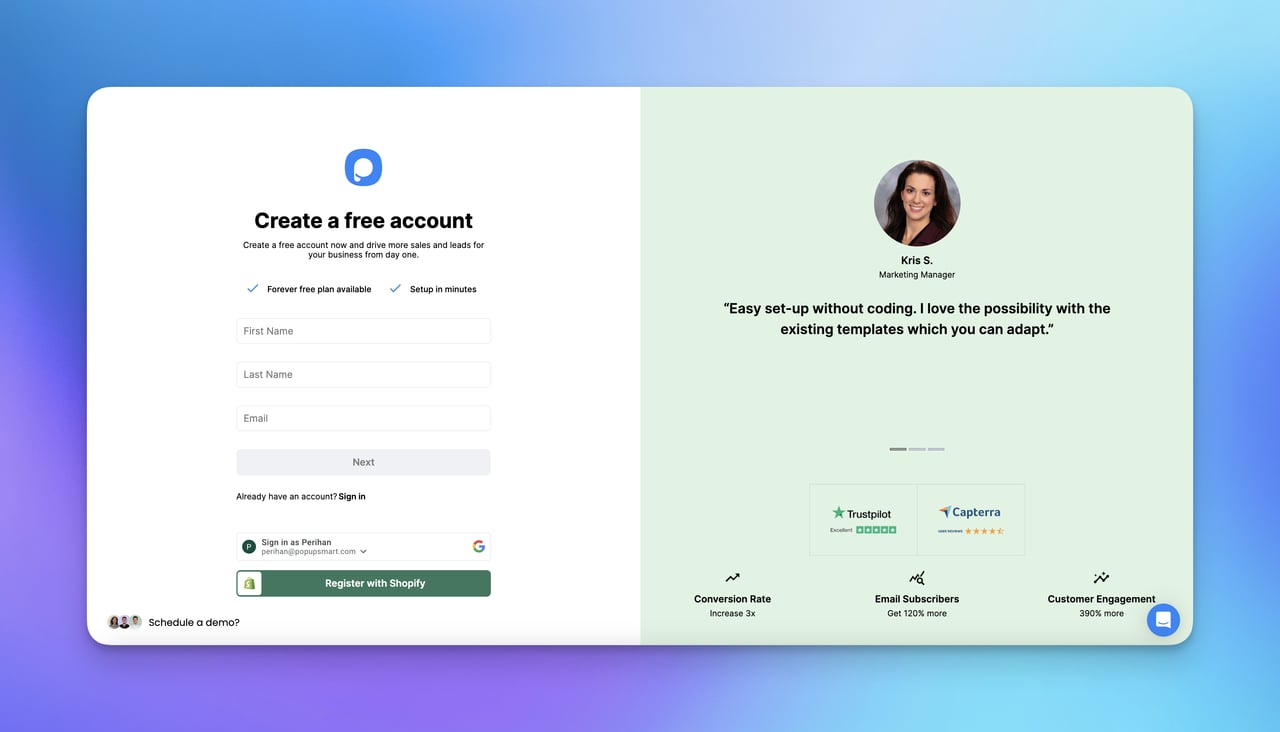
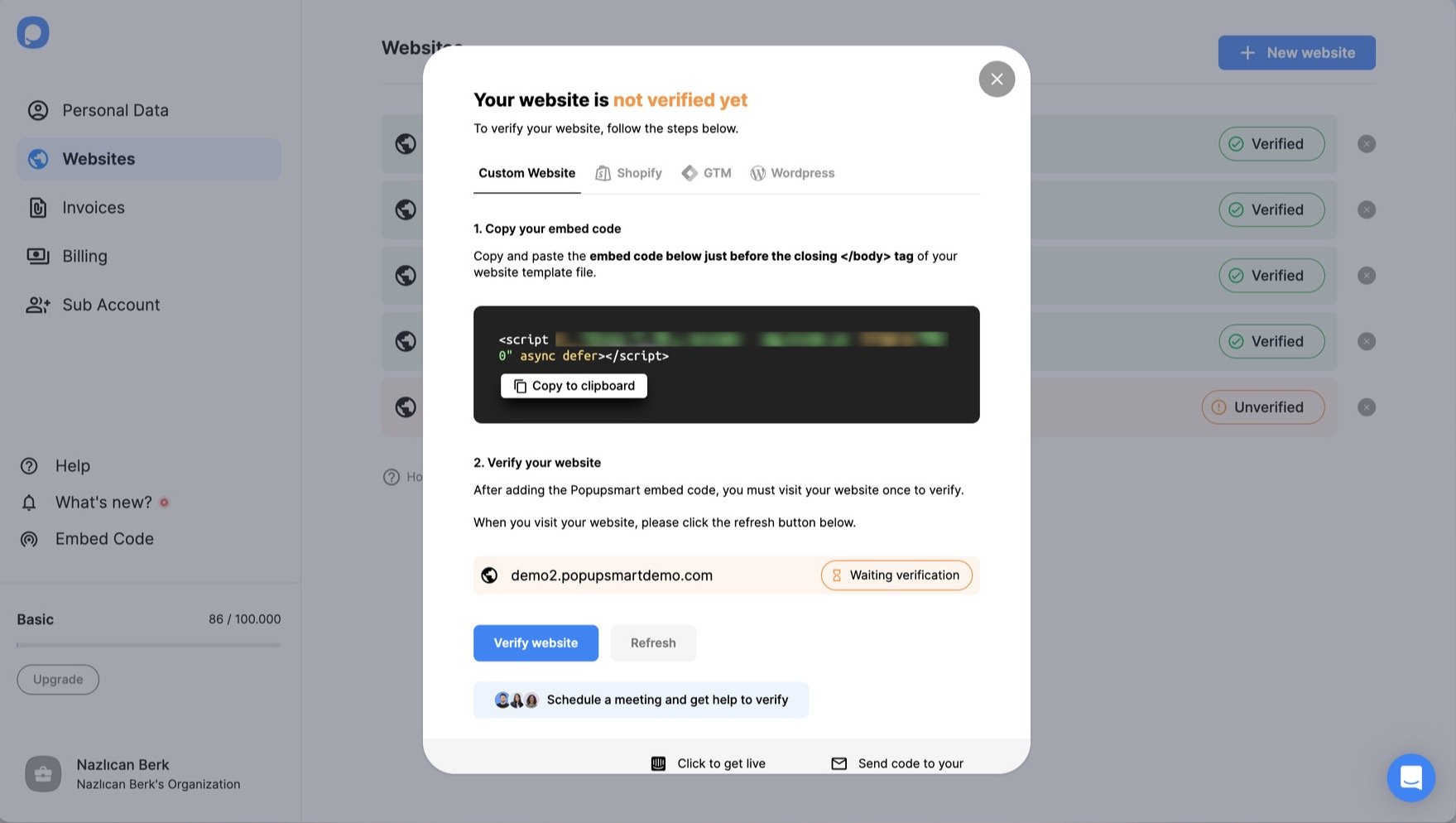
Create your free Popupsmart account and add the website your popup will run on. If you haven't verified a domain yet, follow the website verification guide first, because the connection won't go live without it.
Step 2: Start a new campaign
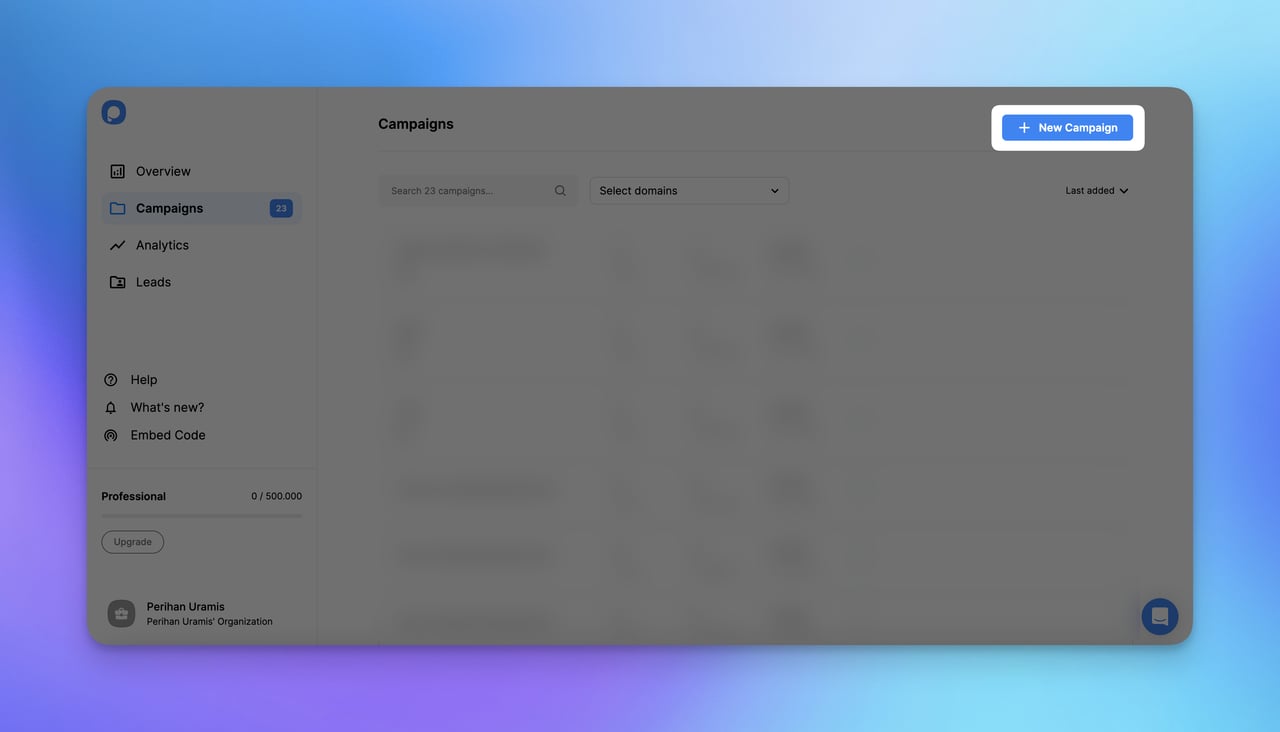
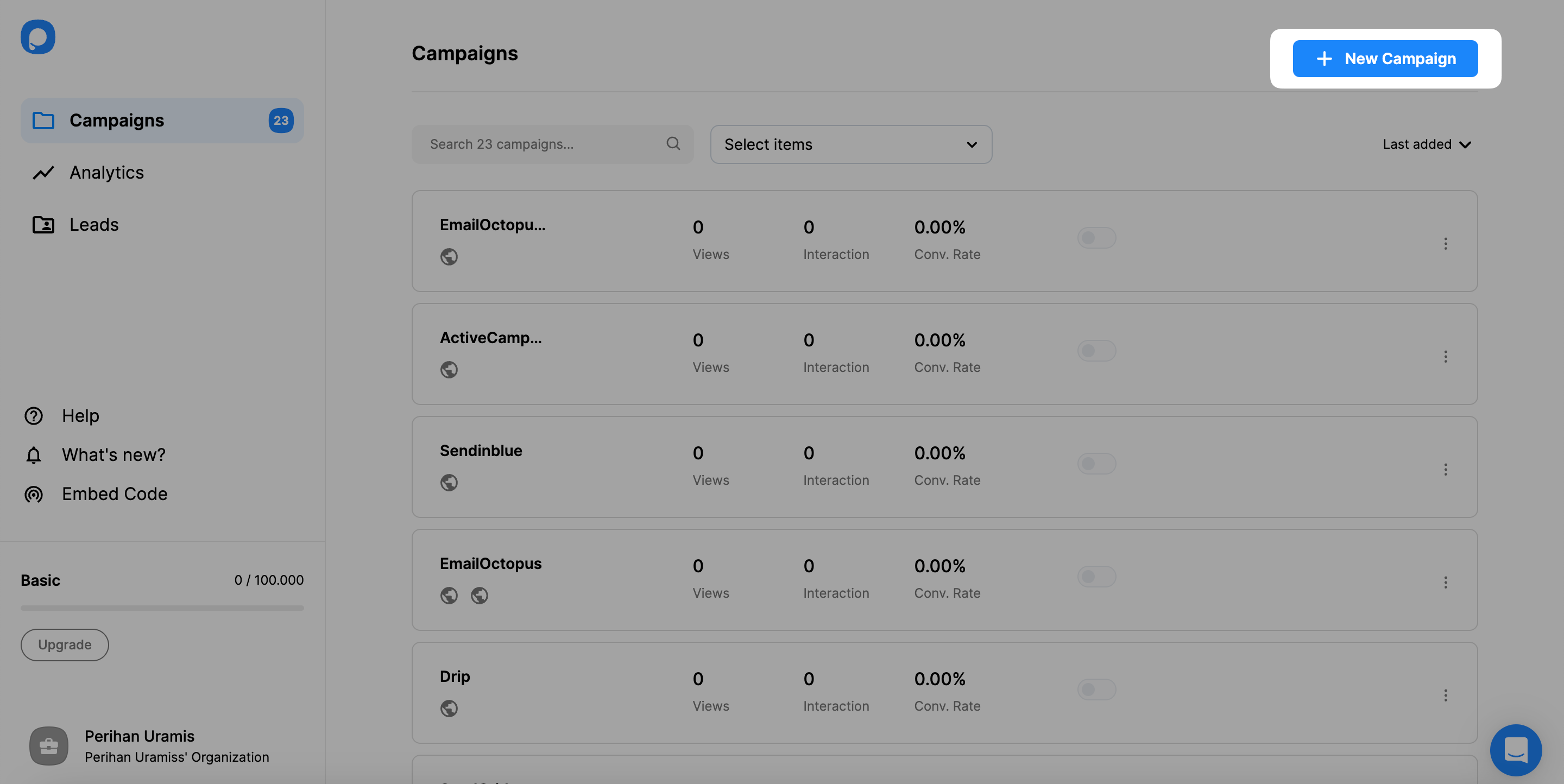
From your dashboard, click New Campaign.
Step 3: Choose a template
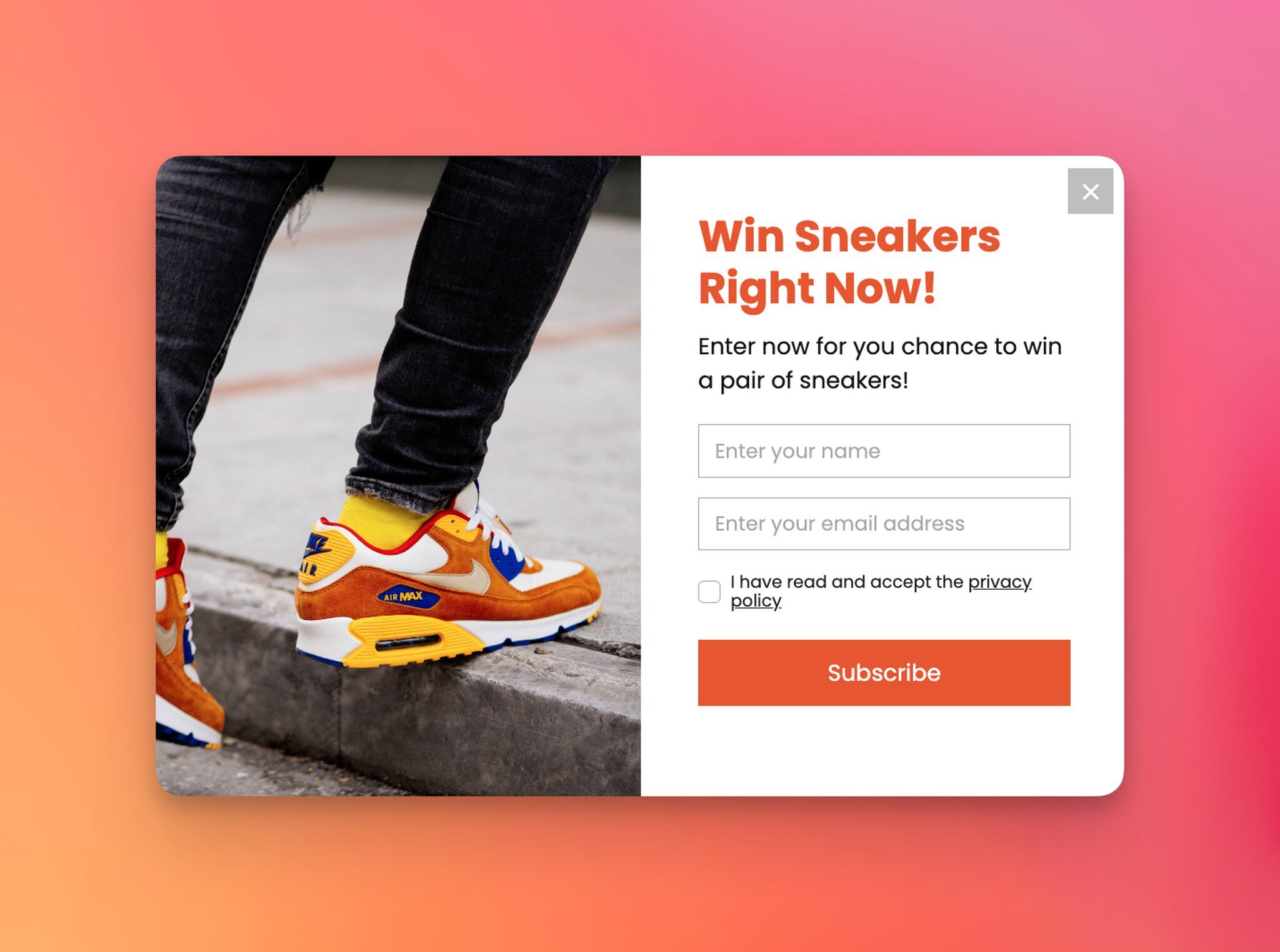
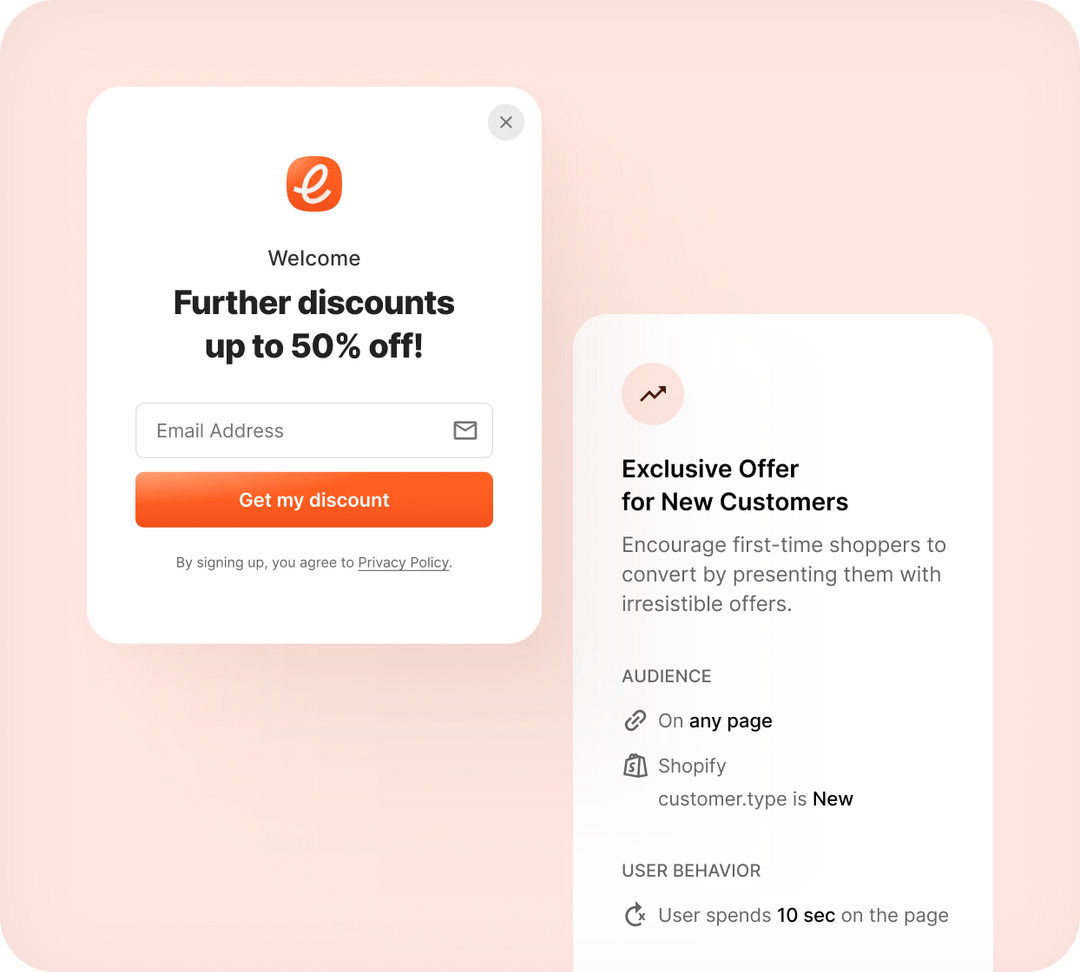
Pick a ready-made template or start from a blank canvas. For Klaviyo list growth, the newsletter and discount layouts are the usual starting points.
Step 4: Design the popup and add an email field
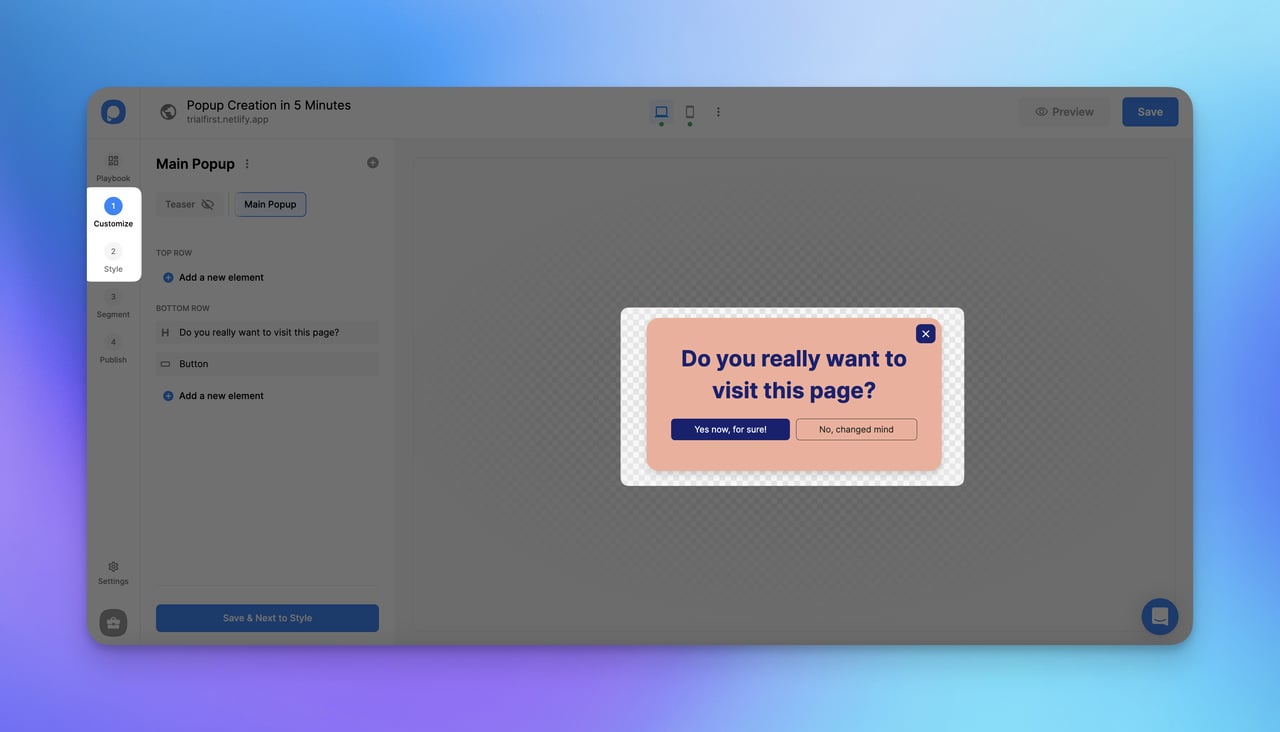
In the Customize step, shape the popup to match your brand: colours, fonts, images, copy and button styles all edit inline. Make sure the popup contains an email form input, since that is the field Klaviyo receives.
Step 5: Choose who sees it and when
Set your targeting and trigger rules. You can combine exit intent, scroll depth, time on page, new versus returning visitors, traffic source, device, location and specific URLs. In Popupsmart's 2026 benchmark, popups that wait before appearing convert 0.83% against 0.61% for popups shown the instant the page loads (median campaign), a lean rather than a proven gap, and exit intent shows no statistically reliable advantage.
Step 6: Publish and add the embed code
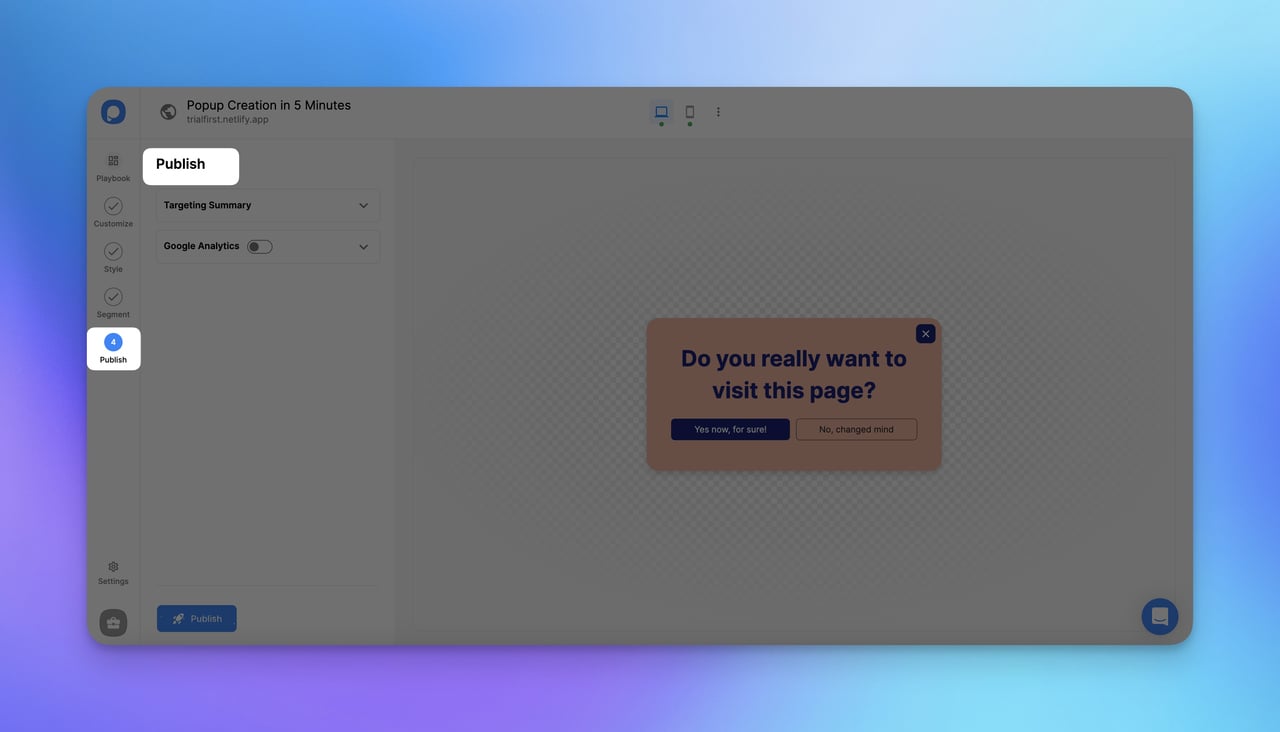
Connect the popup to Klaviyo (next section), review the Publish step, then paste the Popupsmart embed code into your site once. Every campaign you build afterwards runs from that same line.
Klaviyo popup types that work well
- Newsletter signup: the baseline email capture popup, triggered on scroll or time on page.
- Welcome discount: a first-order code in exchange for an email; the usual starting point for a store.
- Exit-intent offer: fires as the cursor leaves the page, as in exit-intent popup examples.
- Spin-to-win: trades a game for an email, suited to stores with steady traffic.
- Cart reminder: feeds Klaviyo's abandoned-cart flows, as in cart abandonment popup examples.
How to connect Popupsmart to Klaviyo
The Klaviyo connection takes a private API key from Klaviyo and one list. You set it up inside the campaign, in the Integration section of the Customize step.
Add Klaviyo to your campaign
Sign in to your Popupsmart account and open the campaign you built, or create one from a template.
Click the form input element in the editor. This is what tells Popupsmart which data to collect and pass to Klaviyo.
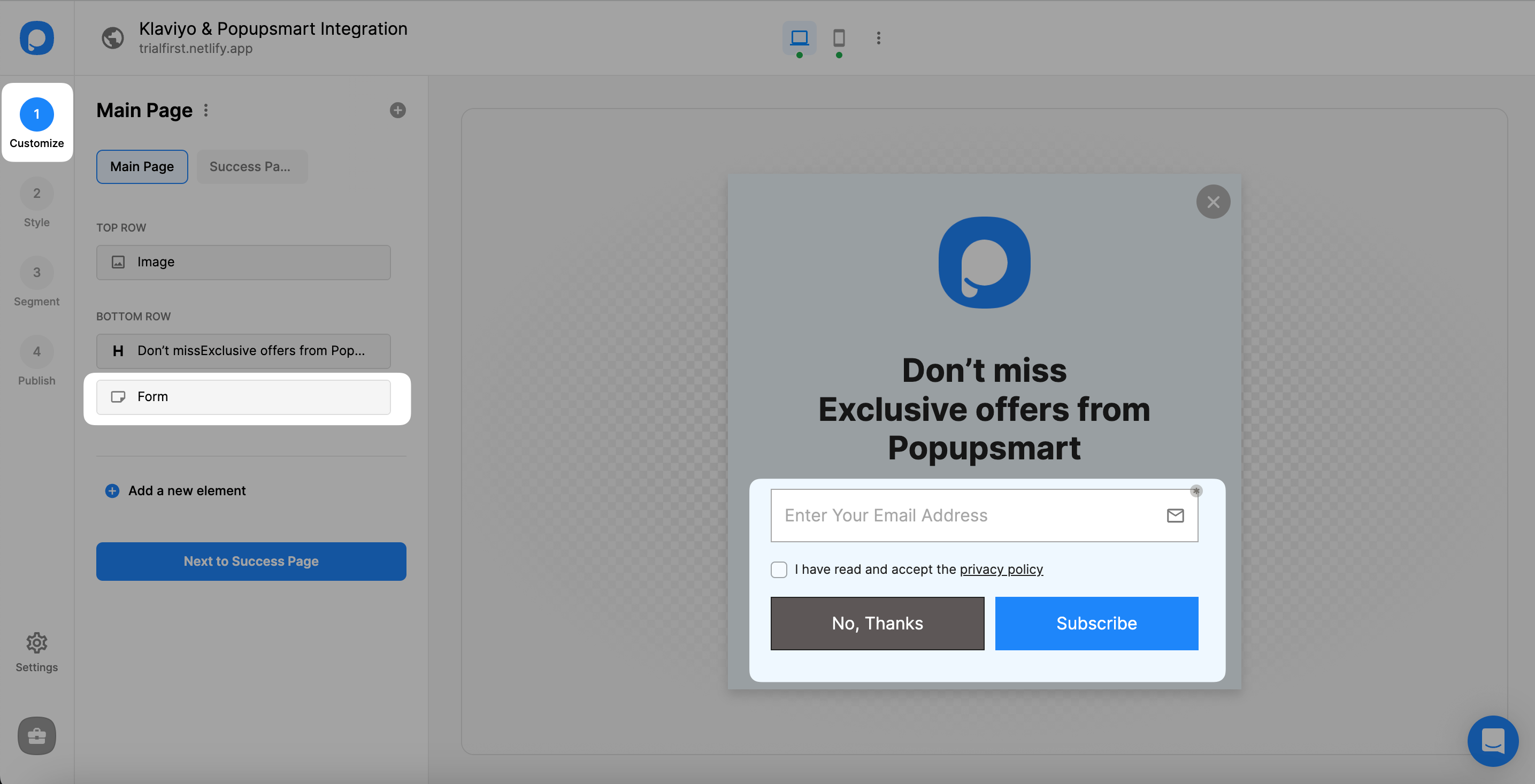
In the Customize step, open the Integration section and click Add Integration.
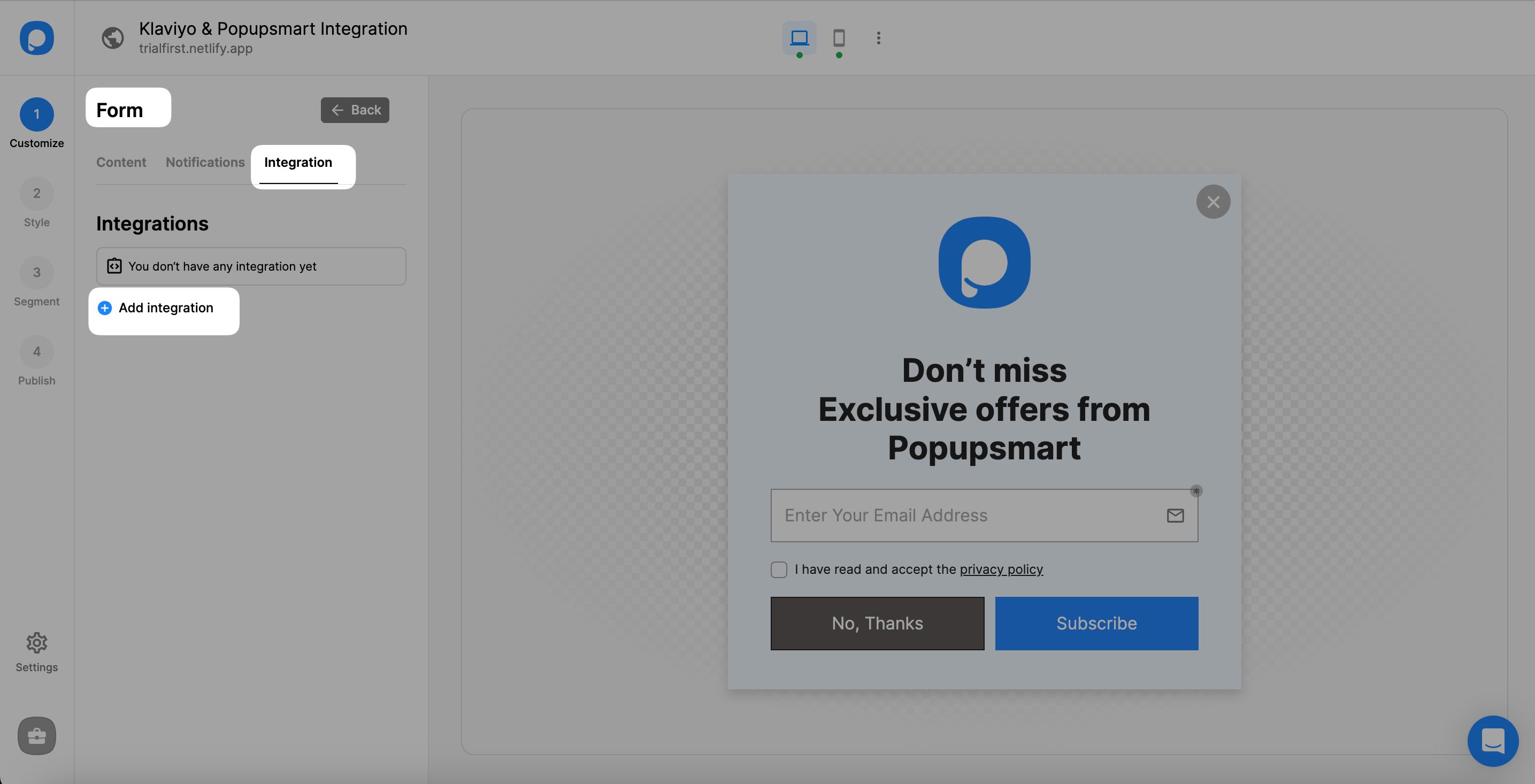
Find Klaviyo among the options and click Connect. If this is your first Klaviyo connection, choose Add new Klaviyo API; once saved, you can reuse the same credentials for any future campaign.
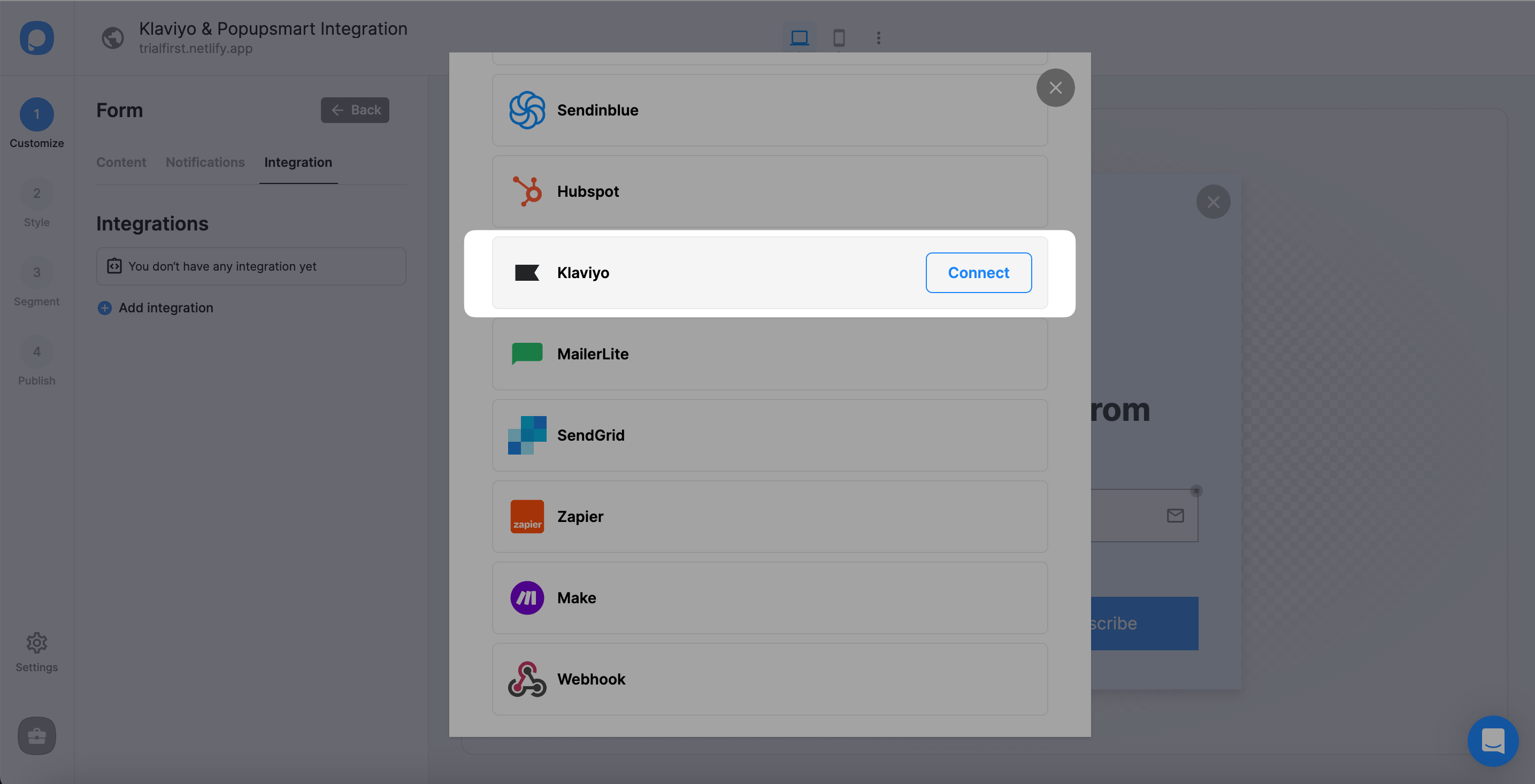
Where to find your Klaviyo API key
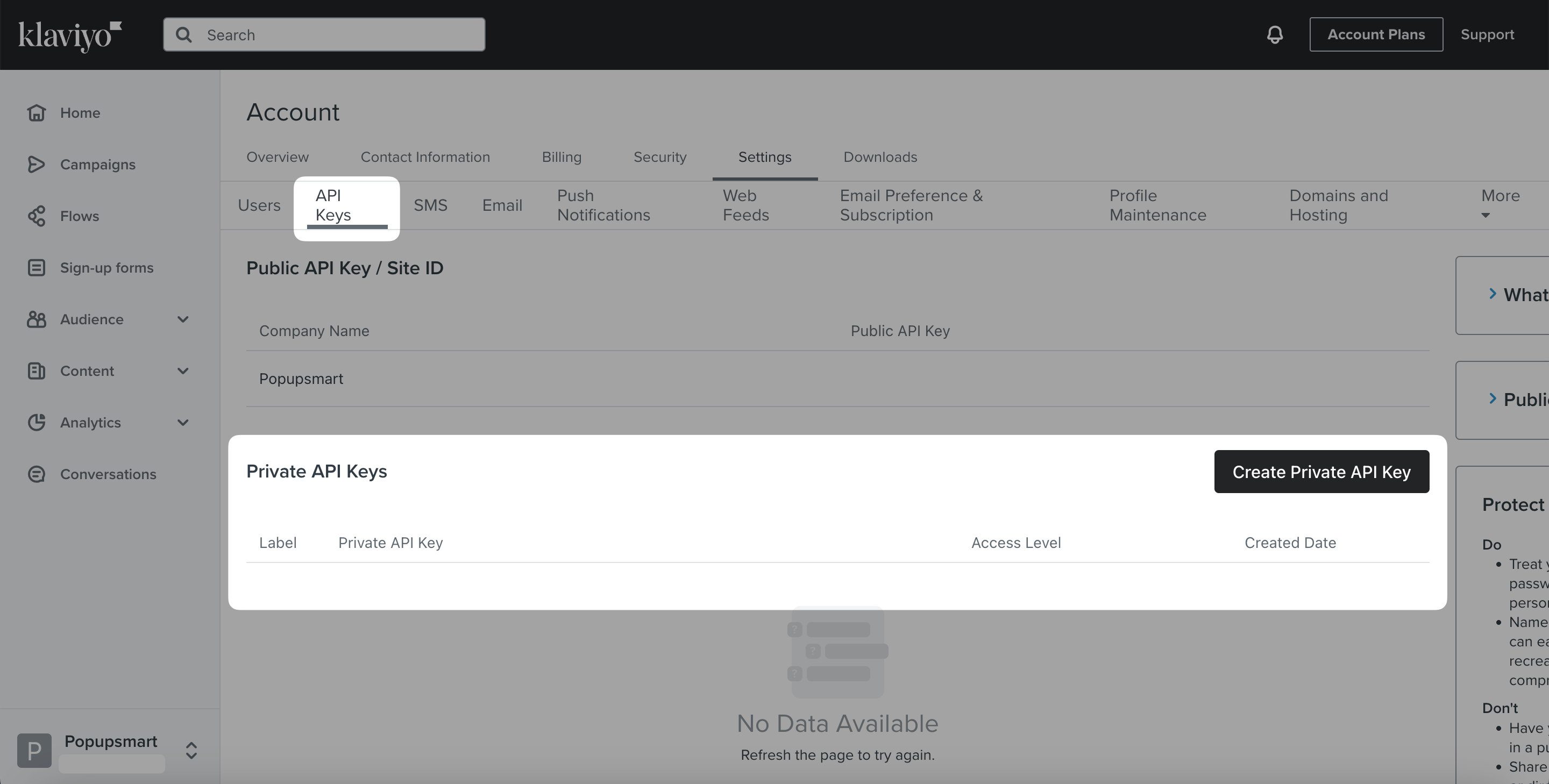
Log in to Klaviyo and open Settings from the account menu in the lower-left corner.
Go to the API Keys tab and click Create Private API Key.
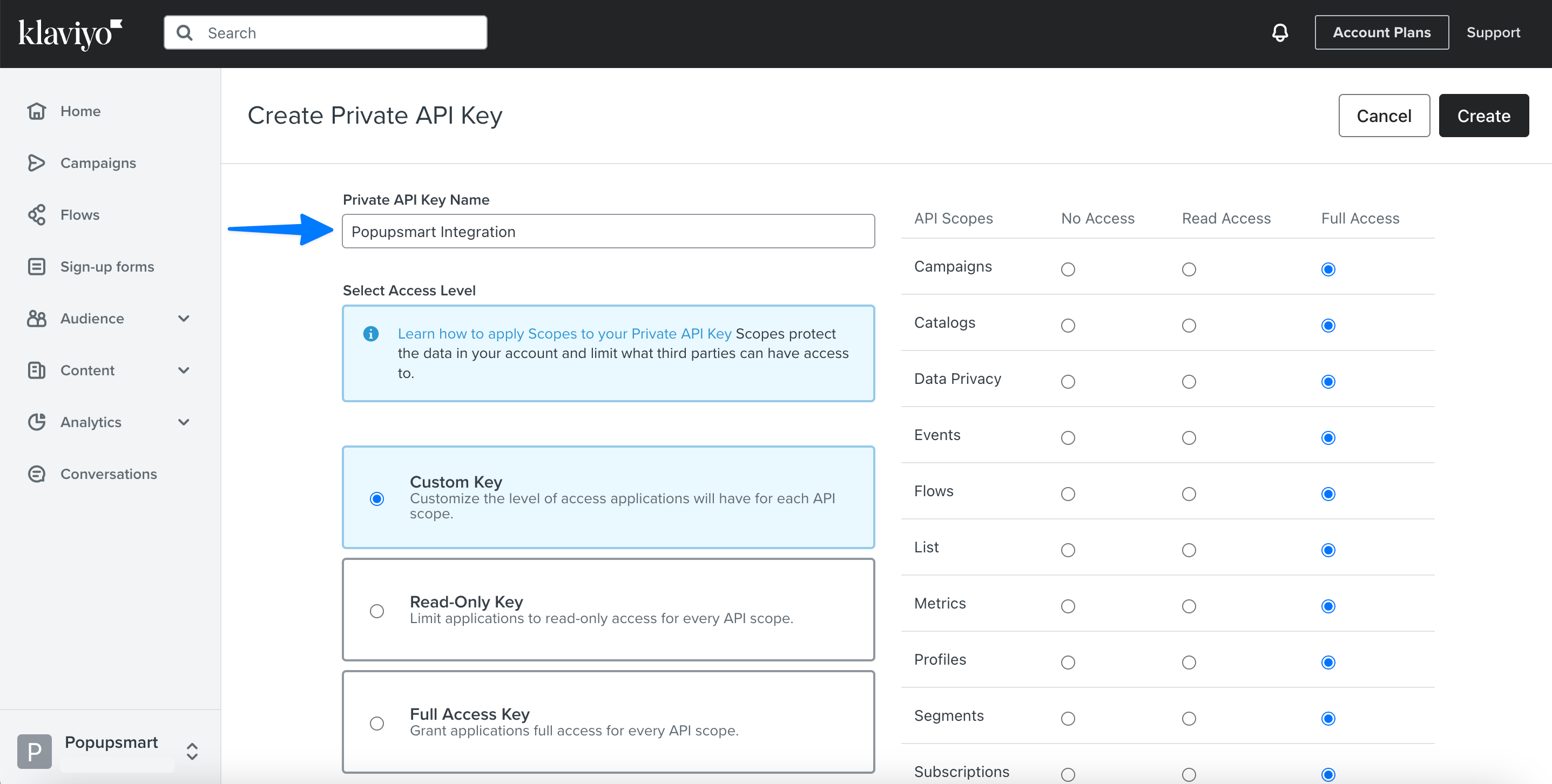
Give the key a name, choose its access level and the scopes it needs, then click Create.
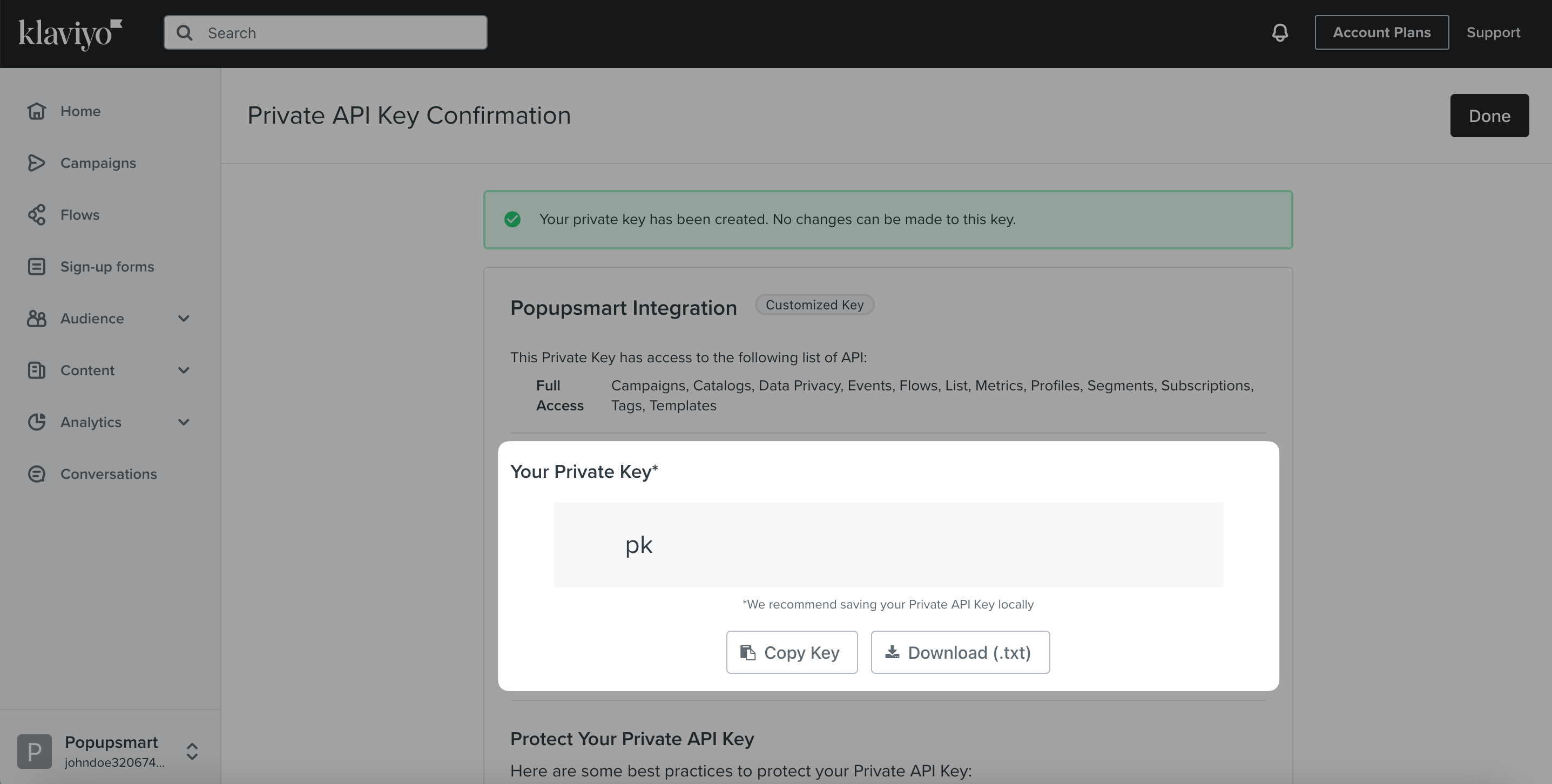
Click Copy Key to copy the private API key, then return to Popupsmart.
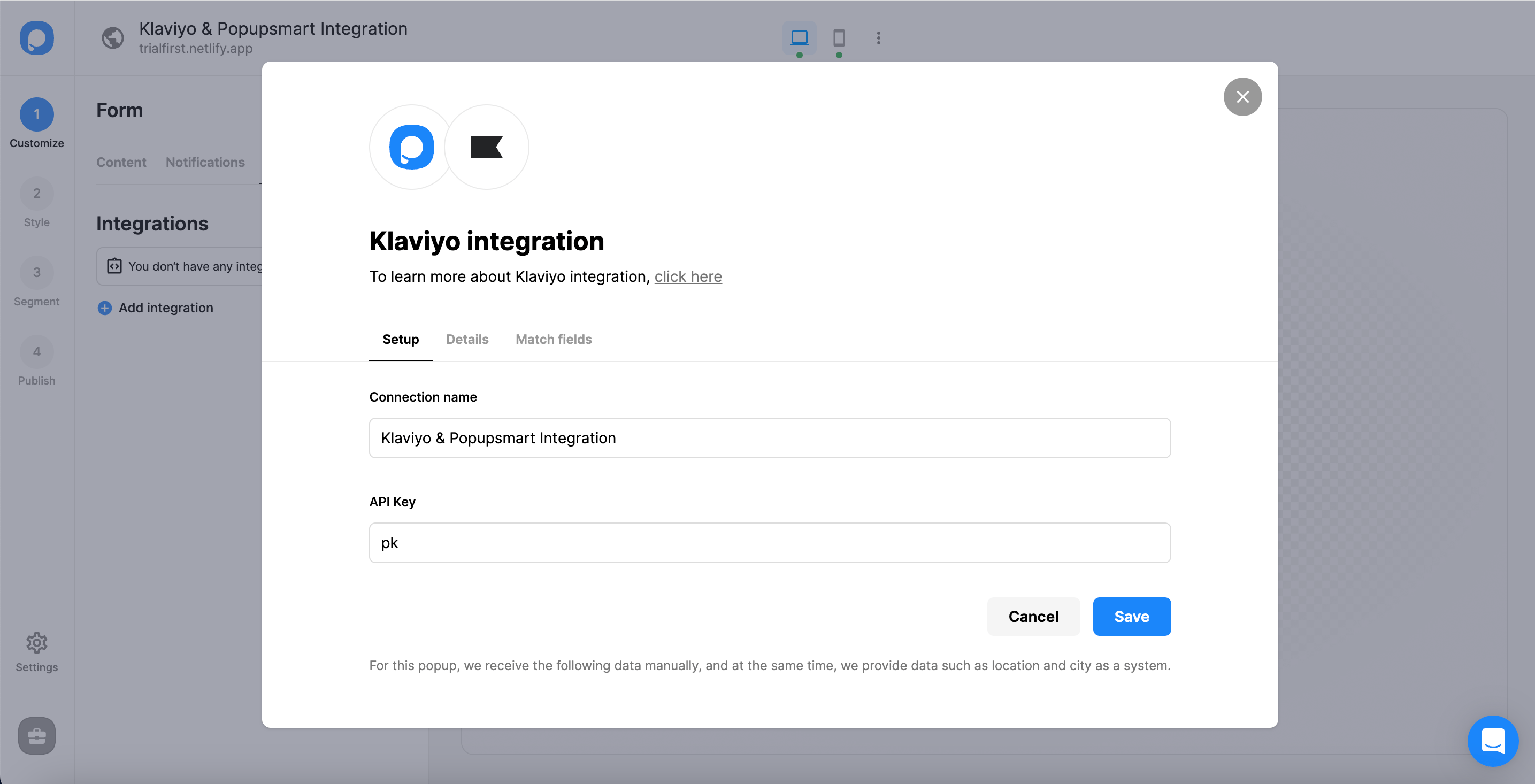
Save the connection and choose your list
Name your connection, paste the API Key and click Save.
In the Details section, choose the Klaviyo list your subscribers should join.
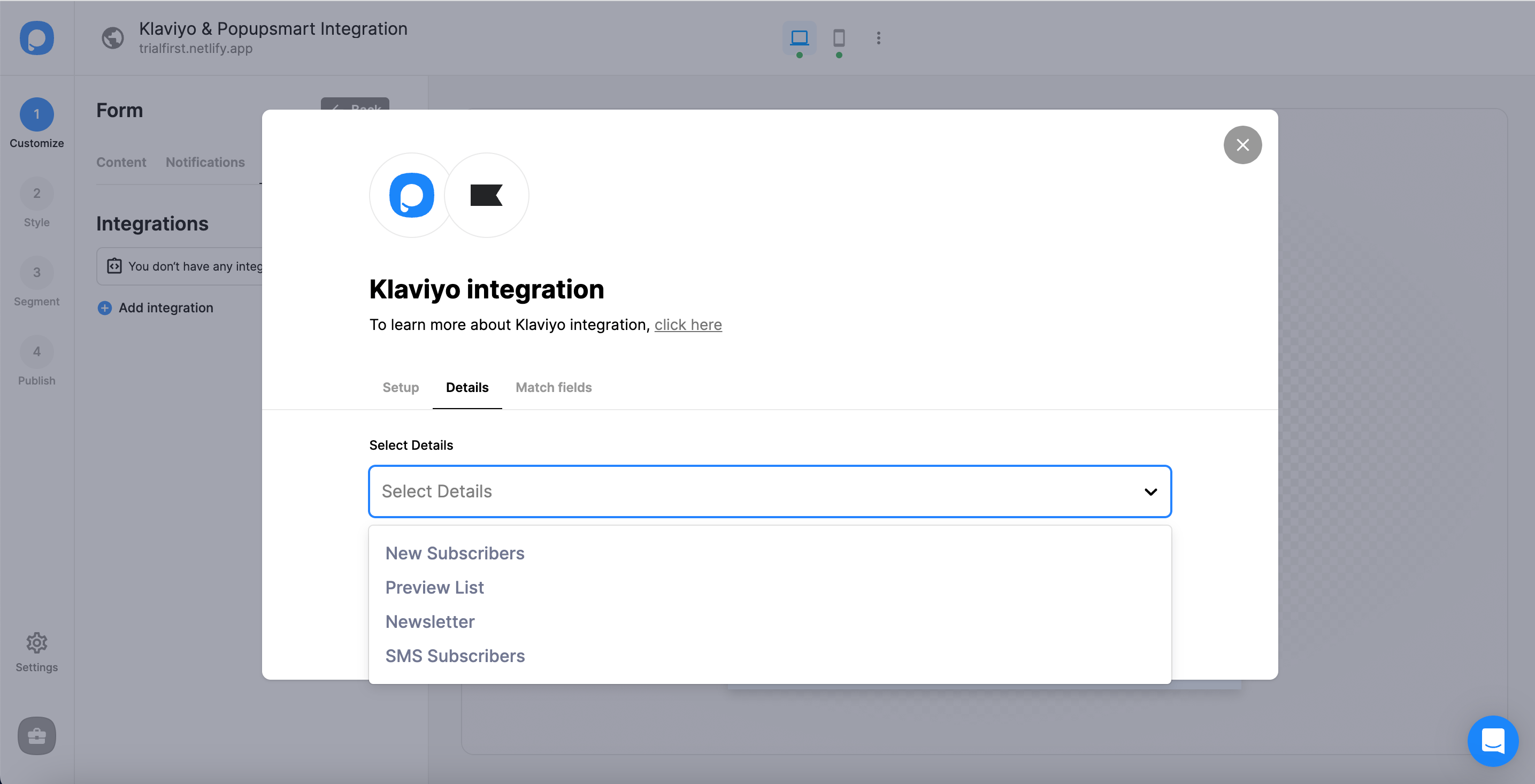
Match popup fields to Klaviyo fields
Match each popup input to the Klaviyo field it should fill, then save. The fields on offer depend on the elements in your popup:
- Form field: an input in your popup. If the popup has none, the dropdown shows "No options".
- System field: data Popupsmart collects on its own, such as the browser or device of the visitor who filled in the popup.
- API field: data you pass to the Popupsmart JS API, forwarded to Klaviyo with the rest of the submission.
- Static field: a fixed value you set yourself, useful for tagging where a subscriber came from, for example "newsletter" or "exit-intent".
The connection is switched on by default. You can pause or edit it from the three-dot menu, and manage every connection from the Settings section of your Popupsmart dashboard.
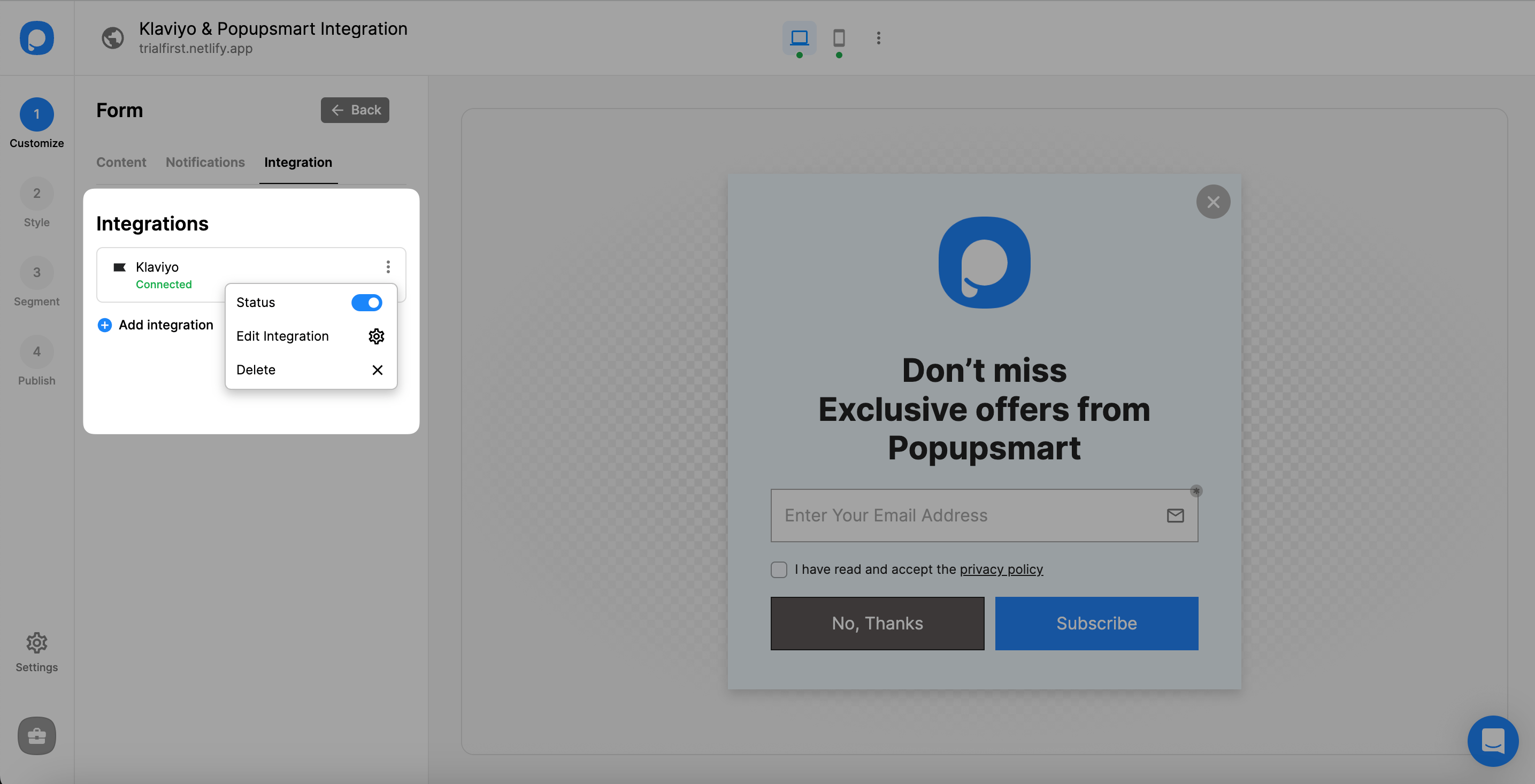
Test the connection before you publish
A test submission is the only proof that the Klaviyo connection works. Publish the campaign to a page you control, fill in the popup with an address you own, then open Lists and Segments in Klaviyo and search the list for it. Check that the phone number and consent landed in the fields you matched, then delete the test profile so it doesn't skew your numbers.
Double opt-in and consent
Whether a new Klaviyo subscriber has to confirm is a setting on the Klaviyo list, not in Popupsmart. If the list uses double opt-in, Klaviyo sends its confirmation email and the person joins the list only after clicking it, so a test lead shows up as unconfirmed until you do. Where your visitors' law asks for explicit consent, add a consent checkbox to the popup's form; SMS consent is sent to Klaviyo as a field of its own.
Subscribers not reaching Klaviyo? Check these
- The API key is read-only. It connects, but nothing is written. Create a key with write access to lists and profiles.
- No list is chosen, or the list was deleted in Klaviyo. Pick a list again in the Details section.
- The email input isn't matched. Match the popup's email input to Klaviyo's email field.
- The list uses double opt-in. The subscriber appears once they confirm.
- The connection is paused. Switch it back on from the three-dot menu.
- The campaign isn't live. Check that it's published and that the website is verified.
Still stuck? Contact Popupsmart support with the campaign name and we'll look at the connection with you.
Klaviyo popup FAQ
How do I turn off a Klaviyo pop-up?
Open the form in Klaviyo's sign-up form editor, click the status dropdown at the top right and change it from Live to Draft. Draft takes the form off your site but keeps it on the Sign-up forms page, so you can publish it again later; deleting a form is permanent.
Klaviyo's guide to managing sign-up forms shows the status dropdown. To stop a Popupsmart popup instead, unpublish the campaign in Popupsmart.
Can a Klaviyo popup use exit intent?
Yes, either way. Klaviyo's sign-up forms have a timing rule for when a visitor is exiting the page, and a Popupsmart popup connected to Klaviyo can fire on exit intent too.
Can I run Klaviyo's sign-up forms and a Popupsmart popup on the same store?
Yes, but keep them off the same pages so no visitor gets two popups at once. Limit the Klaviyo form with its URL targeting and the Popupsmart popup with its URL rules, or set the Klaviyo popup to Draft.
How long does it take to set up a Klaviyo popup with Popupsmart?
Among people who published a campaign in the 90 days to 16 September 2026, the median time from signup to the first published campaign was 32.5 minutes, and 287 of 332 published within a day, according to Popupsmart's own product data. That figure covers every platform and tool, so treat it as a guide rather than a Klaviyo promise.
Do I need coding skills to connect Klaviyo to Popupsmart?
No. The connection only needs a private API key copied from your Klaviyo account and pasted into Popupsmart. There is no plugin to install and no code to write beyond the single Popupsmart embed line on your website.
Do Popupsmart's Klaviyo popups slow down my website?
No. Popupsmart loads through a single asynchronous embed code, so your pages render normally while your Klaviyo popups run on top of them.