Conversion rate optimization (CRO): a complete guide for beginners
 Written by Emre Elbeyoğlu, Founder & CEO of PopupsmartReviewed by Mert Özeren · Updated
 Conversion rate optimization (CRO) is the process of improving your website so that more of the visitors you already have take the action you want: buy, sign up, request a quote. You find where visitors drop off, form a hypothesis about why, test a change, and keep the version that wins.
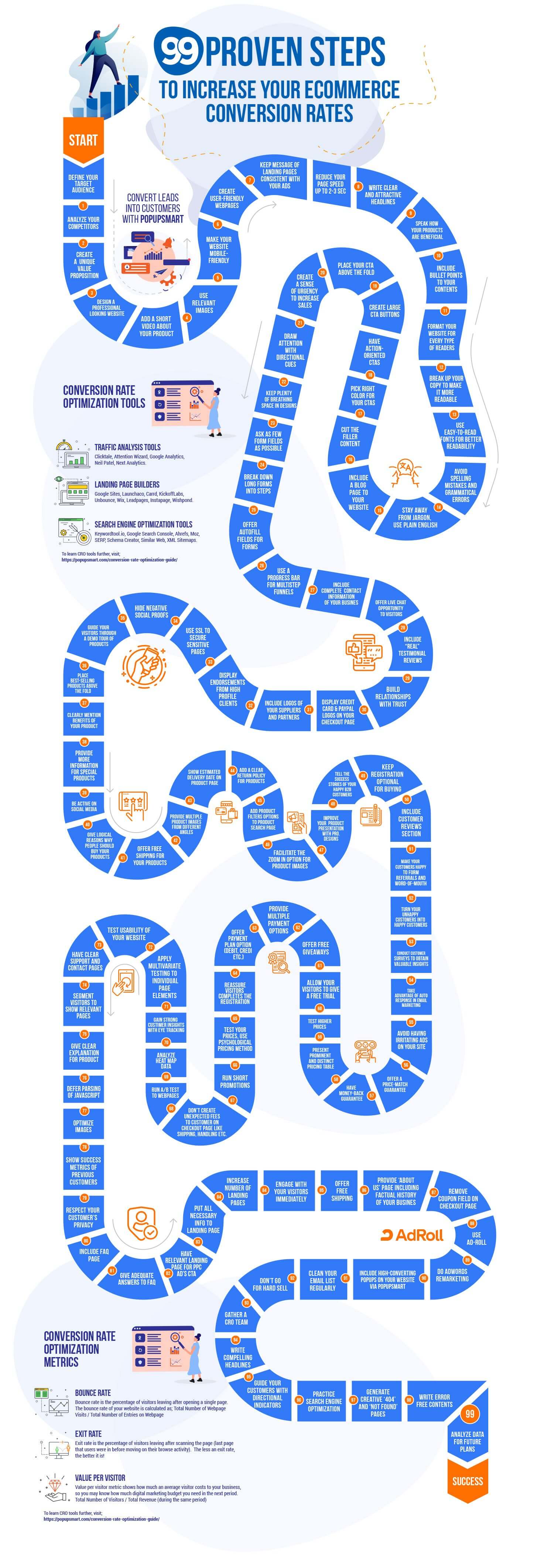
This guide covers the fundamentals for beginners: what counts as a conversion, how to calculate conversion rate, the pages and elements that affect it, 22 tips, the five-step CRO process, the tools for each job and the metrics to watch in Google Analytics 4. It ends with CRO experts to follow. The infographic below sums up 99 conversion tips for online stores.
What is Conversion Rate Optimization?
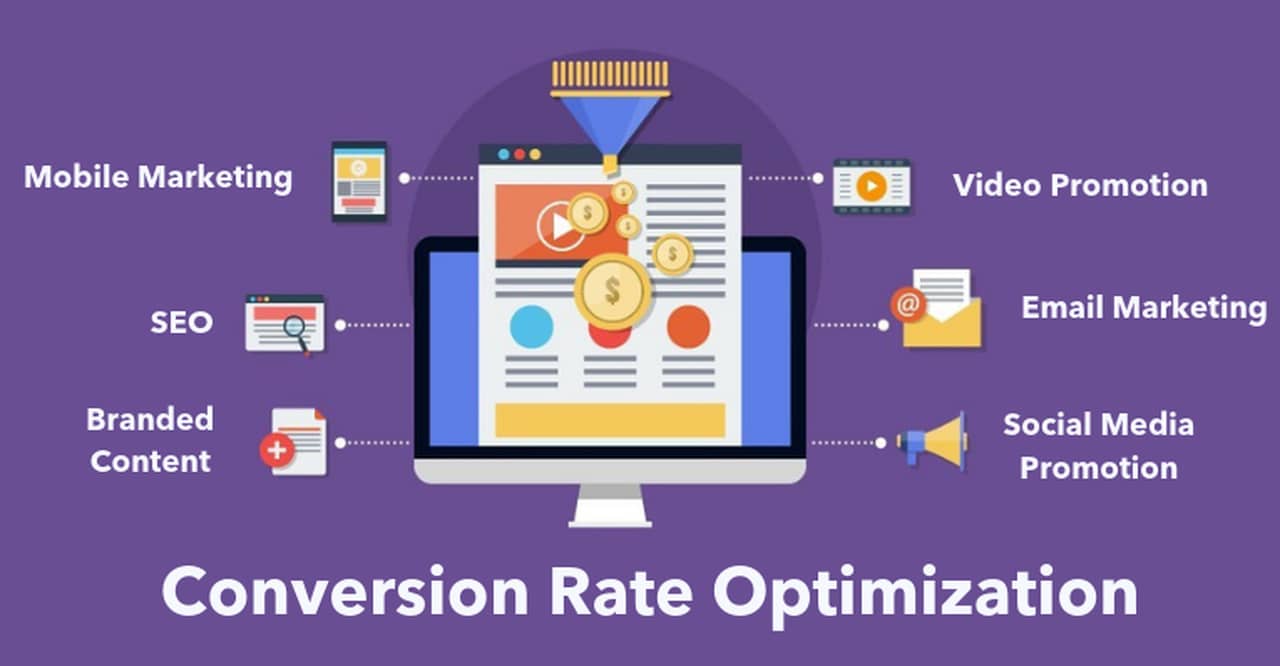
Conversion Rate Optimization (CRO) is the ongoing process of using analytics and acknowledging customer feedback to increase the percentage of users who perform a desired action on your website.
Desired actions include completing a purchase, clicking 'add to cart,' signing up to an email list, or clicking a link. CRO focuses on improving the user experience on the site for these desired actions.
Furthermore, CRO is not a magical fix; it is just a formula to improve your website. Even if your website is conversion rate optimized, you still need to provide differentiated value to attract loyal customers.
99 Proven Tips to Increase eCommerce CR Infographic
To share the infographic on your site, copy this code:
What is Conversion?
Conversion is attaining an aim: a user completes one of your site's goals.
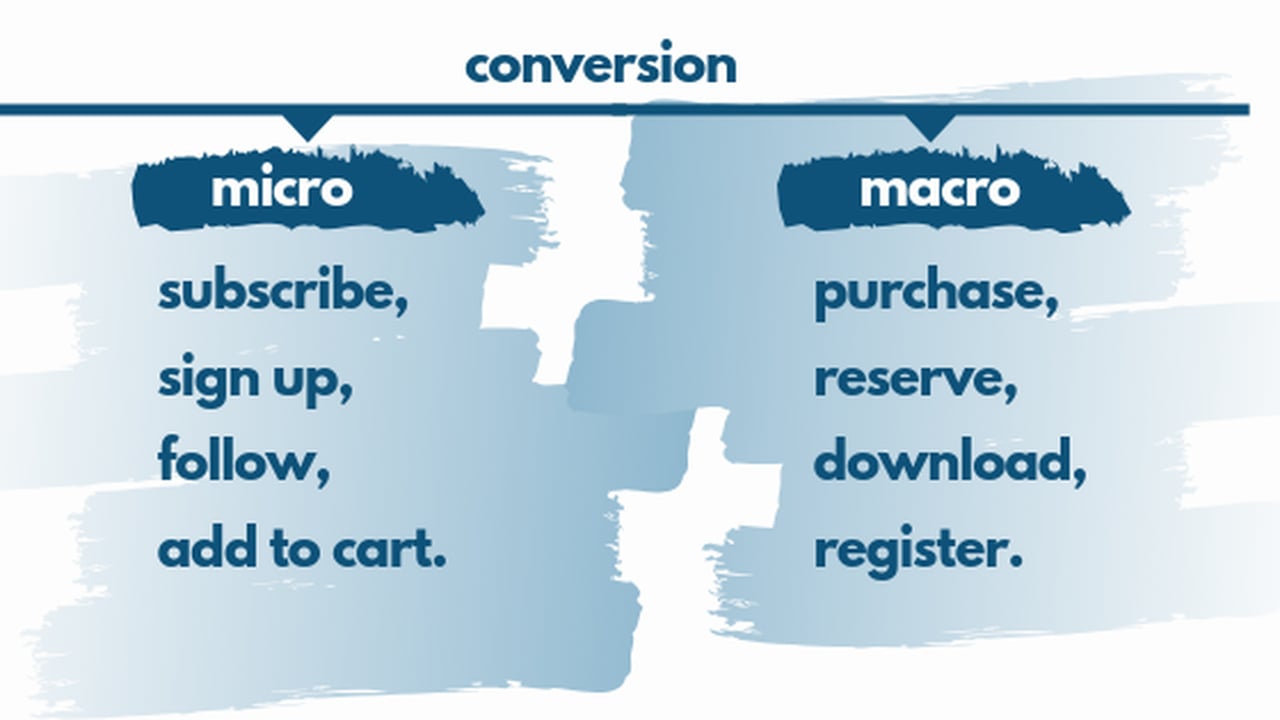
There are two types of conversion: micro conversion and macro conversion.
Micro conversions usually lead to macro conversions because a lead becomes a customer as they know your company's culture, your brand, and your products well.
Micro-conversion
A micro conversion means a potential customer has engaged with your brand.
Examples of micro-conversions:
- Subscribing to your email list
- Signing up for an account
- Following your social media accounts
- Adding a product or service to the shopping cart
Macro-conversion
A macro conversion occurs when a visitor engages in a primary offer on your website. A macro conversion is also known as the primary goal of a company.
Examples of macro-conversions:
- Buying a product from your website
- Requesting a quote
- Making a reservation
- Downloading your application
- Registering to a primary service
What is Conversion Rate?
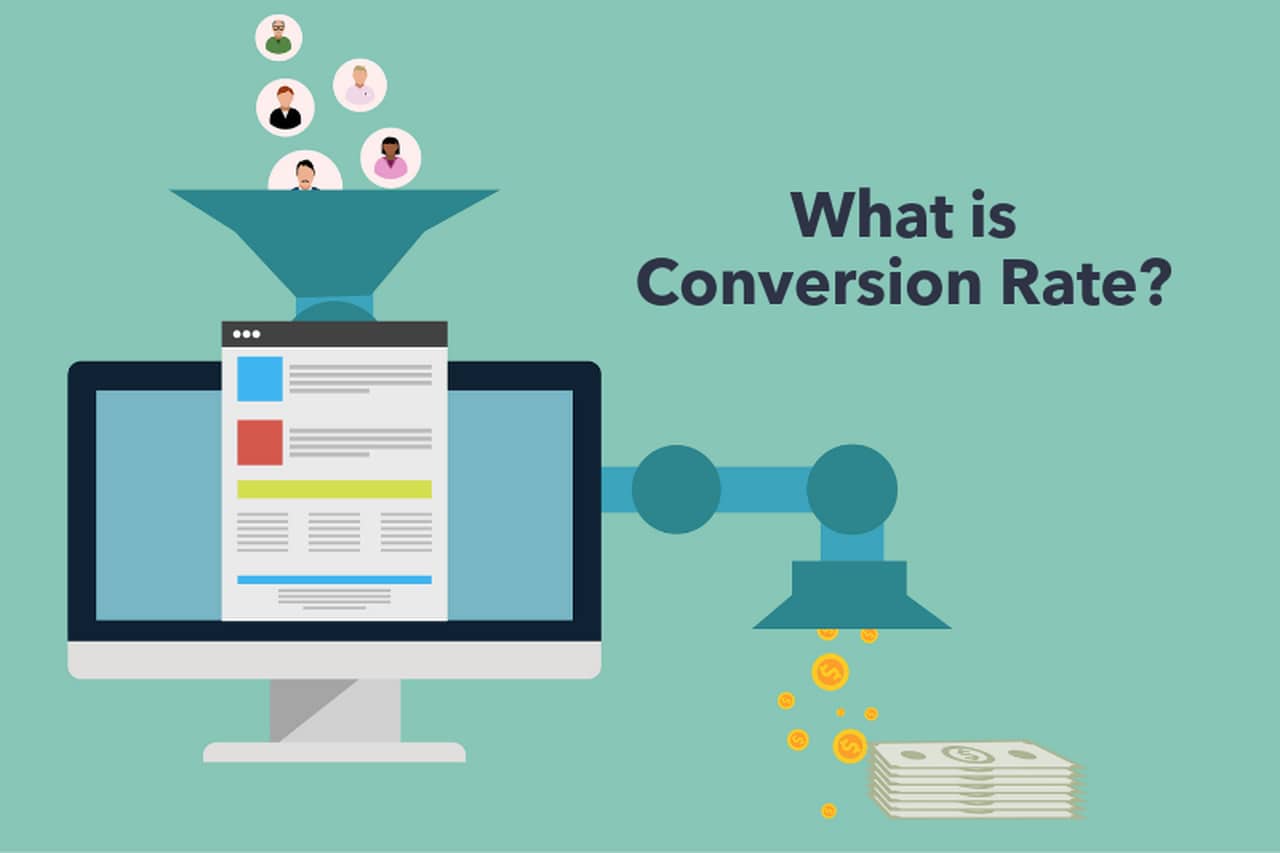
The conversion rate is the share of your visitors, or of their sessions, that complete a goal. If your goal is a sale, it is the number of orders divided by the number of sessions in the same period.
A conversion counts once per completed goal, not per item. If a customer buys two shirts in one order, it still counts as a single conversion; the second shirt shows up in your average order value, not in your conversion rate.
Pick one denominator and keep it. Sessions, users and ad clicks give three different rates for the same website, so compare a rate with its own history, not with a number measured another way.
How to Calculate Conversion Rate?
Conversion rate = (conversions / sessions) × 100
For example, if 30 of 1,000 sessions end in an order, your conversion rate is 3%. Use users instead of sessions if you count people rather than visits, and ad clicks if you measure a single campaign.
Benefits of Conversion Rate Optimization
Whatever your goal is, more sales, more sign-ups or more readers who subscribe, CRO helps you get more of it from the visitors you already have.
There are plenty of reasons for you to have conversion rate optimization:
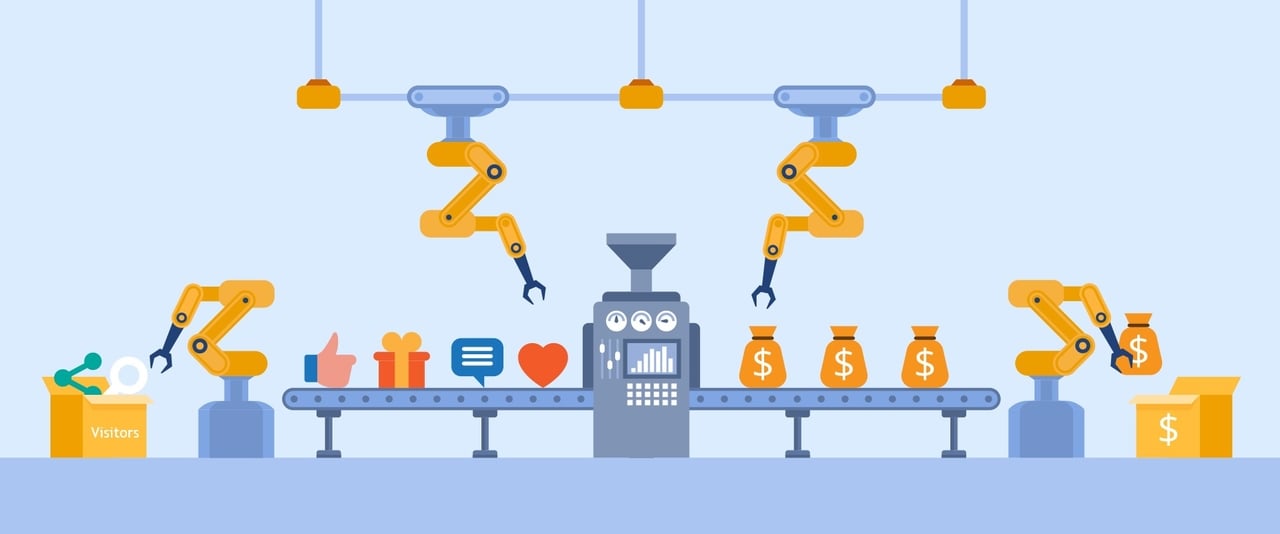
- Because quality is more important than quantity in acquiring customers, finding the right customer for your business helps you to achieve your goals. CRO offers you the ability to understand customer insights and their language.
- It is cost-effective because you will pay for traffic to your website, and a high rate of conversion means a better return on investment.
- Turning passive browsers into leads, since it figures out which users are looking for what experience on your site or what is stopping them from taking the desired action.
- A higher conversion rate gives you a higher ROI on the acquisition budget you already spend, without buying more traffic.
- CRO enables growth without running out of resources and with an increased number of customers because it can turn visitors into potential customers.
- You will have happy customers due to their pleasant user experience on your website; hence, CRO studies what works on your website and how to expand on it.
- It provides a defense against the limited patience of users because, with CRO, you can provide what users want and expect from your website.
- An increase in conversion rate by CRO leads to a decrease in customer acquisition cost (CAC) – the cost of obtaining a new customer. See how the customer acquisition process works.
- The better your conversion rate is, the more you earn from the same traffic: more of the visitors you already pay for buy, sign up or come back.
- Users will choose you if you can deliver a visible service quicker and better than your competitors.
Webpages and Webpage Elements Affecting CRO
Homepage
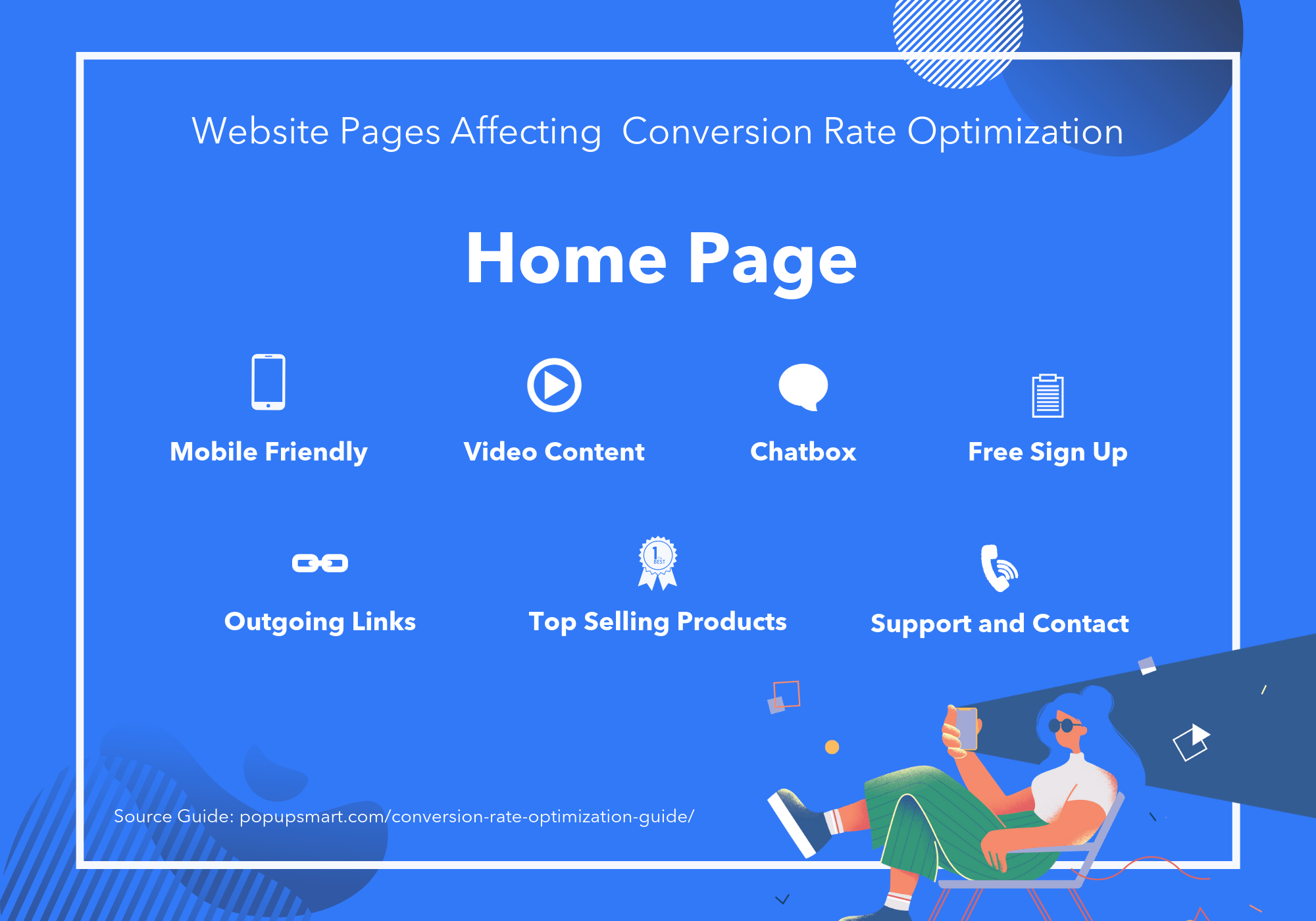
The homepage of your website makes the first impression on browsers and allows you to guide those visitors further into your website.
To increase user experience and lead to conversions, you can;
- Emphasize links to the products page,
- Present a free sign-up button,
- Include a chatbox,
- Show your top-selling products,
- Offer more ways to order a product
- Show video content,
- Have the support and contact page.
In other ways, ornament your webpage effectively so that the visitor is willing to see other pages on your website and take the desired action.
Product Search Page
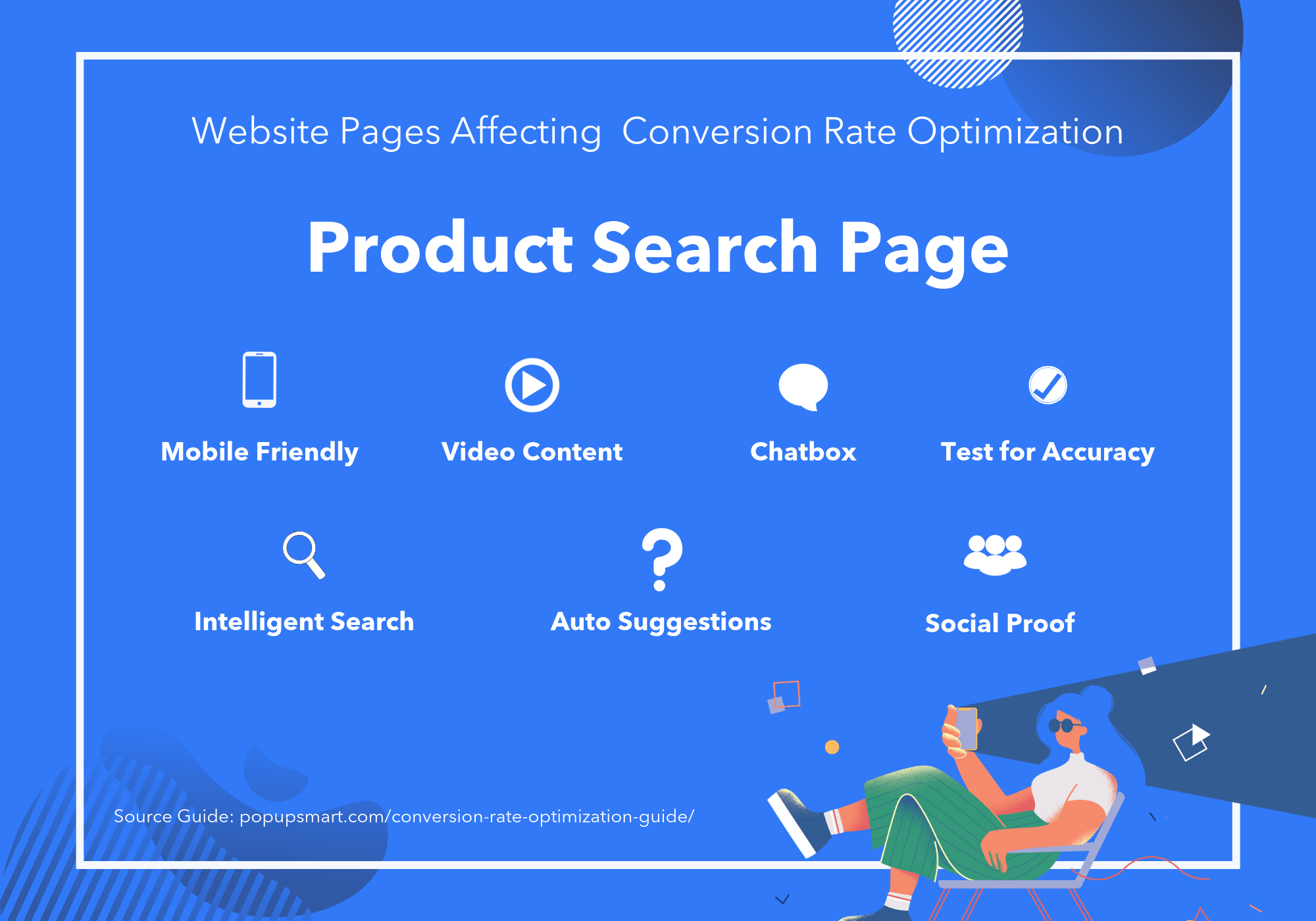
The product search page lets visitor decide whether to purchase your product or keep browsing. Therefore, showing your customers why they should purchase would increase your conversions. You can;
- Test your search options for accuracy,
- Create an intelligent search covering singular, plural, misspelled words,
- Implement auto-suggestions to help a user find other relevant keywords,
- Present video content for your best-selling products and your successes,
- Show social proof and testimonials to prove your reliability.
Product Page
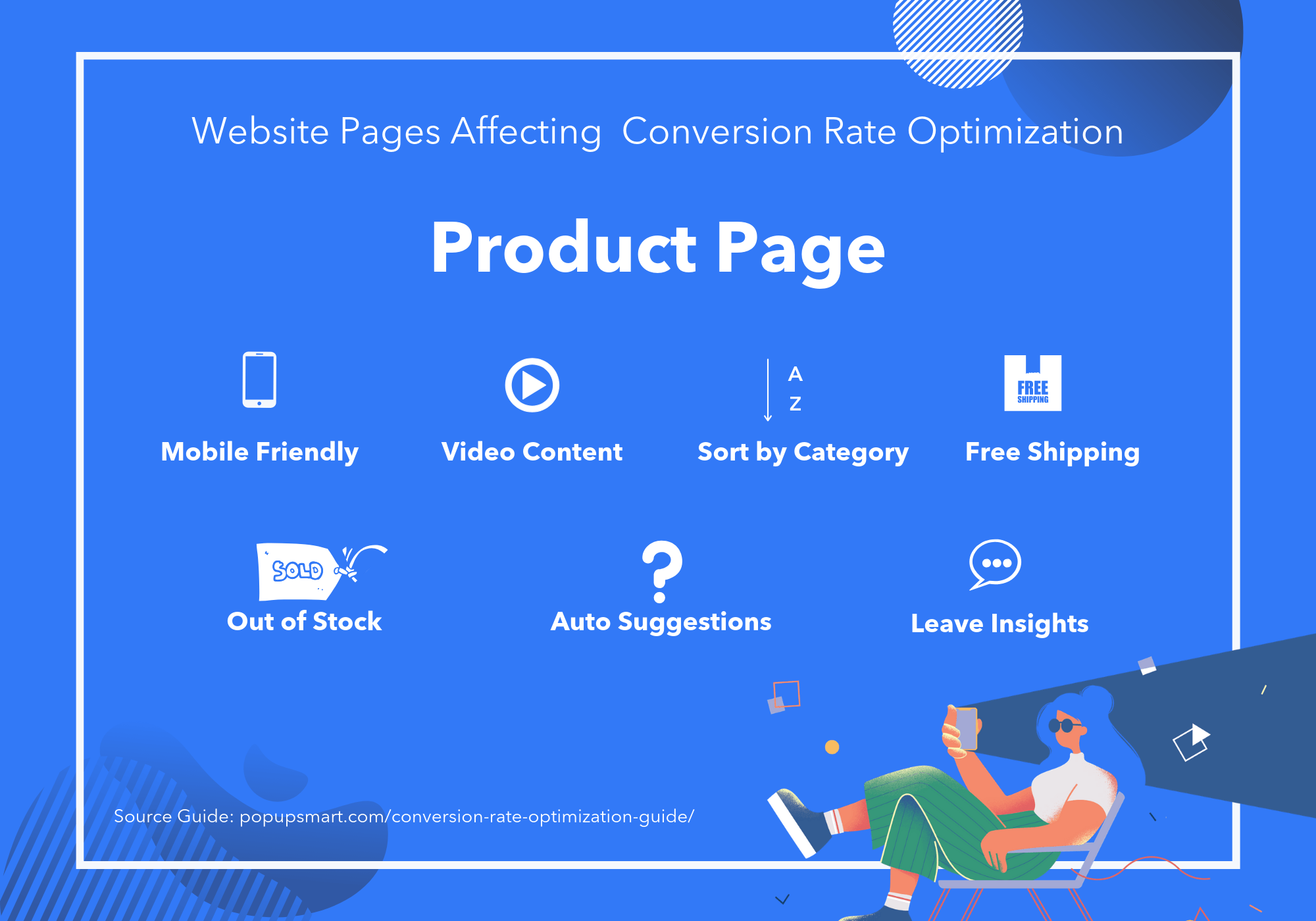
Dynamic product pages can show your visitors the appearance of a product and present its differentiated value from your competitors.
To have a converting product page, you can;
- Implement auto-suggestions to help a user find the related products,
- Generate detailed, benefit-focused content about your products,
- Use more than one high-quality image for every product on your page,
- Offer free shipping,
- Show each product's delivery time clearly, and give a chance to select delivery date,
- Enable out-of-stock notifications,
- Encourage users to leave insights about your brand,
- Sort category structure by popularity and additional filtering options such as price, hiding out-of-stock products, color, and size.
Pricing Page
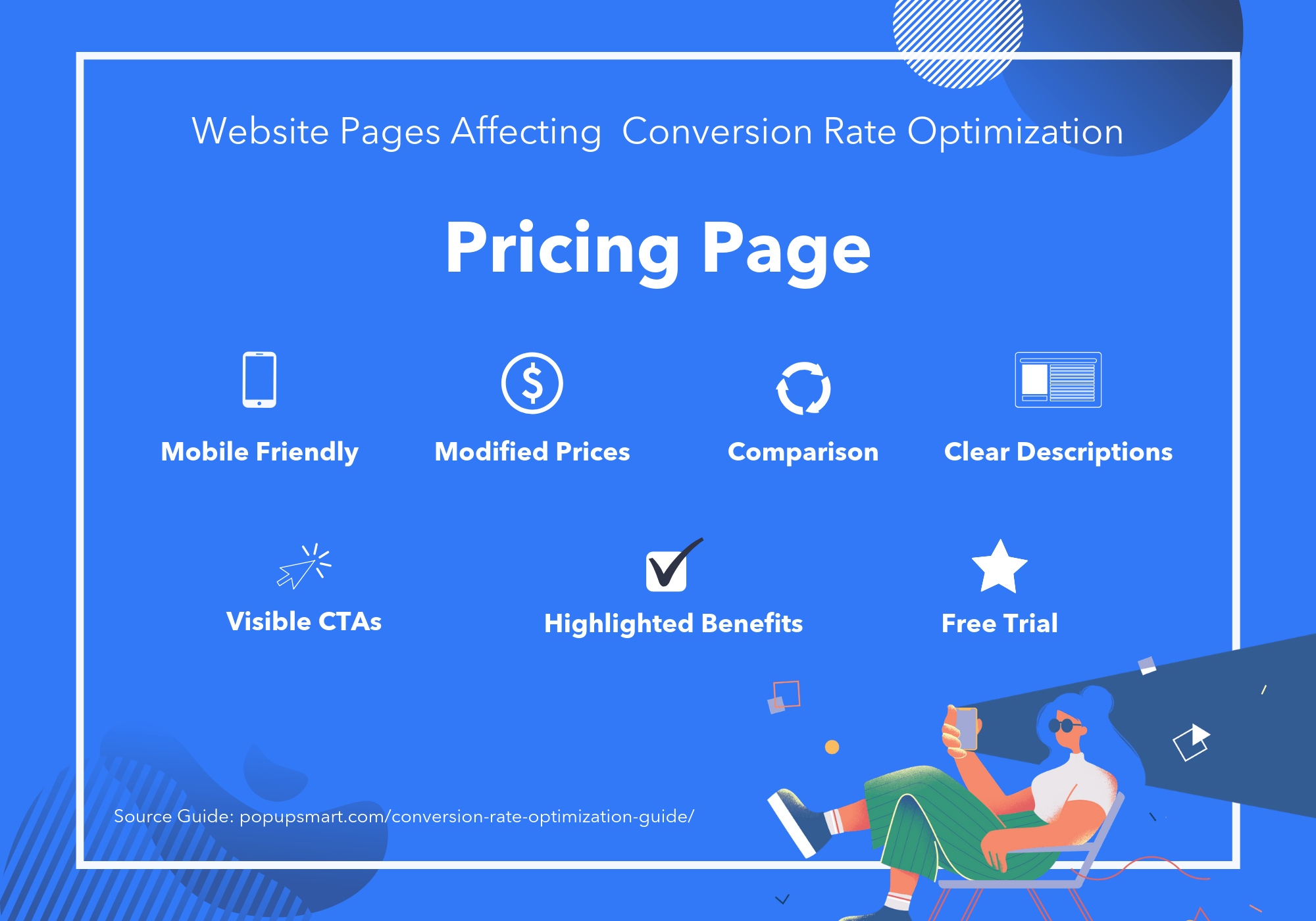
The pricing page of a website is usually the make or break point for many visitors, so applying CRO with clear descriptions of products and some testimonial comments would be beneficial in the boosting conversion rate. Also, you can;
- Modify pricing intervals such as price per year,
- Highlight the benefits of making a purchase,
- Make your CTAs visible and well-designed,
- Enable comparison between options easily,
- Offer a free trial for your service initially,
- Support the purchase activity with live chat,
- A/B test your pricing page.
Checkout Page
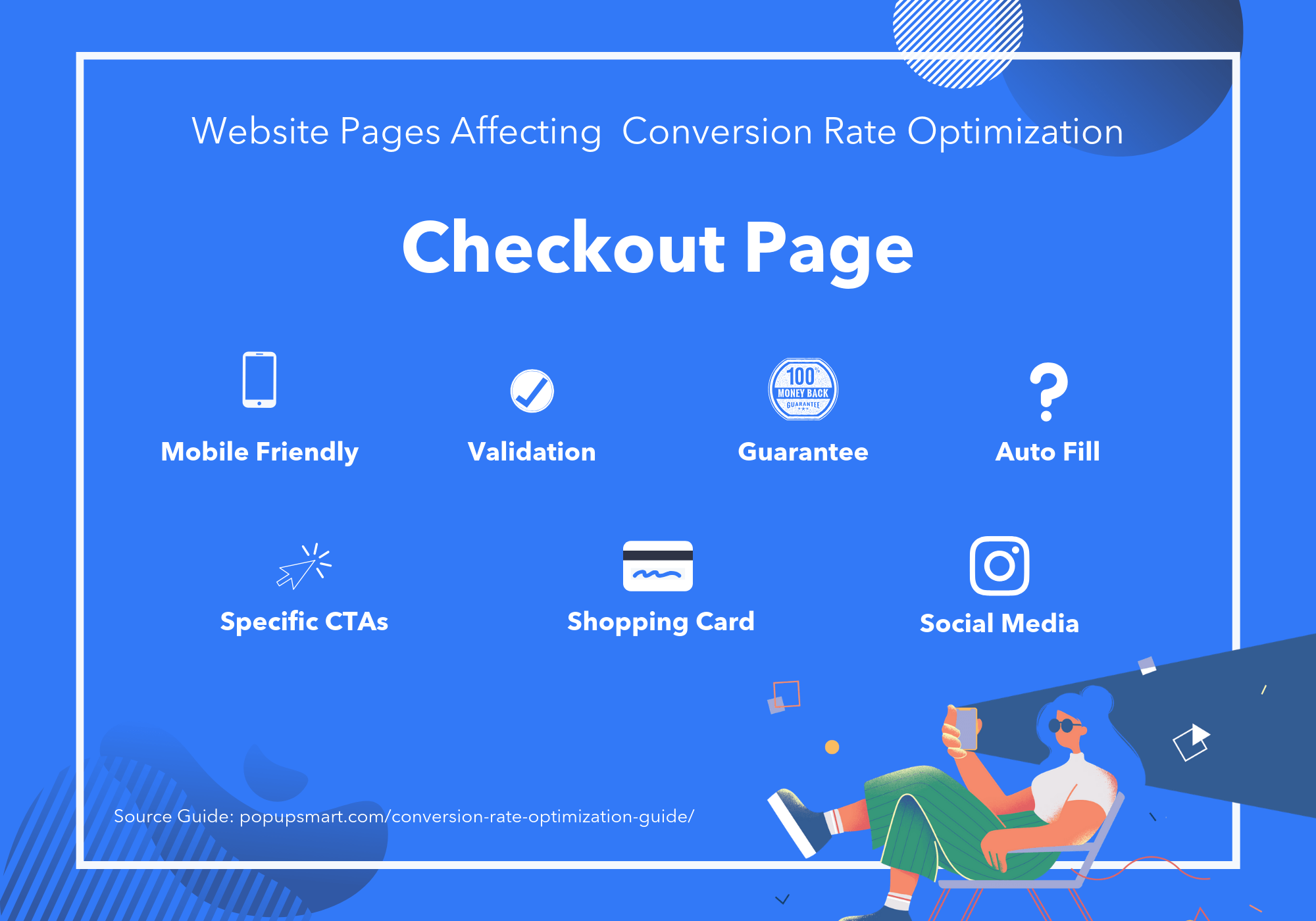
The checkout page is where people mostly leave without any conversion.
To optimize your checkout page for maximized conversion rates, pay attention to these;
- Offer a persistent shopping cart,
- Don't ask for the same information twice,
- Validate each field as it is filled in, not after the form is sent,
- Mark the questions as mandatory or optional clearly,
- Present input examples to each field,
- Have an auto-fill feature when a user enters a zip code,
- Keep the form in a single column,
- Be specific in your calls to action,
- Offer guest checkout, and don't complicate password selection for those who create an account,
- Give clear guarantees,
- Have a link or call-to-action clearly showing your refund & shipping policy.
The same rules apply to every form on your site; see how to create a popup form.
Blog Page
If the contents on your blog page can use CRO wisely, you may convert your readers into leads. For example, applying CRO in blog webpages is often experienced with an attractive call-to-action of an e-book or industry report inviting readers to learn more about the subject.
Then, the user would give their personal information like email address, telephone number, and age in exchange for this valuable offer.
Landing Pages
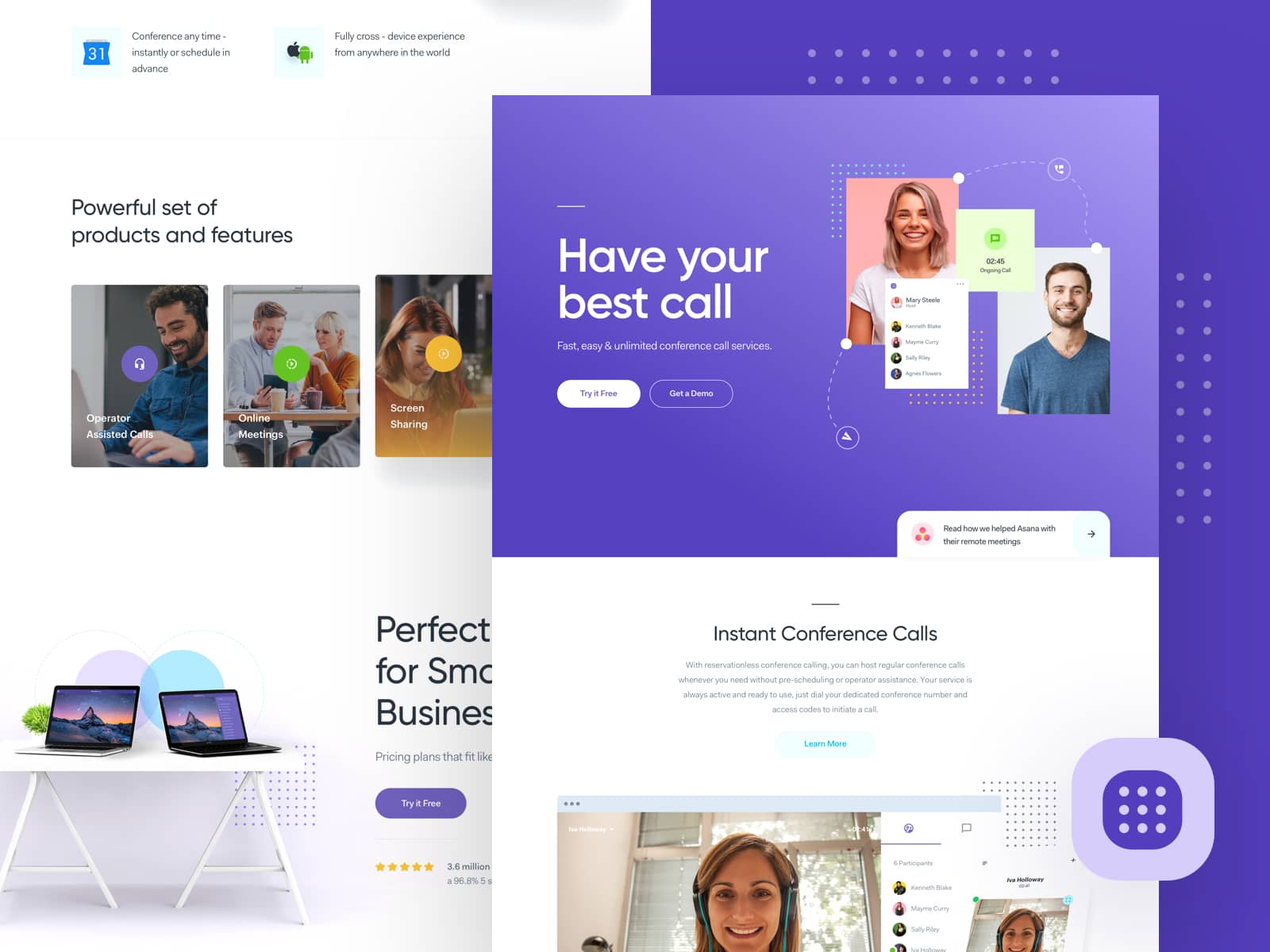
Landing pages are designed for browsers to take the desired action of the related webpage. You can optimize your website with relevant videos, free resources, and attractive images to encourage users to engage with the brand.
Page length depends on the offer. A long page tends to win when the offer is expensive or complex and visitors need answers before they act; a short one wins when the offer is simple. Test which one yours needs.
Whatever the page length, a short form only asking for necessary data would be perceived as more doable by the user.
Call to Action
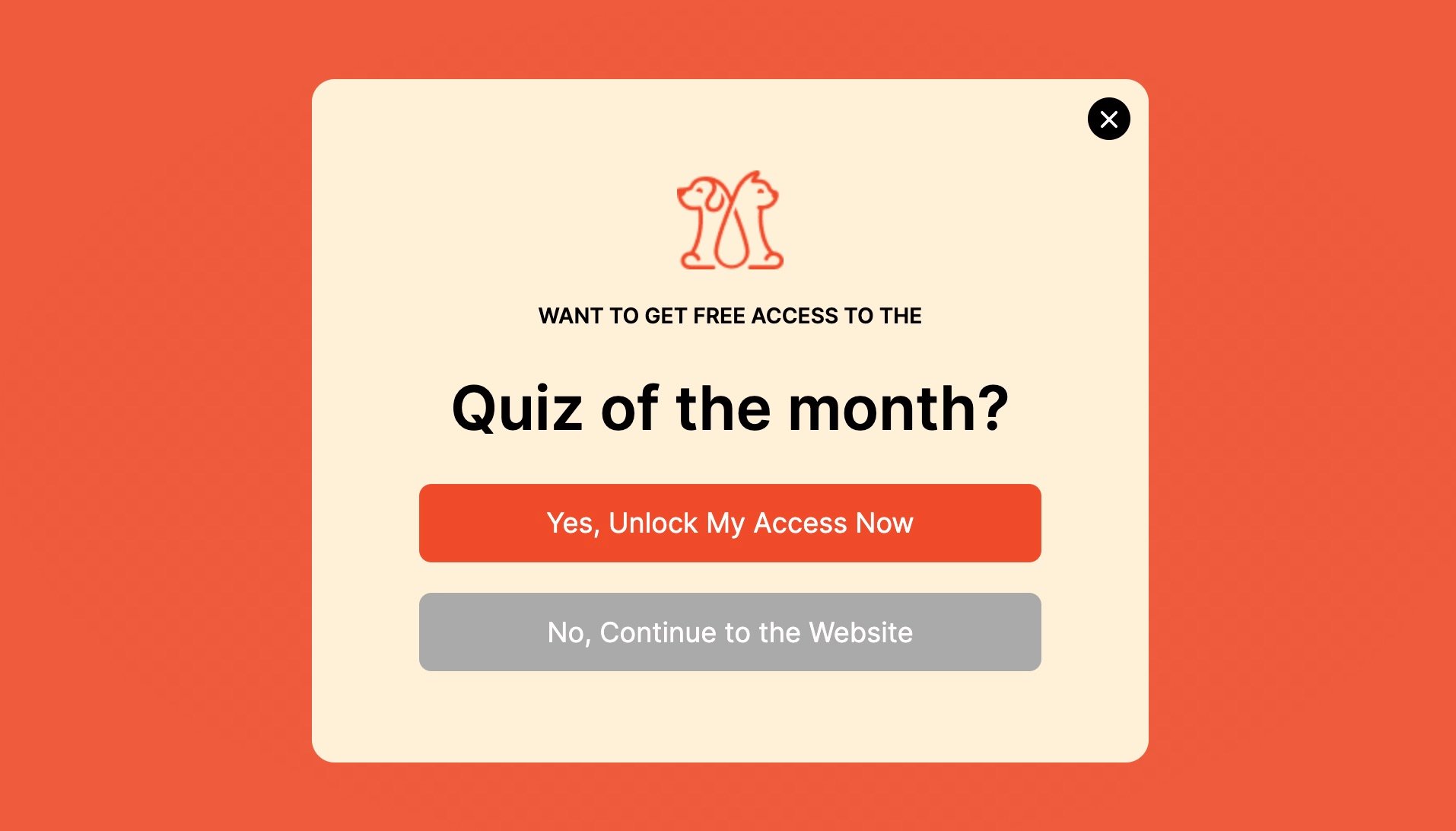
A call to action (CTA) is a button asking the user to take action leading to a conversion. For instance, the "Sign Up Now" button in a popup, the "Buy Now" button in Amazon.com, and the "Download Now" button in an e-book distribution page are examples of different calls to action.
Your call to action needs to be clear, well-placed, and attention-grabbing to increase the conversion rate.
The words on the button matter more than its colour. In Popupsmart's 2026 benchmark, first-person buttons ("Send my code") converted 1.18% vs 0.80% for neutral wording (English popups, median campaign), while button colour showed no measurable effect on conversion, though the data can't rule out a modest one. More tactics are in what a call to action is, with examples.
Graphics

Presenting graphs on a website is a very efficient way of building trust and increasing credibility in visitors' eyes. Therefore, using data reflecting your achievements is a good idea to reflect your brand success on your website.
Your graphics on pages must be relevant, easy to find, clean, unique, and very understandable to enhance conversion rates.
Page Speed
You must be able to retain a visitor who just arrived on your website to succeed in increasing your conversion rate, and slow pages lose them. In Portent's 2022 site speed study, a page that loaded in 1 second had a conversion rate 3 times higher than one that loaded in 5 seconds. That is why page speed belongs on every CRO list.
Search Engine Optimization
SEO operations augment your visibility on search engines. If SEO efforts are accurately expended, people looking for something that your website offers will find the desired page easily.
On the other hand, if SEO operations are not managed well, people looking for something that you do not offer on your website may come and leave immediately, which leads to lower the conversion rate.
To offer a better user experience on your website corresponding with SEO, keep these in mind;
- Titles on your website must be accurate, clear, and informative, reflecting the subject in your content.
- Image file names and alt text should describe what the image shows.
- Your content's meta title and meta description should be proper and include relevant keywords.
- Content of your webpages must be current, attractive, worth reading, informative, and straightforward.
Usability
The usability of a website is determined by some key features of your website.
To have a high conversion rate, you need to keep these characteristics as favorable as possible:
- The number of key activities for users to satisfy the desired action should be less.
- Amount of pages a customer faces in the purchase process needs to be low.
- The payment process for a product must be easy to complete.
- The contact information of your company should be visible.
- Registration or sign up for an account needs to be easy.
Mobile Responsiveness

Mobile responsive webpages are fundamental in conversion rate optimization because you don't want to miss the chance to convert mobile browsers into customers. Phones brought 49.3% of worldwide web traffic in August 2026, and 42.3% in the US, according to StatCounter.
Mobile visitors can also be the easier ones to convert. In Popupsmart's 2026 benchmark, 63% of popup displays happened on mobile, and among popups that ask for an email or phone number, mobile visitors converted at 1.02% vs 0.57% on desktop (median campaign).
You don't need AMP (Accelerated Mobile Pages) for this: Google stopped requiring it for Top Stories in 2021. A responsive page that loads fast does the job.
Customer Testimonials

People are more inclined to make purchases from brands that could satisfy their previous customers with a service or a product than brands with no testimonials. Social proof is a powerful conversion rate driver.
Therefore, you can present opinions and comments of customers on your website to raise your conversions.
22 TIPS for Successful Conversion Rate Optimization
1. Gather Necessary Human Resources
Conversion rate optimization is a continuous and cross-functional process, so a professional team or person should manage the optimization requirements and processes.
The required knowledge, skills, and responsibilities to handle CRO operations are;
- Developing a plan for the CRO program,
- Continuously observing user behavior insights and the website's current data,
- Designing conversion-increasing webpages,
- Creating persuasive contents that leads to taking the desired action,
- Determining variables with optimized code for A/B tests.
- Running on-site tools such as live chat and popups.
2. Identify Your Target Customers

Before determining your digital marketing strategy for maximizing your CRO; you must ensure that your business's target market is clearly defined. Otherwise, without specifying your target audience, you won't be able to display a perfect service.
3. Collect Data
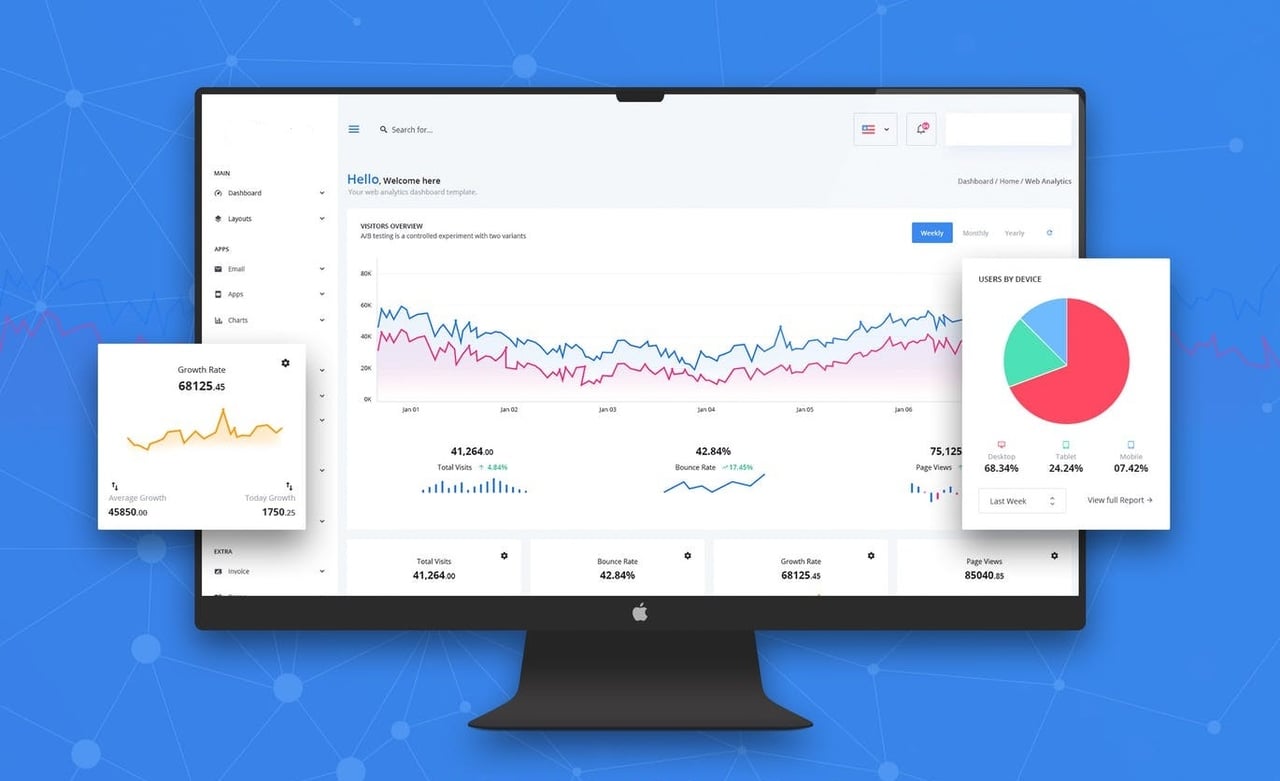
To boost conversion rates, you need to collect information about how your visitors behave, your customers, and your CRO performance.
Data collection can be done in two ways:
- Qualitative (customer satisfaction surveys, market research, secondary data explication, etc.)
- Quantitative (bounce rate, exit rate, A/B test results, etc.)
4. Conduct Surveys on Users
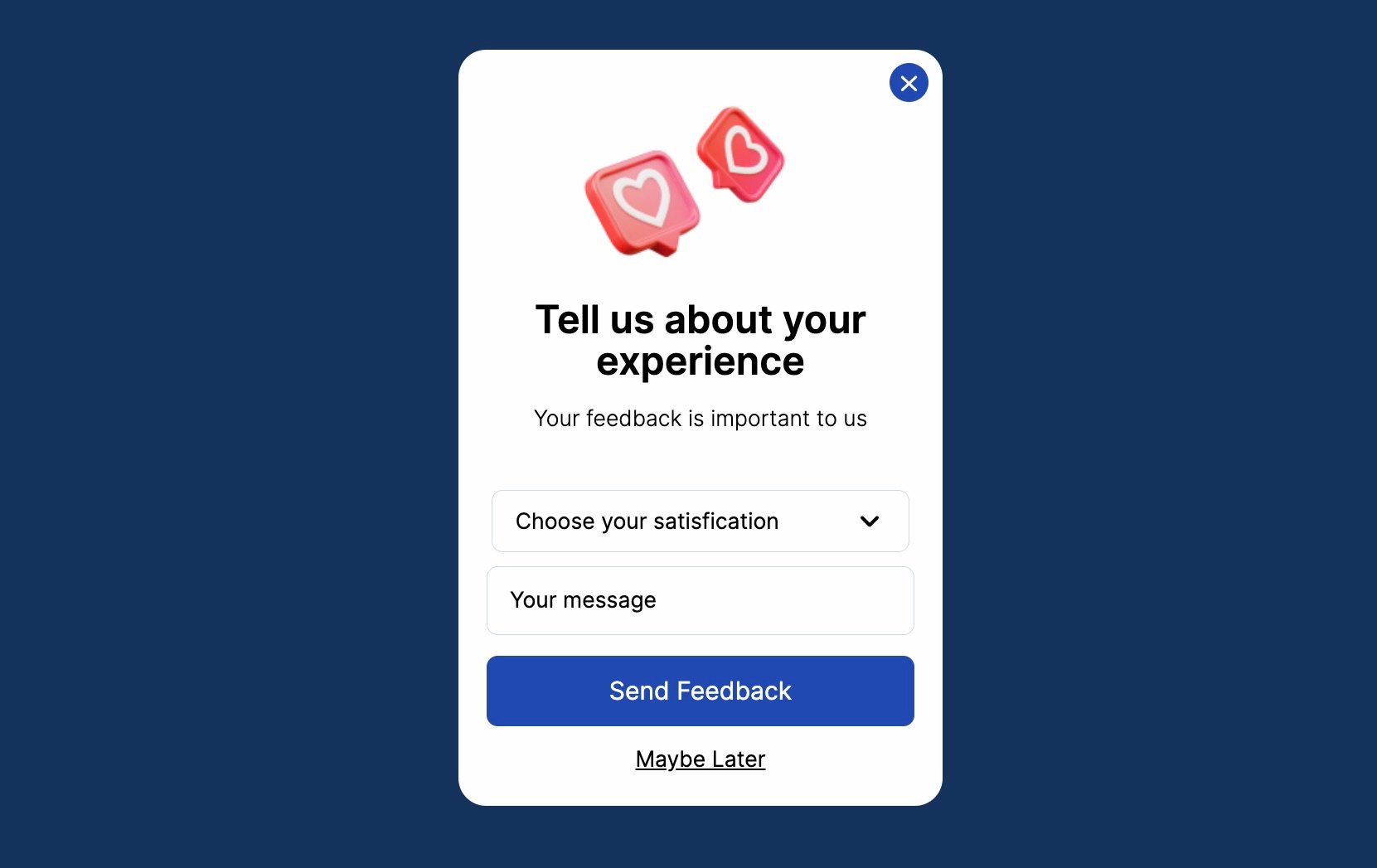
Surveys are a pleasant way to know of customers regarding their wants, expectations, needs, and favors. You may boost the website conversion rate by attending to the demand after having precise information about who you will serve.
5. Create the Perfect Page
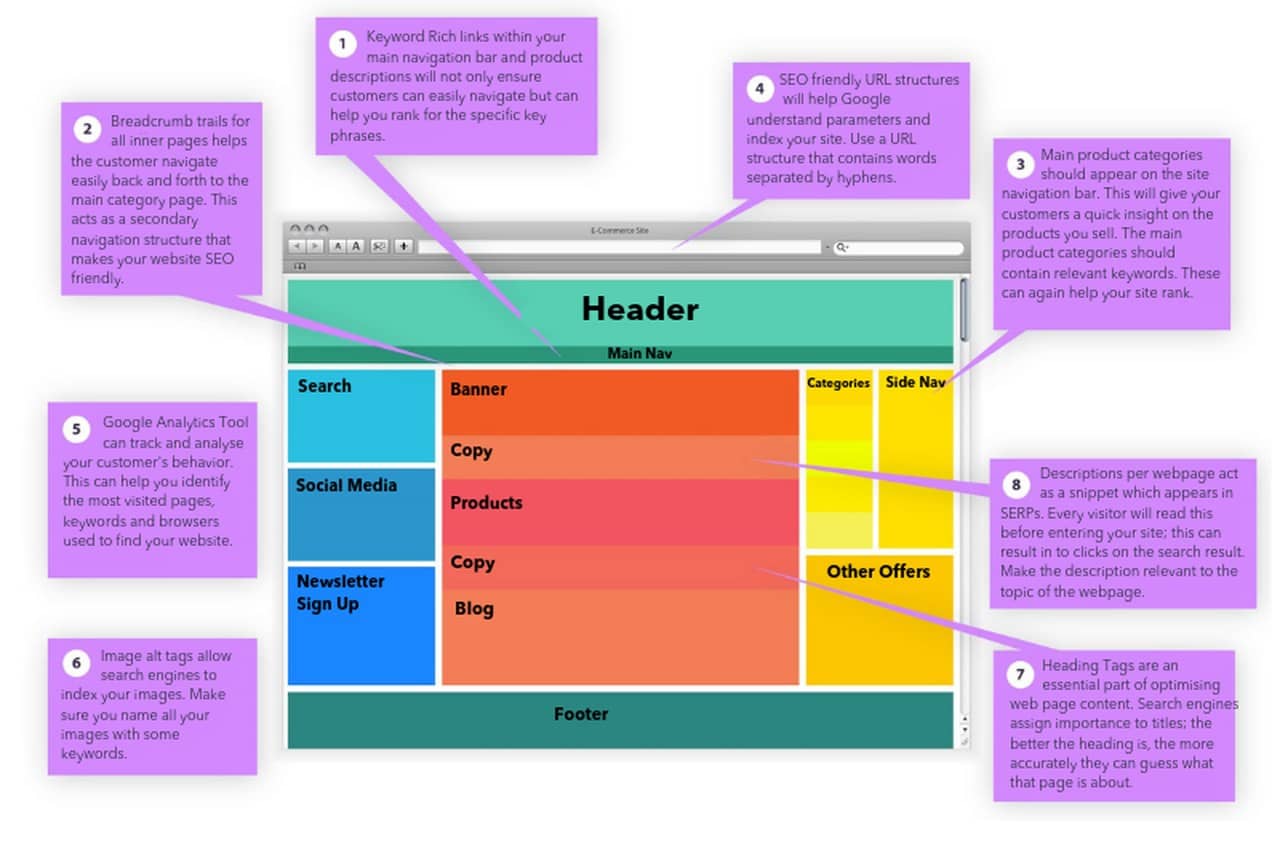
Your page content needs to be perfect – free of errors, compatible, unique, and attention-grabbing. You may use Grammarly to correct your language, and apply an A/B test to your body copy. Also, images on the page must be suitable for SEO practices – unique, colorful, and well-placed.
CTA design, content font size and color, and images on a page significantly impact conversions, so you should be very careful while designing a page to provide premium customer experience.
6. Have Calls to Action
People tend to ignore the call to action due to their common approach of banner blindness. That phenomenon leads to lack of attention toward taking the desired action of businesses. This is why your call to action should be clear, well-placed, and very attractive.
You may use the button on your landing page, blog posts, and popups to increase your website's conversion rate.
7. Form Mobile Responsive Pages

About half of all web traffic now comes from phones (49.3% worldwide in August 2026, per StatCounter). You do not want to miss the chance to convert mobile users into leads; therefore, you must generate mobile-responsive pages.
Check every key page on a real phone: tap targets big enough for a thumb, forms that bring up the right keyboard, and no popup or banner that covers the content a visitor came for.
8. Present User-Friendly Webpages

A user-friendly webpage works for users because it offers excellent accessibility, visual clarity, a time-saving shopping experience, exclusive support, and so on. Specifically, websites having enormous pressure due to intense competition need to design practical, goal-oriented, and very user-friendly webpages.
9. Test Page Speed
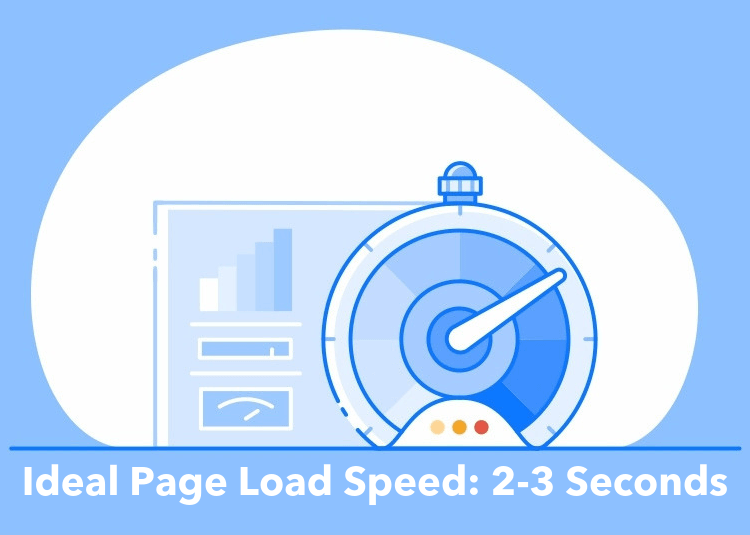
Once a visitor clicks on a CTA and comes to your landing page, you should make them stay there. Google's Core Web Vitals call a page fast when its main content appears within 2.5 seconds (Largest Contentful Paint). Small gains count: in Deloitte's Milliseconds Make Millions study for Google, a 0.1-second faster mobile site raised retail conversion rates by 8.4%. This is the reason why page speed matters a lot.
Without customers on the website, you can't maximize your conversion rates.
10. Offer Something Valuable

Offering something valuable to a visitor in exchange for obtaining their personal information or taking the desired action is the initial way to communicate directly with the target customer. Building a solid start with the user will ease the job of maximizing conversions.
11. Guide Your Customer

Directional indicators like call-to-actions and navigational panels help customers to find whatever they want. Therefore, you have to be strategic about the placement of these indicators.
12. Write Compelling Headlines
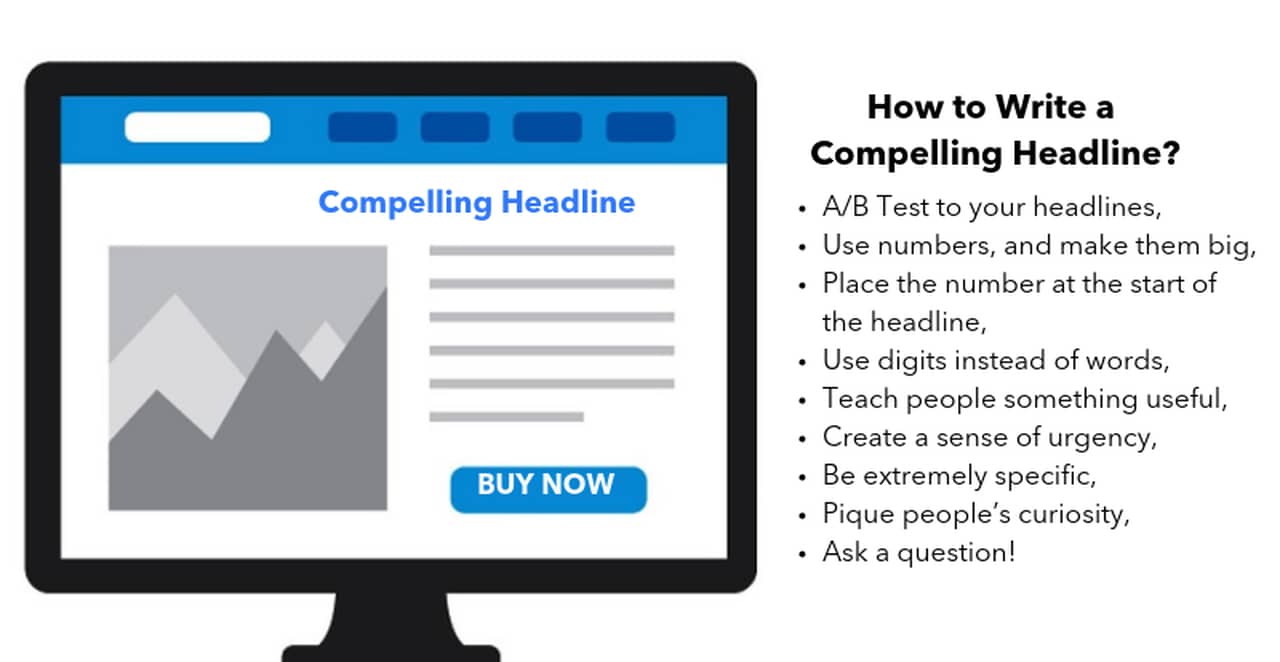
Your page headline must be attention-grabbing to make the user read the following sentence. Headlines with intriguing premises and question words concentrating on the point are very effective strategies.
Give each page one clear main headline: it tells visitors, and search engines, what the page is about before they read anything else.
13. Chat with Website Visitors

Chatting with your visitors in real time is possible using message tools. Adding message capabilities to high-performing web pages leads to an increase in conversion and better relationships with your visitors.
You can automate chat notifications action-based. For instance, someone spending more than two minutes on your product page would get an offer for help.
14. Include High Converting Popups
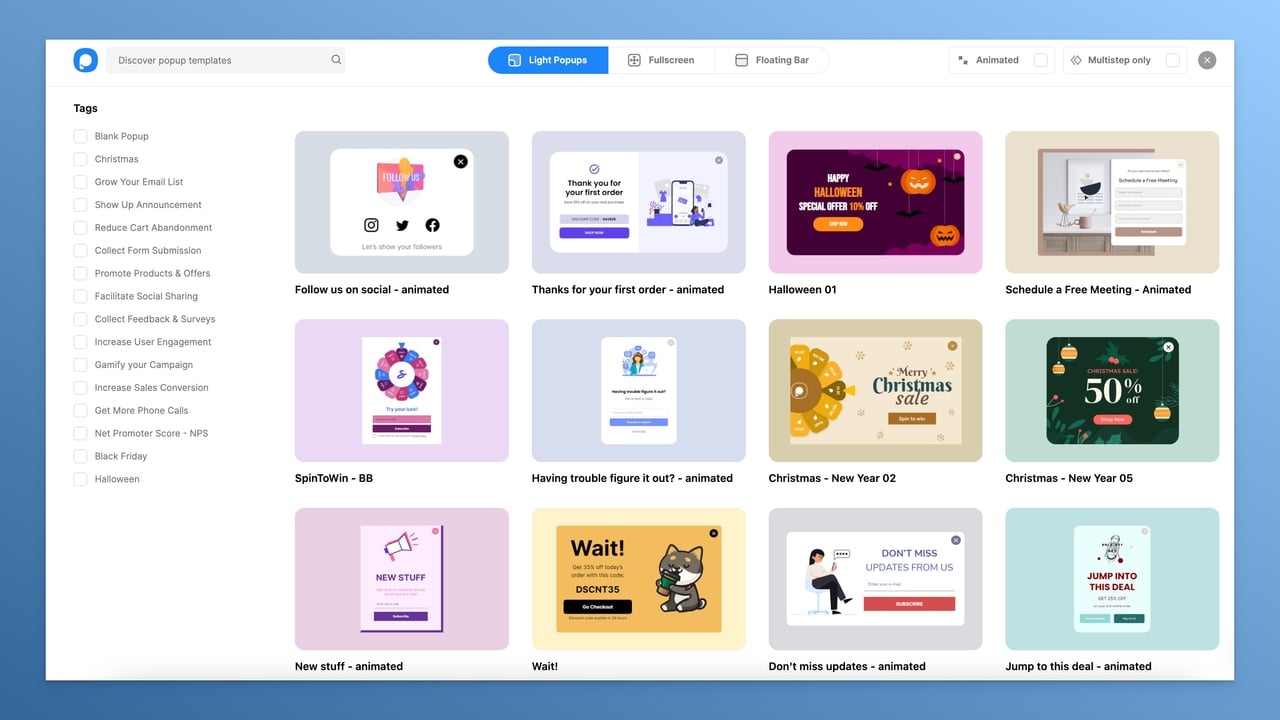
Conversion-ready popups are designed to grab a visitor's attention and offer a user-differentiated value. Depending on your goals, you can choose a popup format: a slide-in box in a corner, a full-screen overlay or a sticky bar.
Furthermore, applying customization in your popups for different segmented audiences is also a great way of encouraging clicks and turning them into customers.
Set your expectations from real data. Across 3,034 Popupsmart popups that ask for an email or phone number (January 2024 – September 2026, each with at least 1,000 displays), the median converts 0.83% of its displays into leads, and the top 10% reach 3.87%. The same benchmark found that popups asking for one or two fields convert 0.88% and 0.94%, against 0.56% for three fields (median campaign). Closing that gap is CRO work too: test your popups the way you test pages, as in our guide to A/B testing for popups.
15. Insert FAQ and Answers

If your visitors need help finding the exact answer to their questions and need to browse too much, they may leave the page leading to a decrease in your conversion rate
Therefore, generating an FAQ page would help you to build trust, save your customers' time, show some characteristics of your brand, and make them take the desired action.
16. Maintain Relevance Between Your Ads and Corresponding Landing Pages
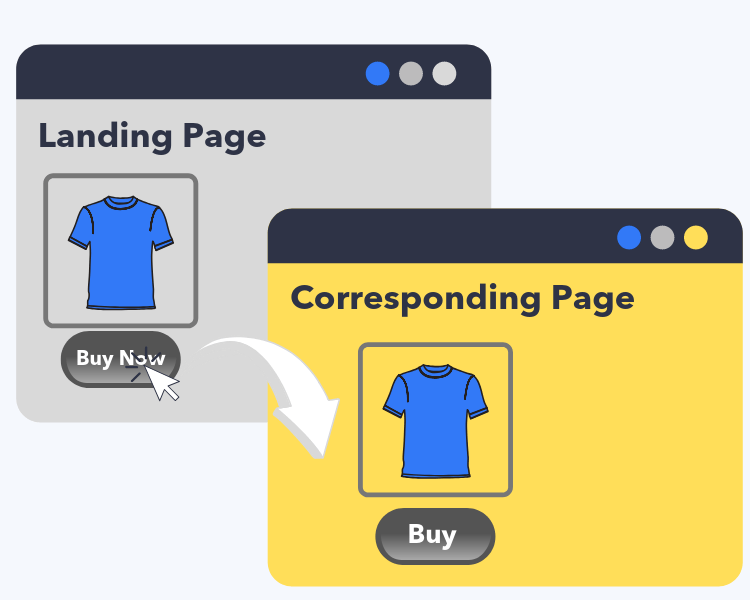
You have probably experienced that clicking on a call to action to make a purchase leads to an irrelevant page. In this case, most browsers tend to leave the corresponding page and relatively decrease the website's conversion rate.
This is why every ad and every call to action should lead to a page that keeps its exact promise.
17. Generate Creative 404 and Not Found Pages
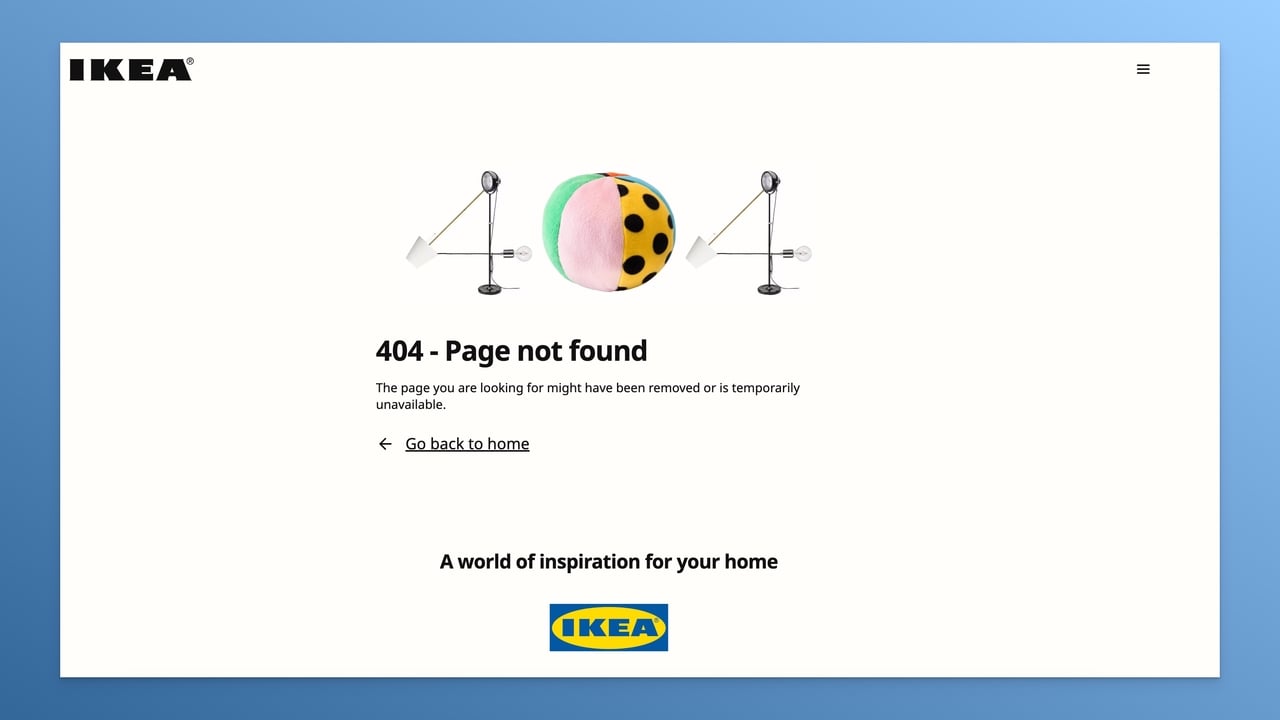
Broken links and moved pages happen on every website. You can make them a less painful experience by presenting a creative error page: a friendly message, a search box and links to your main pages keep the visitor on your website instead of sending them back to the search results.
18. Generate Pay per Click (PPC) Ads
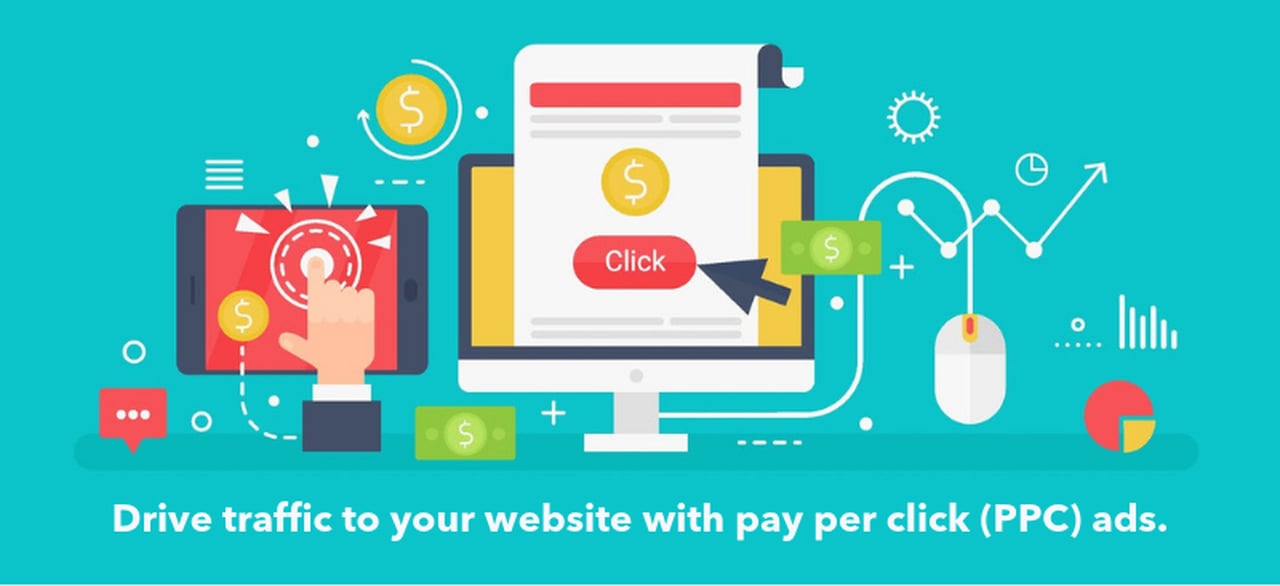
Pay-per-click (PPC) advertisements can be a cost-effective way to drive traffic to your website because you only pay if a browser reaches your website, creating an opportunity to convince them to convert into a customer.
19. Run Heatmap Analysis
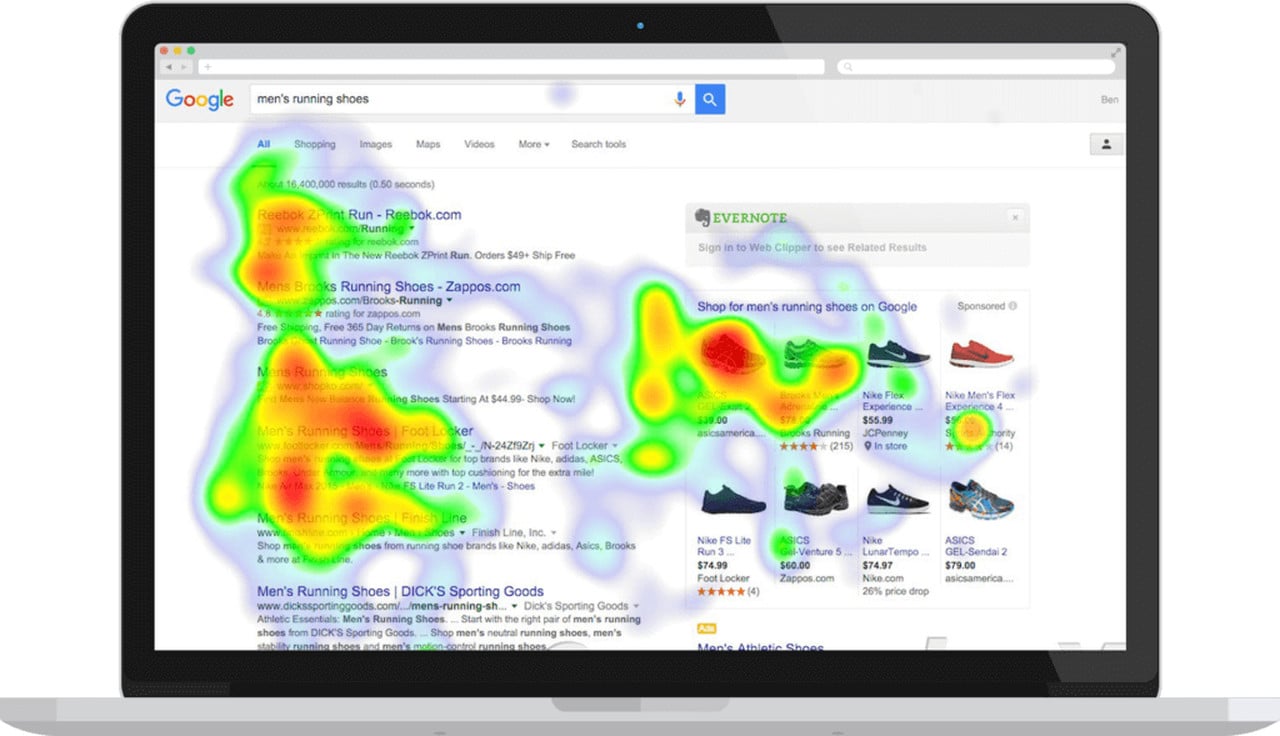
You may run a heatmap analysis on pages that deserve special attention, like product and landing pages. The results show where people click, how far they scroll and what they skip, so you will understand which parts of the page attract attention and which are ignored.
20. Run Tests Regularly
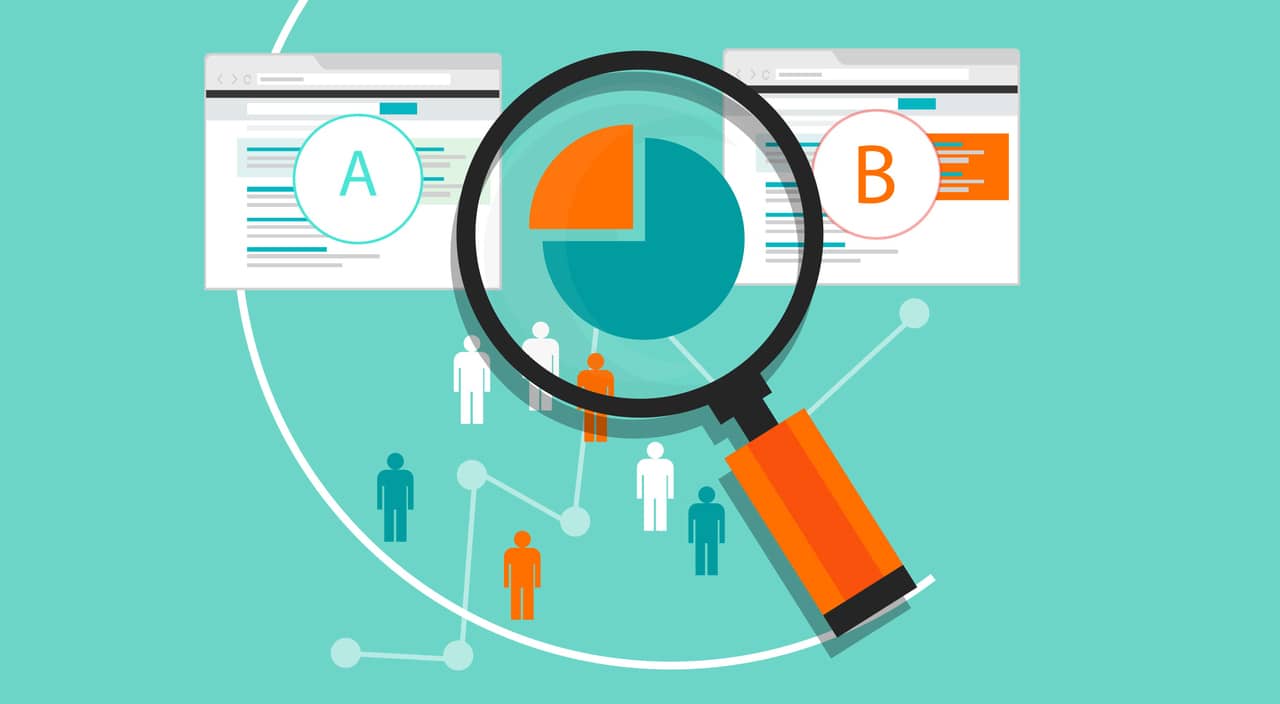
You should determine the most fundamental elements affecting your conversion rate and regularly apply A/B tests to them – website design, page design, questions on a form or questionnaire, images, content, calls to action, etc.
The testing process is essential because you need to measure how your CRO efforts impact your actual conversion rate and what generates the most customers.
21. Retarget Your Visitors to Re-engage

You can re-engage with a visitor who has left your website by remarketing. (also called retargeting) – The process of tracking visitors and presenting them with online ads and banners as they browse on the web. You may initially apply this method to your high-converting pages to see how retargeting impacts conversion rate.
22. Analyze the Data

After collecting data, you should be able to interpret the results to decide on which page your focus must be to maximize your conversions, what your strengths are, which strategies are working for your business, who your target customers are, and so on.
Conversion Rate Optimization Process
Note that copying a CRO strategy that yielded effective results for your previous or your competitor's projects does not always work.
Each CRO process simply goes through 5 phases to effectively increase the conversion rate and manage optimization campaigns:
1. Research

You should derive quantitative and qualitative data to understand what your visitors do when they land on your website – via heat map analysis, interview feedback, bounce rate, surveys, webpage analytics, and so on.
Then, you need to determine how the different elements of each page influence user behavior in terms of engagement. Obtaining such insights would enable you to eliminate unwanted features and focus on converting ones.
2. Hypothesis
Using the collected data, write a hypothesis for each problem you found: if we change X on page Y, metric Z will improve, because the research showed W. A hypothesis you can prove wrong is one you can test; the testing step then checks it with an A/B test.
3. Prioritization

Due to limited resources, it may not be possible for you to optimize every webpage on your site. In this case, you need to point out the potential of webpages (that are performing poorly but can be significantly improved), the importance of webpages (that are getting high traffic but have the lowest conversion rate), and the ease of making a changes in those pages.
4. Testing
A/B testing is the usual choice because it is simple: one change, two versions, traffic split between them. If you want to make multiple changes on a page and test each combination separately, a multivariate test is more appropriate, but it needs far more traffic, because every combination needs enough visitors of its own.
Decide the sample size and the test length before you start, and run the test for whole weeks. Stopping a test the moment one version pulls ahead is the most common way to crown a winner that isn't one.
5. Learning

Now, you can conclude your test results. By considering the possible outcomes (cost, human resource, customer insights) of applying (or not) the test suggestions, you will have a new perspective on optimizing website conversion rate.
An expertly planned, good-designed CRO process helps you to identify improvements and implement optimization operations to get higher conversions, and relatively more revenue.
Conversion Rate Optimization Tools
Traffic Analysis Tools
These tools allow you to monitor and examine the amount and the kind of traffic that your website has.
Additionally, you would interpret the traffic results depending on different webpages to make your website more appropriate for your target audience and to focus on the areas requiring improvement.
- Contentsquare: It aids companies in comprehending how customers utilize their websites and mobile applications. It offers insights into user behavior, such as clicks, scrolls, and form submissions.
- Google Analytics: Google Analytics 4 is the free web analytics tool inside the Google Marketing Platform that measures and reports website traffic and key events.
- Ubersuggest: A freemium SEO tool from Neil Patel that audits a website and estimates its traffic.
- Free CRO Checker Tool: It examines a website and makes suggestions to enhance user experience and boost conversions.
Customer Survey Tools
Customer surveys are a perfect way of communicating with your audience about their grievances, satisfaction levels, compliments, suggestions, feedback, and comments! Having and interpreting such results coming directly from your customers creates an opportunity to improve your engagement with browsers.
- Qualaroo: It is a tool for conducting customer surveys that helps companies in learning more about the wants and needs of their clients.
- Survey Monkey: It enables companies to design and run polls, quizzes, and surveys.
Search Engine Optimization Tools
SEO tools assist you in working smarter and faster with SEO in your online marketing efforts and CRO operations.
- Keywordtool.io: It offers hundreds of keyword ideas based on the keyword you typed.
- Google Search Console: It shows website analysis, alerts, and error reports.
- Ahrefs: It makes a comprehensive link analysis and on-page analysis.
- Moz: It presents an overall view of your website, pages, and links.
- Similar Web: It generates site statistics for any domain.
- XML Sitemaps: This tool builds website maps.
Heat Map Analytic Tools
These specialized tools will provide information on how website visitors behave by tracing mouse moves, keystrokes, and clicks. If you want a complete picture of how browsers use your webpages, you will love the results obtained from Heat Map Analysis interpretations.
- Hotjar (now part of Contentsquare): It assists companies in understanding how visitors engage with their websites by providing visual representations of user activity, such as clicks, scrolls, and mouse movements.
- Crazy Egg: It offers visualizations of user behavior, such as clicks, scrolls, and mouse movements, plus recordings and A/B tests.
Instant Messaging Tools
Instant messaging (IM) is the fastest way of communicating with your visitors in digitally. Also, providing a customized service (e.g., appealing to a user with their name) to the user would increase the chance of engagement and the conversion rate relatively.
- Olark: It enables companies to have real-time conversations with customers. It offers a chat widget that can be placed on a company's website.
- Hubspot: Businesses can use the Hubspot CRM platform or a chat widget on their website to interact with clients.
- FreeChat: Through a chat widget on their website, businesses can engage with customers using this instant messaging service.
Multivariate (MV) and A/B Testing Tools
A/B test is a method of comparing two different webpages to determine which one performs better for a specified conversion goal. Multivariate testing is very similar to A/B testing, but MV can be applied to multiple combinations. The main objective of both testing tools is to find the most efficient webpage design.
- VWO: A/B, multivariate and split URL testing, now sold under the Wingify name.
- Monetate: It offers tools for data analytics and personalization.
- Optimizely: Toolkits for MV and A/B testing are available through this website optimization platform.
- Unbounce: Solutions for MV and A/B testing are provided with Unbounce, a platform for optimizing landing pages.
Google Optimize, the free option older guides still list, shut down on September 30, 2023.
Mobile-Friendliness Test Tools
These tools show how your website looks and works on phones. Google indexes and ranks the mobile version of your pages (mobile-first indexing), so a problem that only shows on phones costs you both rankings and conversions.
- Responsive Design Checker: It allows businesses to uncover problems that can make a website challenging to use on mobile devices by simulating how a website would appear on various mobile devices.
- Lighthouse: Built into Chrome's developer tools, it audits a page on a simulated phone for speed, accessibility and usability. Google points to it since retiring its Mobile-Friendly Test on December 1, 2023.
Remarketing Tools
Remarketing or retargeting tools enable websites to deliver the right ad to the right person at the right time, which leads to maximizing conversion rates compared to regular ads such as social media ads or PPC ads.
- Adroll: Companies can reach clients who have interacted with their brand thanks to Adroll.
- Google Ads: Its remarketing lists show your ads to people who visited your website or used your app.
The Best Popup Builder
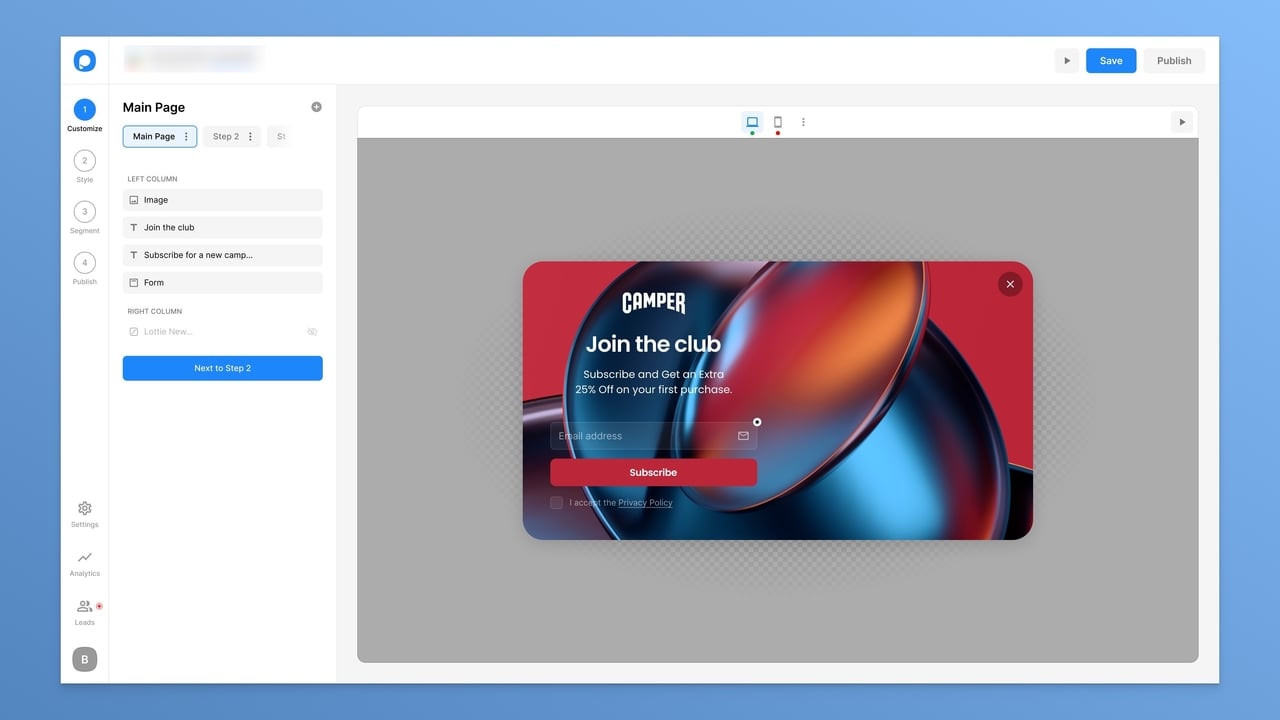
Popups are an effective way to reach your target audience and interact with your visitors. If the design of your popup is engaging and compelling enough, you will notice an increase in your conversion rate.
Using a popup builder like Popupsmart, you can achieve your business goals with conversion-ready popups.
Popupsmart's key features:
Easy Customization: Popupsmart offers an uncomplicated and straightforward system to let you customize your popups without needing a developer.
Fully Responsive Design: Popups adapt to mobiles, tablets, and computers.
Privacy Policy & GDPR Ready: Data collected through Popupsmart is handled in line with GDPR and CCPA, with a Data Processing Agreement, and every plan lets you add a privacy policy checkbox to your popup.
Exit Intent Triggers: Detects users' mouse behavior and shows them a targeted message as they leave.
Integration: Leads go to your email or CRM tool through a native integration, or through Zapier, Make or a webhook.
Actionable Insights: You can measure the performance of your popups with clear metrics such as impressions, clicks, and conversions.
Additionally, Popupsmart offers ready-made popup templates and advanced targeting features, with a free plan to start.
Page Speed Measurement Tools
Faster pages convert better. In Portent's 2022 study, a page that loaded in 1 second converted 3 times as well as one that loaded in 5 seconds. Speed also feeds Core Web Vitals, part of Google's page experience signals.
This is why you need to achieve optimal speed on your webpage.
- Google PageSpeed Insights: It is a tool provided by Google that evaluates a website's performance and offers suggestions for enhancing its speed.
- WebPageTest: It enables companies to evaluate how well their website functions on a range of hardware and internet connections. It is now run by Catchpoint.
- ByteCheck: It measures your time to first byte: how quickly your server starts answering a request.
Landing Page Builders
Landing pages serving specific customer needs are more efficient than generic homepages. However, managing and optimizing multiple landing pages to obtain better performance in conversion rates can be very challenging. This is why you need to use a platform enabling you to maintain everything from a single dashboard.
- Google Sites: It is a free website builder that allows businesses to create websites and landing pages.
- Carrd: Businesses can develop landing pages that appear professional using this easy-to-use tool.
- Unbounce: A landing page builder is available through this landing page optimization platform.
- Wix: It is a user-friendly landing page and website builder platform that provides many solutions for various business types.
- Leadpages: Leadpages enables companies to produce attractive landing pages, along with integrations with many ESP platforms.
- Wishpond: Wishpond is a marketing automation software that enables companies to design and release landing pages.
Usability Test Tools
These tools help you to offer a better user experience and aid users in completing the desired action while increasing your website's overall conversion rate.
- UserTesting: It enables companies to test their websites and other digital products to receive feedback on how well they are designed for users.
- Inspectlet: It offers solutions for tracking user activity and gathering information on user interactions, allowing businesses to learn more about the user experience of their websites.
- Five Second Test: A usability testing solution from Lyssna that shows a design for five seconds and asks people what they remember.
Bonus Tools
Popupsmart wants to ease your job on email marketing and data measurement. Here are two free calculators and what they do:
- Popup ROI Calculator: This calculator enables you to estimate the total profit of your investment in a popup service.
- Email ROI Calculator: It evaluates the effectiveness of digital efforts and investments in email campaigns.
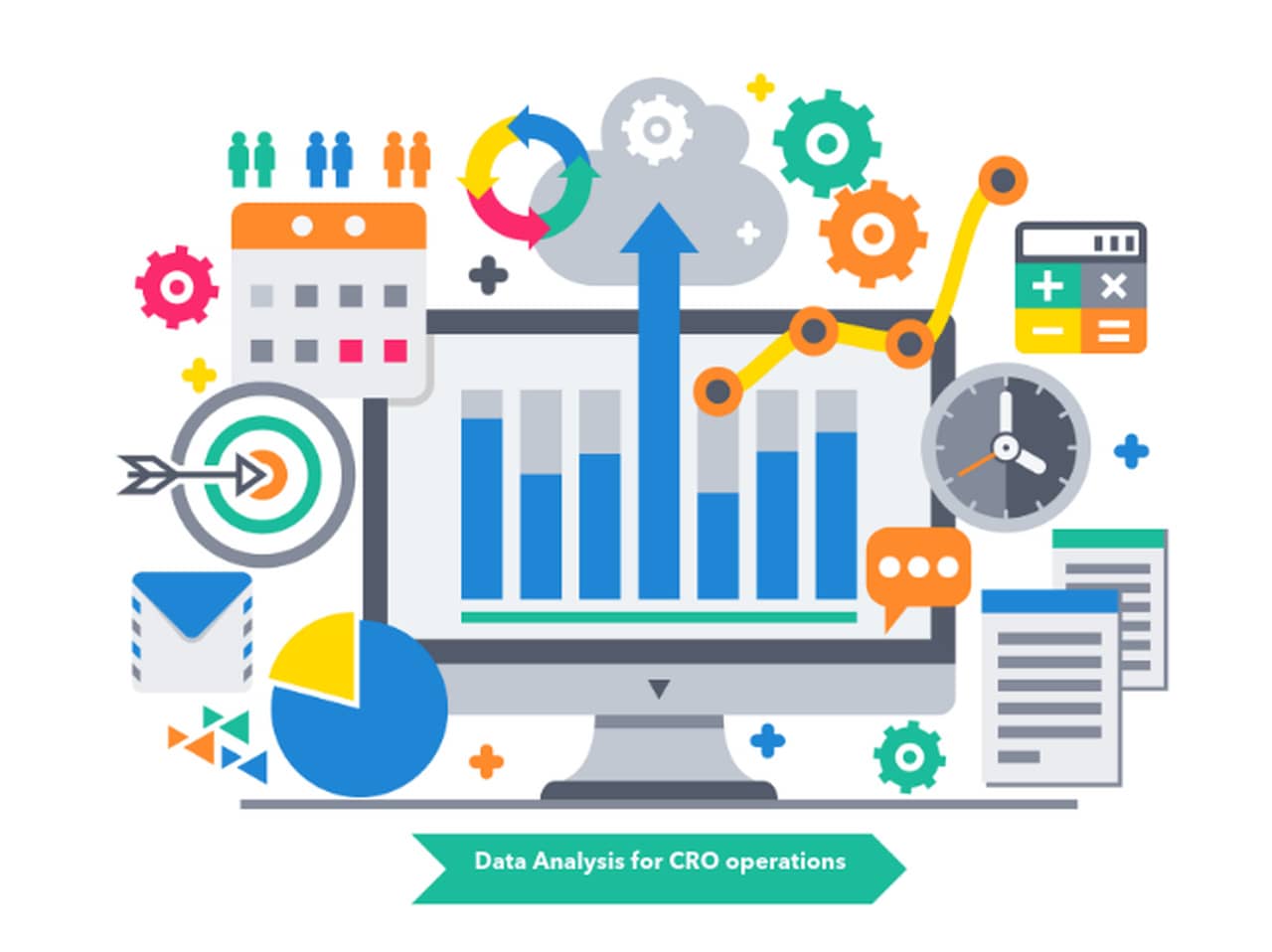
Data Analysis in Conversion Rate Optimization
You need to know what to optimize, where optimization will be made, and for who to optimize to have high conversion rates.
There are two methods to analyze the data and improve your conversion rate practices:
Quantitative Data Analysis
To conduct the analysis, you need some numbers showing how people behave when they are on your website. Those numbers can be obtained from web analytics platforms tracking your conversions, such as Google Analytics 4.
The information gives you insights on where you must put your efforts and resources. Moreover, it requires an objective approach.
Analytics-based CRO provides information like;
- Which webpage users visit firstly,
- Where they spend most of their time on your website,
- From where they found your website and clicked on a link,
- What type of devices and browsers are used by visitors,
- Who your potential customers are,
- After which activity, visitors leave your website.
Of course, the statistics are not directly telling you all the information explained above. You are required to know some analytical language!
Qualitative Data Analysis
Qualitative data focuses on improvements to offer a better user experience with a subjective approach. The information can be obtained from on-site questionnaires, satisfaction surveys, and testimonial testing.
Because conducting a study on all users is not possible in terms of time and resources, ideal users should be chosen very carefully.
While selecting your focus group for research, you should pay attention to characteristics like;
- The purpose of the survey,
- How well you know the targeted individuals,
- Whether to offer an incentive,
- How often they make purchases,
- How regularly a user visits your website,
- How likely it is that a customer recommends your site to their connections.
After the data collection process, you will have information about users such as;
- Why they have engaged with your goals or not,
- Which one of your differentiated values made them stay longer,
- What made them have a better experience compared to your competitors,
- Which words have they used to define your products, services, and their grievances,
By combining this information with your quantitative data, you will gain a better understanding of your strengths and weaknesses, and an opportunity to engage the target audience with optimization.
Furthermore, a few surveys are not enough to demonstrate relevance and robust data; real gains would be achieved if and only if you have well-crafted and regularly reviewed data at hand.
Conversion Rate Optimization Metrics to Analyze
Bounce Rate
Bounce rate is the percentage of sessions that end without any engagement. In Google Analytics 4, a session counts as engaged if it lasts longer than 10 seconds, includes a key event or views two or more pages; bounce rate is the share of sessions that do none of these, which is 100% minus the engagement rate. The lower the bounce rate, the better: a high one on a page built to convert usually means people could not find what they were looking for, so they left.
The bounce rate of your website is calculated as follows;
(Sessions that were not engaged / Total sessions) × 100
Universal Analytics counted any single-page session as a bounce, so bounce rates from before the switch to GA4 in 2023 aren't comparable with today's.
Here are some suggestions on how to lower the bounce rate of your website;
- Provide content having high readability and relevance,
- Don't disrupt the user experience with unnecessary ads,
- Have attention-grabbing and creative calls-to-action buttons,
- Keep your webpages updated according to industry changes,
- Create mobile and user-friendly webpages,
- Make your webpages load fast.
Exit Rate
Exit rate is the percentage of a page's views that were the last in their session: the page people were on when they left your website. Unlike bounce rate, it counts every visit that ended on the page, however many pages came before. A high exit rate is normal on a thank-you page and a warning sign on a checkout step.
The exit rate of a page is calculated as follows;
(Exits from the page / Views of the page) × 100
Here is some advice on how to decrease the exit rate of your website;
- Segment your customers according to their traffic-driving behaviors,
- Optimize your conversions primarily for your most liked webpages,
- Create exit surveys to figure out why a browser leaves without taking the desired action,
- Provide a differentiated value in your webpages,
- Trigger exit-intent popups with different persuasive content,
- Always apply an A/B test to your webpages.
Engagement Metrics
Average Time on Site
The average time on site is how long a session lasts on average. Google Analytics 4 reports it as average engagement time: the time your website was in the foreground of the visitor's screen. A high bounce rate usually comes with a low average time on site – users are not staying long enough to take the desired action for achieving the business goal.
Average Page Views
Average page views is the number of pages viewed per session (views per session in GA4). A high number is a good sign when conversions follow; without them, it can also mean visitors are clicking around because they can't find what they came for.
Value per Visitor
Value per visitor shows how much an average visitor is worth to your business, so you know how much you can spend to bring in the next one.
The formula for value per visitor is provided below;
Total Revenue / Total Number of Visitors (during the same period)
To textualize the formula, think about it this way: if your website had 50,000 visitors this month and they brought $50,000 in revenue, the value of one visitor is $1 on average.
Segmenting your visitors according to traffic source, pages, and demographics is also a good idea to determine the attributes you need to focus on.
Cost per Conversion
The cost per conversion metric provides information on which traffic channels are generating profit.
Suppose there are two traffic sources: one costs $10 per conversion, and the other costs $50 per conversion. Which would you choose to pay particular attention to?
You would put more budget into the $10 source, as long as it can grow without its cost per conversion rising and its customers are worth as much. Then look for ways to lower the cost of both.
Time on Site (TOS)
Time on site metric refers to how long a visitor spends on one of your pages on average. Of course, it depends on the type of webpage. For instance, you would want readers to spend several minutes on a long blog post, and only a few seconds on a page whose job is to send them to checkout.
Treat it as a signal for you, not for search engines: a short time on a long article tells you it isn't being read, and a long time on a checkout step tells you something there is confusing.
To improve your average TOS, you may;
- Write compelling, relevant and attractive content for your webpages,
- Do A/B testing on your webpages to see whether a new version keeps visitors longer,
- Add video content to improve the average browsing time.
Page Views
You need to know how many visitors have come to your site independent of your webpage type. This metric shows you how many people have visited your website and taken the desired action or left without converting.
For instance, if your website gets 500 page views a month and 10% of its visitors convert, it shows two things:
1. You can convert your visitors into customers.
2. You aren't drawing enough visitors to your website yet.
After completing your conversion rate optimization operations, to have excellent conversion rates, you need to enlarge your social networks, email list, and search engine optimization efforts to improve your page views.
Traffic Acquisition
This metric indicates how your visitors came to your website – through social media, direct clicks, organic search, email newsletter, etc. It enables you to put more effort and energy into specific digital marketing strategies.
For example, if your social media campaigns brought you 1% of your total traffic, you should know that making a strategy change is imperative.
Wrapping Up

Now, you have the knowledge to build and stick to a CRO plan correctly. There is always room for improvement, so continue following changes in the industry and make new decisions accordingly to stay in the game.
Don't forget that to have sustainable growth; you should practice the ongoing process of CRO regardless of initial results.
Also, you need to continuously test your actions, and set goals depending on the metrics results. Never guess anything; the calculation and interpretation of analytics would provide you with the desired success.
I hope this guide answers all your questions about commencing conversion rate optimization for your website!
Conversion Rate Optimization FAQs
1. What is Conversion Rate Optimization in SEO?
Conversion Rate Optimization (CRO) in SEO is the process of increasing the percentage of visitors from search engines who complete a desired action, such as filling out a form or purchasing. SEO brings the visitors; CRO makes more of them act once they arrive. The two work together: a page that answers the searcher's question clearly is easier both to rank and to convert.
2. What is Conversion Rate Optimization in Digital Marketing?
Conversion rate optimization in digital marketing is optimizing your sponsored ads, overall website design, and landing pages to increase the percentage of people who complete the desired action, such as adding a product to the cart.
3. What are Some Examples of Conversions?
A conversion is a general term for a website visitor completing the desired goal. Smaller conversions, called micro-conversions, can occur before a visitor completes a macro-conversion.
Examples of micro-conversions include;
- Signing up for an email list
- Adding a product to the cart
- Creating an account
Examples of macro-conversions include;
- Purchasing a product from the website
- Subscribing to service
4. How Do You Measure Conversion Rate?
To calculate a conversion rate, divide the number of conversions by the total number of sessions (or visitors), and multiply by 100.
Conversion rate formula: Conversion Rate = (conversions / sessions) x 100
5. How Do I Improve My Conversion Rate?
Use CRO tools to analyze your web pages and detect underperforming pages based on your conversion goals. Then, find out how you can improve their performance and what prevents visitors from taking the desired action — clicking a CTA or joining an email list.
Note: Analyze your highest-converting pages as well to see what works.
Build Up Your Knowledge: CRO Experts
Growing your knowledge of CRO is strongly recommended for you. The process is simple: follow industry leaders producing excellent content.
Here is a list of CRO experts and their companies you ought to follow:

1. Daniel Burstein
Title: Senior Director
Companies: MECLABS Institute | Marketing Experiments | MarketingSherpa
X: @MECLABS
LinkedIn: Daniel Burstein

2. Emily Crume
Title: Strategy Director
Company: Social Media Examiner
X: @SMExaminer
LinkedIn: Emily Crume

3. Tiffany daSilva
Title: Founder
Companies: DaSilva Consulting | formerly Shopify and Mashable
X: @bellastone
LinkedIn: Tiffany daSilva

4. Gianpaolo Lorusso
Title: Web Marketing & Usability Professional
Companies: GianpaoloLorusso
X: @Gianps
LinkedIn: Gianpaolo Lorusso

5. Alaattin Emre Elbeyoglu
Title: CEO
Company: Popupsmart
X: @popupsmartcom
LinkedIn: Alaattin Emre Elbeyoglu

6. Lenny Manor
Title: CRO Strategist
Company: Business Assist Pty Ltd
X: @LennyManor
LinkedIn: Lenny Manor

7. Oli Gardner
Title: Founder of Outline, co-founder of Unbounce
Company: Outline
Website: oligardner.com
LinkedIn: Oli Gardner