
How to Check Website Technology: I Tested the 5 Best Tech Stack Checkers


 ChatGPT
 Perplexity
 Claude
 Grok
Grok Google AI Mode
Author shares firsthand experience using BuiltWith, Wappalyzer, and TechnologyChecker.io to analyze website tech stacks for competitive intel and sales, outlining what a tech stack is, why it matters, key tools, methods, use cases, and limits.
I’ve always been a little obsessed with discovering what technologies websites are built with. And it turns out, knowing what powers your competitors’ websites isn’t just a fun curiosity, it’s powerful competitive intelligence that can directly impact revenue.
Over the past 3+ years, I’ve used website technology detection tools extensively for lead generation and competitive analysis at LiveChatAI and Popupsmart. Along the way, I’ve tested pretty much every major website technology checker out there.
In this guide, I’ll walk you through exactly how to check website technologies using both free and paid tools. You’ll get step-by-step tutorials, real user insights, and clear explanations of when and why each tool works best.

⚠️ Real Experience, Not AI Slop
Let me be direct: this isn't another AI-generated listicle. I've personally used every tool in this guide—BuiltWith for agency prospecting at Flatart, Wappalyzer on my browser daily for years, and TechnologyChecker.io for the sales intelligence workflows at Popupsmart and LiveChatAI.
When I say a tool works, I mean I've seen it drive revenue. When I point out limitations, it's because I've hit those walls myself. The anecdotes aren't hypothetical—they're from real campaigns with real results I tracked in our CRM.
In a world of content farms and AI-generated reviews, I believe the only way to write useful guides is from genuine experience. That's what you're getting here.
Understanding Website Technology: Why Check a Site's Tech Stack?
Ever wondered what powers your competitor's lightning-fast website or how that startup built their slick interface? After spending over three years using tools like BuiltWith and Wappalyzer for competitive intelligence at Flatart and Popupsmart, I've learned that understanding a website's technology stack is like having X-ray vision into your competition's strategy. It's not just curiosity—it's competitive intelligence that can transform your approach to web development, marketing, and business strategy.
The web is massive. According to recent industry research, there are over 1.3 billion websites globally, each built with different combinations of technologies. Whether you're a developer evaluating frameworks, a marketer researching competitors, or an agency prospecting for clients, knowing how to check website technology gives you an edge most people don't have.
What Is a Website Tech Stack?
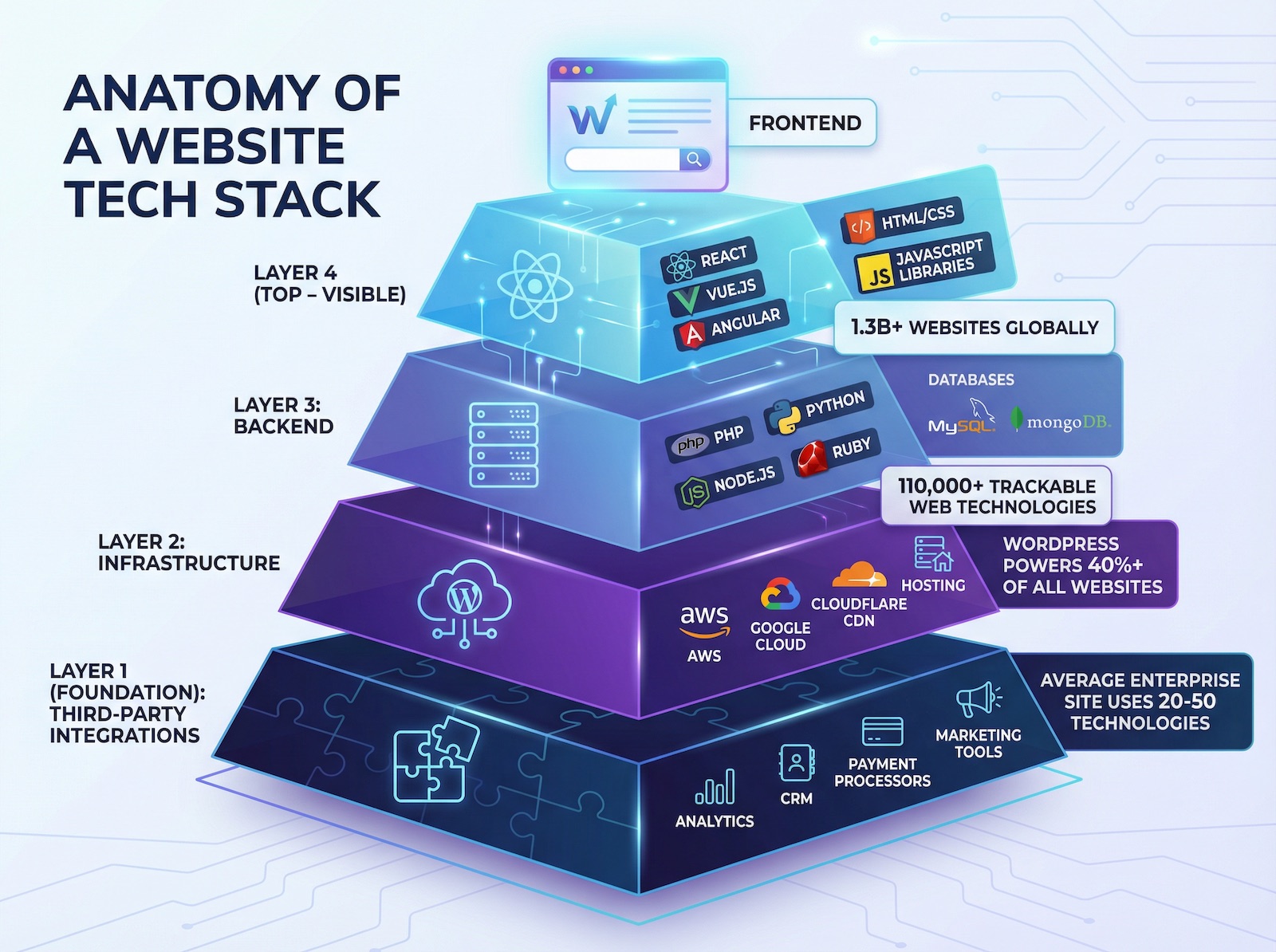
A website tech stack is the complete collection of technologies that power a website. Think of it as the recipe behind the dish—everything from the visible interface to the invisible backend systems working together.
The typical tech stack includes four main layers:
- Frontend technologies: What users see and interact with—frameworks like React, Vue.js, or Angular, along with CSS libraries and JavaScript tools
- Backend systems: Server-side languages (PHP, Python, Node.js), databases (MySQL, MongoDB), and application frameworks
- Hosting infrastructure: Cloud platforms (AWS, Google Cloud), CDNs (Cloudflare, Fastly), and server configurations
- Third-party integrations: Analytics platforms like Google Analytics, marketing tools, payment processors, CRM systems, and countless other services
Popular examples include WordPress powering over 40% of websites, React dominating modern web applications, and Google Analytics tracking user behavior on millions of sites. When I analyze competitor sites for our SaaS products, I'm not just looking at what CMS they use—I'm examining their entire technology ecosystem to understand their capabilities and limitations.
🤖 How technology detection shaped LiveChatAI's go-to-market:
When we were building LiveChatAI's positioning, I analyzed over 5,000 SaaS company websites to understand the customer support technology landscape. The insights completely changed our strategy.
We discovered that 60% of our target market used traditional live chat tools (Intercom, Drift, Zendesk Chat) but lacked AI automation capabilities. This wasn't a guess—it was data from systematically profiling thousands of potential customers.
Even more valuable: we could see which companies were using outdated chat solutions or had recently churned from competitors. TechnologyChecker.io's 20-year historical data let us identify patterns like "companies that switched away from [Competitor X] in the last 6 months." These became our highest-priority prospects because they'd already demonstrated willingness to change solutions.
The result? Our demo request rates were 3x higher than industry benchmarks because we weren't doing spray-and-pray marketing. We were reaching the right companies with the right message based on their actual technology situation.
Why Bother Checking Website Technology?
Understanding website technology isn't academic—it's practical intelligence with real business applications.
Here's where it becomes invaluable:
- Competitive analysis: Discover what tools your competitors use for speed optimization, user tracking, or conversion optimization. If a competitor's site loads faster, you can identify their CDN or caching solution
- Lead generation: Agencies and SaaS companies can identify prospects using specific technologies. Selling a WordPress plugin? Find sites running WordPress but missing your solution
- Learning from success: Reverse-engineer successful websites to understand their technical approach. See how top e-commerce sites handle checkout flows or how media companies manage high traffic
- Technology decisions: Evaluate whether a framework or tool is production-ready by seeing who's actually using it at scale
The scale is staggering. According to BuiltWith's technology database, they track 110,049+ web technologies across over 673 million websites. That's an enormous dataset revealing patterns about what actually works in production environments.
The Growing Importance in 2026
Web development isn't static—it's constantly evolving. Industry analysis shows that like any technology-driven field, web development continuously evolves as new tools, languages, and frameworks emerge while others become obsolete.
This creates both challenges and opportunities. The same research reveals that 38% of developers would like to acquire web development skills, placing this skill set at the top of tech professionals' wish lists. Understanding website technology helps you stay current with these evolving trends.
In my experience scaling Popupsmart to 200K monthly visitors and building LiveChatAI in the competitive AI space, staying aware of emerging technologies gave us strategic advantages. When we noticed competitors adopting specific JavaScript frameworks or analytics platforms, we could evaluate whether those choices aligned with our growth strategy or if we should chart a different course.
The need for efficient, user-friendly, and innovative web development solutions continues growing. Knowing how to check website technology transforms you from a passive observer into an active learner who can identify trends, spot opportunities, and make informed decisions based on real-world implementation data rather than marketing hype.
Top Tools to Check Website Technology: A Comprehensive Comparison
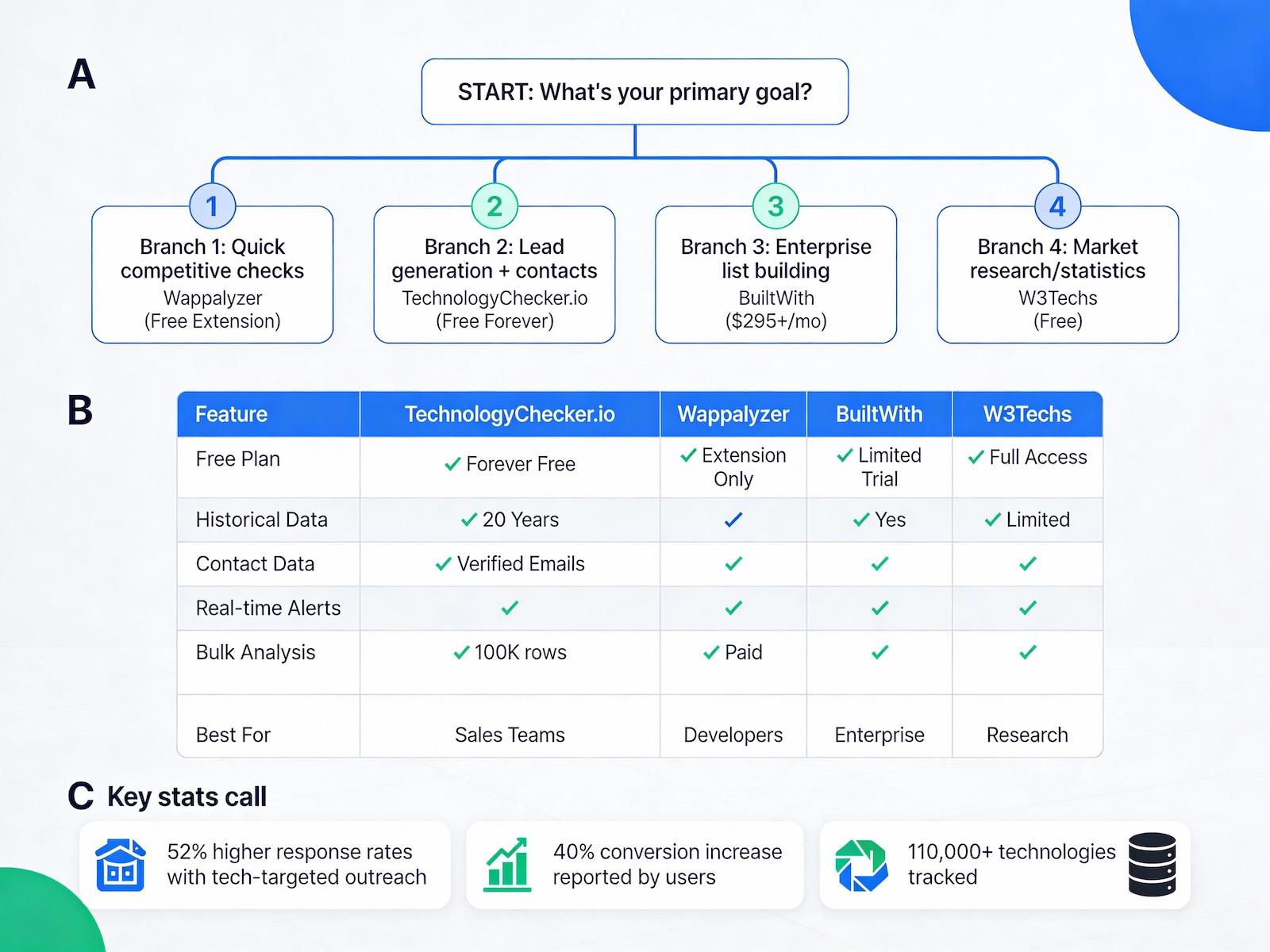
After three years of using technology detection tools for competitive intelligence at Popupsmart and Flatart, I've tested virtually every website technology checker on the market. I've analyzed thousands of competitor sites, prospected for agency clients, and made strategic decisions based on tech stack data—so I know which tools actually deliver and which ones waste your time. The market is crowded with options claiming to identify website technology, but the differences in accuracy, depth, and usability are massive.
According to Ful.io's technology database, they track over 75,000+ web technologies across millions of websites. That's an enormous detection challenge, and not all tools handle it equally well. Some excel at identifying content management systems but miss critical marketing tools. Others provide comprehensive data but bury you in complexity when you just need quick answers.
The right tech stack checker depends entirely on your use case. Are you a developer researching frameworks? A marketer building prospect lists? An agency analyzing client opportunities? Each scenario demands different capabilities, and choosing the wrong tool means either paying for features you'll never use or missing critical data you actually need.
| Tool | Free Tier | Paid Plans | Best For | Historical Data | Contact Data | Key Limitation |
|---|---|---|---|---|---|---|
| TechnologyChecker.io | Forever free (100 credits) | Contact for pricing | Sales teams, lead generation | ✅ 20 years | ✅ Verified emails | No browser extension |
| BuiltWith | Limited queries with signup | $295+/month | Enterprise analysis | ✅ Yes | ❌ No | High cost, messy exports |
| Wappalyzer | Unlimited browser extension | $149-$449/month | Developers, quick checks | ❌ No | ❌ No | Can slow browser |
| W3Techs | Full statistical reports | N/A (free) | Market research | ✅ Limited | ❌ No | No individual site analysis |
BuiltWith: The Industry Leader for Enterprise Technology Detection
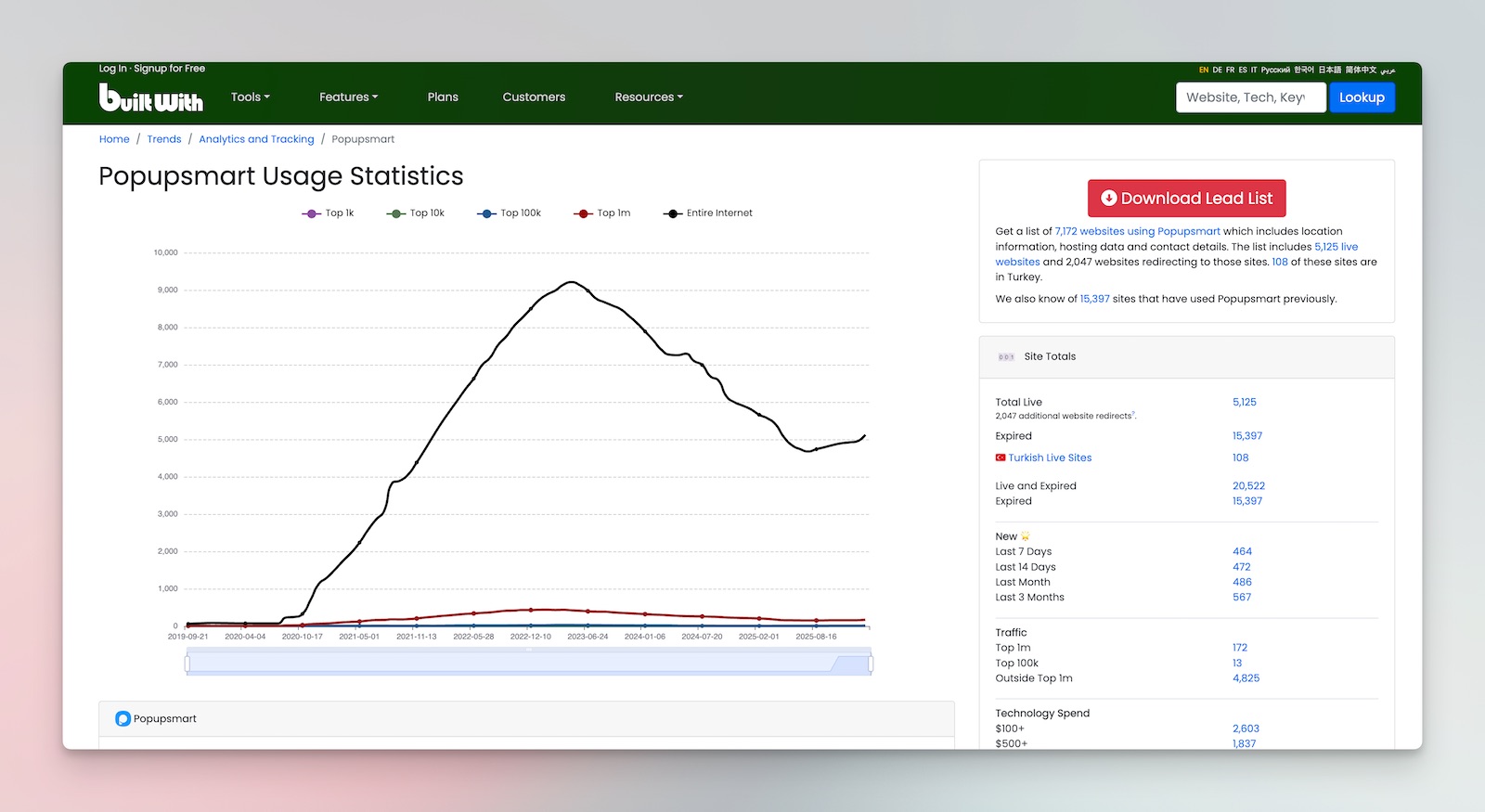
BuiltWith has dominated the website technology detection space since 2007, and for good reason. I've used BuiltWith extensively for lead generation and competitive analysis at Flatart, where we needed to identify e-commerce sites using specific platforms or missing critical conversion tools. The depth of their database is unmatched—they track technologies across hundreds of millions of websites with historical data showing when technologies were added or removed.
What sets BuiltWith apart is the breadth of detection categories. Beyond basic CMS identification, they track analytics platforms, advertising networks, payment processors, hosting providers, JavaScript libraries, server configurations, and even specific WordPress plugins. When I analyzed competitor sites for Popupsmart, BuiltWith revealed not just that they used WordPress, but which popup tools, analytics platforms, and marketing automation systems they had integrated.
The platform offers several key capabilities:
- Lead generation lists: Create targeted prospect lists based on technology usage—find all Shopify stores in a specific country, or identify WordPress sites missing SSL certificates
- Market share reports: Understand technology adoption trends across industries and geographic regions
- Historical tracking: See when competitors added or removed technologies, revealing strategic shifts
- API access: Integrate technology data into your CRM or sales tools for automated prospecting
- Relationship mapping: Discover which technologies commonly appear together, revealing typical tech stacks
What Real Users Say About BuiltWith
"It's great for uncovering what technologies different companies use. We use it to identify websites running our competitors' tools and to understand the tech environment of companies our sales team is meeting with. It's especially useful for building profiles and segmenting by technology type, which helps with sales conversations and ICP analysis."— G2 Verified Review, 3.5/5 stars
"The best thing about BuiltWith is that it can instantly tell me what the website uses in just one click. As someone who works in sales, I find it very helpful to know what software the website uses, whether it is HubSpot, Google Ads, or any Lead Generation platform."— G2 Verified Review, 5/5 stars
"Incredibly interesting to get a full tech stack (as well as previous vendor)—it all tells a story, and helps with personalization. Also love that it's reliable, it helps with credibility and knowledge of industry and who you're speaking with."— G2 Verified Review
"Working with BuiltWith data at scale is not easy. The CSV exports are large and often need a lot of manual cleanup. The integrations work, but they're not as smooth as they could be."— G2 Verified Review
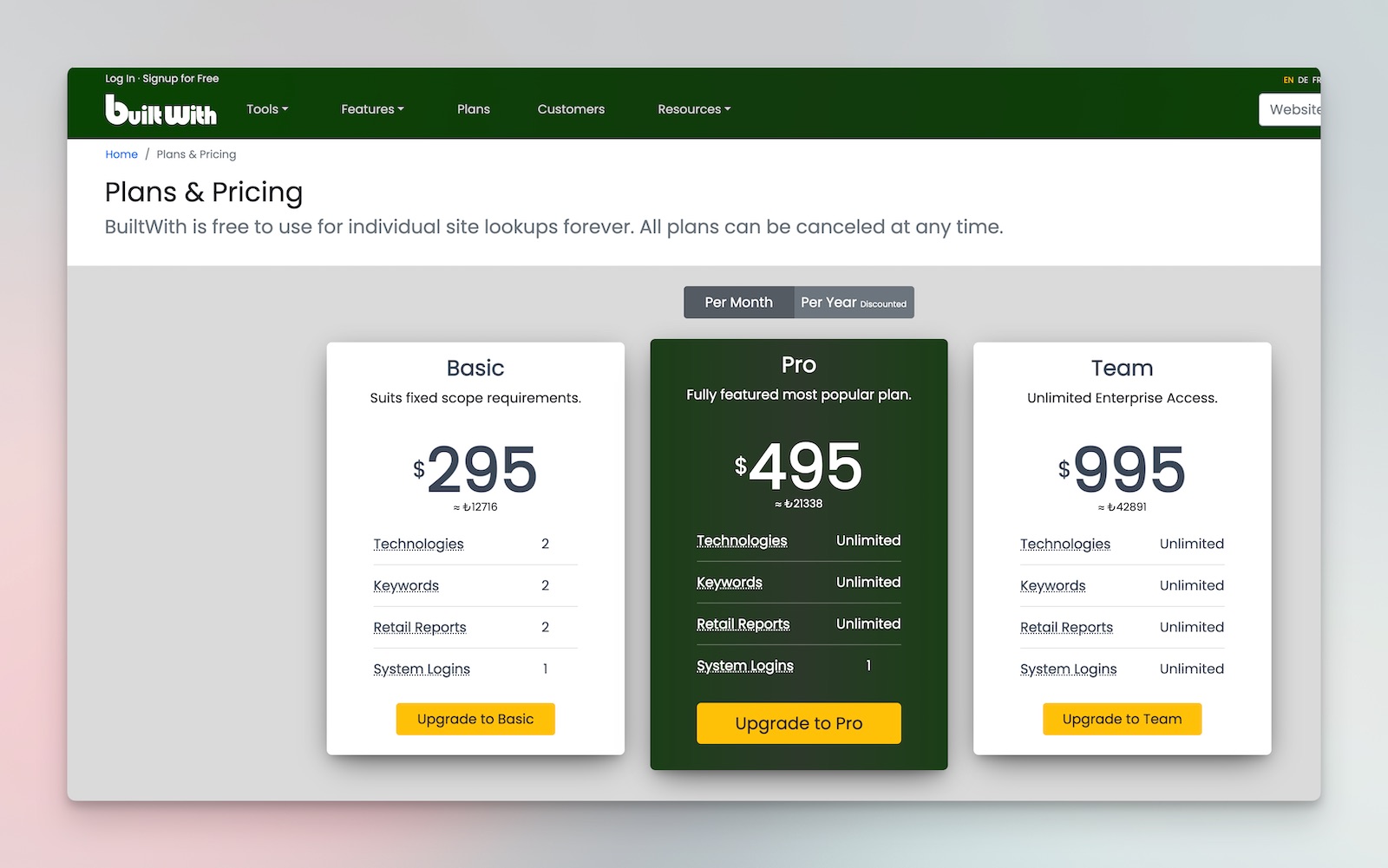
The pricing reflects the enterprise focus. BuiltWith doesn't publish transparent pricing—you need to contact sales for a quote. Based on industry discussions, basic plans start around $295 per month for limited queries, while comprehensive access with API capabilities runs into thousands monthly. This positions BuiltWith squarely in the professional and enterprise market.
Read All Reviews on Builtwith G2
BuiltWith Pros:
- Most comprehensive technology database (110,049+ technologies)
- Historical tracking shows when competitors changed tools
- Powerful lead generation and list building capabilities
- Enterprise-grade API for CRM integration
- Instant detection via browser extension
BuiltWith Cons:
- Expensive pricing (starts ~$295/month)
- Data exports require significant cleanup for CRM ingestion
- Interface feels dated compared to modern SaaS tools
- Steep learning curve for advanced features
- Accuracy isn't perfect—manual verification sometimes needed
However, for agencies, B2B SaaS companies doing outbound sales, or competitive intelligence teams, BuiltWith delivers unmatched value. The ability to build targeted prospect lists based on technology criteria alone justifies the investment for sales-focused organizations.
🎯 How I used BuiltWith to grow Popupsmart
One of the most successful growth campaigns I ever ran at Popupsmart came from a simple insight in BuiltWith. When analyzing our highest-paying customers, I noticed a pattern: the majority were using Mailchimp for email marketing. This wasn't random—businesses invested in email marketing understood the value of list building, making them perfect prospects for our popup solution.
Here's what most people don't realize: even though Mailchimp has its own popup editor, many serious marketers still use dedicated popup tools because they need advanced targeting, A/B testing, and design flexibility that native solutions can't match.
So I built a prospect list in BuiltWith targeting websites running Mailchimp but not using any dedicated popup tool. The results were remarkable—this technology-targeted outreach outperformed every other sales channel we tested. Response rates were 3x higher than generic cold outreach because we could open conversations with: "I noticed you're using Mailchimp for email marketing but don't have an advanced popup solution for list building yet..."
That single BuiltWith campaign taught me the power of technology-based prospecting. You're not just finding companies—you're finding companies with a specific problem you can solve.
Wappalyzer: Best Website Technology Checker Extension for Most Users
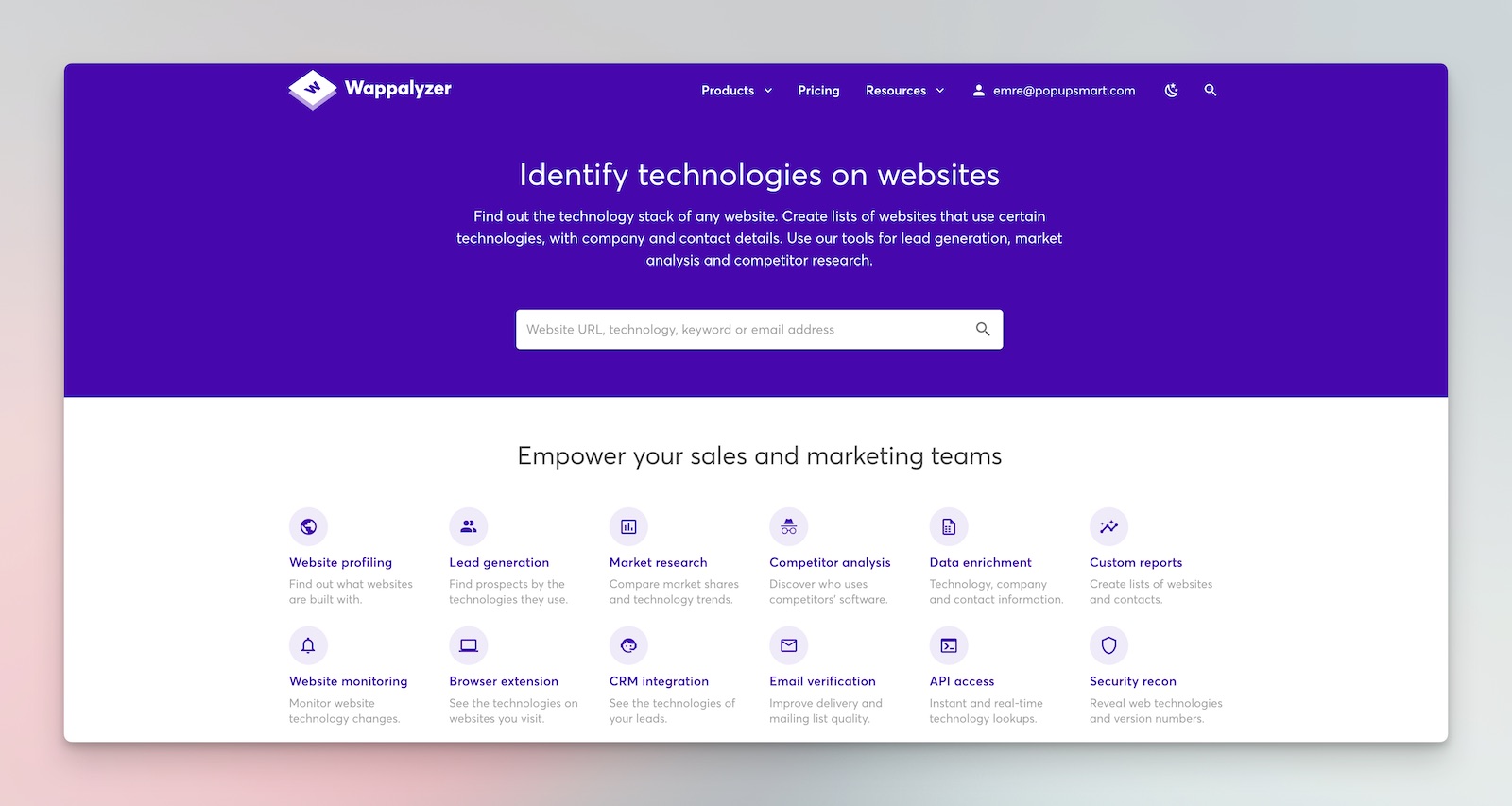
Wappalyzer takes a different approach—prioritizing accessibility and ease of use over exhaustive enterprise features. I installed the Wappalyzer browser extension years ago and it's remained in my Chrome toolbar ever since, providing instant technology insights whenever I visit a competitor site or discover an interesting web application. The browser extension model makes technology detection frictionless—just click the icon and see what technologies power the current page.
According to Wappalyzer's Chrome extension description, the tool uncovers more than a thousand technologies in dozens of categories such as programming languages, analytics, marketing tools, payment processors, CRM, CDN and others. This comprehensive detection happens instantly as you browse, creating a seamless research experience.
The free browser extension provides immediate value for developers and marketers who need quick technology checks. Visit any website, click the Wappalyzer icon, and see a categorized breakdown of detected technologies. For casual research or competitive browsing, this free tier handles most needs perfectly.
🔍 Why Wappalyzer never leaves my browser:
I've had the Wappalyzer extension installed on Chrome for years, and it's become an instinctive part of how I browse the web. Every time I land on an interesting website—whether it's a competitor, a potential partner, or just a company I admire—I click that icon before I even read the homepage.
It's transformed how I understand businesses. When I see a company running Shopify Plus with Klaviyo, I immediately know they're a serious e-commerce operation with revenue to invest in tools. When I spot a startup using Webflow with basic Google Analytics, I understand they're early-stage and probably bootstrapped. The tech stack tells a story about company maturity, budget, and priorities that no "About Us" page ever will.
I use it during sales calls too. Before jumping on a demo, I'll quickly scan the prospect's site with Wappalyzer. Knowing they use HubSpot means I can speak to CRM integration. Seeing they run WordPress tells me they might need specific plugin compatibility. This 10-second check makes every conversation more relevant and informed.
Wappalyzer's strength lies in several areas:
- Browser integration: Chrome, Firefox, and Edge extensions provide instant detection without leaving your workflow
- Technology categorization: Results are organized into logical categories—CMS, JavaScript frameworks, analytics, marketing automation, hosting, and more
- Bulk analysis: Paid plans allow CSV uploads to analyze hundreds or thousands of websites simultaneously
- Email finder integration: Premium features include contact discovery for outreach campaigns
- API access: Integrate technology detection into your own applications or workflows
What Real Users Say About Wappalyzer
"The best thing about Wappalyzer is that it's compatibility to use it with Chrome as an extension and name of the tech stacks which it provides is very much helpful. It detects more than one technologies inspite of having several categories."— G2 Verified Review, 4.5/5 stars
"Wappalyzer has the best UX for technographic lead generation. Great inventory of tech that they monitor and index. Leads sheets are straightforward and accurate enough. Support team is fast to respond."— G2 Verified Review, 4.5/5 stars
"I've been using Wappalyzer mostly for technology lookup and monitoring changes in the competitors' tech stacks. It's extremely fast and very useful in identifying missed opportunities and generating or filtering leads."— G2 Verified Review, 4.5/5 stars
"I dislike one thing about Wappalyzer that is it's lack of free credits (which can be increased by them). It also slows the browser on which it's installed and while it's use is good to find out tech stacks of the website but sometimes accuracy of that website being built on same tech stack as shown by Wappalyzer is challenging."— G2 Verified Review
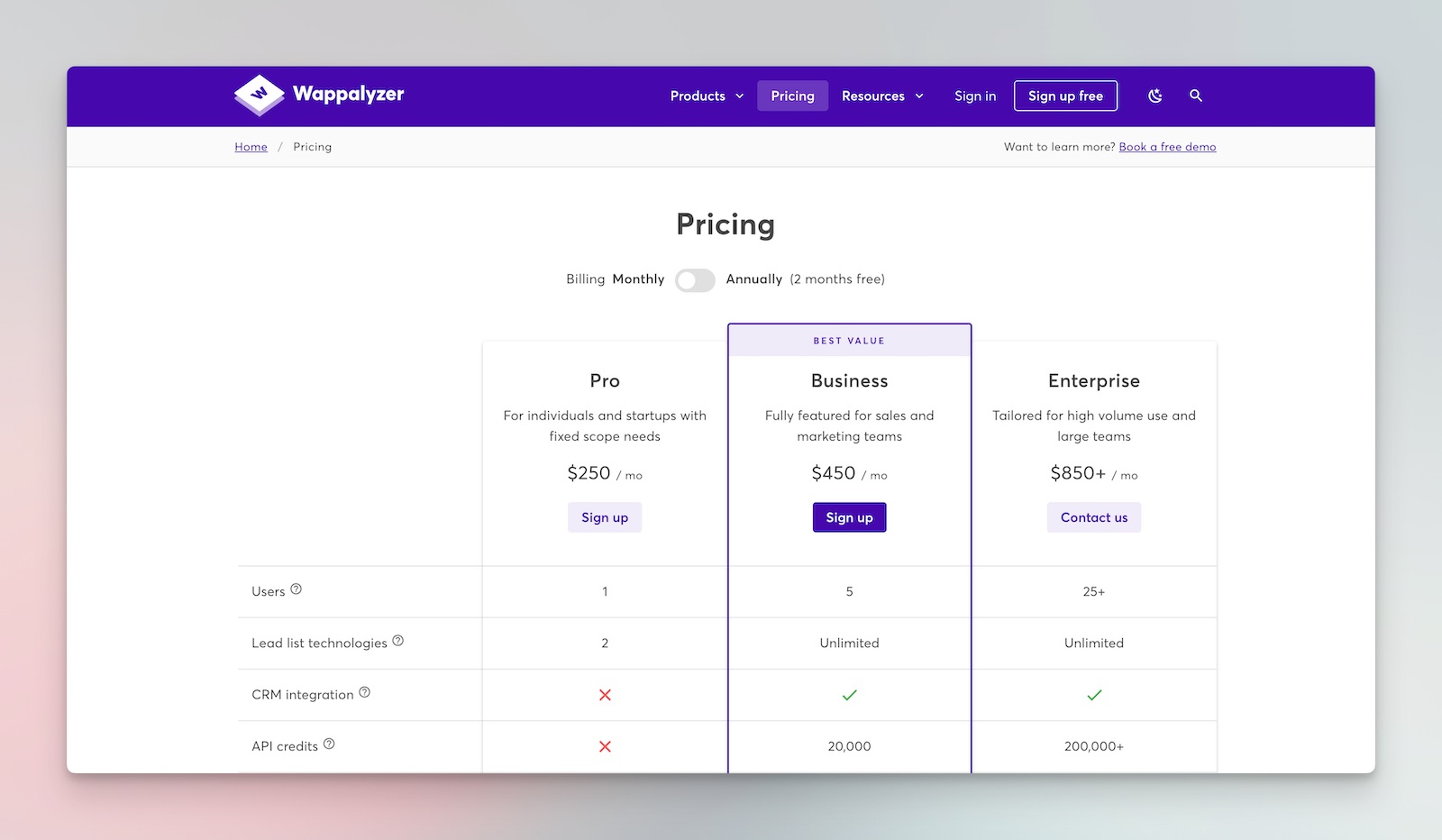
The pricing structure offers flexibility. The free browser extension handles individual lookups indefinitely. Paid plans start at $149 monthly for 1,000 monthly lookups and basic features, scaling to $449 monthly for 10,000 lookups with API access and advanced filtering. This tiered approach makes Wappalyzer accessible for solo developers while scaling to agency needs.
Read All the Wappalyzer G2 Reviews
Wappalyzer Pros:
- Free browser extension with unlimited individual lookups
- Best user experience for quick technology detection
- Detects 1,000+ technologies across dozens of categories
- Clean, modern interface that's easy to understand
- Affordable paid tiers for bulk analysis ($149-$449/month)
- Fast, responsive support team
Wappalyzer Cons:
- Can slow down browser performance
- Accuracy occasionally challenged for custom implementations
- Basic plan limited to two technology lookups per month for list building
- CRM integration only available on higher-tier plans
- Less comprehensive than BuiltWith for obscure technologies
Where Wappalyzer excels is the balance between depth and usability. The detection accuracy rivals BuiltWith for common technologies, though it may miss some obscure or custom implementations. For most practical purposes—identifying CMS platforms, analytics tools, JavaScript frameworks, and marketing technologies—Wappalyzer delivers reliable results.
TechnologyChecker.io: Best Technology Checker & Lookup Tool for Sales Teams
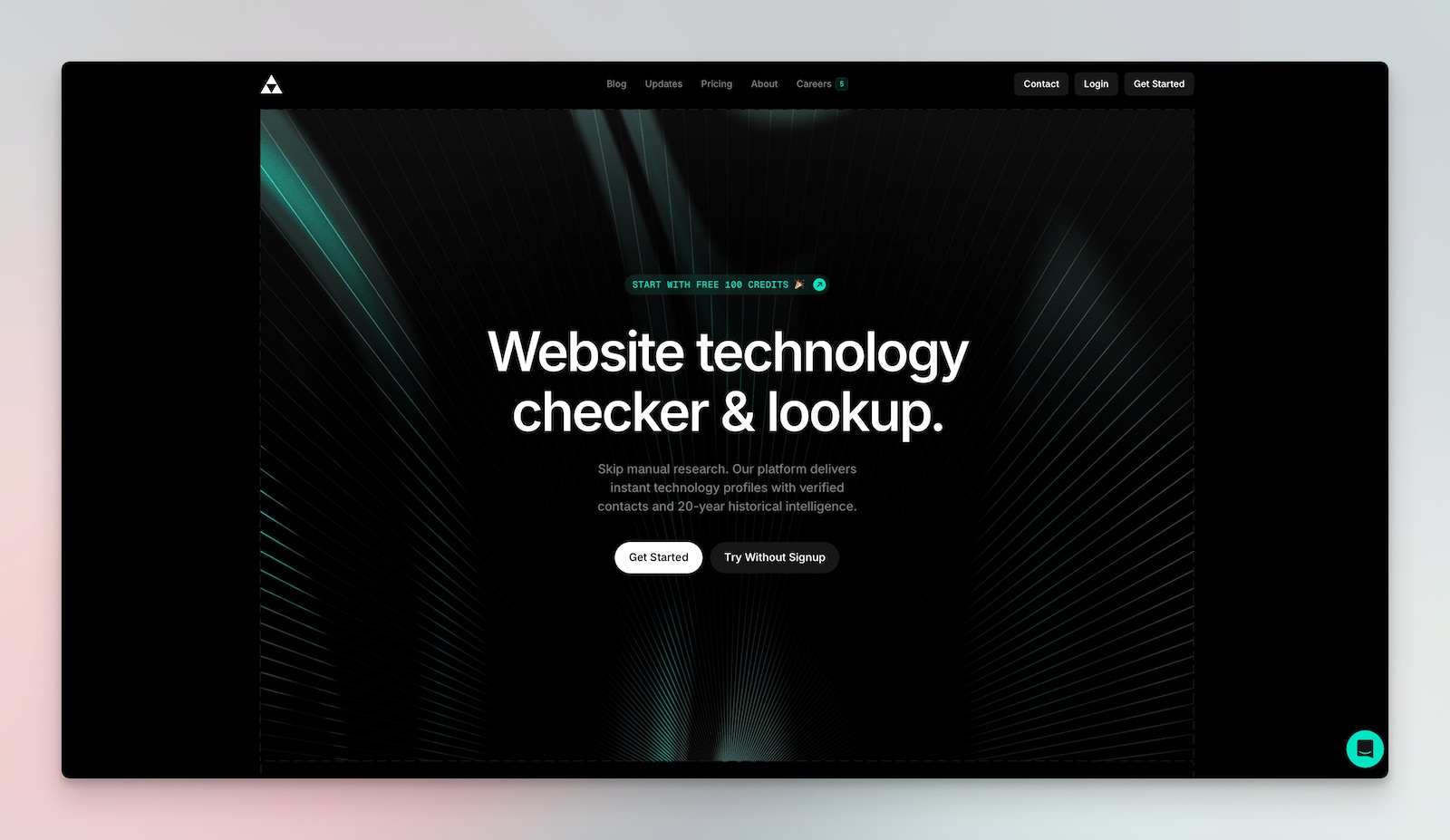
Technologychecker.io is the newest entrant that's disrupting the market with a forever-free plan and unique sales-focused features. What sets it apart from traditional technology checkers is the combination of tech detection with verified contact intelligence and 20 years of historical data, capabilities that previously required expensive enterprise subscriptions elsewhere.
The platform uses multi-signal fingerprinting with headless rendering for accurate technology identification, going beyond simple signature matching. This means it can detect technologies that other tools miss, including backend signals and real-time usage patterns that reveal not just what technologies are installed, but how actively they're being used.
TechnologyChecker.io's standout features:
- Forever free plan: Start with 100 free credits—no credit card required, no time limit
- 20-year historical data: Track technology adoption patterns and competitive movements over two decades
- Verified contact intelligence: Get firmographics, role targeting, and verified email deliverability alongside tech data
- Real-time signals: Advanced backend usage signals show actual technology activity, not just installed scripts
- Bulk lookups: Process up to 100,000 rows via CSV/XLSX upload or API
- Stack change monitoring: Real-time alerts when prospects or competitors change their technology
- CRM integration: One-click export to your sales tools
⚡ The game-changer: Real-time technology signals
What really sets TechnologyChecker.io apart is something most technology checkers don't offer: live technology change signals. They don't just tell you what technologies a company uses—they alert you when companies install or change technologies in real-time.
Think about what this means for sales timing. When a company just installed Salesforce, they're actively building their sales infrastructure—perfect timing to pitch complementary tools. When someone adds Vanta, they're focused on security compliance and might need related solutions. When HubSpot gets implemented, they're investing in inbound marketing and could be receptive to content or SEO services.
I've seen this work for both frontend and backend signals. TechnologyChecker.io detected when prospects added Grafana (monitoring infrastructure investment), switched CRMs, or implemented new analytics platforms. These signals turn cold outreach into warm, timely conversations because you're reaching out when the company is actively making technology decisions—not months after they've already committed to solutions.
The combination of technology detection + verified contact data + real-time signals creates a prospecting workflow that didn't exist before. You identify the right companies, get the right contacts, and reach out at the right moment.

What Real Users Say About TechnologyChecker.io
"With TechnologyChecker's 20-year dataset, we discovered that SaaS companies switching from WordPress to headless CMS averaged 78% faster site speeds and 23% better conversion rates—historical context that completely changed our technical positioning."— Shane Murphy, Head of Product Marketing, Webflow
"We've completely transformed our ICP targeting with TechnologyChecker's technographic data. Being able to see exactly which tools prospects are using has increased our conversion rates by 40%."— Mert Aktas, Head of Growth, Userguiding
"TechnologyChecker showed us that 73% of our churned customers switched to Workday within 90 days—now we proactively address enterprise migration concerns before renewal."— Luca Rossi, Head of Customer Success, Horilla
"We've built custom lead scoring models using TechnologyChecker's API data. Our MQLs are now 60% more likely to convert because we're scoring based on actual technology fit."— James Wilson, Head of Marketing Operations, DemandFlow
TechnologyChecker.io Pros:
- Forever free plan with 100 credits (no credit card required)
- 20 years of historical technology data—unmatched in the market
- Verified contact data included (emails, firmographics, social profiles)
- Real-time backend signals reveal actual technology usage
- Bulk processing up to 100,000 rows
- Stack change alerts for competitive monitoring
- Intent scoring and technology fit signals for lead qualification
TechnologyChecker.io Cons:
- Newer platform with smaller brand recognition than BuiltWith
- Best value realized through sales/prospecting workflows
Best for: Sales teams, growth marketers, and agencies who need technology intelligence combined with actionable contact data. The free tier makes it accessible for testing, while the historical data and contact intelligence justify it for serious prospecting workflows.
W3Techs: Best Free Tool for Market Research and Statistics
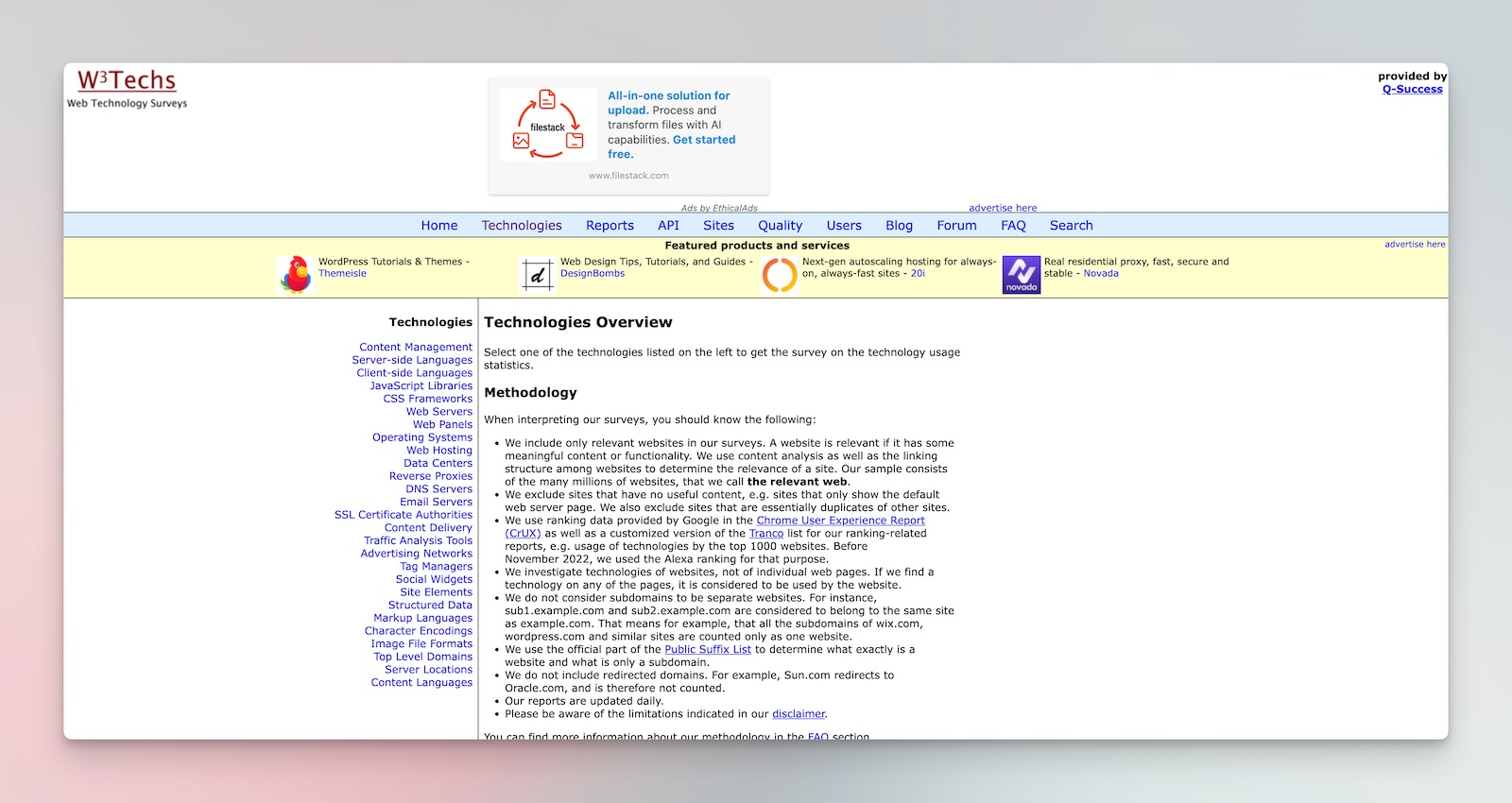
W3Techs focuses on statistical analysis rather than individual website lookups. Their platform provides comprehensive market share data across technology categories, revealing which CMS platforms, server technologies, programming languages, and analytics tools dominate different market segments. Instead of asking "what does this specific site use," W3Techs answers "what percentage of websites use WordPress versus Shopify."
This statistical approach serves different needs. When I'm evaluating whether to build an integration or plugin for a specific platform, W3Techs data reveals the potential market size. Their reports break down technology adoption by traffic ranking, geographic region, and industry vertical, providing strategic context that individual site analysis can't deliver.
W3Techs strengths include:
- Market share tracking: Comprehensive statistics on technology adoption across the web
- Trend analysis: Historical data showing how technology usage evolves over time
- Segmentation: Filter data by website traffic levels, revealing what top sites use versus the long tail
- Free access: Most statistical reports are freely available without signup requirements
W3Techs Pros:
- Completely free for most reports
- Excellent for market research and strategic planning
- Historical trend data for technology adoption
- No signup required
W3Techs Cons:
- Cannot analyze specific individual websites
- Not useful for competitive intelligence on specific competitors
- No lead generation capabilities
Snov.io Limited Website Technology Sales-Focused Detection

Snov.io's technology checker integrates directly with their sales automation platform, making it particularly valuable for teams already using Snov.io for outreach. The tool identifies technologies while simultaneously finding contact information, streamlining the prospecting workflow.
Snov.io Pros:
- Integrated with comprehensive sales automation suite
- Combines technology detection with email finder
- Good for sales-focused workflows
Snov.io Cons:
- Less comprehensive technology database than dedicated tools
- Most useful if already using Snov.io platform
- Limited standalone value compared to Wappalyzer or BuiltWith
How to Check Website Technology with Browser Extensions
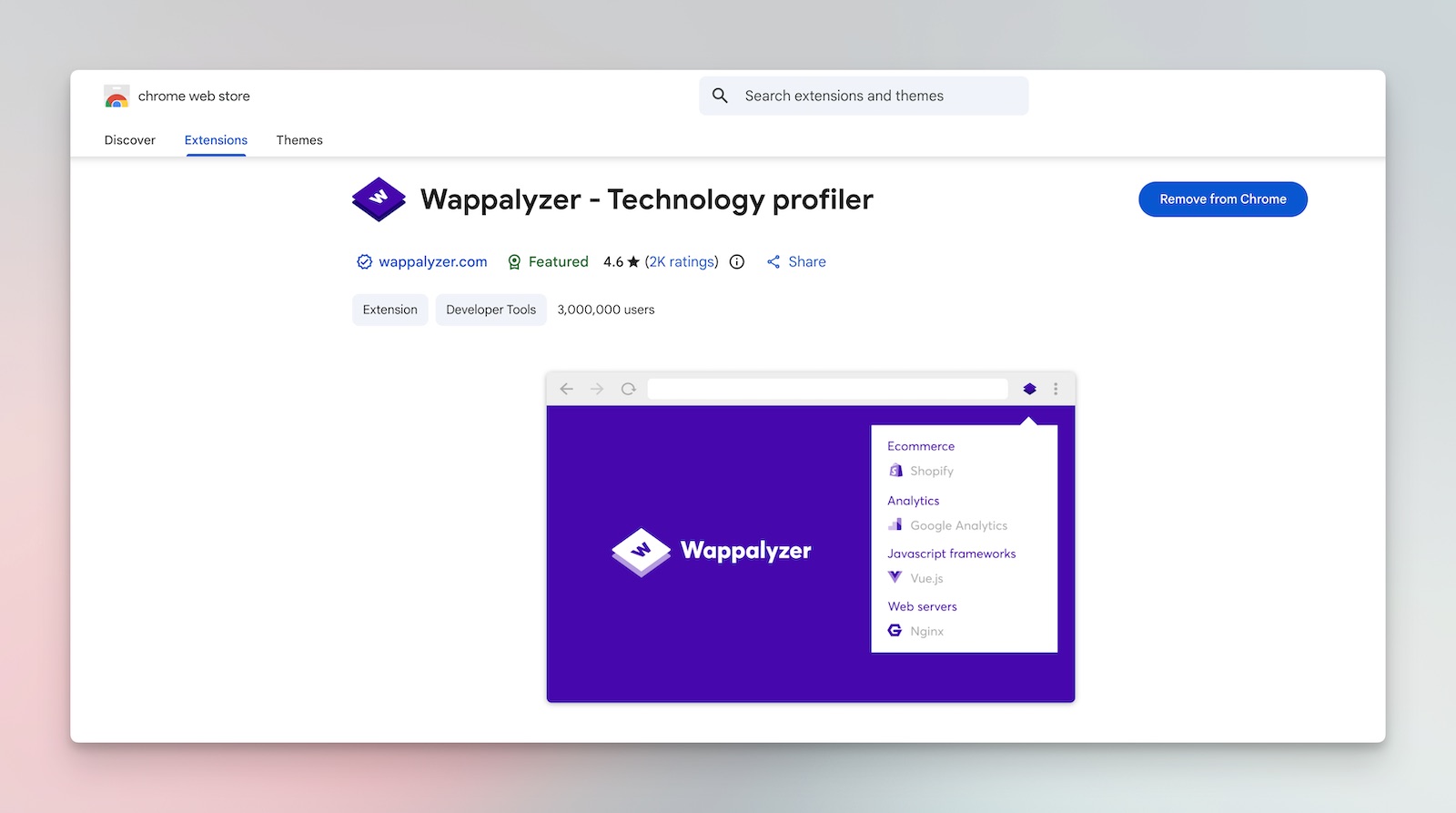
Browser extensions transformed how I analyze competitor websites—what used to take 30 minutes of manual inspection now happens in seconds. During my time scaling Popupsmart and building LiveChatAI, I've clicked that Wappalyzer icon thousands of times while researching competitors, evaluating potential integration partners, and identifying market opportunities. The convenience factor is massive—you're browsing a competitor's site, notice something interesting about their user experience, and instantly see their entire tech stack without leaving the page.
The browser extension approach to website technology detection offers immediate, frictionless insights. Unlike standalone platforms requiring logins and query limits, extensions sit quietly in your toolbar until you need them. This real-time analysis capability makes extensions invaluable for developers researching frameworks, marketers analyzing competitor tools, and anyone conducting competitive intelligence research during their normal browsing workflow.
Step-by-Step: Installing and Using Wappalyzer Extension
Getting started with Wappalyzer takes less than two minutes. Here's exactly how to install and use the most popular website technology checker extension:
Installation Steps:
- Open your browser (Chrome, Firefox, or Edge)
- Navigate to the Chrome Web Store and search "Wappalyzer"
- Click "Add to Chrome" (or equivalent for your browser)
- Accept the permissions when prompted
- The Wappalyzer icon appears in your browser toolbar
Using Wappalyzer to Check Website Technology:
- Visit any website you want to analyze—for example, a competitor's homepage
- Click the Wappalyzer icon in your toolbar (it may show a number indicating detected technologies)
- Review the categorized results in the dropdown panel
- Click any technology to see version numbers, confidence levels, and related technologies
- Explore different pages on the site—technology usage may vary between homepage, product pages, and checkout
The free version provides unlimited individual lookups—perfect for casual competitive research. I've used the free Wappalyzer extension for years before upgrading to paid plans, and it handled 90% of my technology detection needs without costing anything.
Step-by-Step: Using Technologychecker.io Extension for Deeper Analysis
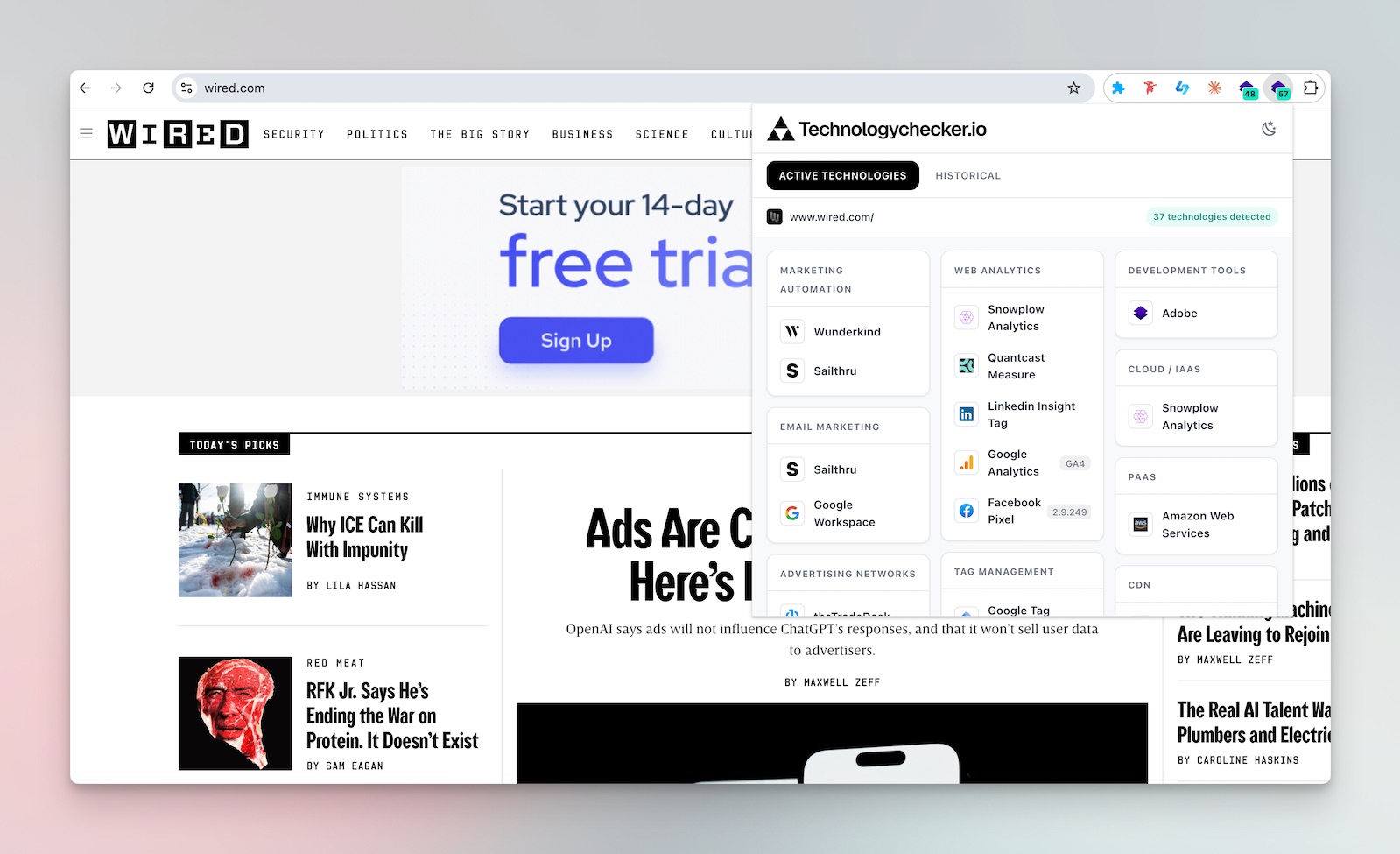
BuiltWith's browser extension provides more comprehensive reports on hosting infrastructure, CDN configurations, and third-party service integrations.
Installation Steps:
- Navigate to Chrome Web Store and search "Technologychecker.io Website Technology Lookup"
- Click "Add to Chrome"
- The Technologychecker.io icon appears in your toolbar
Using BuiltWith for Technology Detection:
-
Visit any website you want to analyze
-
Click the Technologychecker icon in your toolbar
-
Review the detailed technology breakdown including: Analytics and tracking tools
-
Advertising networks
-
Hosting and CDN providers
-
CMS and e-commerce platforms
-
JavaScript frameworks and libraries
-
Server information and SSL certificates
-
Click "Detailed Technology Profile" for comprehensive analysis
Interpreting Extension Results: What Common Tech Stacks Reveal
Raw technology detection data only becomes valuable when you understand what common tech stacks indicate about site performance and business strategy. After analyzing thousands of competitor sites, I've learned to recognize patterns that reveal operational maturity, budget levels, and strategic priorities.
What common stacks reveal:
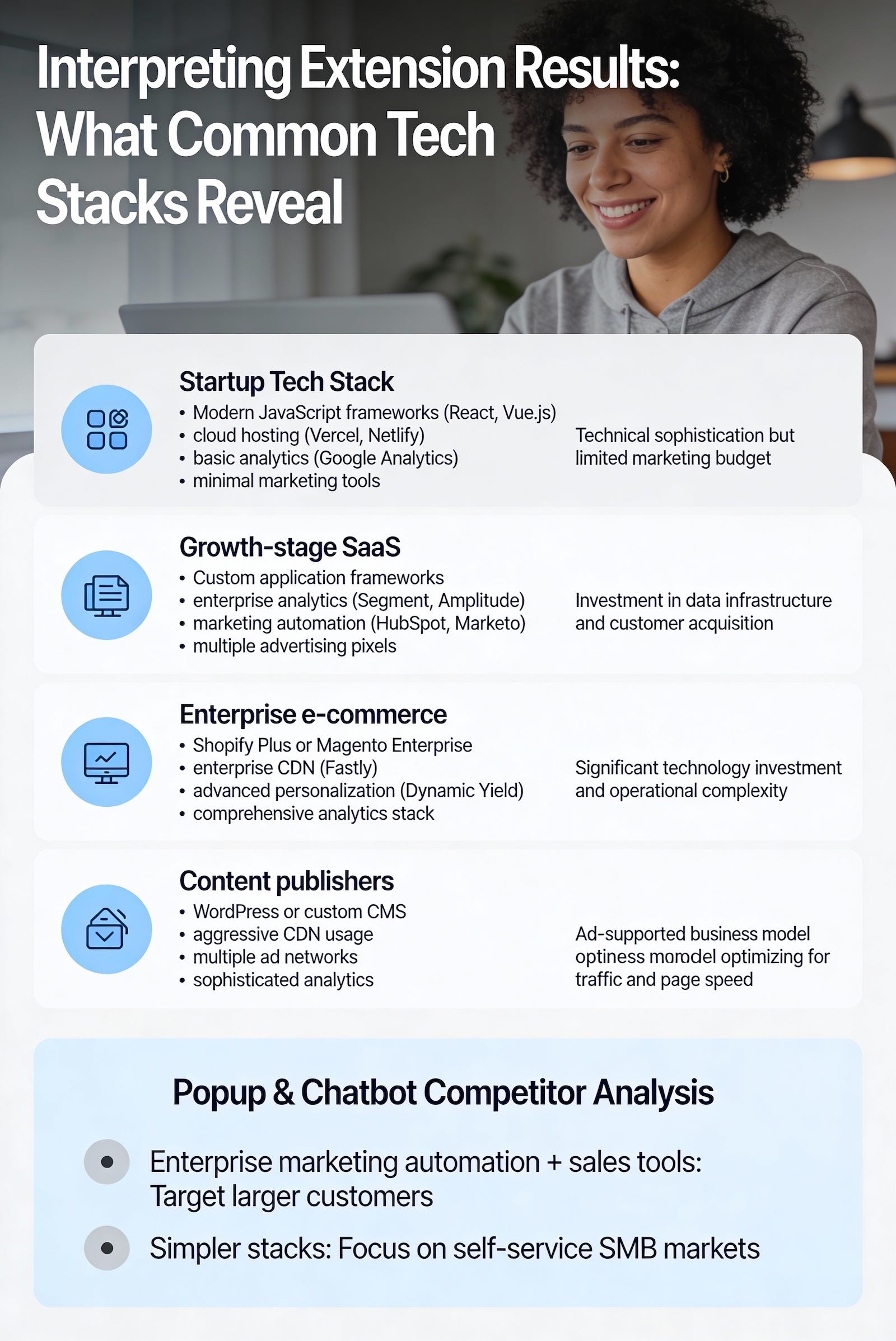
- Startup tech stack: Modern JavaScript frameworks (React, Vue.js), cloud hosting (Vercel, Netlify), basic analytics (Google Analytics), minimal marketing tools—indicates technical sophistication but limited marketing budget
- Growth-stage SaaS: Custom application frameworks, enterprise analytics (Segment, Amplitude), marketing automation (HubSpot, Marketo), multiple advertising pixels—shows investment in data infrastructure and customer acquisition
- Enterprise e-commerce: Shopify Plus or Magento Enterprise, enterprise CDN (Fastly), advanced personalization (Dynamic Yield), comprehensive analytics stack—reveals significant technology investment and operational complexity
- Content publishers: WordPress or custom CMS, aggressive CDN usage, multiple ad networks, sophisticated analytics—indicates ad-supported business model optimizing for traffic and page speed
When I analyzed competitors in the popup and chatbot space, the technology combinations revealed their go-to-market strategies. Competitors using enterprise marketing automation and sales tools were targeting larger customers, while those with simpler stacks focused on self-service SMB markets.
Manual Methods: How to Check Website Technology Without Tools
Before browser extensions and automated tools existed, developers relied on manual inspection techniques to identify website technologies—and these methods remain surprisingly relevant today. When I first started analyzing competitor sites at Flatart in 2014, manual inspection was often more reliable than early detection tools that missed custom implementations or misidentified frameworks. Understanding manual detection methods gives you deeper insight into how websites actually work, helps you verify automated results, and enables technology identification even when tools fail or aren't available.
🔧 When manual inspection beat the tools:
I learned to never fully trust automated detection after a situation at Flatart. We were pitching a large e-commerce client, and BuiltWith reported they were running Magento. I built our entire proposal around Magento optimization and migration strategies.
During the discovery call, they mentioned their "headless commerce setup." Red flag. I quickly opened DevTools during the call (camera off, thankfully) and examined their Network tab. The API calls went to Shopify's Storefront API—they had a custom React frontend with Shopify as a headless backend. BuiltWith had detected some legacy Magento code from a previous implementation that was still partially loaded.
That experience taught me to always verify critical findings manually, especially for high-stakes opportunities. The tools are 85-90% accurate, but that 10-15% can embarrass you in important conversations. Now I cross-reference automated reports with manual DevTools inspection for any deal over $10K.
Method 1: Inspecting Source Code
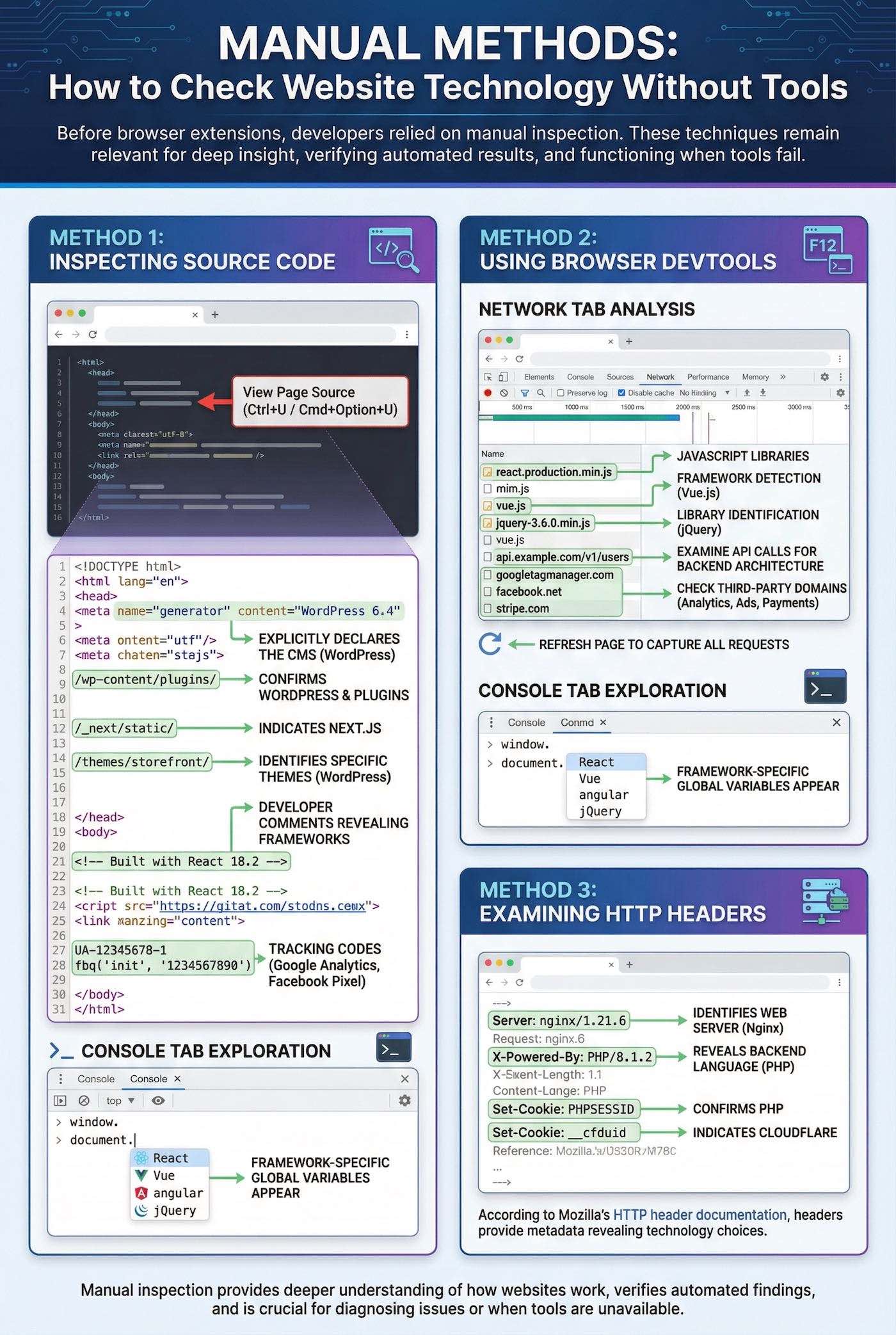
The most basic manual method involves viewing a website's source code. Right-click anywhere on a webpage and select "View Page Source" (or press Ctrl+U on Windows, Cmd+Option+U on Mac). This displays the raw HTML, CSS references, and JavaScript files that construct the page.
What to look for in source code:
- Meta generator tags:
<meta name="generator" content="WordPress 6.4">explicitly declares the CMS - Script references:
/wp-content/plugins/confirms WordPress, while/_next/static/indicates Next.js - CSS file paths:
/themes/storefront/identifies specific WordPress themes - HTML comments: Developers sometimes leave comments like
<!-- Built with React 18.2 --> - Tracking codes: Google Analytics IDs (UA- or G- prefixes), Facebook Pixel code
Method 2: Using Browser DevTools
Modern browser DevTools transform manual technology detection into interactive investigation. Press F12 or right-click and select "Inspect" to open DevTools.
Network Tab Analysis:
- Open DevTools (F12) and switch to the Network tab
- Refresh the page to capture all requests
- Look for JavaScript libraries in filenames:
react.production.min.js,vue.js,jquery-3.6.0.min.js - Examine API calls to identify backend architecture
- Check third-party domains:
googletagmanager.com,facebook.net,stripe.com
Console Tab Exploration:
- Open the Console tab in DevTools
- Type
windowordocumentand explore autocomplete suggestions - Framework-specific global variables appear:
React,Vue,angular,jQuery
Method 3: Examining HTTP Headers
According to Mozilla's HTTP header documentation, headers provide metadata that reveals technology choices:
- Server header:
Server: nginx/1.21.6identifies the web server - X-Powered-By header:
X-Powered-By: PHP/8.1.2reveals the backend language - Set-Cookie headers:
PHPSESSIDconfirms PHP,__cfduidindicates Cloudflare
When to Use Manual Methods vs. Automated Tools
| Scenario | Recommended Approach | Why |
|---|---|---|
| Quick competitive check | Browser extension | Fastest, one-click results |
| Conflicting tool reports | Manual inspection | Source code is authoritative |
| Custom implementation | Manual + DevTools | Tools miss proprietary solutions |
| Bulk analysis (100+ sites) | API-based tools | Manual doesn't scale |
| Understanding HOW tech is used | Manual DevTools | Reveals implementation details |
Advanced Ways to Check Website Technology at Scale
When you need to analyze hundreds or thousands of websites simultaneously, browser extensions and manual methods become impractical bottlenecks. At Flatart, we faced this exact challenge when prospecting for agency clients—manually checking individual sites couldn't scale to the 500+ prospect lists our sales team needed weekly. That's when we shifted to API-driven technology detection, transforming our lead generation process from days of manual work into automated workflows running overnight.
Leveraging APIs for Bulk Technology Checks
API-based technology detection transforms individual lookups into systematic intelligence gathering. Both BuiltWith and Wappalyzer offer API access that lets you programmatically query their technology databases.
API Implementation Overview:
- Purchase an API plan (BuiltWith ~$500/month, Wappalyzer $449/month for 10,000 lookups)
- Receive an API key for authentication
- Construct HTTP requests passing domain names as parameters
- Receive structured JSON data with detected technologies
- Integrate results into your CRM or database
When we built our prospect qualification system at Flatart, we integrated BuiltWith's API with our CRM. Every new lead automatically got enriched with technology data—CMS platform, analytics tools, marketing automation presence. The system processed 200+ leads daily without manual intervention.
CRM Integration Workflow
Real-world integration workflow for SaaS sales teams:
- Lead capture: New prospect enters CRM through any channel
- Automatic enrichment: Webhook triggers technology detection API call
- Data storage: Technology results populate custom CRM fields
- Segmentation: Leads automatically segment based on technology criteria
- Personalized outreach: Email templates dynamically reference detected technologies
- Sales intelligence: Reps see complete tech stack before first conversation
Custom Scripting for Technology Detection
Building custom detection scripts provides complete control and cost optimization at scale.
Core components of a custom detection script:
- HTTP client: Python's requests library for fetching responses and headers
- HTML parser: BeautifulSoup or lxml for analyzing source code
- Pattern matching: Regular expressions to identify technology signatures
- Database storage: PostgreSQL or MongoDB for storing results
- Concurrency: Async libraries like aiohttp for parallel processing
- Rate limiting: Implement delays to avoid overwhelming target servers
We built a custom technology detection system for a market research project analyzing 50,000 e-commerce sites. Total infrastructure cost was under $200 monthly—commercial APIs would have charged $5,000+ for equivalent query volume.
When to Build vs. Buy
| Scenario | Recommendation | Reasoning |
|---|---|---|
| <1,000 lookups/month | Wappalyzer paid plan | API development cost exceeds subscription |
| 1,000-10,000 lookups/month | Commercial API | Balance of cost and maintenance effort |
| >10,000 lookups/month | Consider custom solution | Significant cost savings at scale |
| Specialized detection needs | Custom scripting | Commercial tools miss niche technologies |
Use Cases: Business Applications of Website Technology Checking
Technology detection transforms from interesting curiosity into revenue-generating intelligence when you understand the specific business applications. At Popupsmart, we used technology profiling to identify e-commerce sites running outdated popup solutions—this targeted approach helped us acquire 400+ customers in our first year by leading conversations with specific technical observations rather than generic pitches.
Use Case 1: Competitive Analysis
Application: Systematically analyze competitor technology stacks to understand their capabilities, identify gaps, and inform your product roadmap.
How to implement:
- Create a list of 10-20 direct competitors
- Use Wappalyzer or BuiltWith to document their complete tech stacks
- Identify patterns: which technologies do market leaders use?
- Spot gaps: what tools are competitors missing that you could exploit?
- Track changes monthly to identify strategic shifts
Use Case 2: Lead Generation and Sales Prospecting
Application: Build targeted prospect lists based on technology criteria for higher-converting outreach.
How to implement:
- Define your ideal customer's technology profile (e.g., "Shopify merchants without email marketing")
- Use Technologychecker.io or Wappalyzer's list-building features to find matching sites
- Export prospects to your CRM with technology data enrichment
- Create personalized outreach referencing their specific tech stack
📧 Why technology + contacts is the killer combination:
Before TechnologyChecker.io, my prospecting workflow was frustratingly fragmented. I'd use BuiltWith or Wappalyzer to identify target companies, then switch to LinkedIn Sales Navigator to find contacts, then use a separate tool for email verification. Three tools, three subscriptions, and a lot of manual data merging.
TechnologyChecker.io collapsed this into one workflow. I identify companies by technology criteria and immediately get verified contacts with email deliverability scores, firmographic data, and even intent signals—all in the same interface.
The time savings alone justified the switch. But the real value was in data quality. When technology and contact data come from the same source, there's no mismatch between "companies using Shopify" and "contacts at those companies." The enrichment is consistent, and my CRM stays clean instead of becoming a mess of partially-matched records from different tools.
Use Case 3: Security Auditing
Application: Identify outdated or vulnerable technologies on your own sites or client sites.
What to look for:
- Outdated CMS versions with known vulnerabilities
- Deprecated JavaScript libraries
- Missing security headers
- Outdated SSL/TLS configurations
Use Case 4: Market Research
Application: Understand technology adoption trends across industries to inform product development or investment decisions.
How to implement:
- Use W3Techs for broad market statistics
- Analyze technology adoption by traffic tier or industry vertical
- Identify emerging technologies gaining market share
- Spot declining technologies to avoid investing in
Use Case 5: Partnership and Integration Decisions
Application: Determine which platforms and technologies to integrate with based on actual market adoption.
When building LiveChatAI's integration roadmap, we analyzed 5,000+ SaaS company websites to understand which platforms our target customers actually use. This data-driven approach prioritized integrations that would have the largest market impact.
🚨 Catching churn before it happens:
At Popupsmart, we set up technology monitoring on our top 100 accounts. The insight that changed our retention strategy? We noticed that customers who added competing popup tools to their sites—even just for testing—churned within 60 days at a 73% rate.
This wasn't intuition. It was data from TechnologyChecker.io's stack change monitoring. We set up alerts for any customer adding tools like OptinMonster, Sumo, or other popup solutions. When an alert triggered, our customer success team reached out proactively: "Hey, noticed you might be evaluating other options. Can we hop on a call to make sure Popupsmart is meeting your needs?"
These intervention calls had a 40% save rate. That's 40% of at-risk customers we retained simply because technology monitoring told us they were shopping before they actually cancelled. Without real-time signals, we'd have lost them without ever knowing there was a problem.
Mobile App vs. Website Technology Detection
Mobile app technology detection requires completely different techniques than website analysis. While websites transmit technology signatures through HTTP headers and publicly viewable source code, mobile apps package code into compiled binaries that aren't accessible through standard browsing.
Key differences:
| Aspect | Website Detection | Mobile App Detection |
|---|---|---|
| Accessibility | Public—anyone can view source | Compiled binaries require reverse engineering |
| Tools | Wappalyzer, BuiltWith, browser extensions | MobSF, jadx, APKTool |
| Skill required | Low—click a button | High—technical reverse engineering |
| Legality | Clear—public information | Gray area—depends on purpose and jurisdiction |
For mobile app analysis, consider:
- AppBrain (for Android SDK detection)
- AppFigures (app store analytics)
- MobSF (Mobile Security Framework for technical analysis)
Privacy, Ethics, and Legal Considerations
Technology detection operates in a gray area between legitimate competitive intelligence and potentially problematic data collection. Understanding the boundaries keeps your research ethical and legal.
What's Legal and Ethical
- Analyzing public information: HTTP headers, visible source code, publicly loaded JavaScript
- Using detection tools for competitive research: Understanding competitor technology choices
- Building prospect lists based on technology: Standard B2B sales practice
- Market research: Understanding technology adoption trends
What Crosses the Line
- Circumventing authentication: Accessing protected areas without permission
- Exploiting vulnerabilities: Using technology detection to find and exploit security flaws
- Aggressive scraping: Overwhelming target servers with requests
- Malicious purposes: Using detection data to target vulnerabilities
Best Practices for Responsible Technology Analysis
- Respect robots.txt: Honor crawling restrictions
- Implement rate limiting: Don't overwhelm target servers
- Be transparent in outreach: Don't deceive prospects about how you found them
- Secure collected data: Protect any data you gather
- Delete when unnecessary: Don't hoard data you don't need
At Flatart, we established clear guidelines: only analyze publicly accessible pages, never attempt to bypass authentication, and always provide value in initial outreach rather than just demonstrating we analyzed their stack.
Common Challenges and Troubleshooting
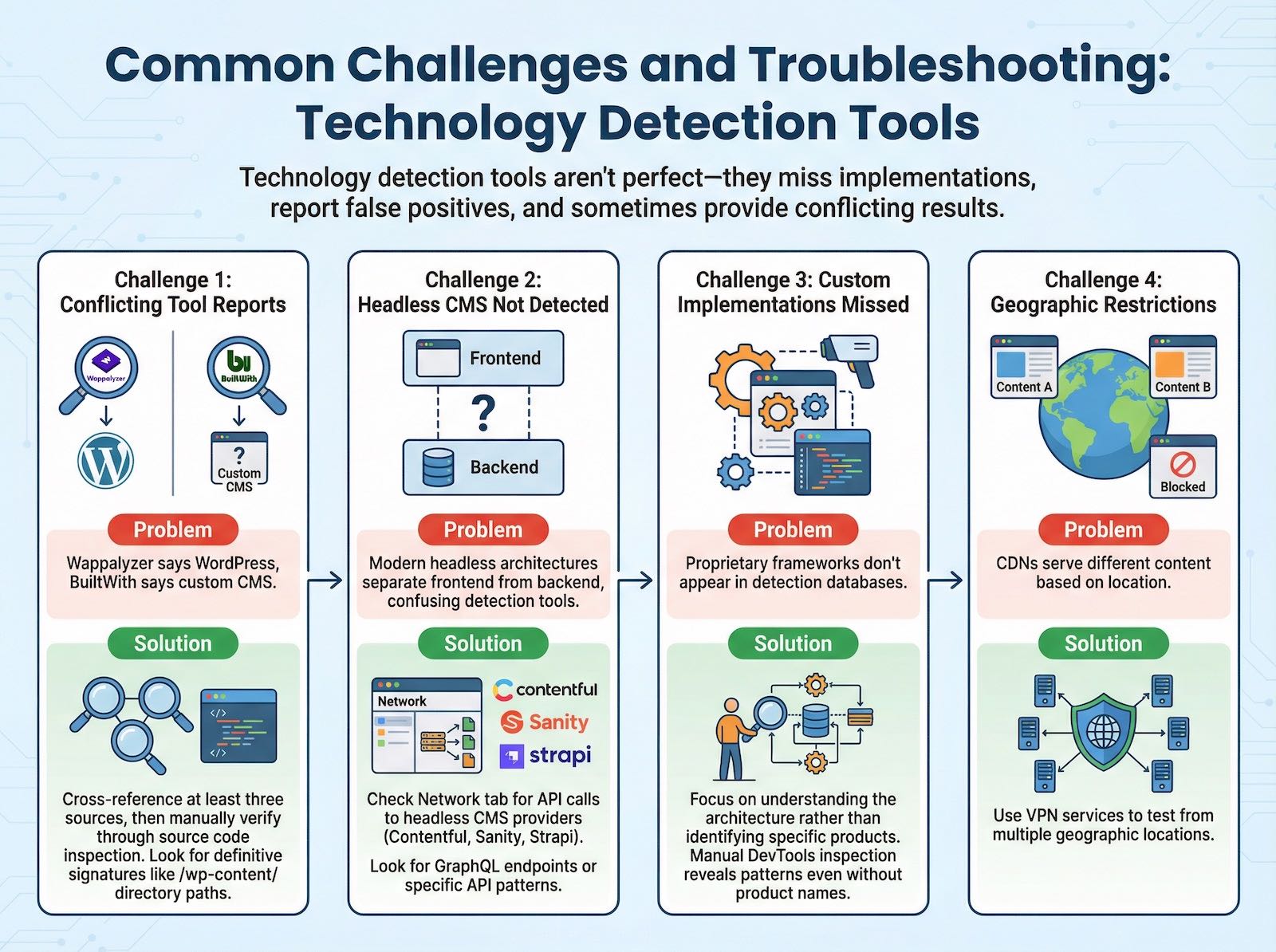
Technology detection tools aren't perfect—they miss implementations, report false positives, and sometimes provide conflicting results.
Challenge 1: Conflicting Tool Reports
Problem: Wappalyzer says WordPress, BuiltWith says custom CMS.
Solution: Cross-reference at least three sources, then manually verify through source code inspection. Look for definitive signatures like /wp-content/ directory paths.
Challenge 2: Headless CMS Not Detected
Problem: Modern headless architectures separate frontend from backend, confusing detection tools.
Solution: Check Network tab for API calls to headless CMS providers (Contentful, Sanity, Strapi). Look for GraphQL endpoints or specific API patterns.
Challenge 3: Custom Implementations Missed
Problem: Proprietary frameworks don't appear in detection databases.
Solution: Focus on understanding the architecture rather than identifying specific products. Manual DevTools inspection reveals patterns even without product names.
Challenge 4: Geographic Restrictions
Problem: CDNs serve different content based on location.
Solution: Use VPN services to test from multiple geographic locations.
Troubleshooting Workflow
- Verify site accessibility—can you load it normally in a browser?
- Test multiple pages—homepage may differ from product pages
- Try different tools—each has different detection methods
- Check from different locations—use VPN if needed
- Manual verification—examine source code and DevTools
- Document discrepancies—note where tools disagree
Creating Technology Reports and Exporting Data
Systematic technology intelligence requires organized documentation and easy data export.
Creating a Technology Analysis Report
Report structure:
- Executive summary: Key findings and recommendations
- Technology inventory: Complete list of detected technologies by category
- Competitive comparison: How your stack compares to competitors
- Gap analysis: Missing technologies or outdated versions
- Recommendations: Suggested technology changes based on analysis
Export Options by Tool
| Tool | Export Formats | Data Quality Notes |
|---|---|---|
| BuiltWith | CSV, Excel, API JSON | Large files need cleanup before CRM import |
| Wappalyzer | CSV, API JSON | Clean, straightforward format |
| TechnologyChecker.io | CSV, API, JSON | Flexible but time-intensive |
Frequently Asked Questions: Check Website Technology
What is a website technology checker?
A website technology checker (also called a tech stack checker or web technology checker) is a tool that analyzes websites to identify the underlying technologies, frameworks, CMS platforms, analytics tools, and third-party services they use. Popular options include browser extensions like Wappalyzer, comprehensive platforms like BuiltWith, and sales-focused tools like TechnologyChecker.io that combine tech detection with contact intelligence.
How do I check which technology is used in a website?
You can check which technology is used in a website through several methods: (1) Install browser extensions like Wappalyzer for instant detection, (2) Use online tools like BuiltWith.com, TechnologyChecker.io, or Ful.io, (3) Manually inspect source code using browser DevTools (F12), or (4) Examine HTTP response headers. Browser extensions provide the quickest results with a single click.
What is the best free website technology checker?
The best free website technology checker depends on your needs. For quick individual lookups, Wappalyzer's browser extension offers unlimited free scans. For sales teams needing contact data alongside tech detection, TechnologyChecker.io provides a forever-free plan with 100 credits. For market statistics, W3Techs offers comprehensive reports without signup.
Can I check website technology online without installing anything?
Yes, you can check website technology online without installing extensions using web-based tools like BuiltWith.com, TechnologyChecker.io, Ful.io, or W3Techs.com. Simply enter any URL into these platforms to receive a detailed technology report including CMS, hosting, analytics, and third-party integrations. However, browser extensions typically provide faster and more convenient results for frequent use.
How do I check what programming language a website uses?
To check what programming language a website uses, use tools like Wappalyzer or BuiltWith which detect server-side languages (PHP, Python, Ruby, Node.js). You can also manually check HTTP response headers—look for "X-Powered-By" headers that often reveal the backend language. Browser DevTools (Network tab) can show API patterns that indicate specific frameworks.
Is checking website technology legal?
Yes, checking website technology is legal. You're analyzing publicly available information—HTTP headers, visible source code, and JavaScript files that websites intentionally transmit to all visitors. However, circumventing authentication, exploiting vulnerabilities, or using detection for malicious purposes crosses legal and ethical boundaries.
Conclusion: Mastering How to Check Website Technology
You now have the complete toolkit for identifying website technology—from browser extensions for quick checks to API-driven systems analyzing thousands of sites simultaneously. The difference between casual curiosity and competitive advantage lies in how systematically you apply these methods. When I started using technology detection strategically at Popupsmart, it transformed our prospecting from generic outreach into targeted conversations that converted 3x better than traditional cold approaches.
Quick-Start Checklist
Start checking website technology today:
- Install Wappalyzer: Add the free browser extension (60 seconds)
- Practice manual verification: Open DevTools on 3 competitor sites
- Build a prospect list: Document 10-20 target companies' tech stacks
- Set up monitoring: Weekly calendar reminder to check competitor changes
- Test your findings: Use technology insights in one sales conversation
Tool Selection Summary
- Individual developers: Wappalyzer free browser extension
- Freelance marketers: Wappalyzer + W3Techs
- Small agencies: Wappalyzer paid ($149-$449/month)
- Enterprise sales: BuiltWith for comprehensive lead generation
- Product strategists: W3Techs + Wappalyzer combination
Technology intelligence transforms from interesting data into competitive advantage when you act on insights systematically. Whether you're choosing frameworks, prospecting for clients, or monitoring competition, understanding how to check website technology gives you visibility into strategic decisions that most competitors make blindly.
How would you rate your experience with this article? 😊