
Operating System Targeting
Did you know that you can show your popup only on specific operating systems? Now, you do.
Do you have a campaign specific to an operating system?
Then, you can set up your popup campaign to show only on certain operating systems, such as iOS, macOS, Android, Windows, Linux, or Chromium.
By default, all Popupsmart campaigns are set to display on all devices. Plus, you can always use premade templates with ready-to-use segmentation settings, but if you want custom operating system targeting, follow these steps:
How to Set Up Operating System Targeting
Navigate to Segment
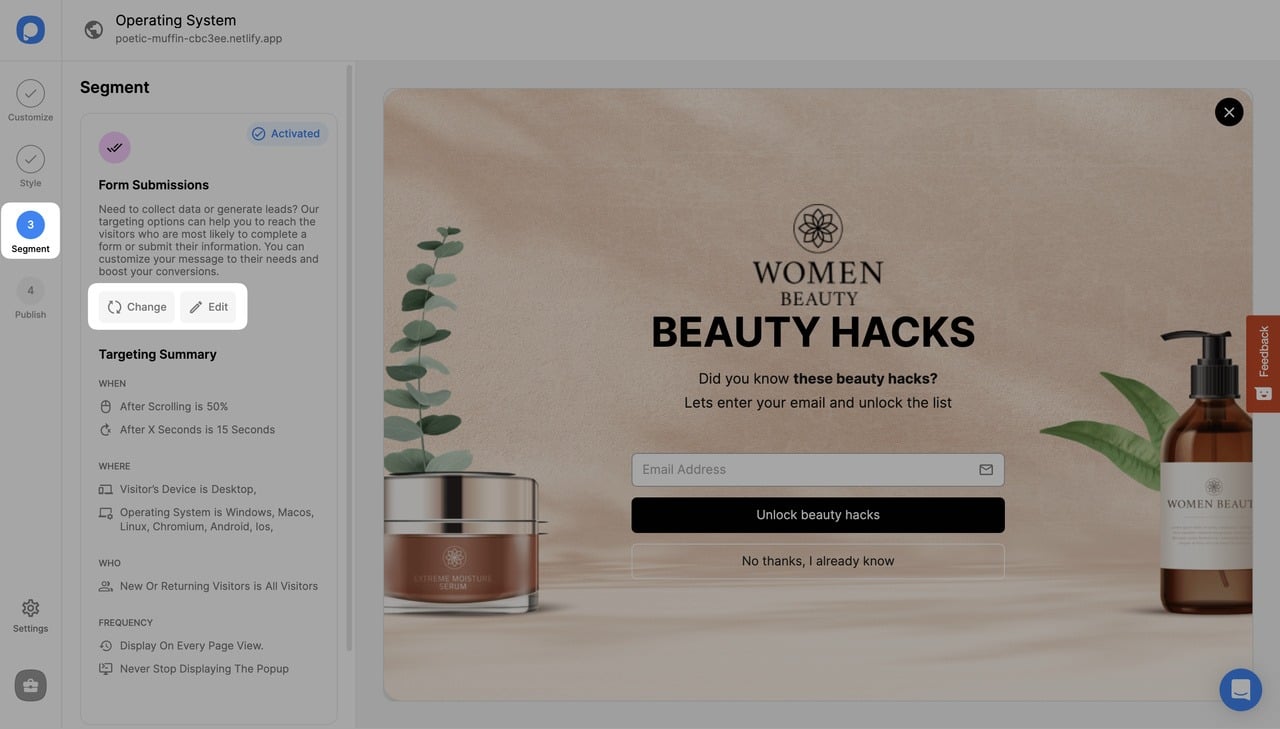
After logging into your Popupsmart account, create/edit a popup campaign. On the popup builder screen, navigate to the "Segment" section and click "Edit Segment." (If it's a new campaign, click the two circular arrows to choose a predefined segment or create one from scratch in "My Segment.")
Add Operating System Targeting
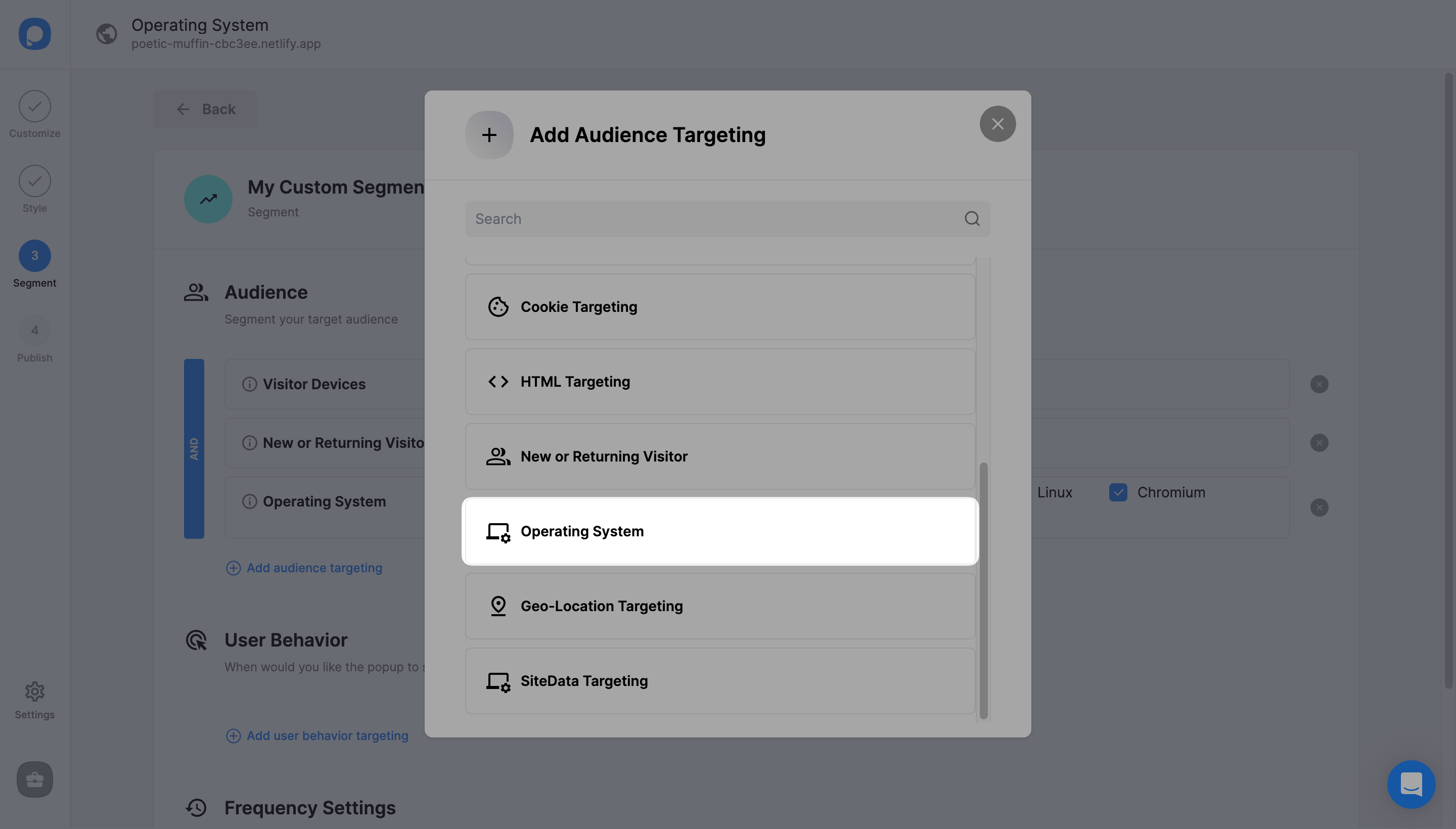
Click "Add audience targeting" under "Audience". Then, click "Add" next to "Operating System".
Select Operating Systems
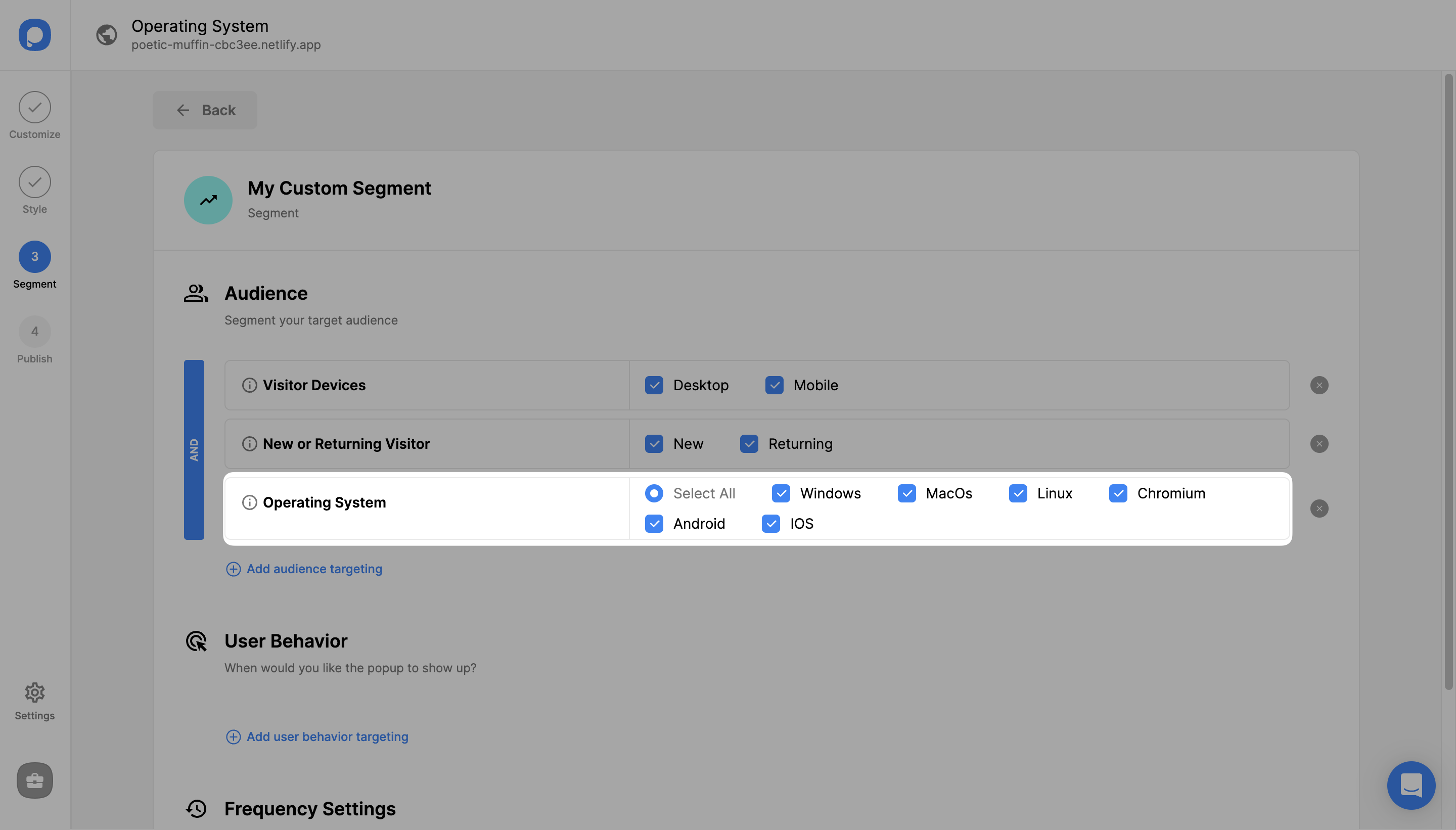
All operating systems are checked by default. You can check the boxes next to the operating systems you want to target.
Save and Publish
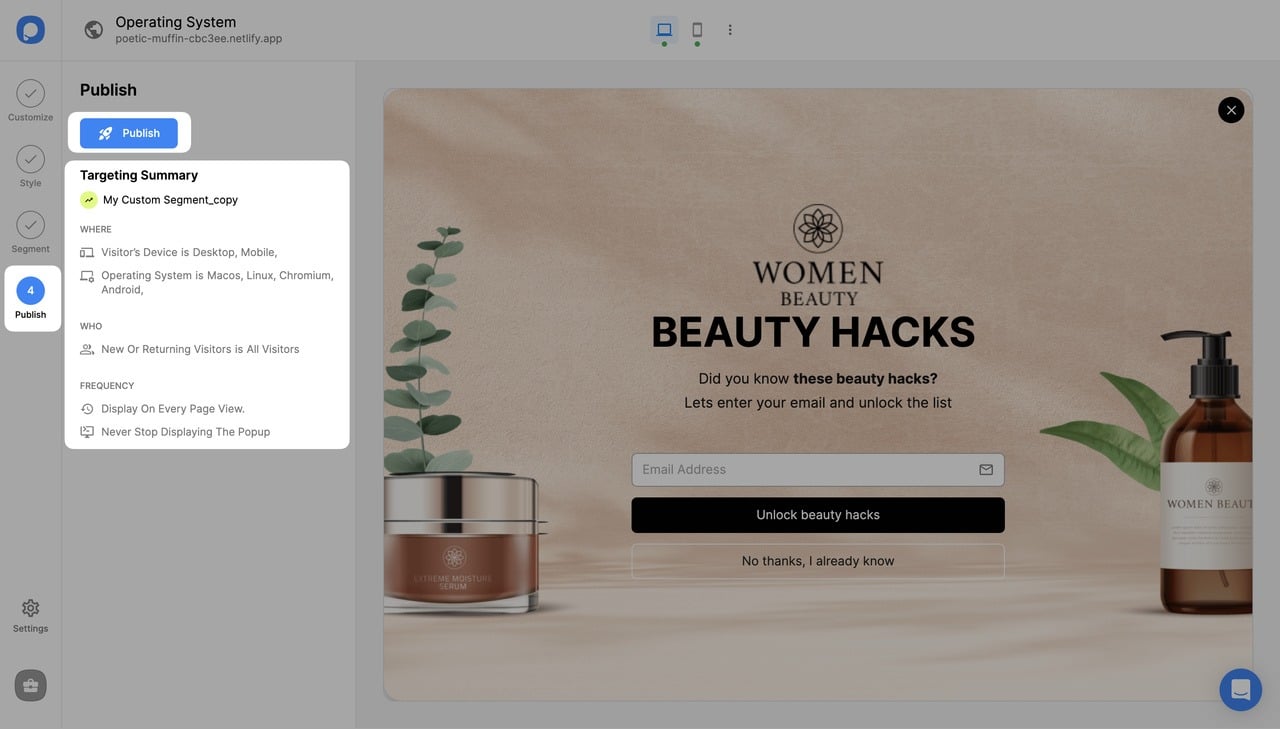
Finally, click the "Save" button from the upper right if all is done, or continue with the "Publish" step to see the Targeting Summary.
Mobile OS Targeting
To target mobile operating systems like Android and iOS, you must activate your popup for mobile devices. To enable your campaign for mobile, go to Segment > Visitor Devices > Mobile.
Troubleshooting
If your popup doesn't show up on your website even though you saved and published it, check if your campaign status is on from the "Dashboard". You can also use the "Debug" mode in the "Publish" step to detect any issues.
Need a hand? Contact Popupsmart!
How is this guide?