
Discover the Customize Step of Popupsmart
Explore how to design and modify popups by using Customize Step of Popupsmart for captivating and effective user engagement.
Popupsmart has various customization options for you to modify your popup campaigns. While covering the customization options, you will see the flexibility and the smoothness of the builder. You will be able to customize and modify your popup faster and easier than ever.
Let's look at the option of how you can customize your popup!
Customization Options
Popup Step Options
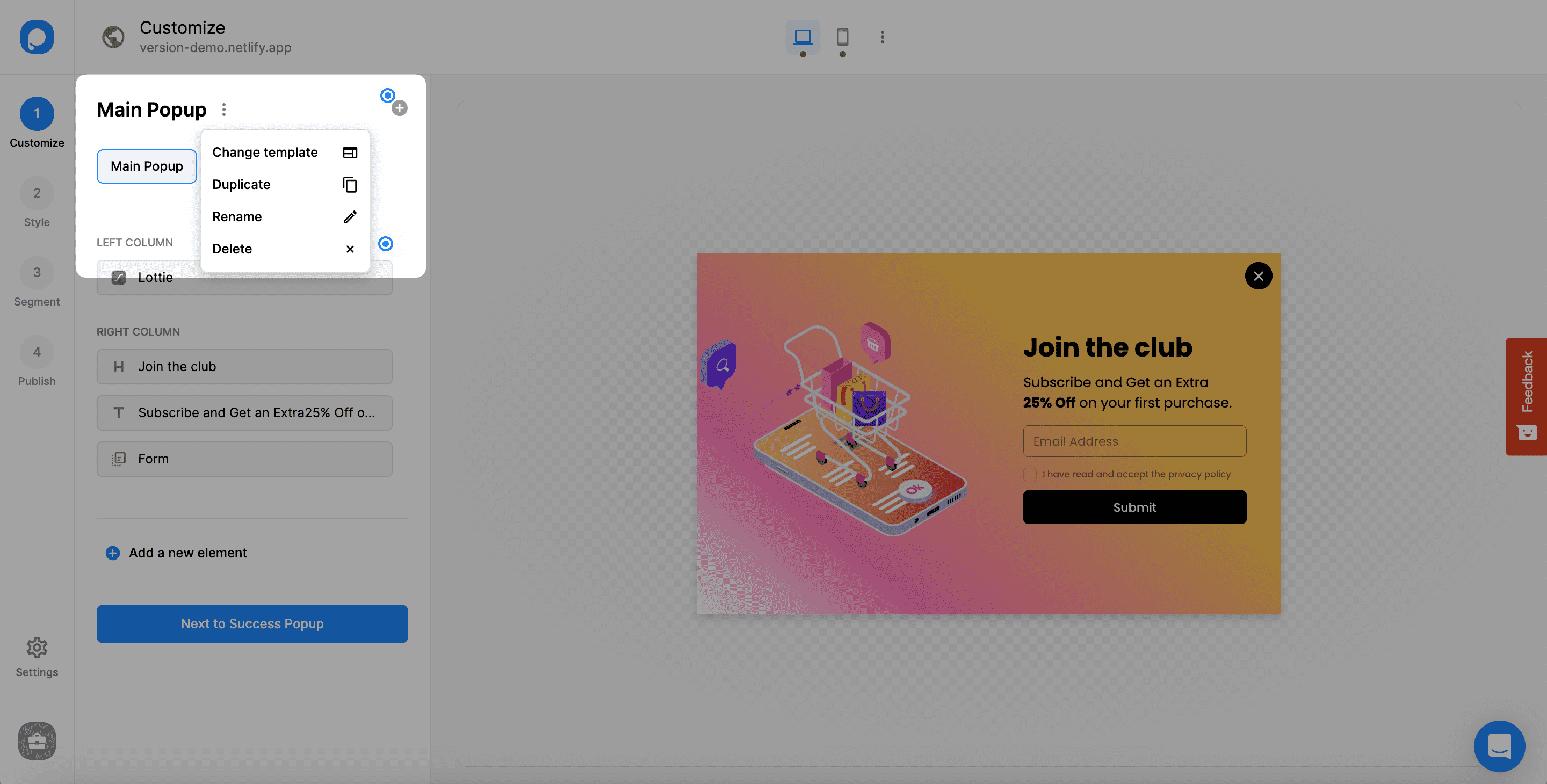
With the three-dot next to the first title (which generally looks like "Main Popup"), you can:
- Change template - Go back to the template gallery and choose another template
- Duplicate - Create the same step again, and it goes after the last step
- Rename - Give another specific name to distinguish
- Delete - Delete the current step (not possible if your popup has only one step)
Add New Step
Around the main title, there is a plus icon with the aim of adding a new step for your popup.
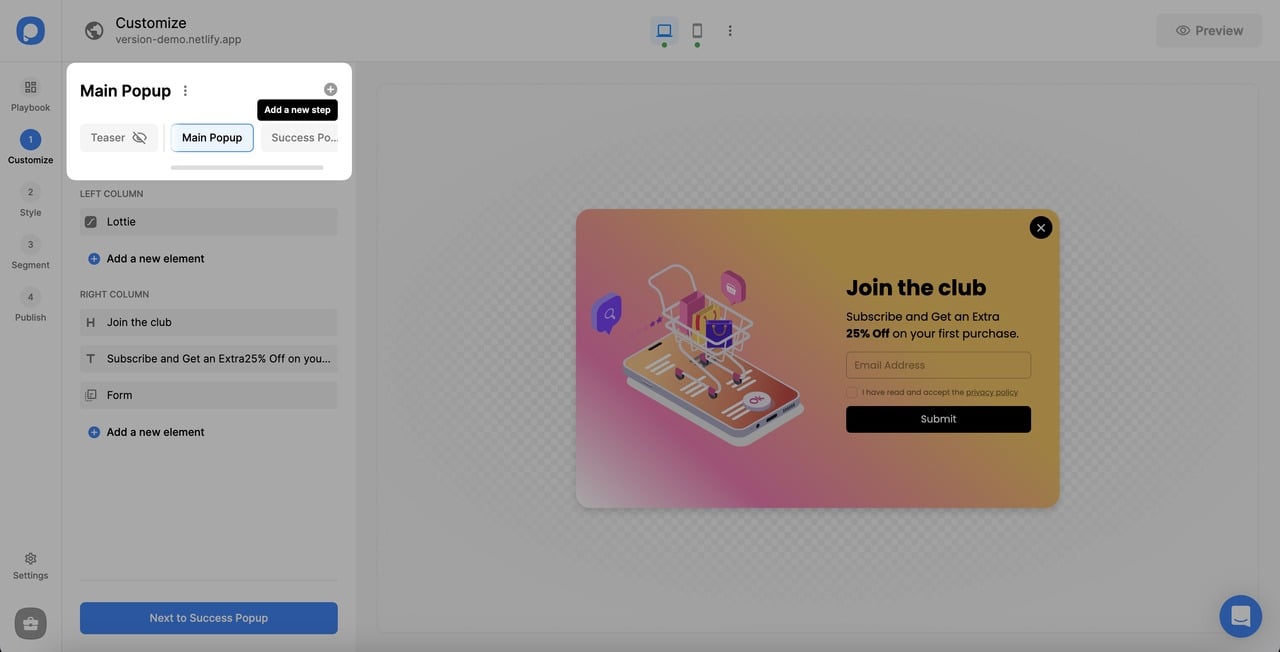
By clicking on the plus icon, you'll head to create a new step on your popup. You can arrange its position, popup type, and layout.
Understand Columns and Rows
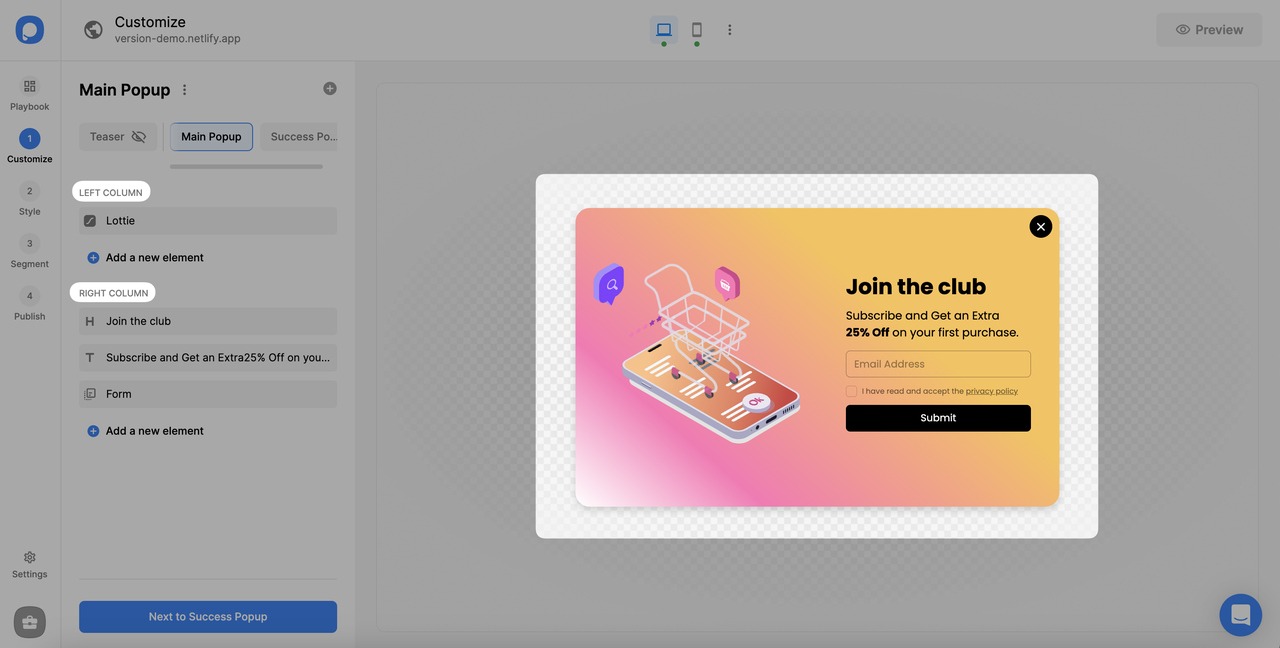
If your popup is horizontal, you will have columns (Left Column and Right Column).
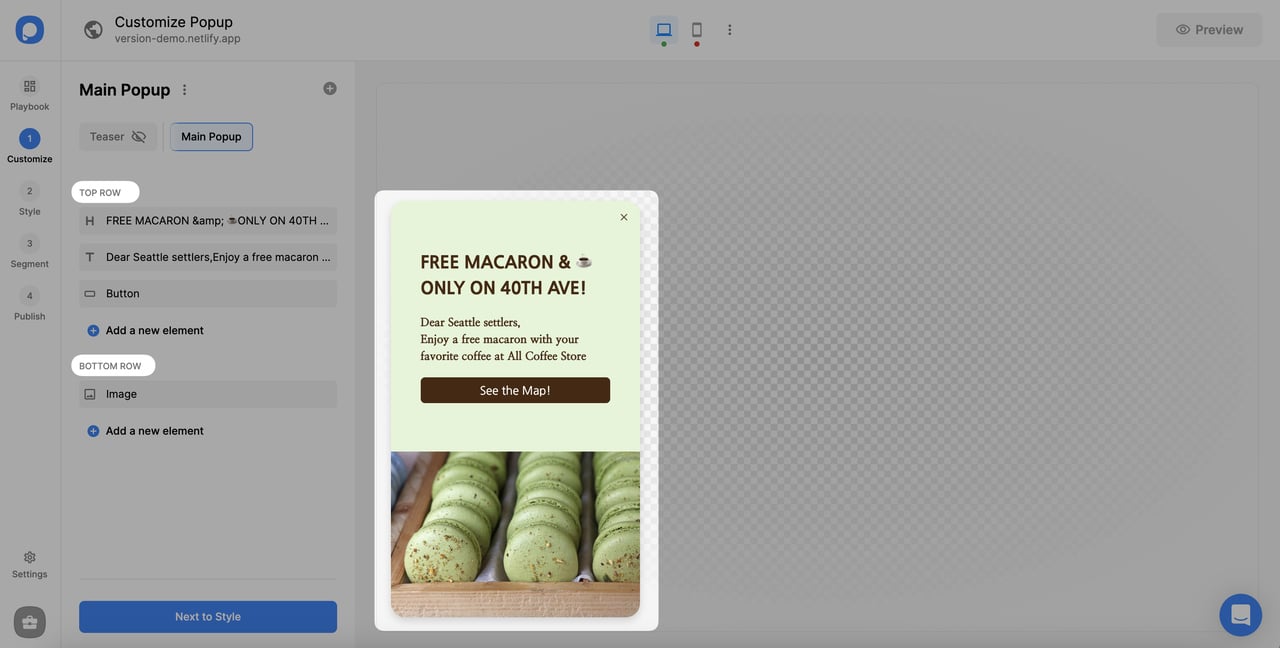
If your popup is vertical, you will have rows (Top Row and Bottom Row).
See How to Use Column & Row Structures Efficiently in a Popup? for more information.
Add New Elements
You can add new elements by choosing "+ Add a new element" or clicking the plus under the elements where you see "Add a new element."
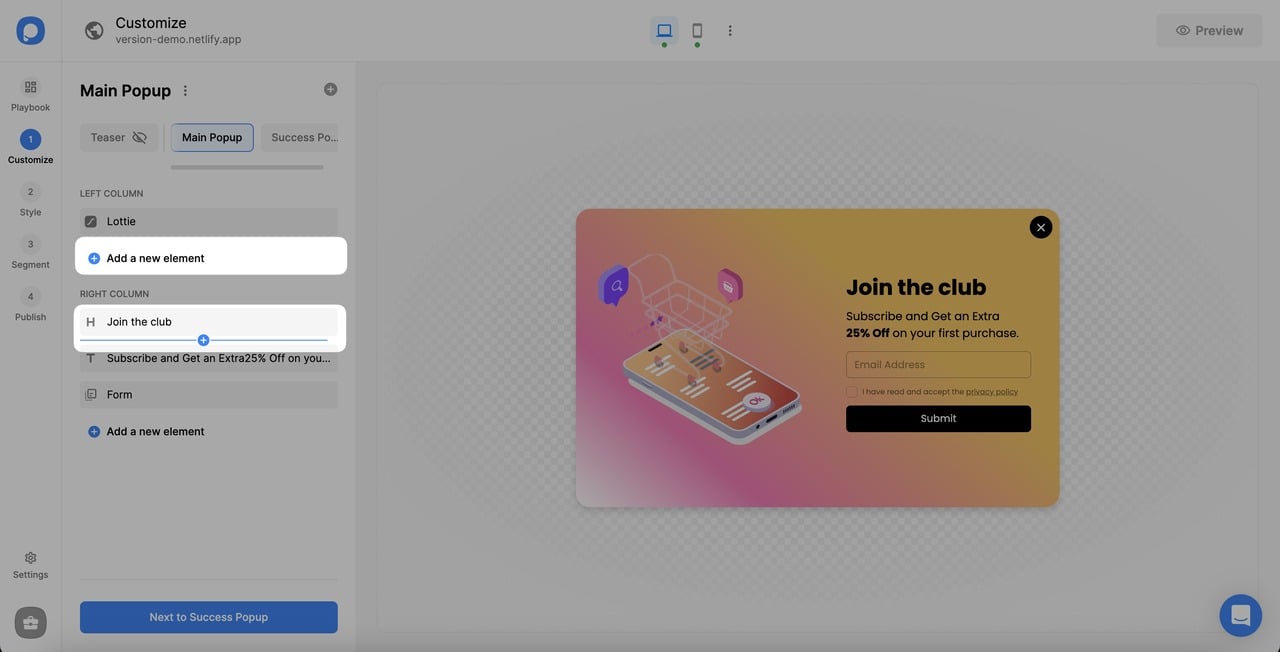
See How to Add New Elements & Use Drag and Drop Editor for more information.
Edit Elements
You will see a pencil icon on the element, and it helps you edit the element. It is possible to edit the element by clicking on the related element as well.
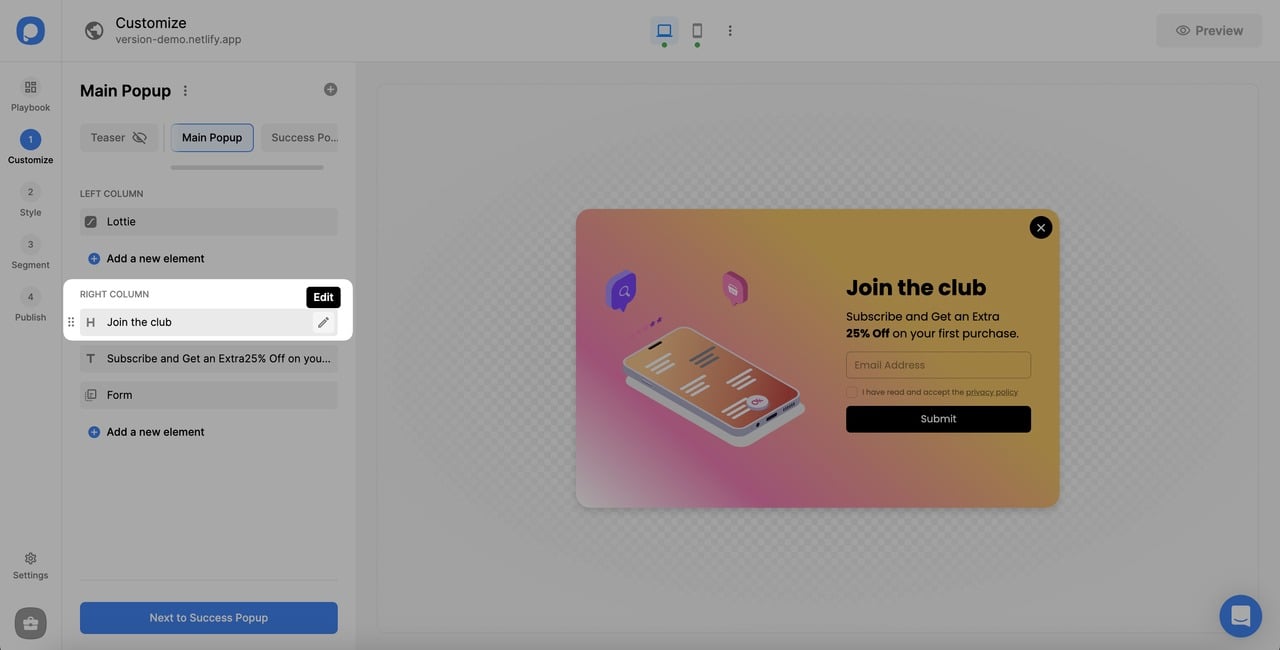
Move Elements
When you want to move elements, all you need to do is to drag and drop the element or use the six-dot next to the element.
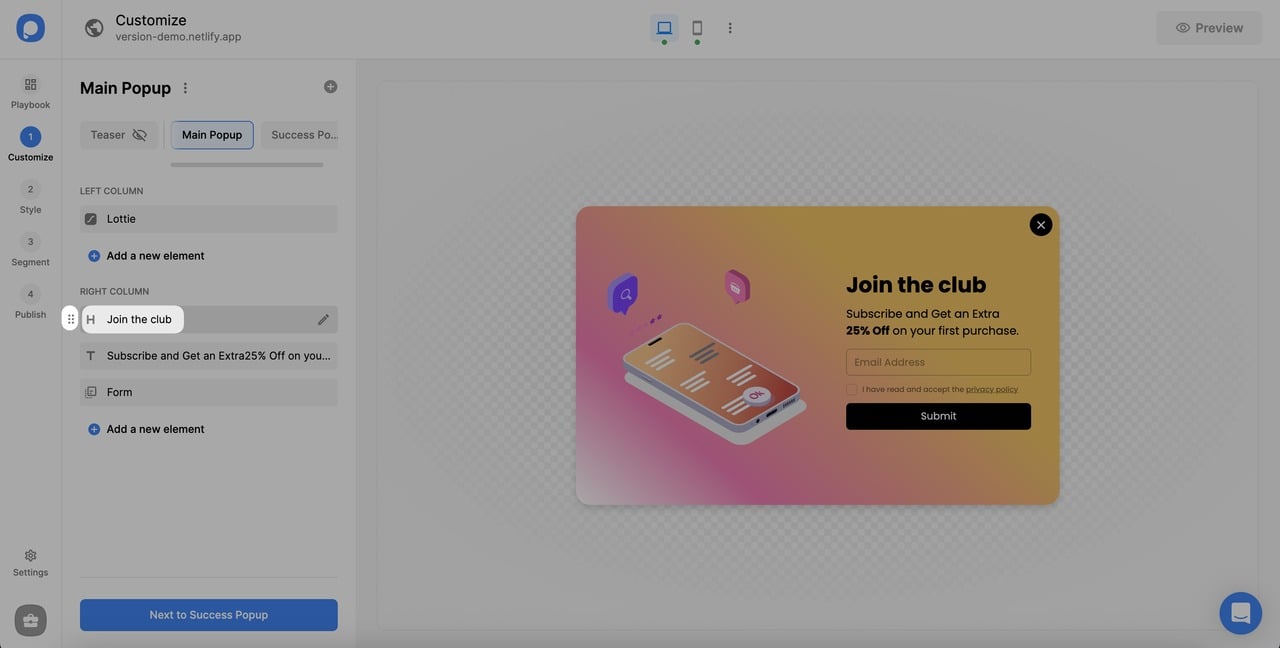
Navigate Between Steps
There is a "Next to ..." button at the end of the Customize step.
- If your popup has two steps, then it will show "Next to Success Popup/ Step 2."
- If your popup includes one step, then you will head to "Next to Style."
- When you are on the second or further step, you can get back by choosing "Back."
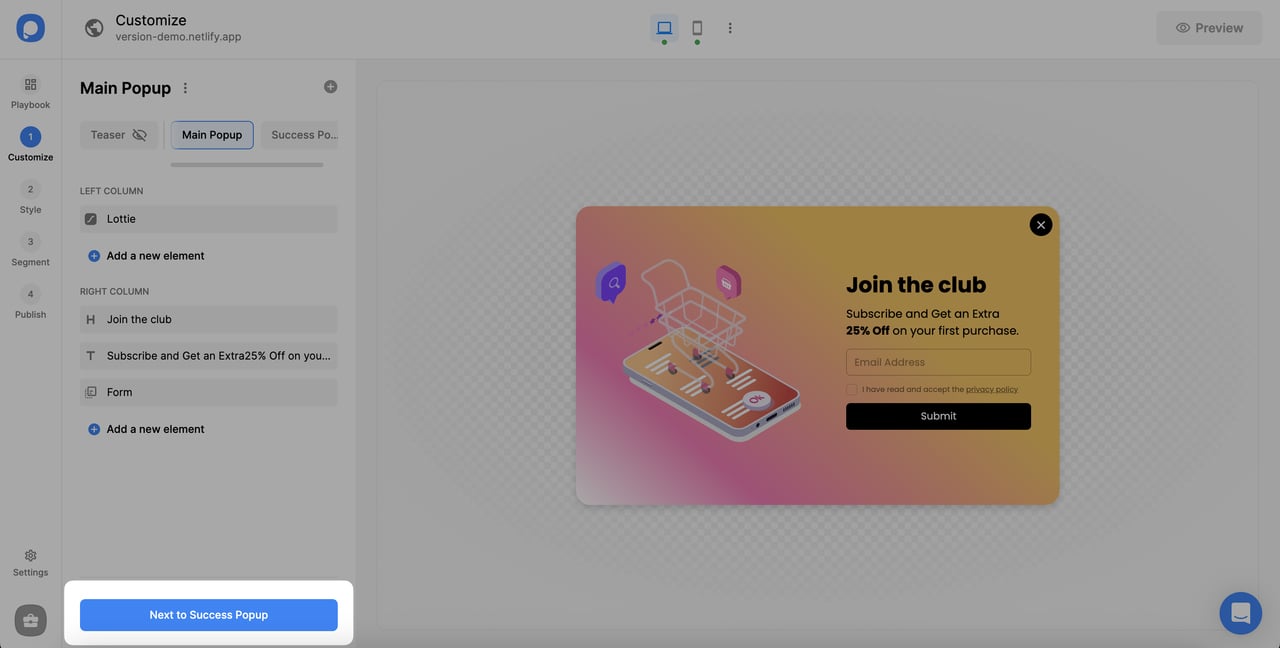
You can freely choose the customization options you want to do and create the most effective campaign with Popupsmart.
After you complete the Customize step, you can go to the Style step to design your popup in more detail. Here is a helpful guide on How to Adjust Popup Style.
If you have any questions, please feel free to contact us!
How is this guide?