
How to Adjust Popup Style
Tailor popup styles in minutes. Learn how to adjust elements on your popup designs for visually appealing and on-brand campaign experiences.
Popupsmart offers highly customizable popups for its users. By customizing your popup independently, you can get the best results from your campaigns.
To learn how to adjust your popup's layout easily, watch or read this quick guide:
How to Adjust Popup Style
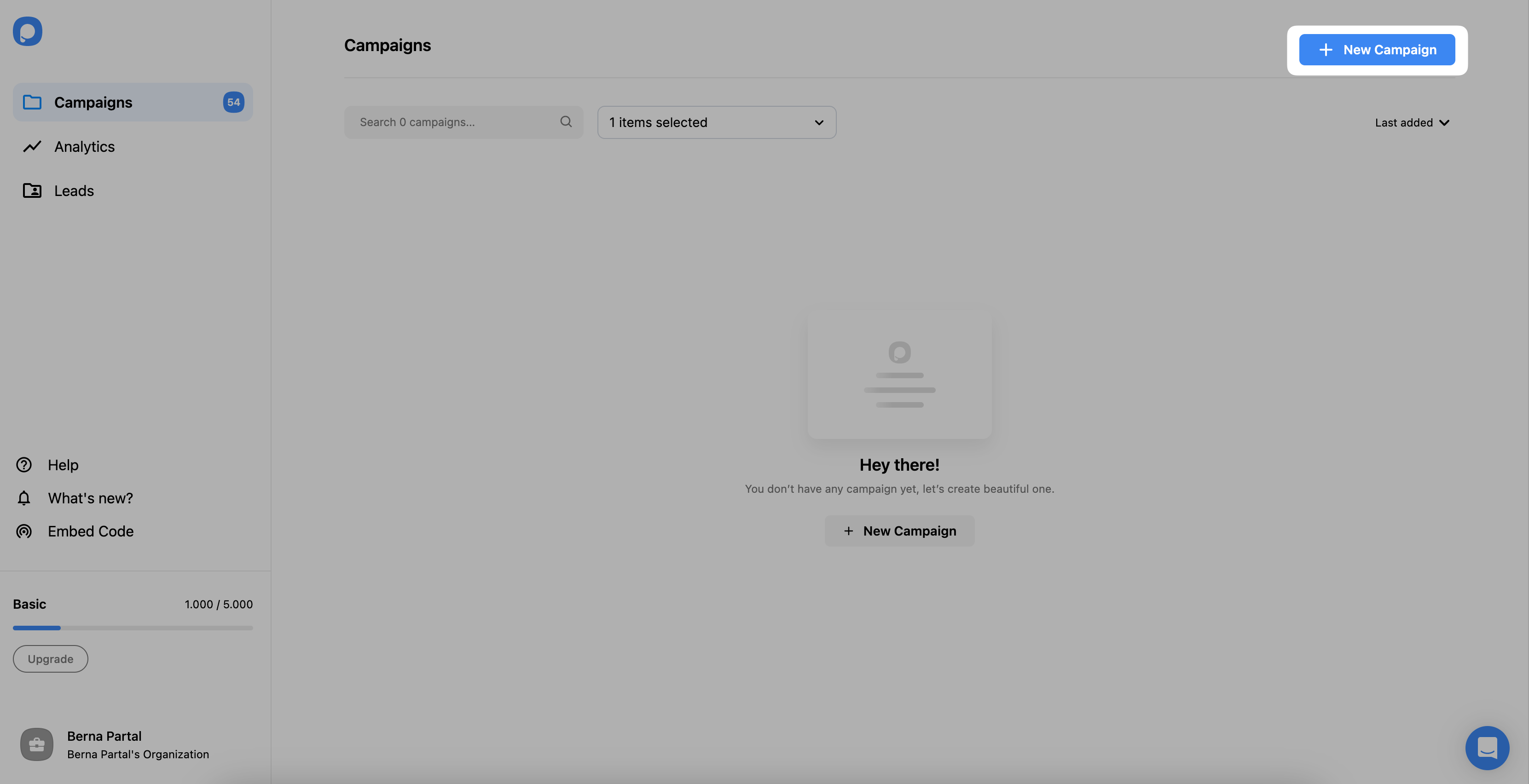
Select Theme
Then, you will be redirected to the "Customize" section. Go to the "Style" step. From the "Theme" part, click "Change" to select your popup layout's theme among well-designed and ready-to-use themes.
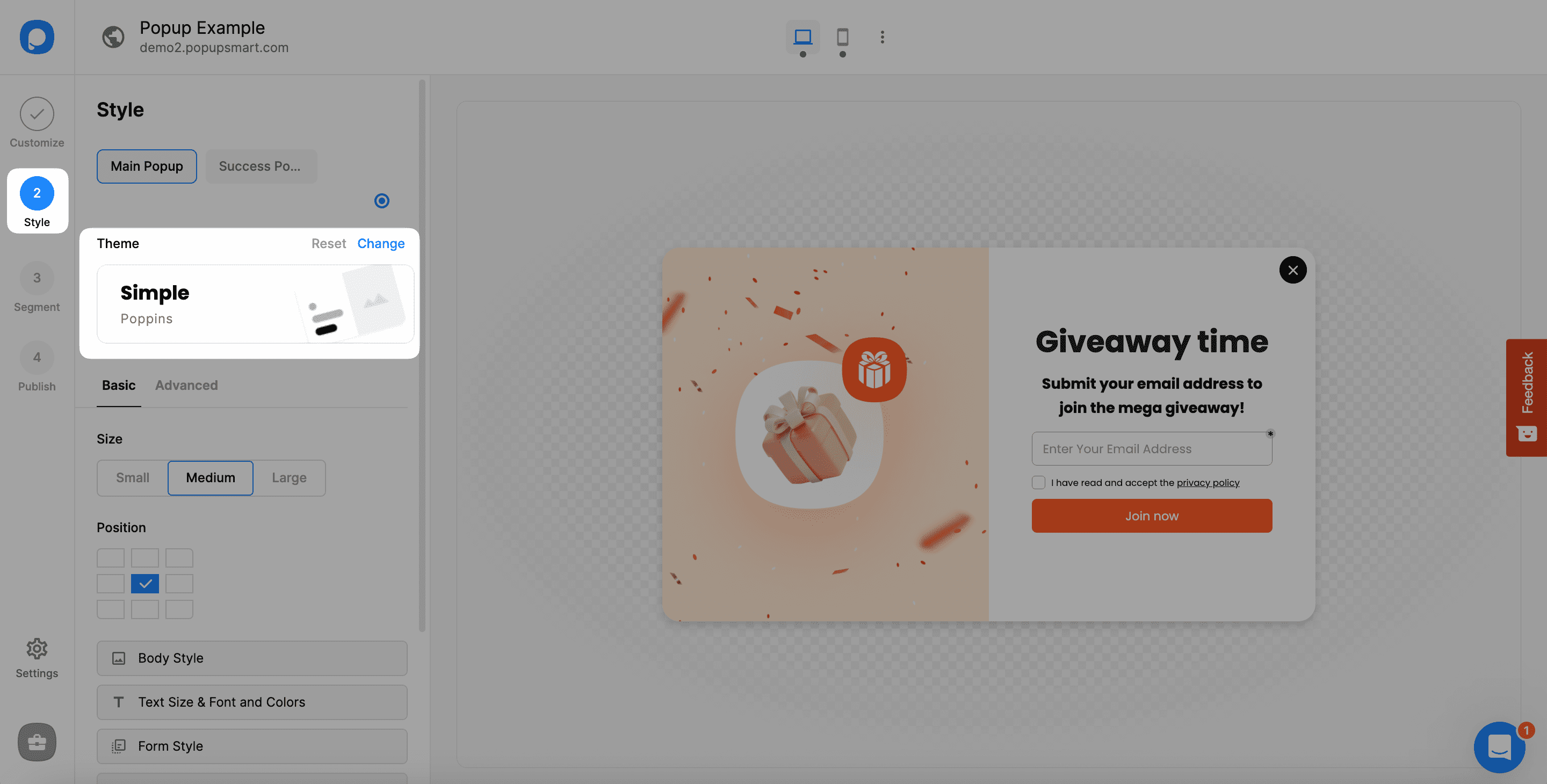
Set Size
From the "Size" part under the Basic, you can quickly determine your popup's size from the small, medium, and large options.
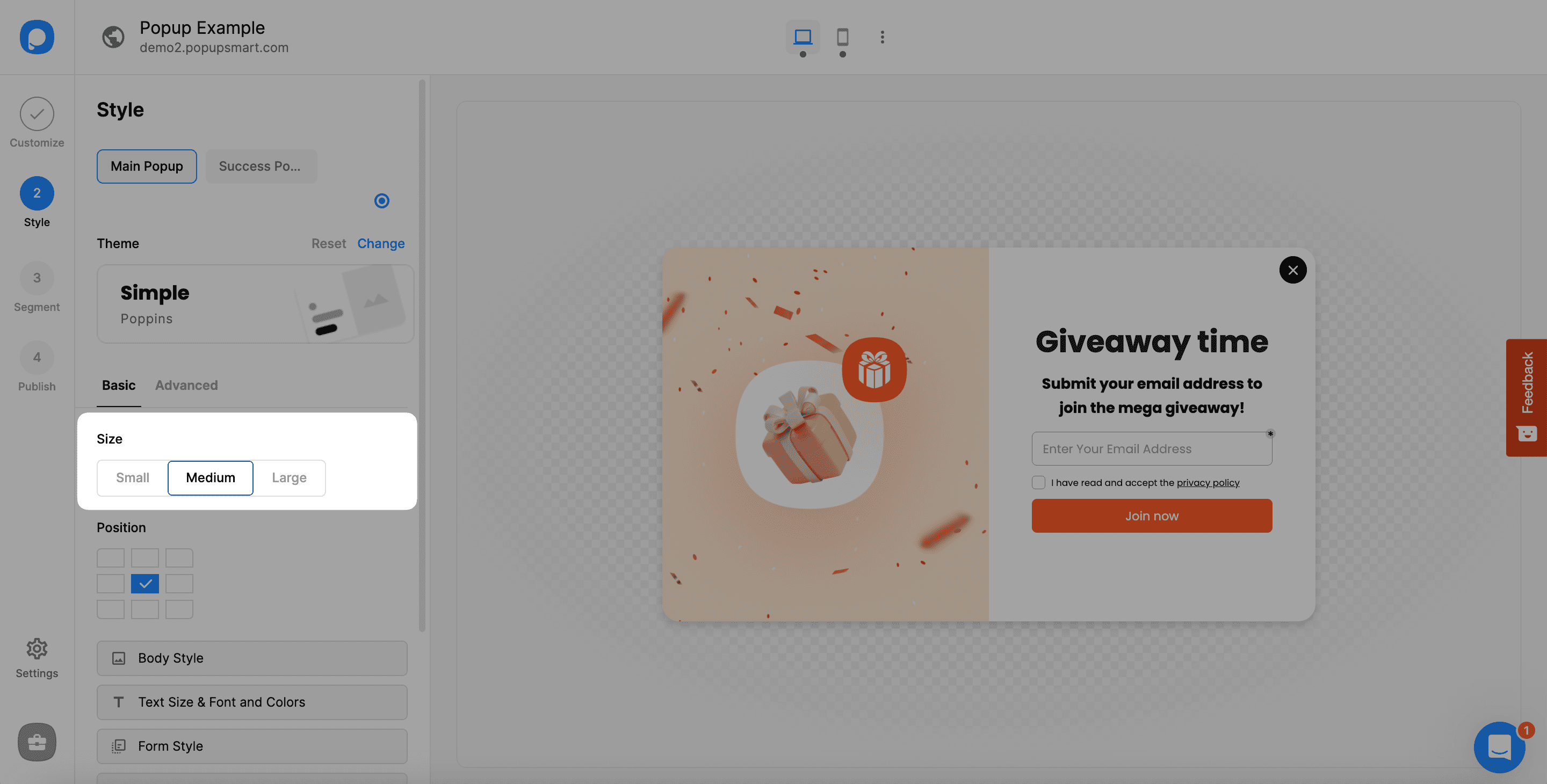
Customizing your popup's size is excellent for adjusting how it looks according to your website's needs.
Set Position
You can determine the position of your popup on the website by choosing the related part.
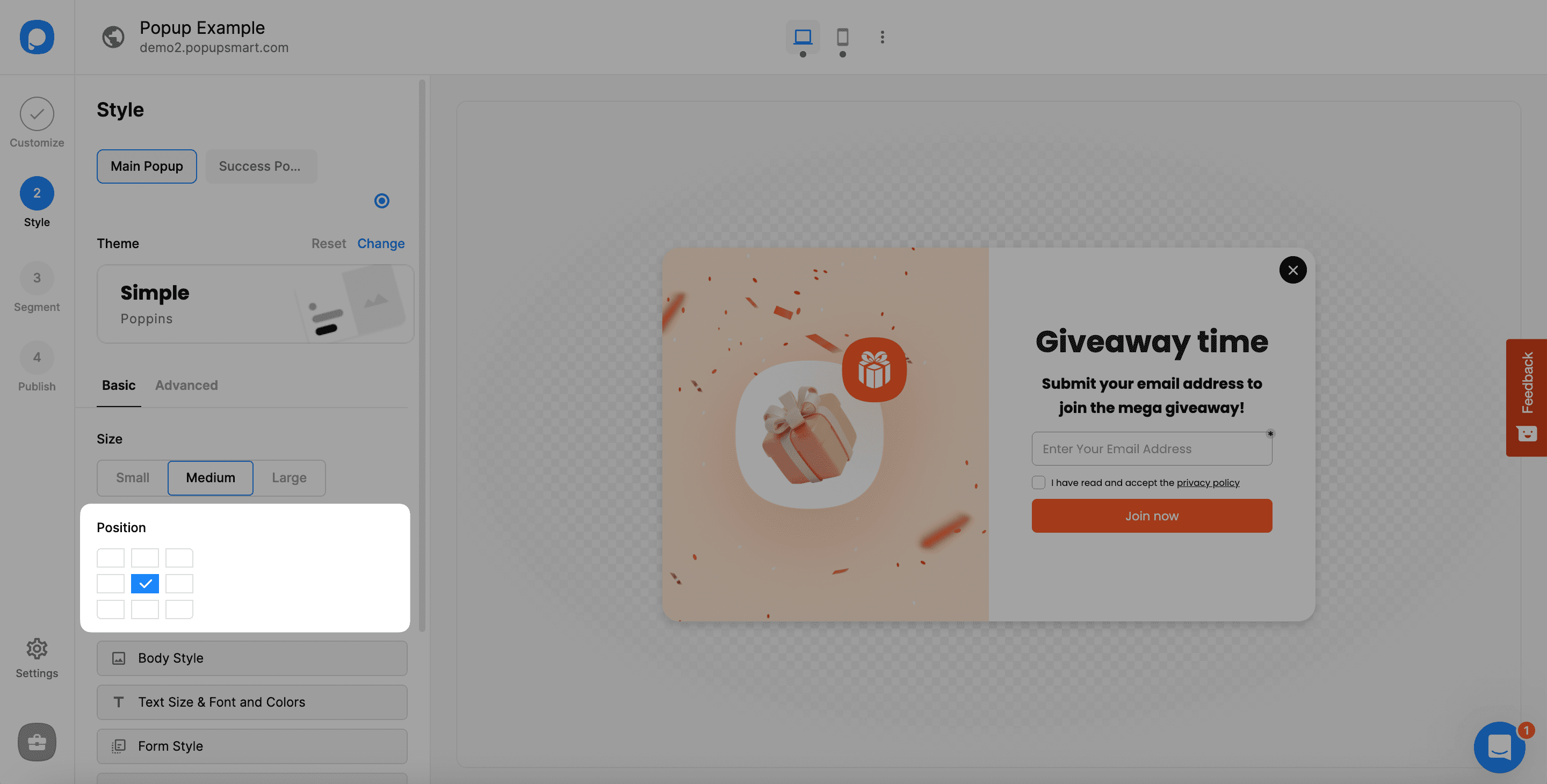
Customize Body Style
From the "Body Style" part, you can select a background color for your popup or add a background image. It's possible to add a Lottie animation for the background.
Besides, you can determine the popup's shape and opening effect for your popup from the dropdowns.
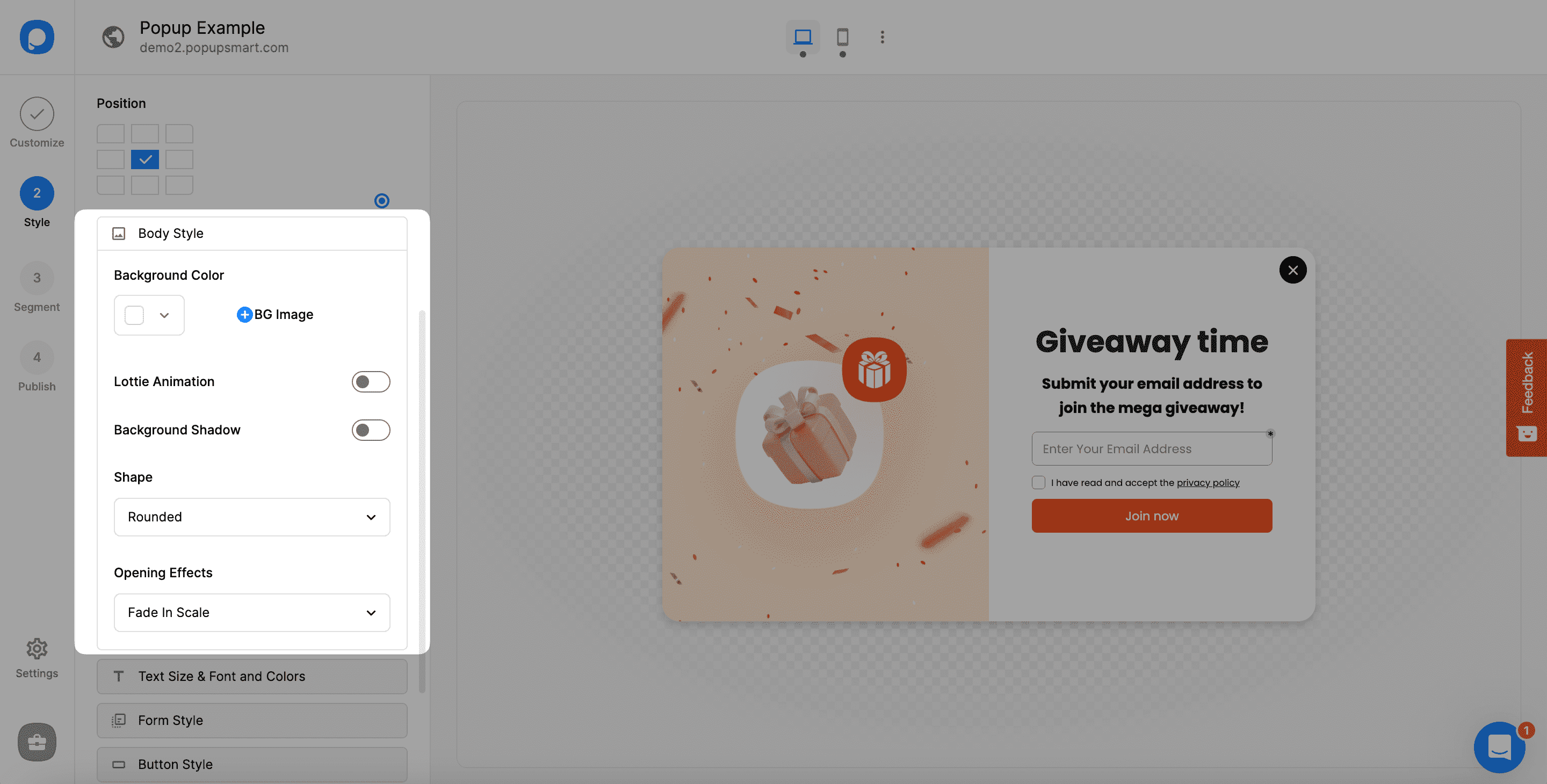
You can also add background shadow, overlay color, and opacity from this part.
Set Text & Fonts
Apart from these, you can set your popup style's fonts, text size, and colors from the "Text Size & Font and Colors" section.
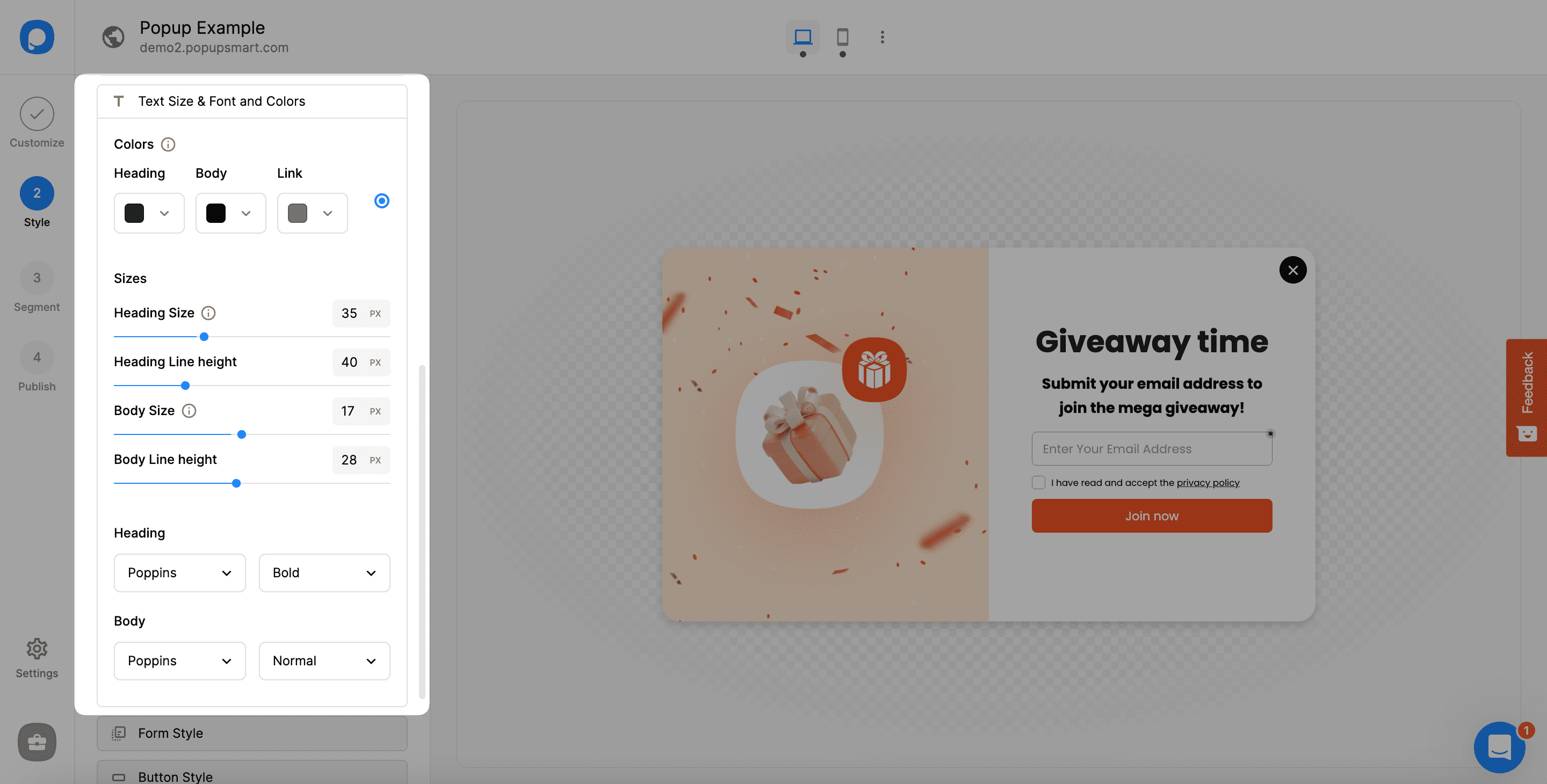
Here are what you can edit:
- The colors of the heading, body, and link texts on the "Colors" part
- The heading size, heading line height, body size, and body line height on the "Sizes" part
- The fonts and font weights of the heading and body on the "Heading" and "Body" parts
More Fonts
If you want to add more fonts in this section, you can click on "More fonts" and choose fonts from Google Fonts. See the "How to Add Fonts" article for further details.
Adjust Form Style
By going to the "Form Style" part, you can adjust the form elements' style.
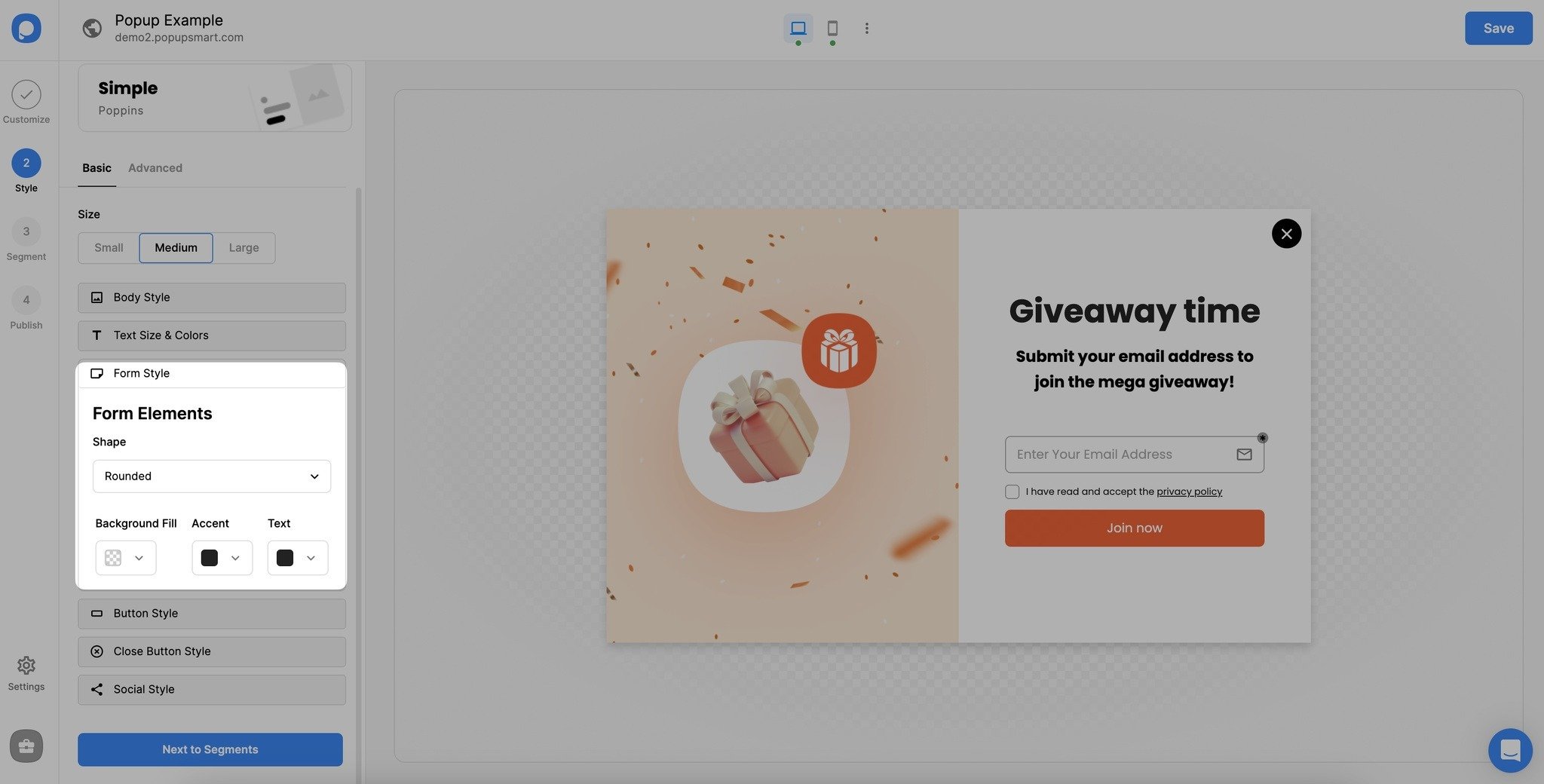
You can change the form elements' shape, background fill, accent, and text on this part.
Adjust Button Style
From the "Button Style" part, you can adjust the shape and colors of your popups' buttons.
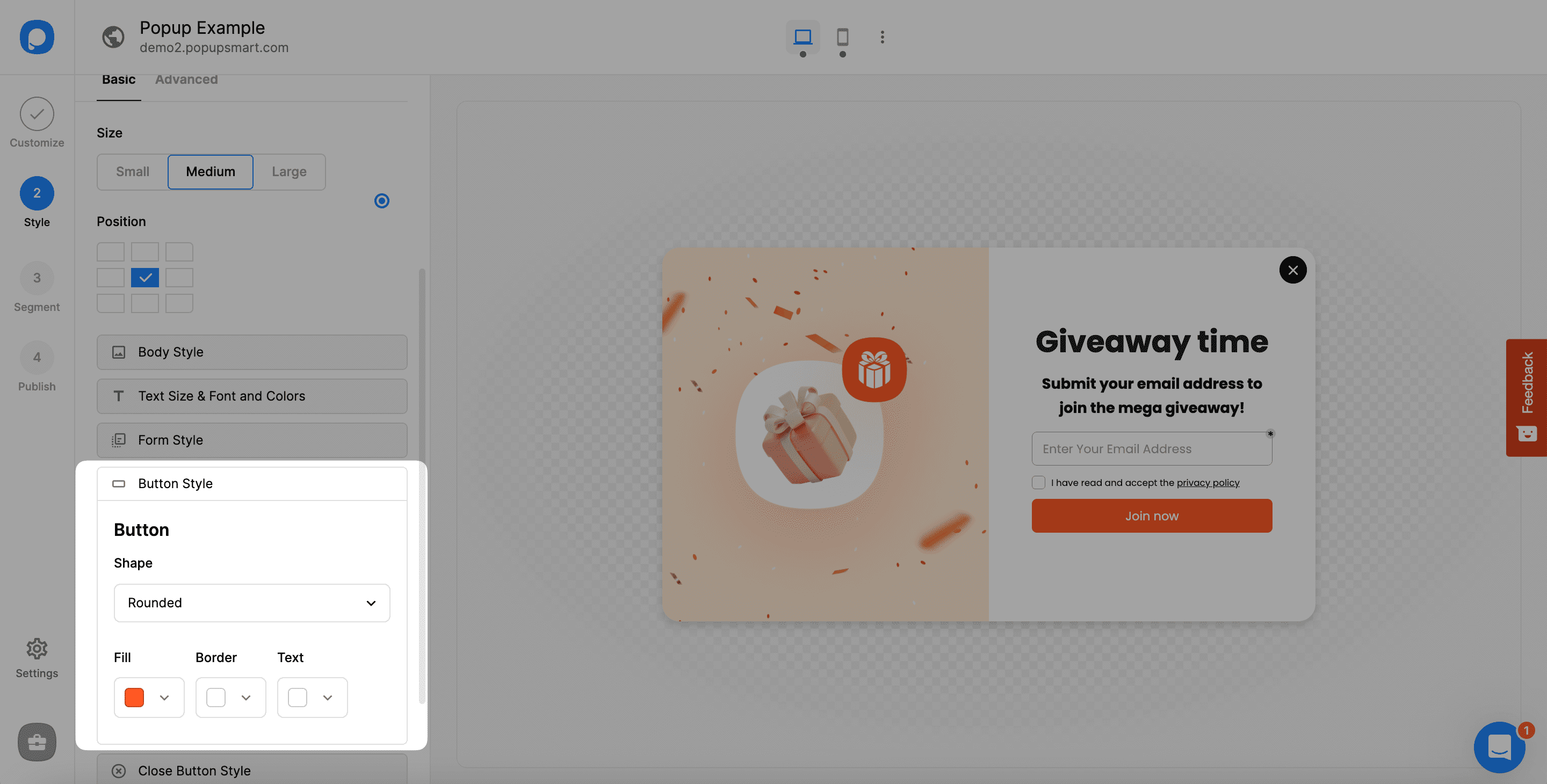
Close Button Style
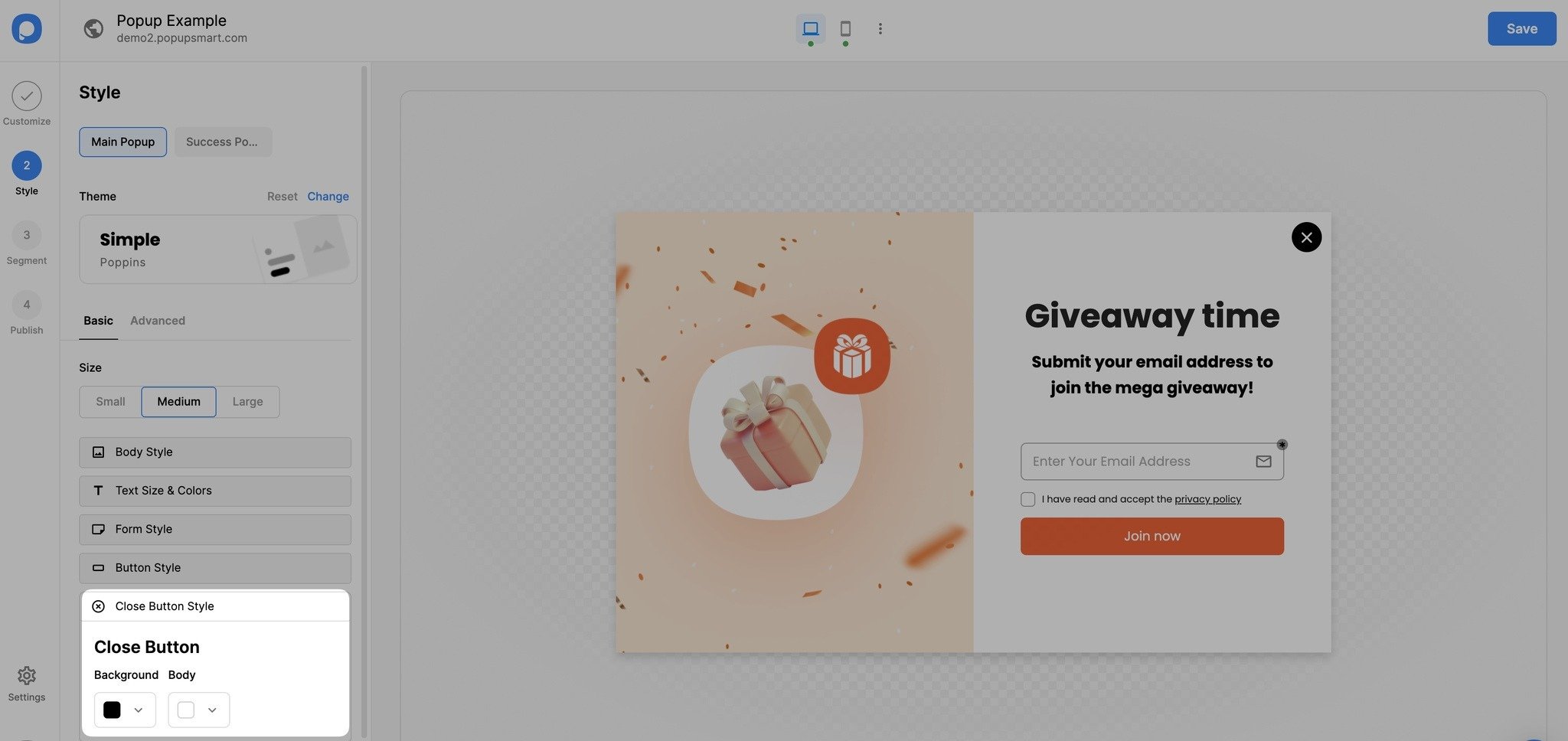
By going to the "Close Button Style" part, you can select its background and body colors.
Extra Elements Style
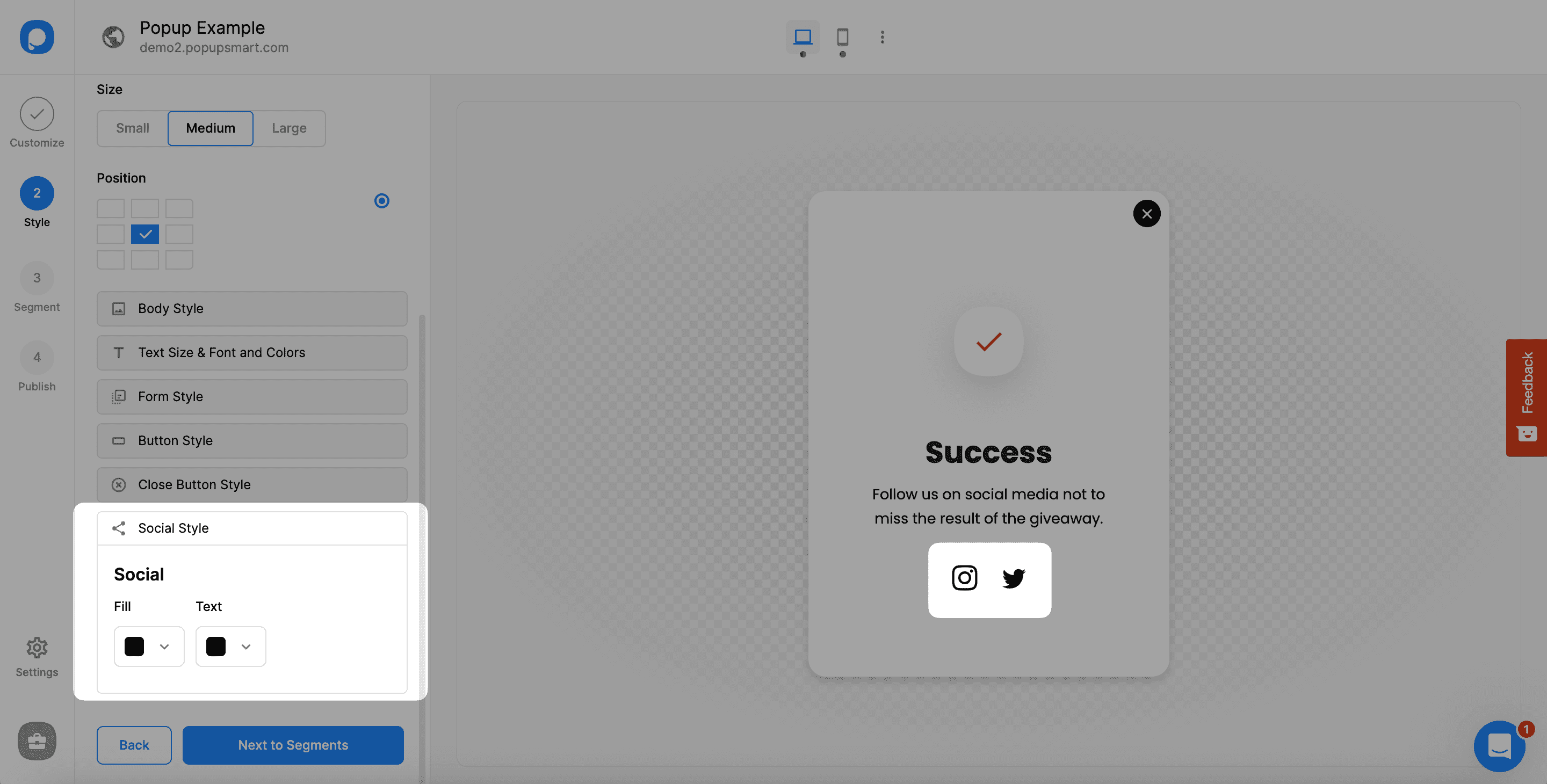
When there is an extra element on the Success popup, you can adjust its style here as well. For example, since there are social elements on the success popup, you can adjust its Fill and Text colors.
Advanced Options
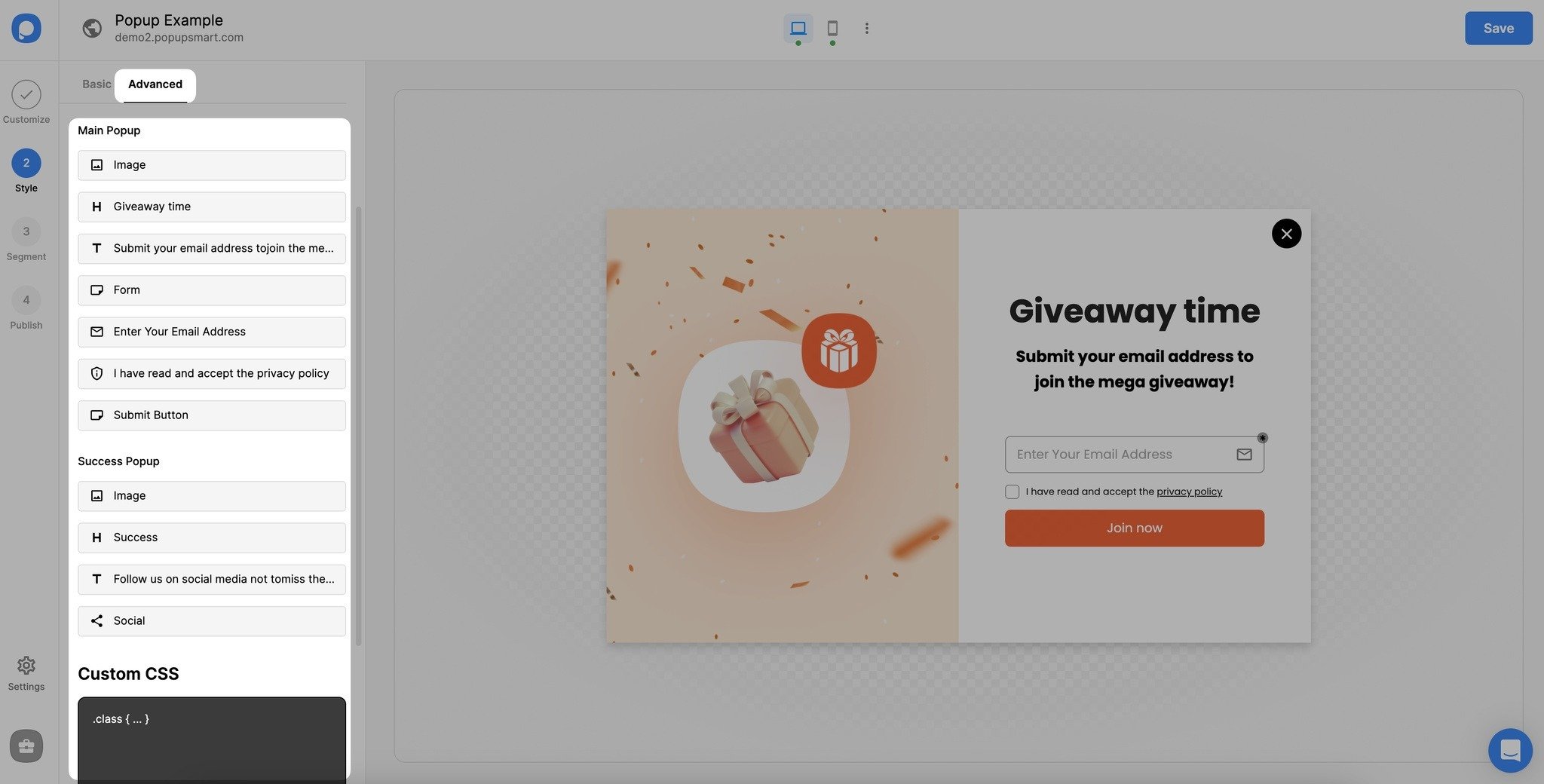
For further customization options, you can go to the "Advanced" part and customize your layout's margins and paddings, and add Custom CSS.
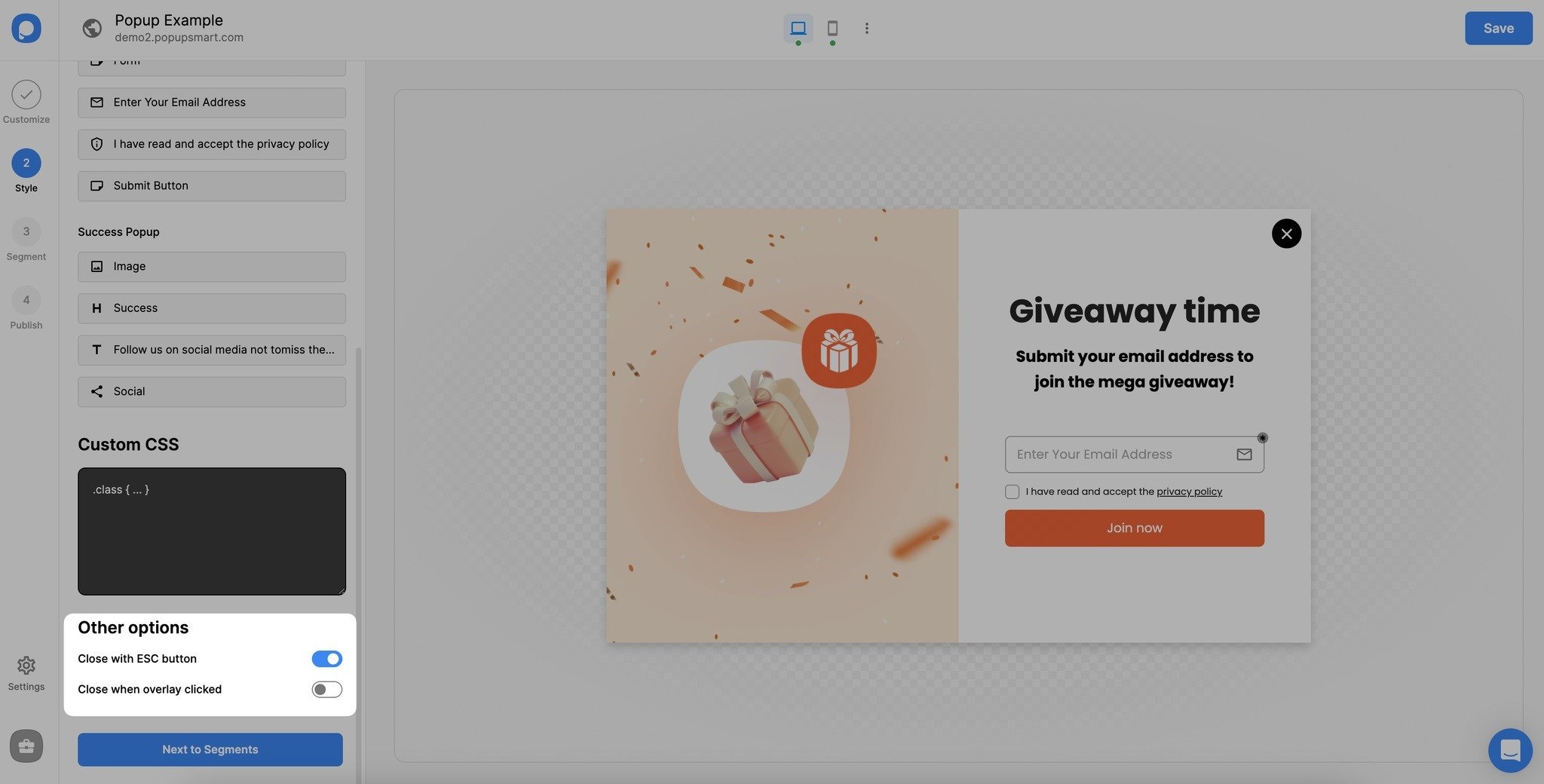
Also, from the "Other options" part, you can select closing options among the "Close with ESC button" and "Close when overlay clicked" options.
See "How to Add New Elements & Use Drag and Drop Editor" to independently customize your popup campaigns' elements.
Have more questions about customizing your popup layout? Contact us for further information!
How is this guide?