
How to Add Fonts on Popupsmart
Elevate popup aesthetics effortlessly. Explore how to add custom fonts to your popup for captivating designs and consistent branding.
With Popupsmart's comprehensive customization options, it's simple to alter the appearance of your popup campaigns to reflect your brand identity. You can add Google fonts, custom fonts via CSS, or upload fonts directly.
Font Adding Methods
Access Text Settings
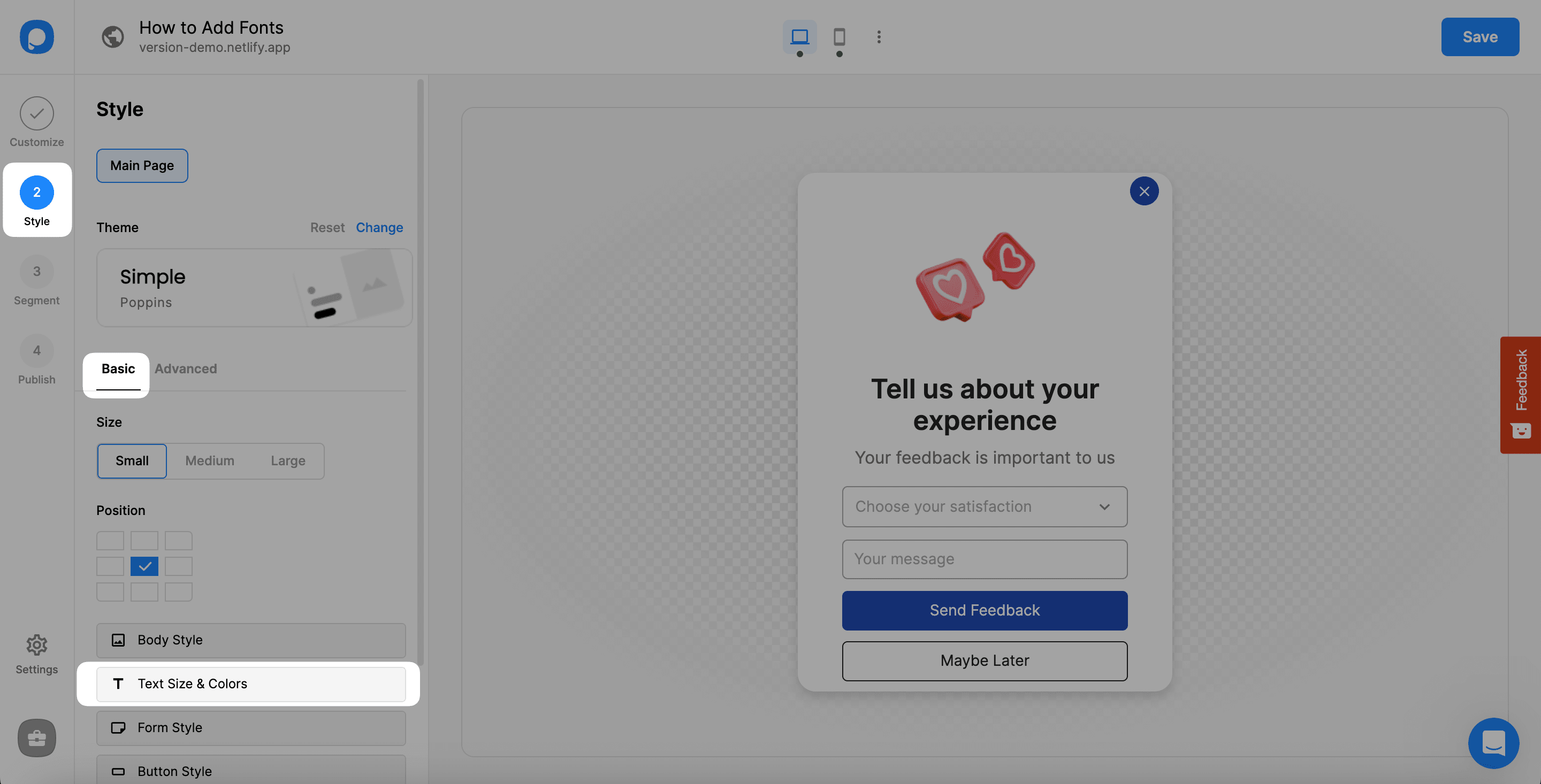
Move to the Style step of your campaign and choose Text Size & Colors under the Basic section.
Add More Fonts
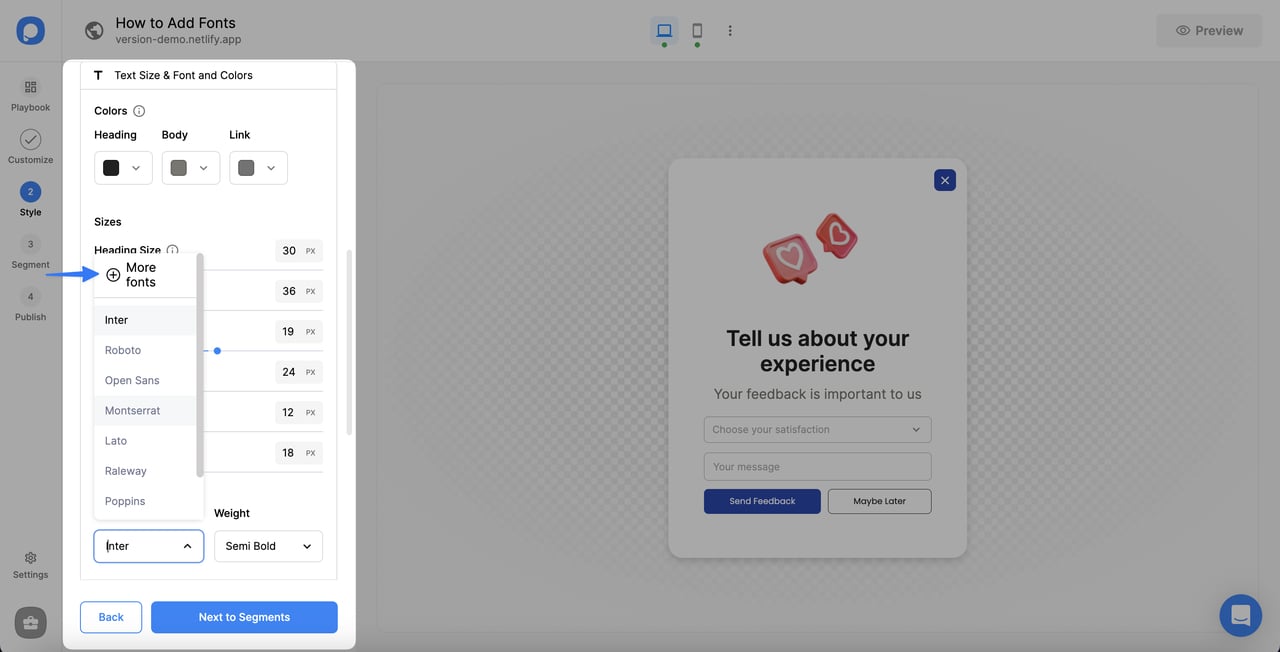
Under the Text Size & Colors, arrange the fonts of your elements by adding More fonts.
Browse Google Fonts
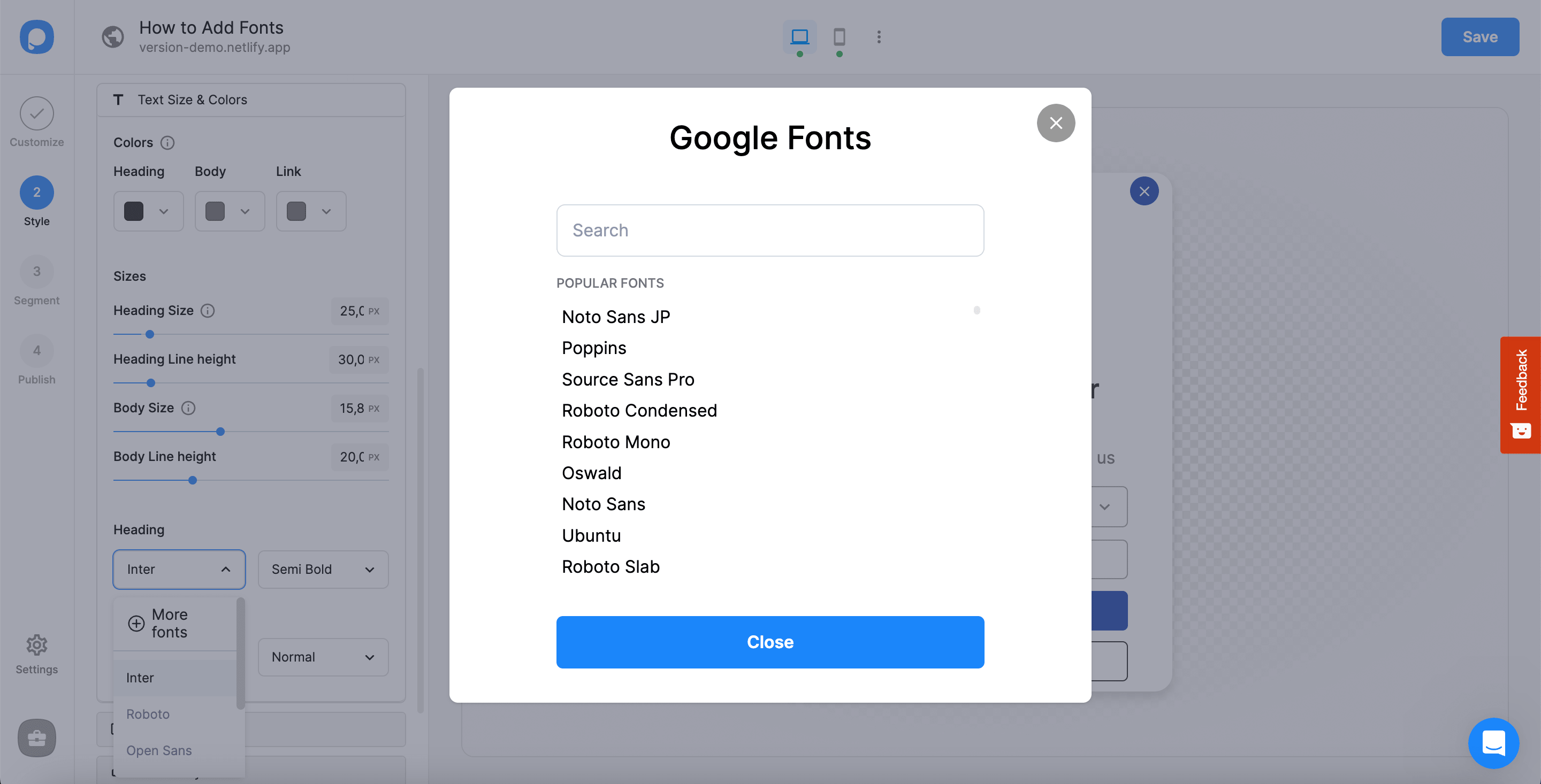
Search or choose among Google fonts. Each font you click on will be added to the prior Font Family dropdown menu.
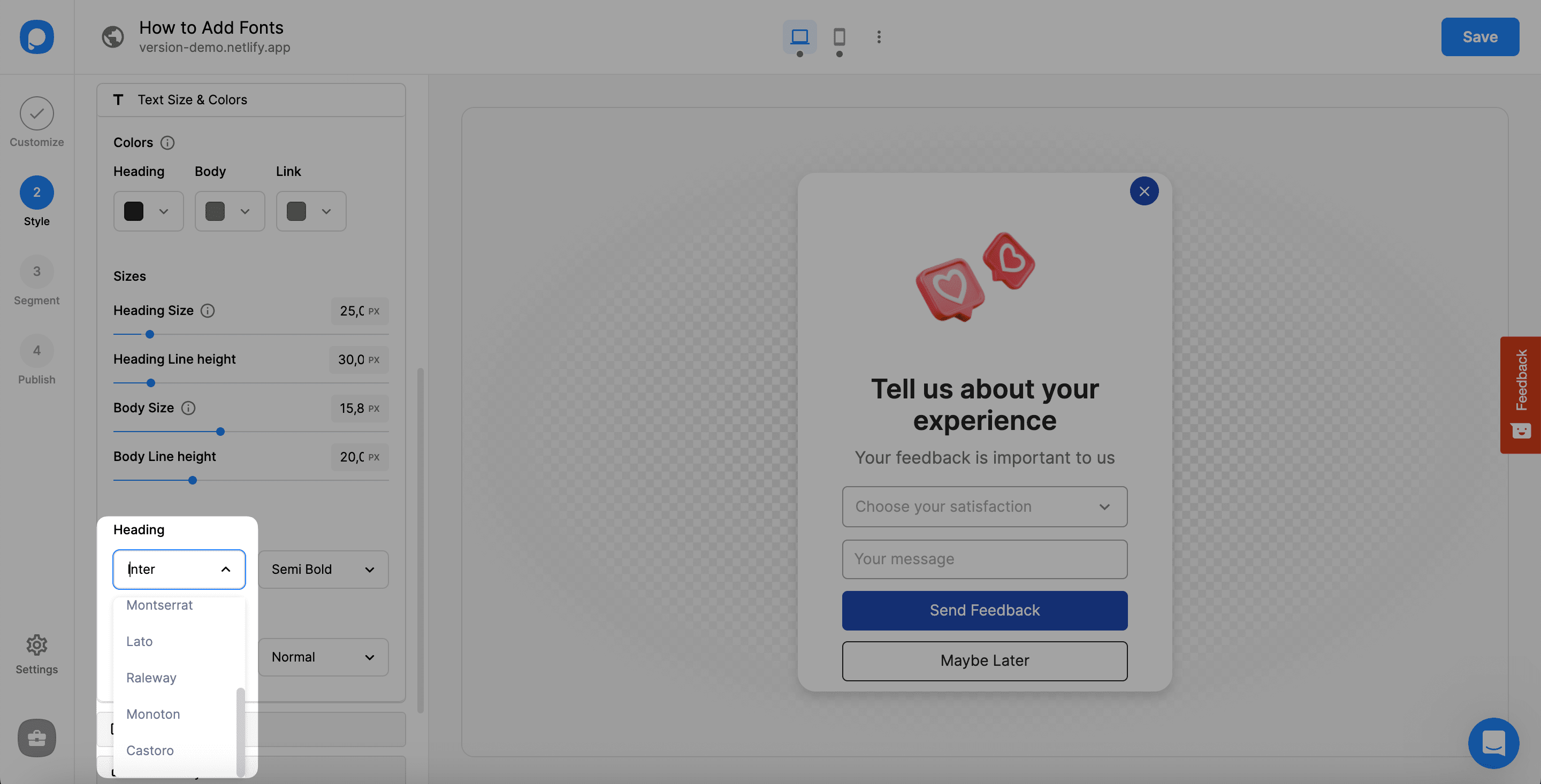
Close the modal window once you're done. Newly added fonts will appear in the Font Family dropdown.
Apply Font
Select the font you want from the "Font Family" menu and click "Save & Publish" when finished.
When to Use Custom Fonts
- Keeping your popup designs consistent with your brand's identity
- Matching your website's overall design with your campaign
Access Advanced Tab
On the "Style" section, click Advanced to reach elements and their Custom CSS settings.

Write CSS Code
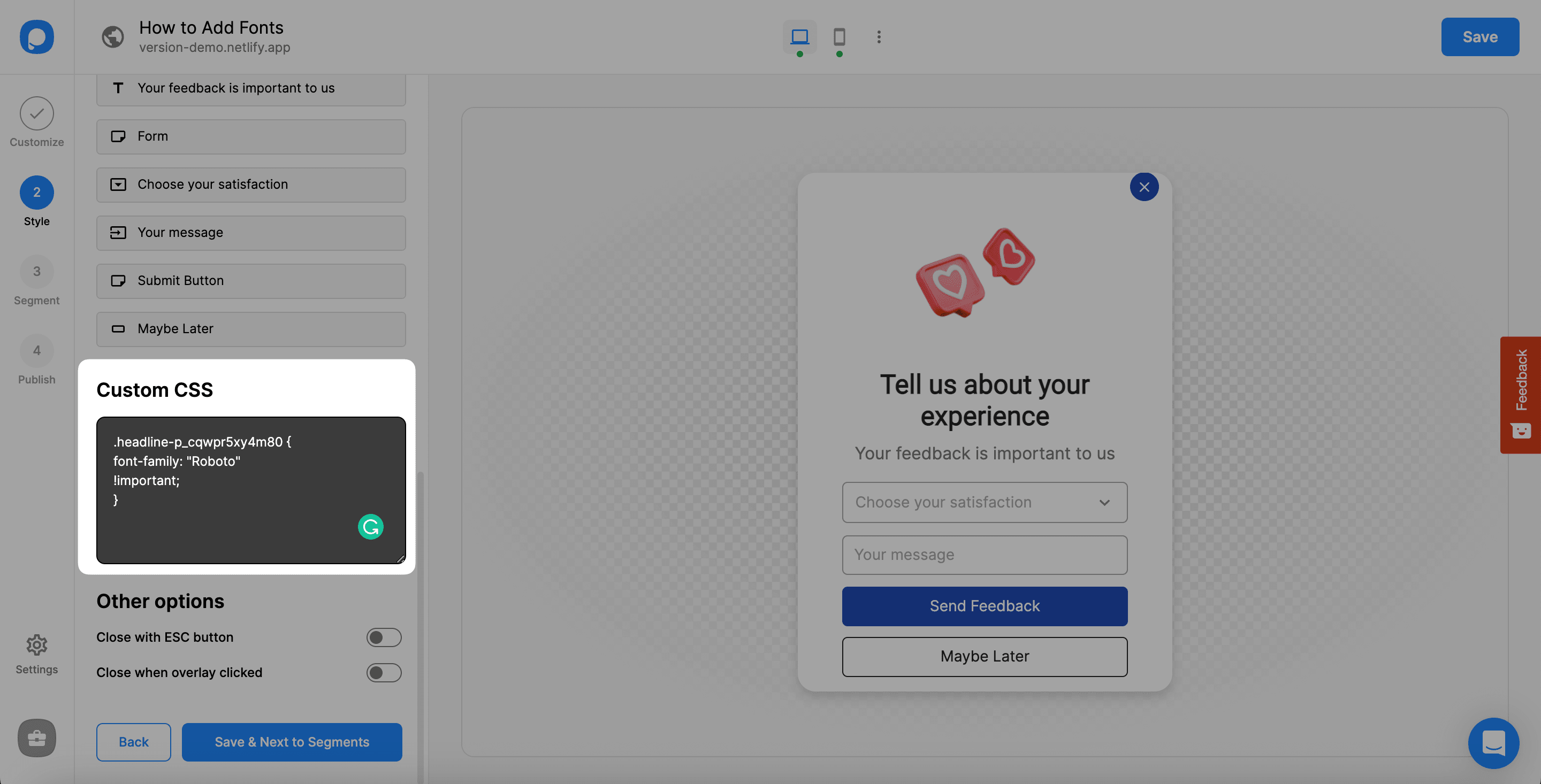
Scroll down to the Custom CSS field. Copy-paste and format the CSS code snippet:
.headline-p_cqwpr5xy4m80 {
font-family: "Roboto"
!important;
}
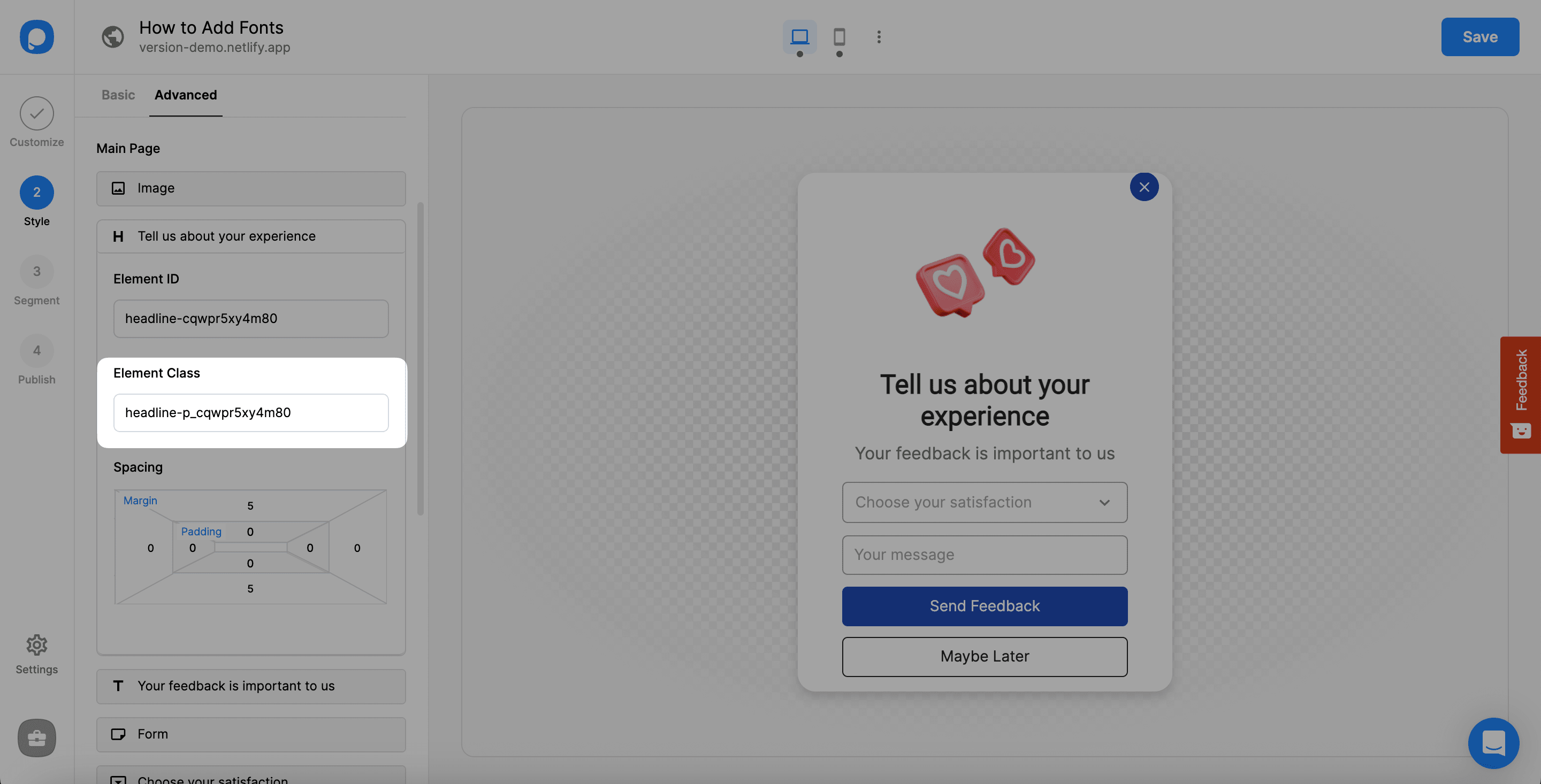
Get Element Class
Change the first part based on your element class. Find your element's class in the element details panel.
Save & Publish
Save any changes and move to Publish to see your popup live.
Important
There must be !important after the font family specification for the CSS to take effect.
No CSS Required
Popupsmart offers direct custom font uploading—no coding knowledge needed!
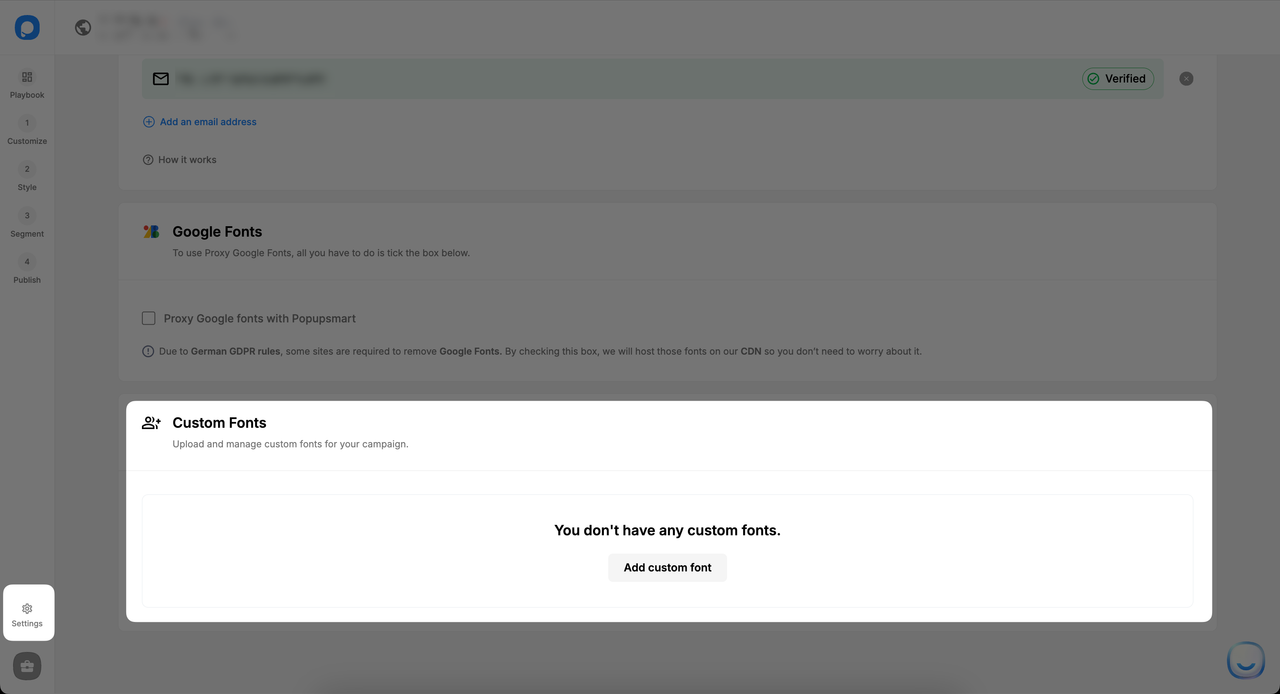
Find Custom Fonts Section
Navigate to the Settings section in the editor and scroll down to find Custom Fonts.
Upload Font File
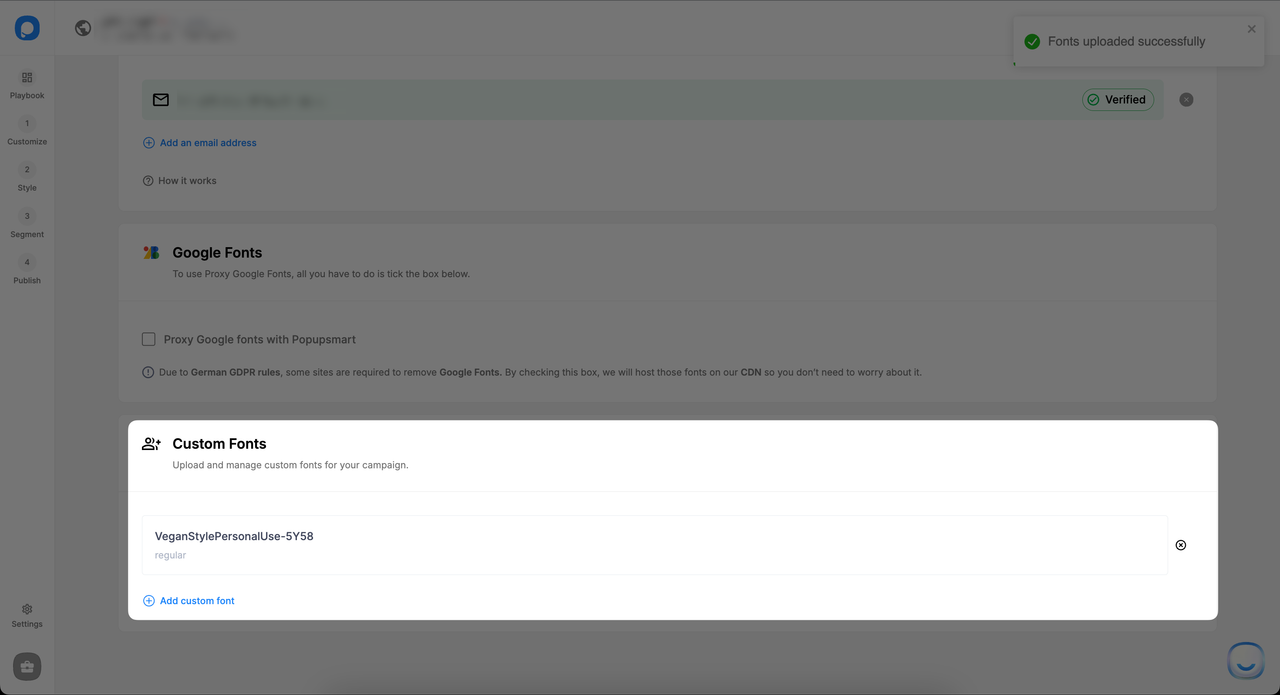
Click the upload area and choose your font file. Supported formats: .ttf, .otf, .woff.
Apply to Elements
After uploading, your custom font appears in the Font Family dropdown. Apply it to headlines, body text, or CTAs as desired.

See Can I Add Custom CSS to My Popup? for more details. If you have questions, contact us!
How is this guide?