
After X Seconds Trigger
If you don't want to bombard your visitors with a popup the second they visit your webpage, "after X seconds" targeting is here to save you.
If you don't want to bombard your visitors with popups the second they visit your webpage, the "After X Seconds" trigger is here to save you. (Though it is entirely up to you.)
Pro Tip
You can always use Popupsmart's ready-to-convert popup templates that come with precise targeting features offering solutions to different business needs.
How to Set Up After X Seconds Trigger
Navigate to Segment
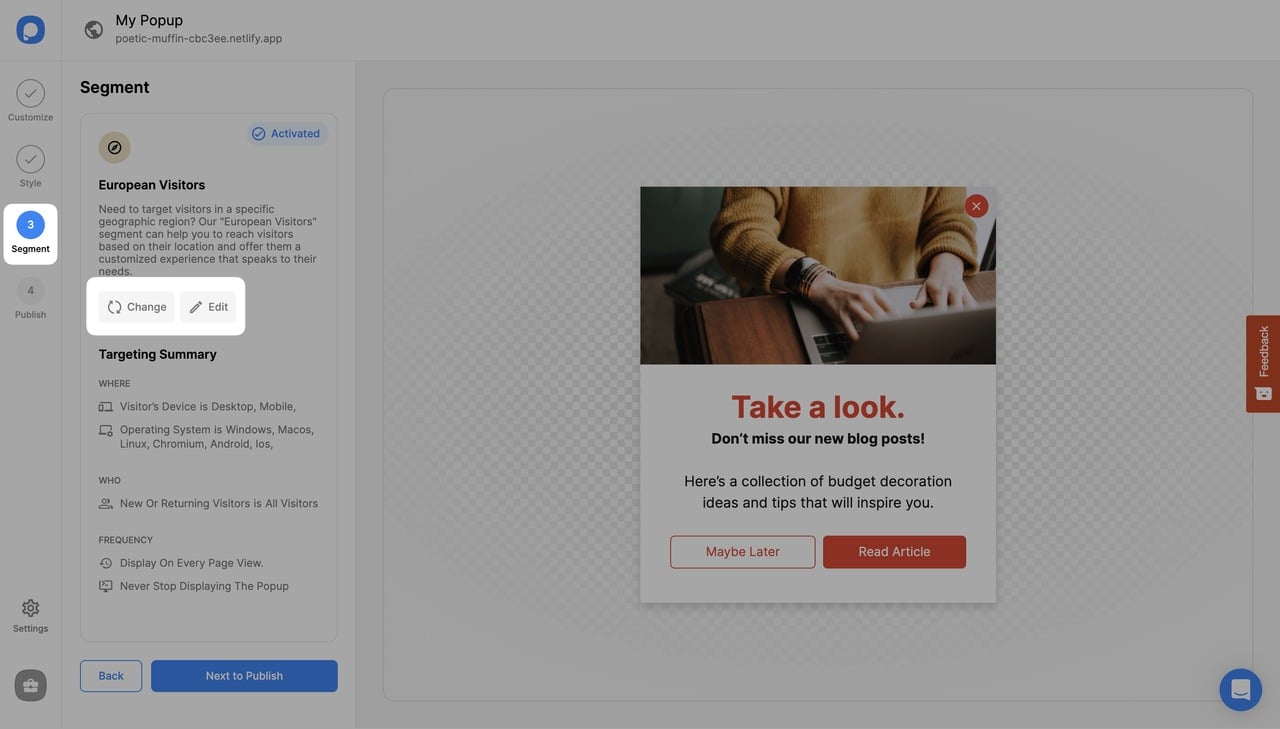
On the popup builder screen, navigate to the "Segment" section and click "Edit Segment." (If it's a new campaign, click the two circular arrows to choose a predefined segment or create one from scratch in "My Segment.")
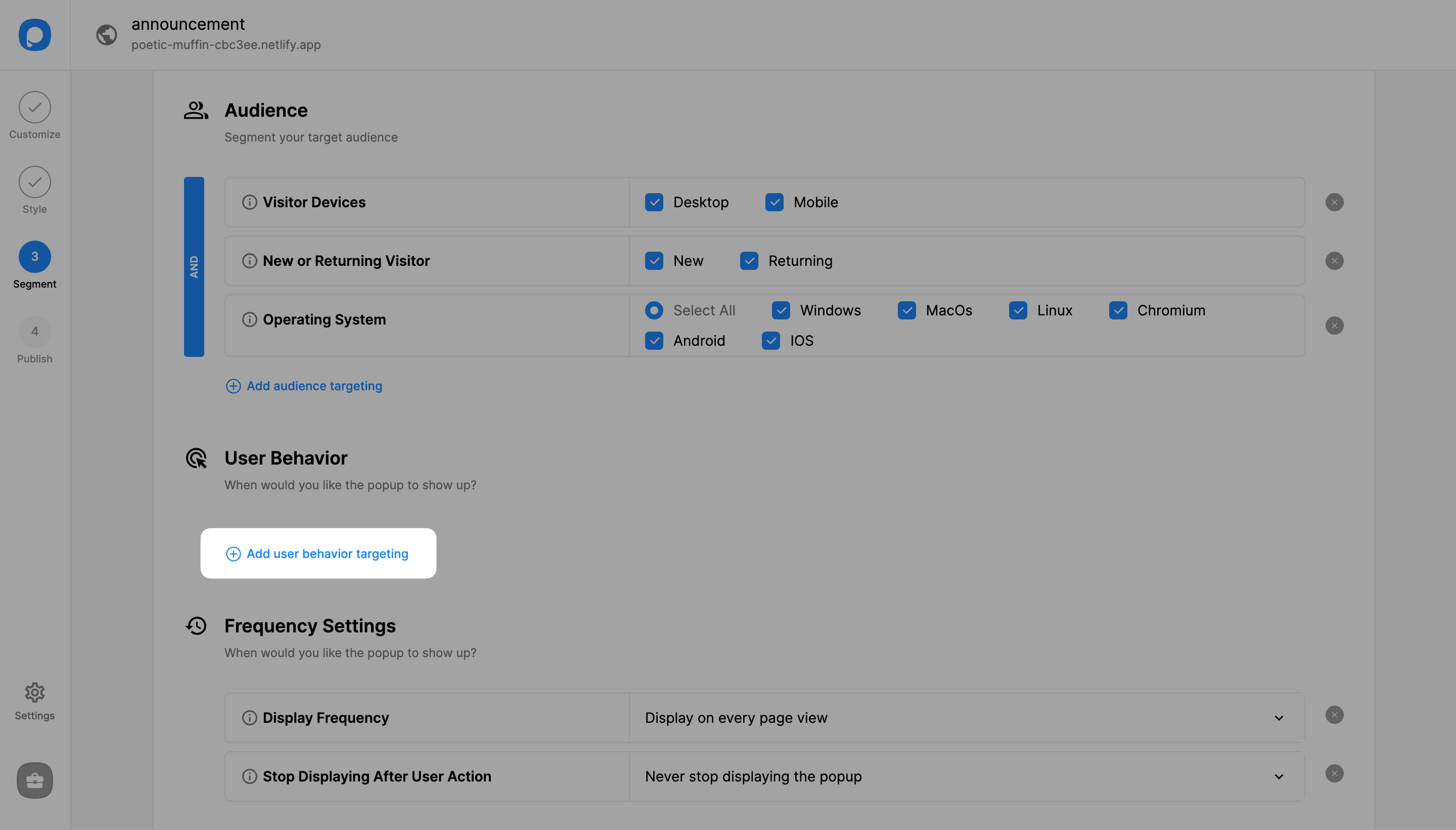
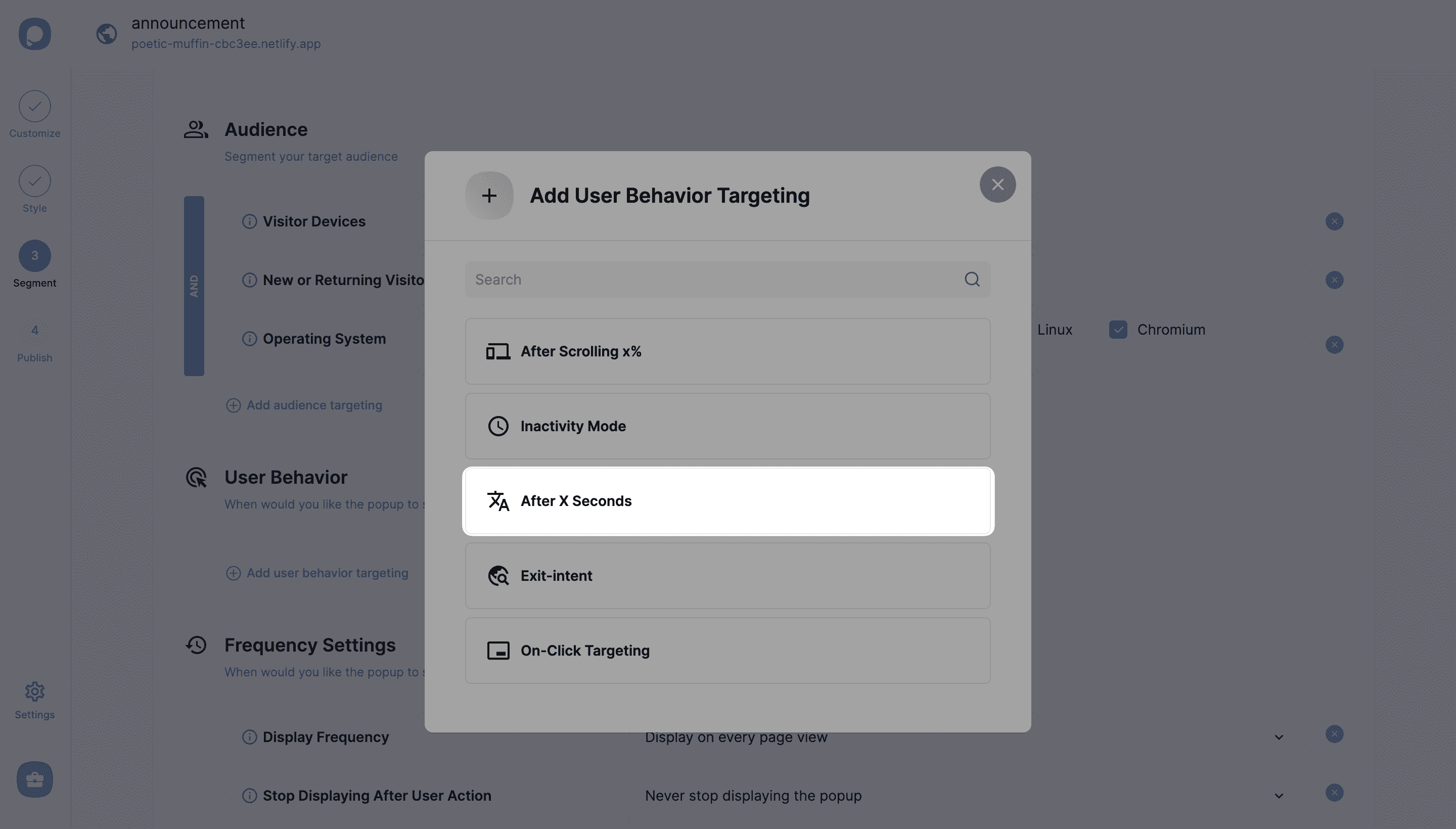
Set the Timing
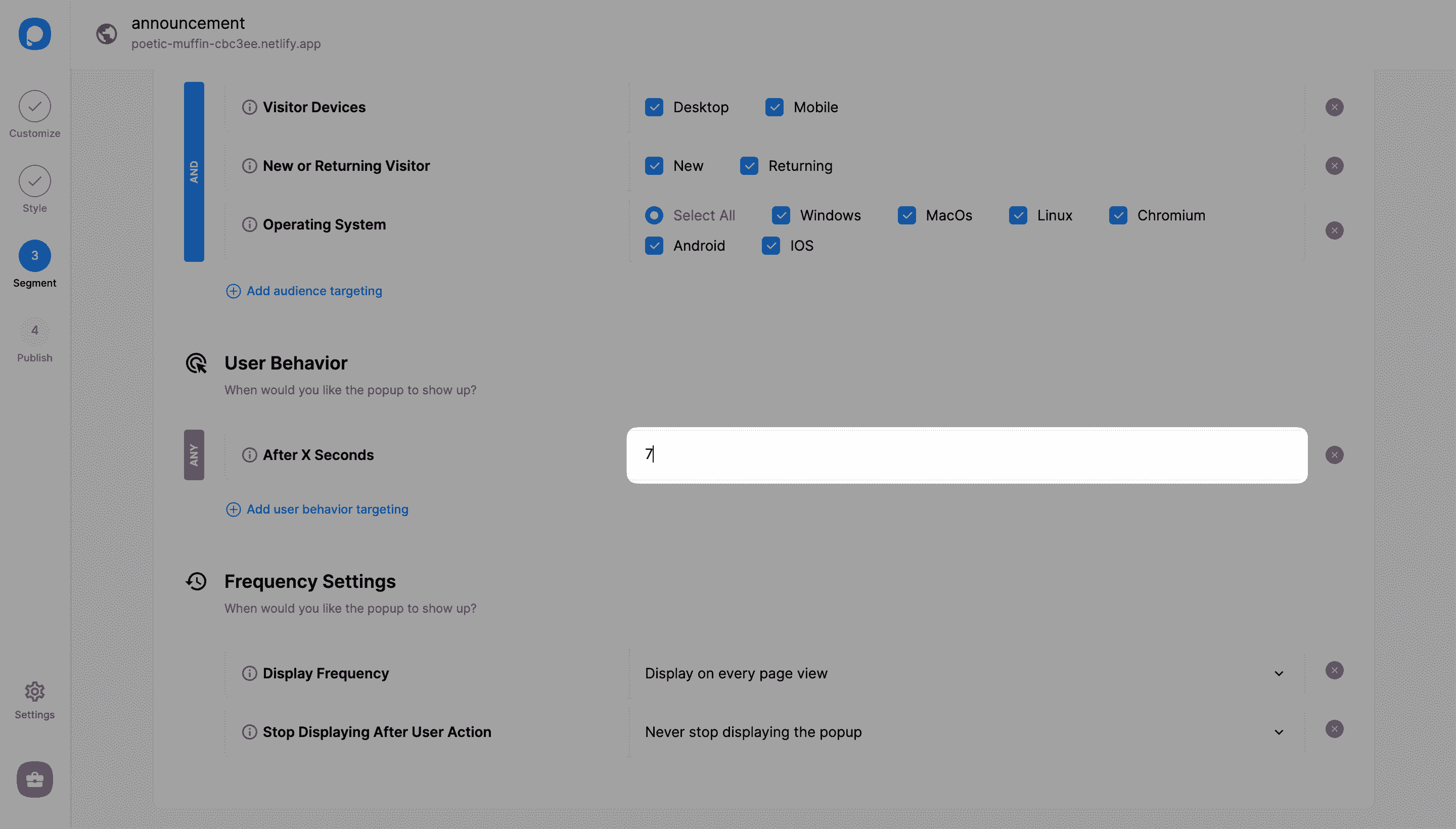
Set the timing (as seconds) as you like. This value determines how many seconds the popup will be triggered. We recommend 5-10 seconds.
Publish Your Campaign
You can continue with the "Publish" step under "Segment" to see a summary of your popup campaign segmentation and publish it.
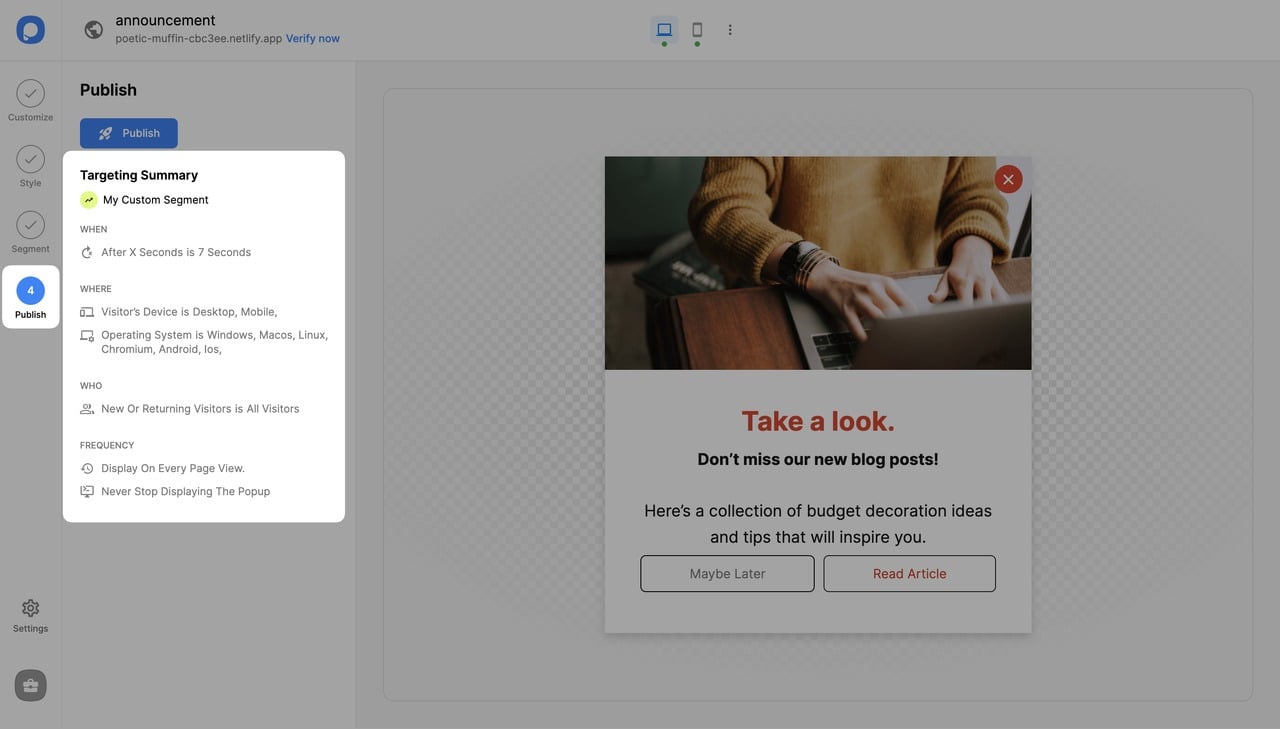
Congrats, your campaign is set to trigger after X seconds!
Important
Optionally, for more precise targeting, make sure your popup triggers don't conflict with each other. For example, if you set your exit-intent trigger to work independently from any other targeting, your popup will appear on exit-intent without waiting After X Seconds.
How is this guide?