
What is Popupsmart's Shopify Element and How to Use it?
Learn how to use Shopify Element effectively for seamless popups that drive conversions on your Shopify store.
If you have a Shopify store and want to showcase products or collections directly inside your popup, Popupsmart's Shopify element makes this easy. You can highlight a special collection, promote specific products, or even display items from a visitor's cart—dynamically and without extra setup.
How to Set It Up
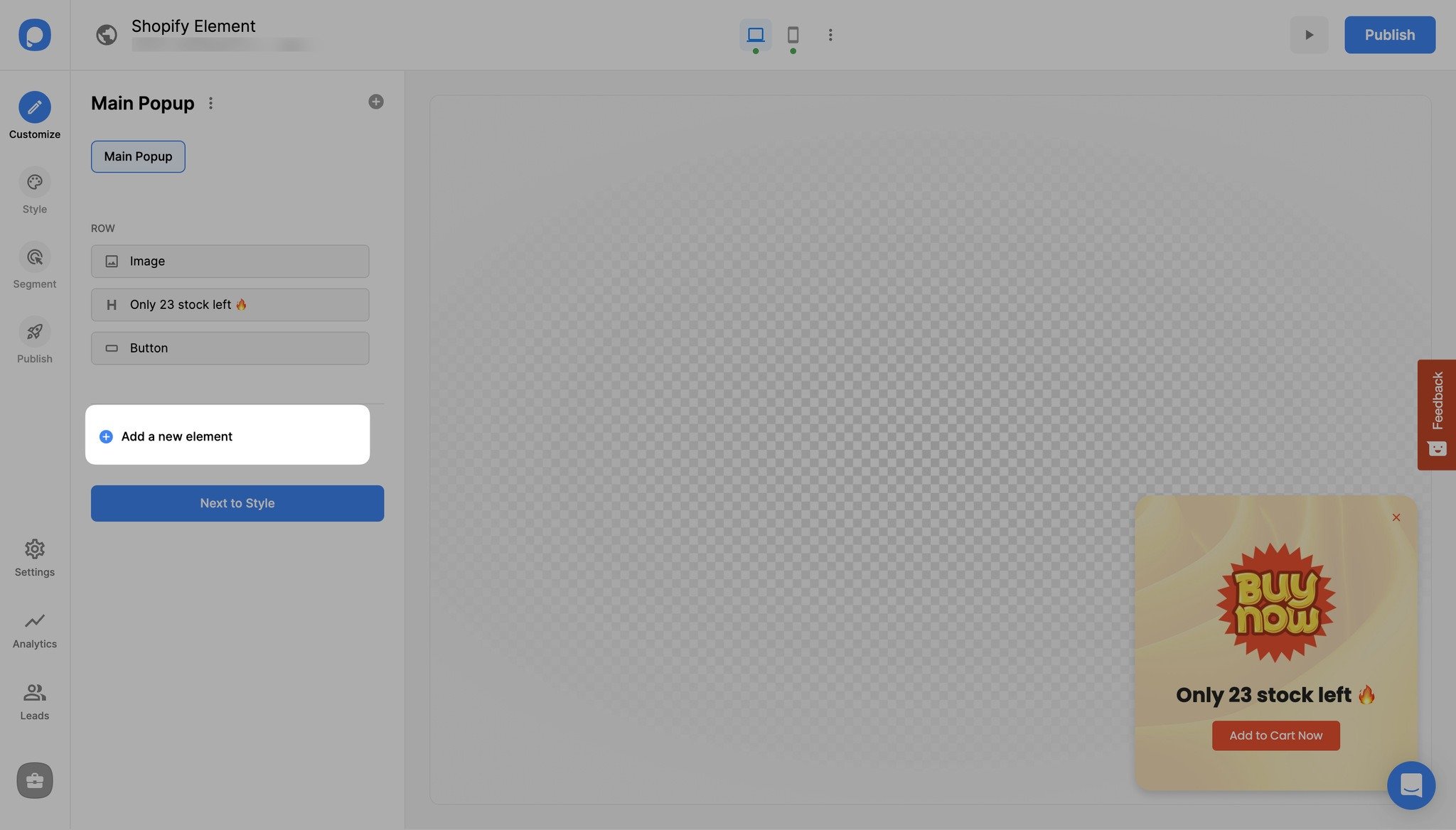
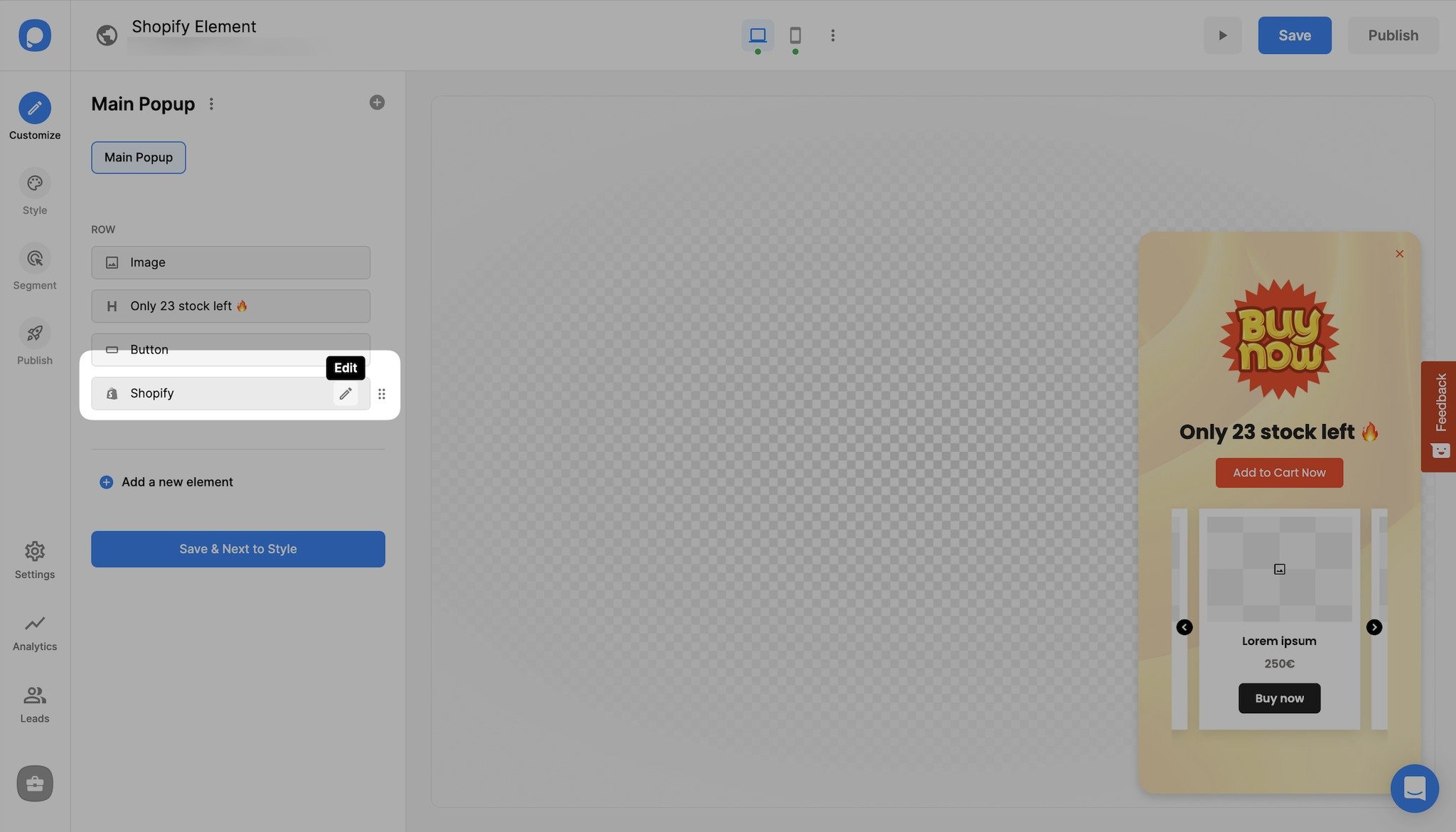
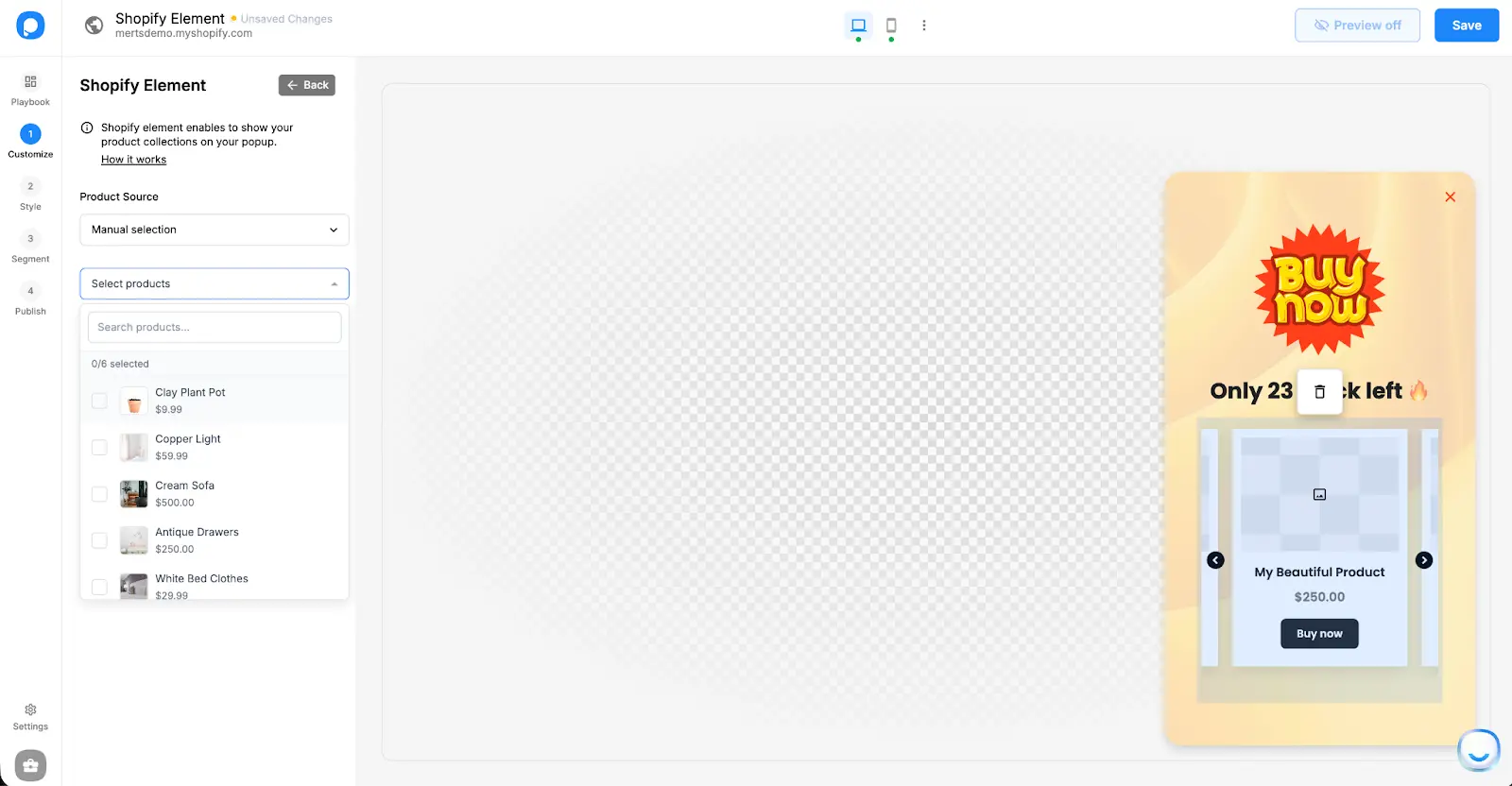
Choose Your Product Source
You can display products in your popup using one of the following options:
Configure Button Text and Actions
You can customize the button text and choose what happens when visitors click the button. Available button actions include:
- Go to Product Page – Redirects visitors to the selected product's page.
- Add to Cart – Adds the product to the cart without redirecting.
- Add to Cart and Go to Cart Page – Adds the product and redirects visitors to the cart page.
Important
If you select Cart Products as the product source, the only available button action is Go to Cart Page.
Choose a Layout Template
Select your preferred layout style:
- Slide
- Card
- Grid
Save Your Campaign
Save your campaign and continue customizing your popup in the following steps to align it perfectly with your goals.
Still need a hand? Contact us at support@popupsmart.com —we're happy to help!
How is this guide?