
How to Add a Privacy Policy on Popupsmart?
Follow our guide on Popupsmart to add a privacy policy popup to your website to enhance user trust and satisfaction.
Do you want to put a privacy policy statement on your popup to build trust with your customers?
You can do that using Popupsmart with ease by following the instructions below.
How to Add a Privacy Policy
Select Form Element
Go to the "Customize" section on the popup builder. Then, add a form input element or choose the form element on your popup.
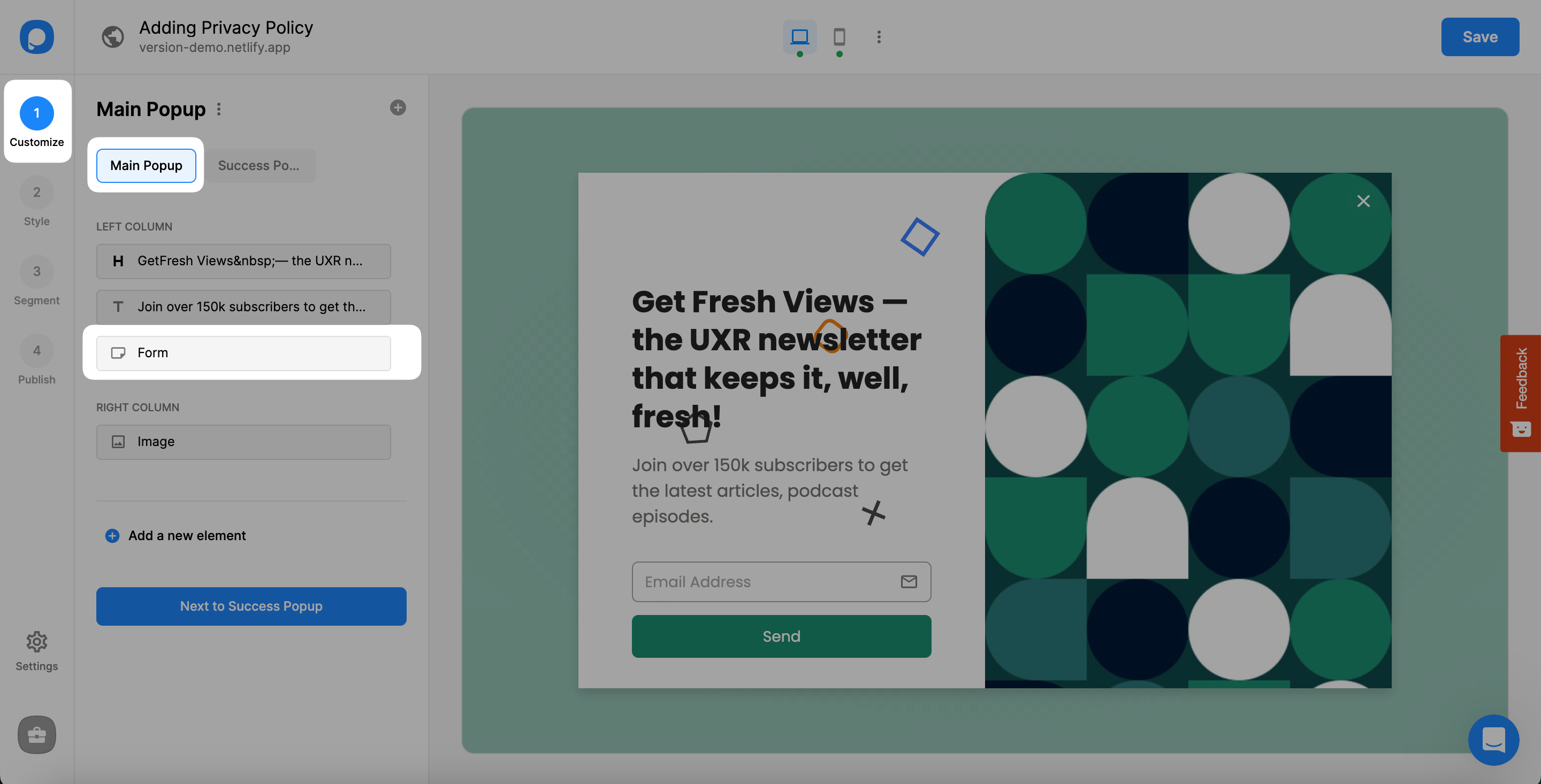
Add Form Input
After choosing the form, you need to add a new form input under the Content section of the Form.
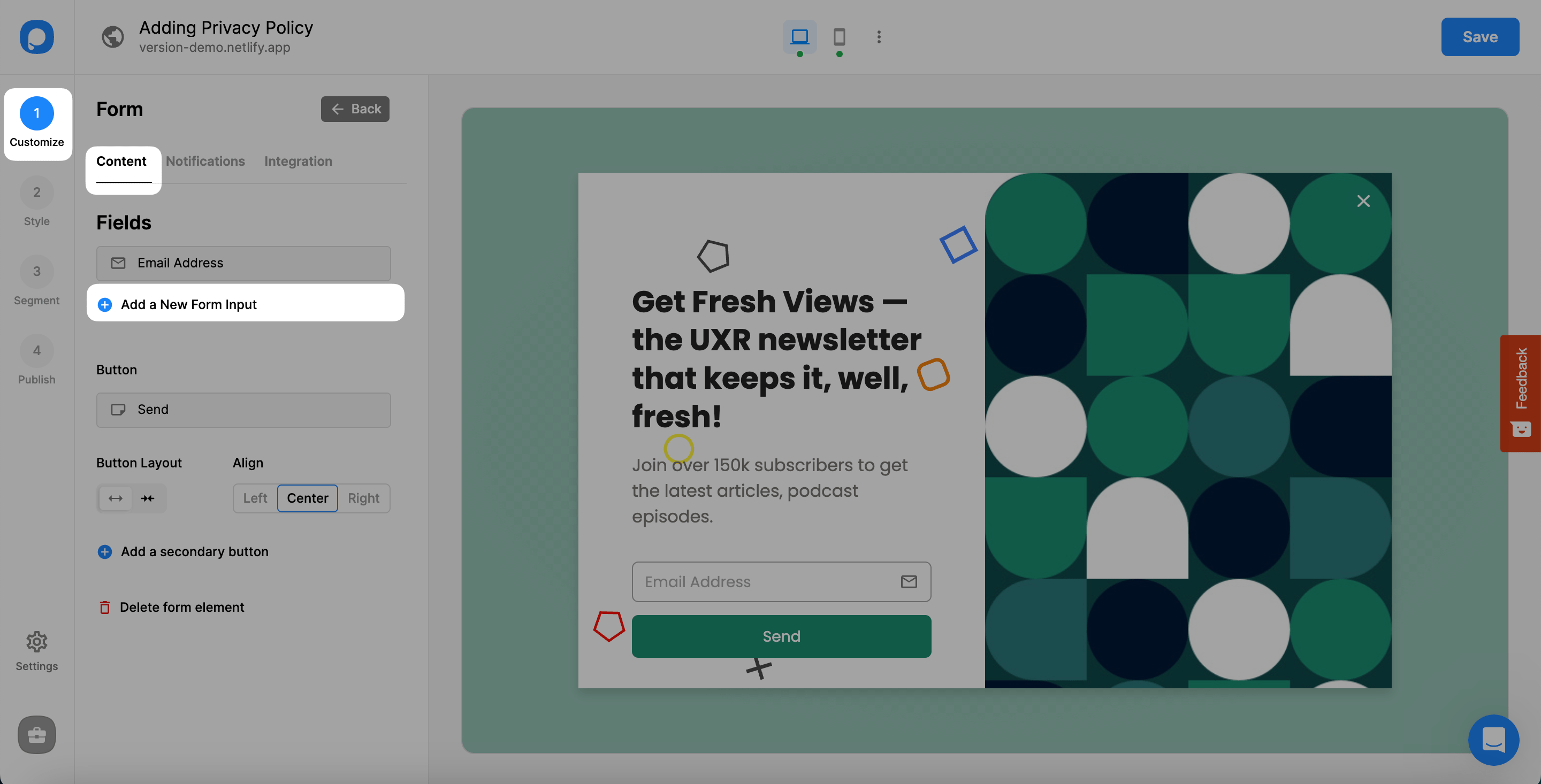
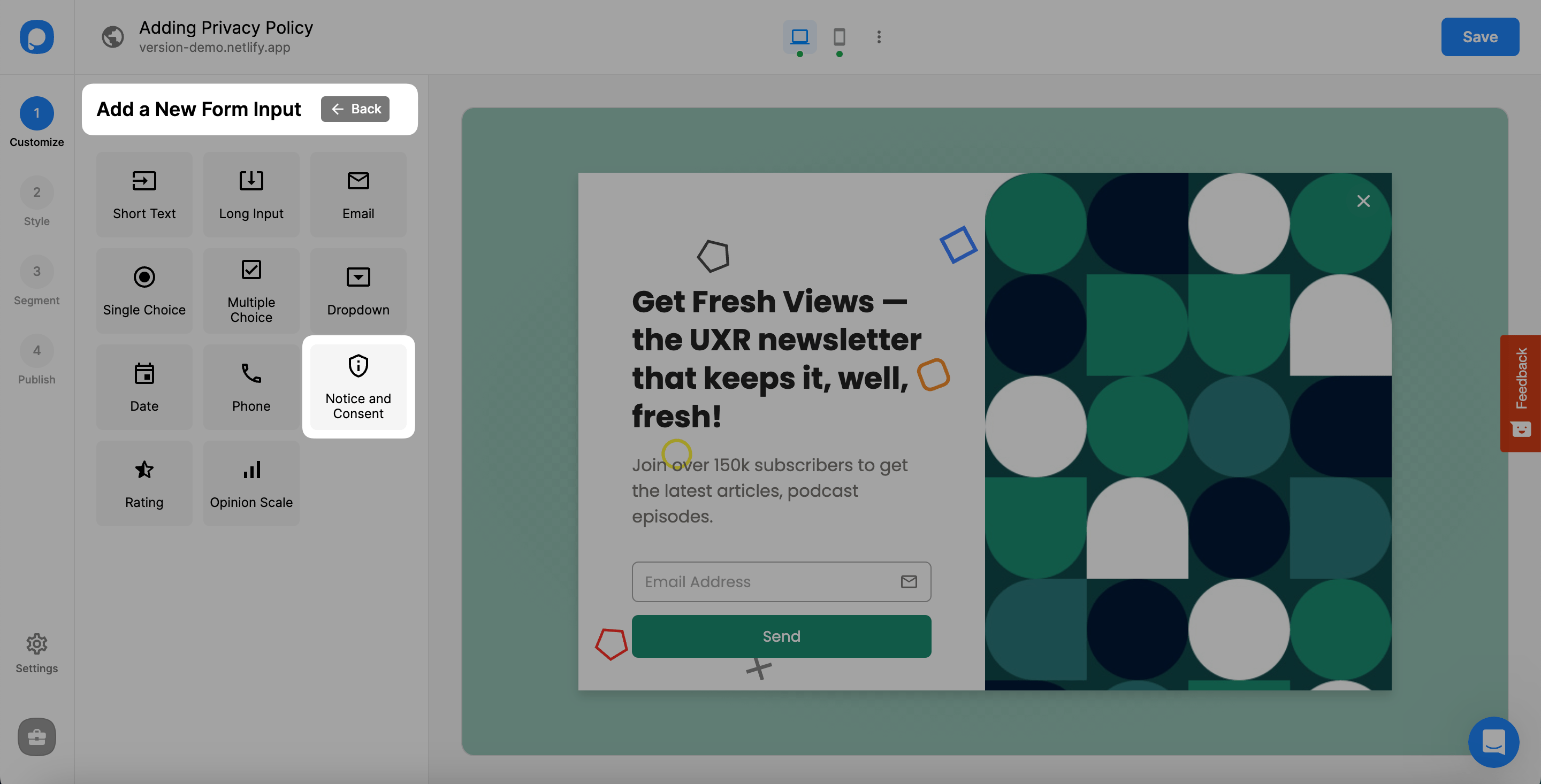
Customize Policy Text
Write your privacy policy text & customize your text according to your needs. Also, you can toggle on "Required" to request your visitors' consent to your privacy policy by adding your required message as well.
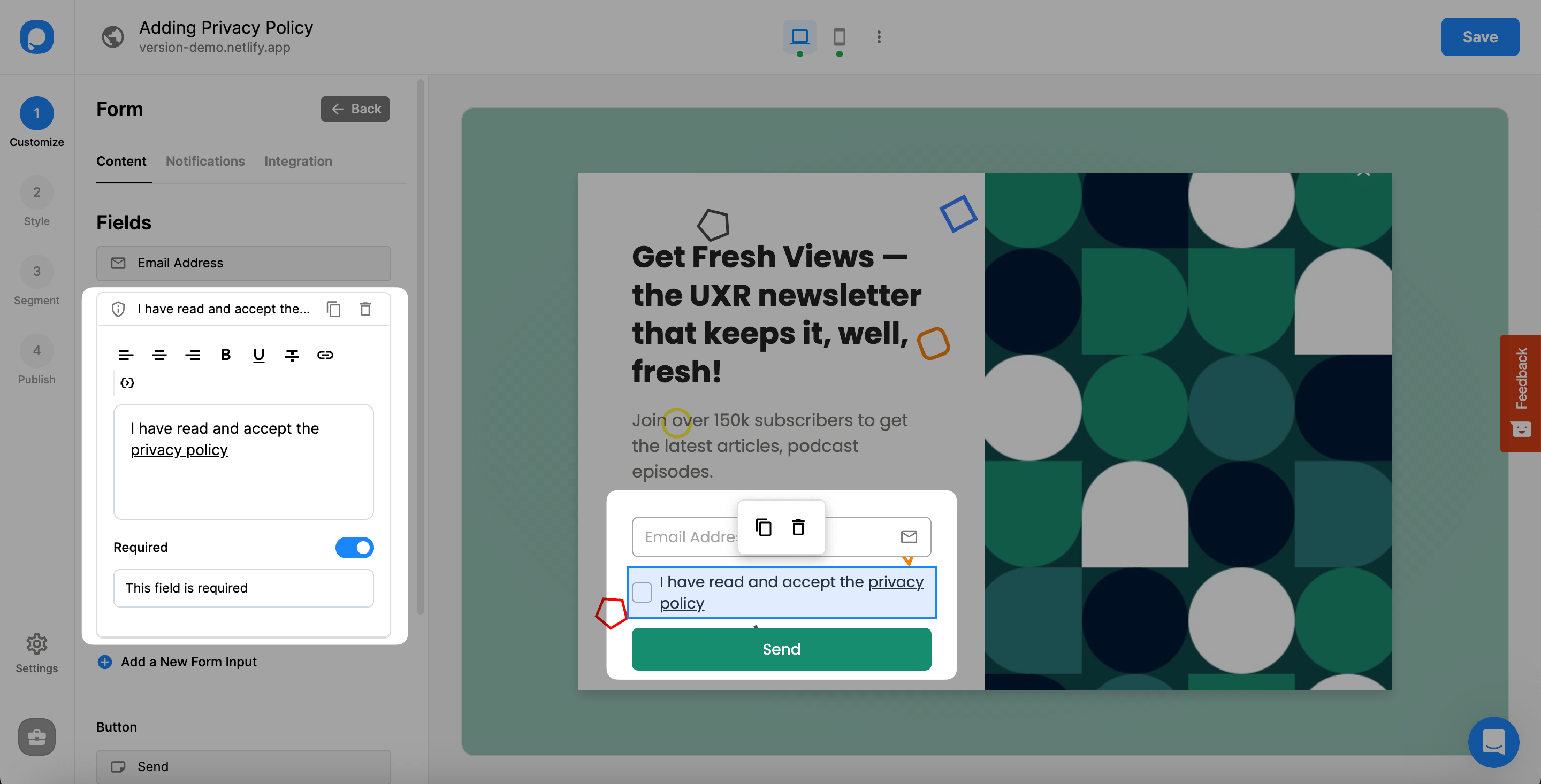
When you finish editing your "Notice and Consent" button, click the Save & Publish buttons.
See "How to Customize My Popup" for further details about customizing your popup's elements.
Build Trust
You can earn your visitors' trust by being open and clear about your business's privacy policies now!
Have more questions about adding a privacy policy on your popups? Feel free to contact us!
How is this guide?