
How to Add Hidden Inputs to Your Popup Campaigns?
Learn how to add hidden inputs to your popup campaigns for data collection to enhance the effectiveness of your popups by utilizing existing data
Hidden Input is an element that enhances the effectiveness of your popups by utilizing existing data and capturing valuable insights about your respondents.
It empowers you to:
- Monitor the origins of respondents, such as social media platforms
- Segment your audience for in-depth analysis and understanding
- Personalize your popups to create a tailored experience
Hidden Input seamlessly integrates your pre-existing data into your popups, all conveniently accessible in the Leads table.
How to Add Hidden Inputs
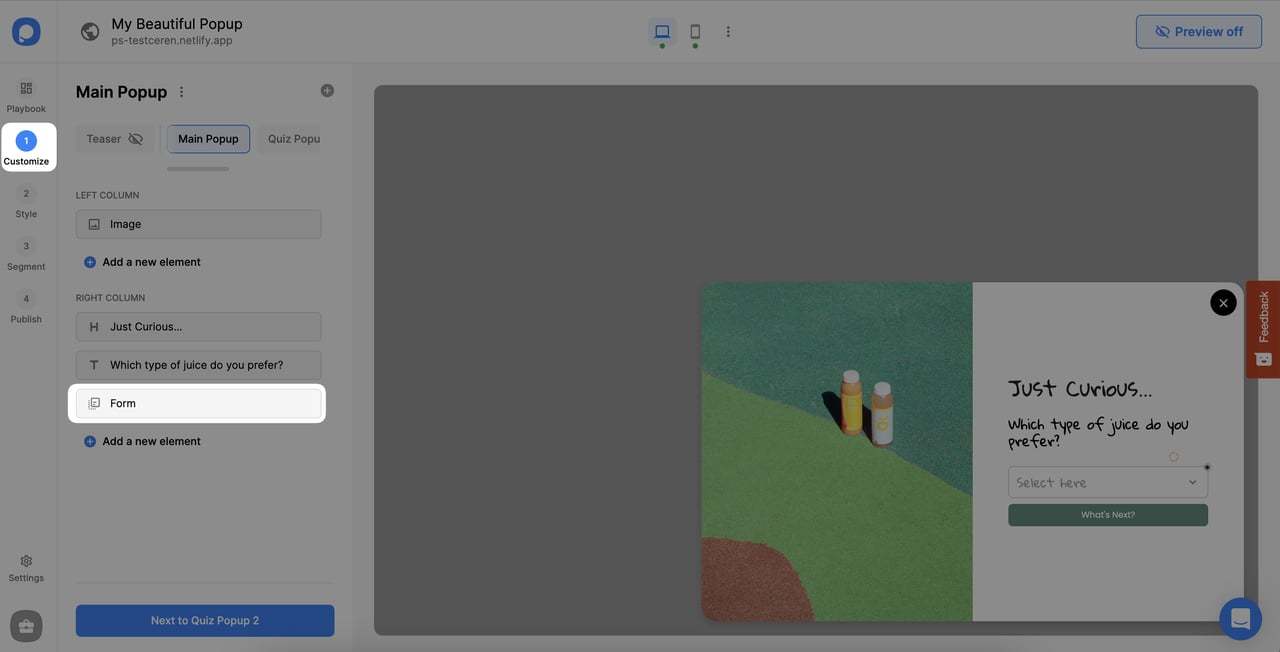
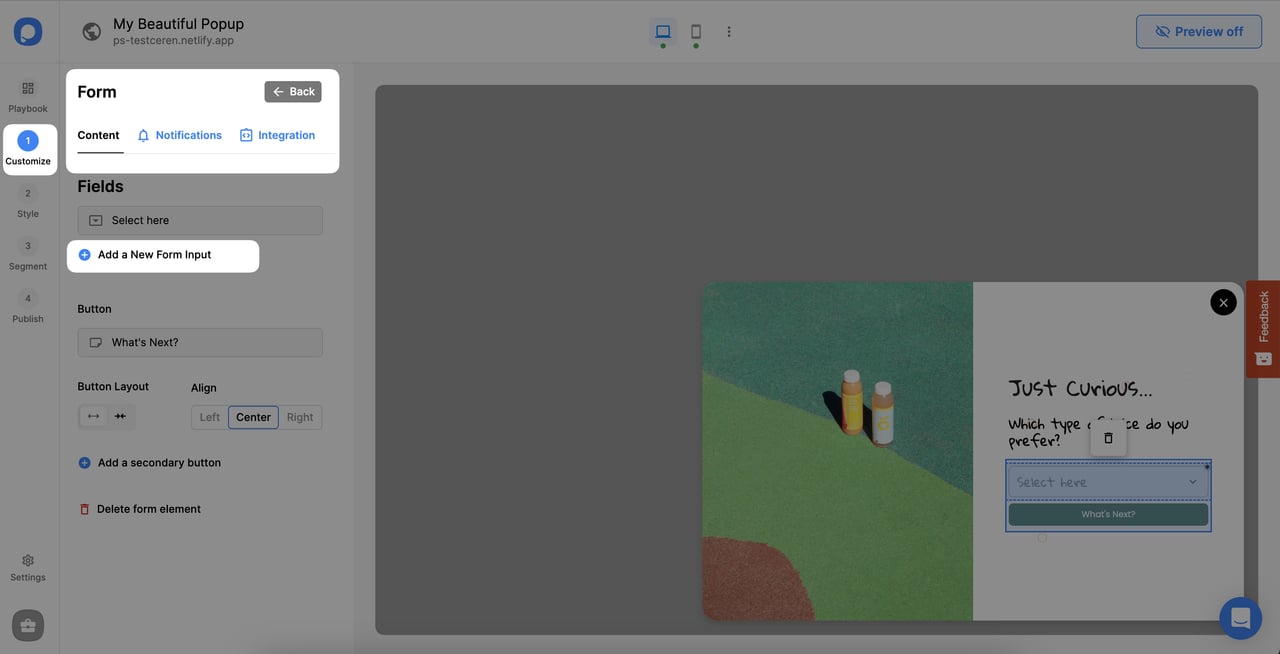
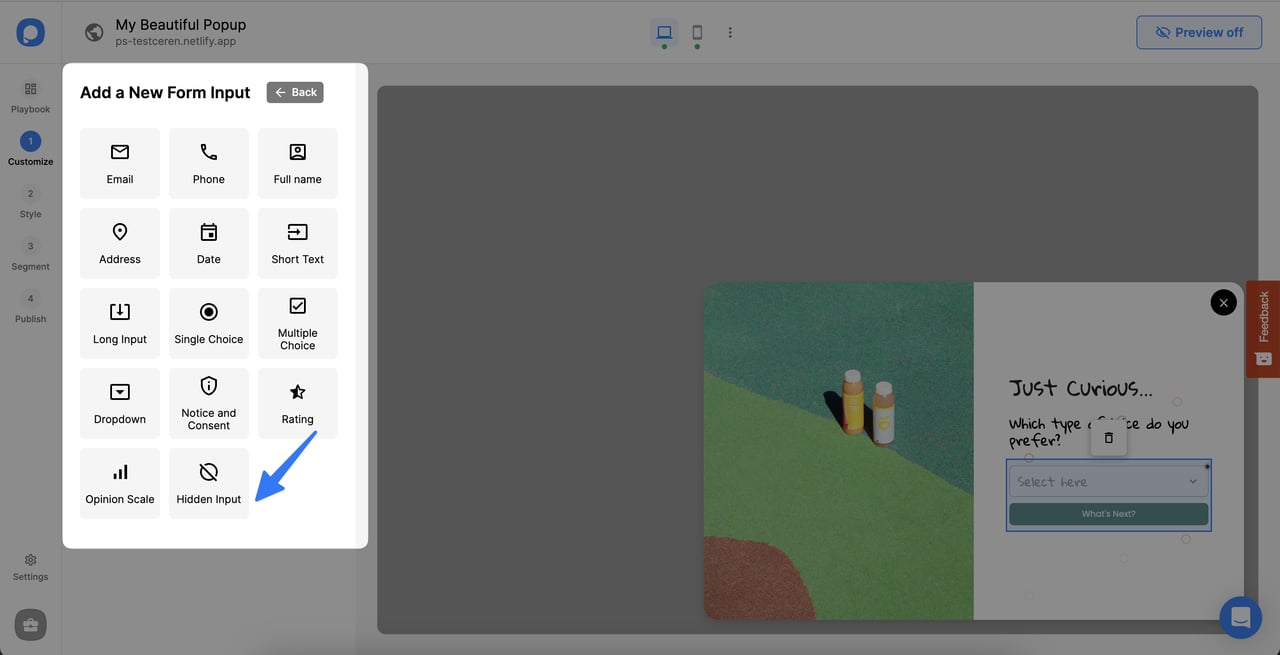
Name Your Input
Finally, assign a name to your Hidden Input for identification purposes when sending data to integration platforms for tracking sources or audience segmentation.
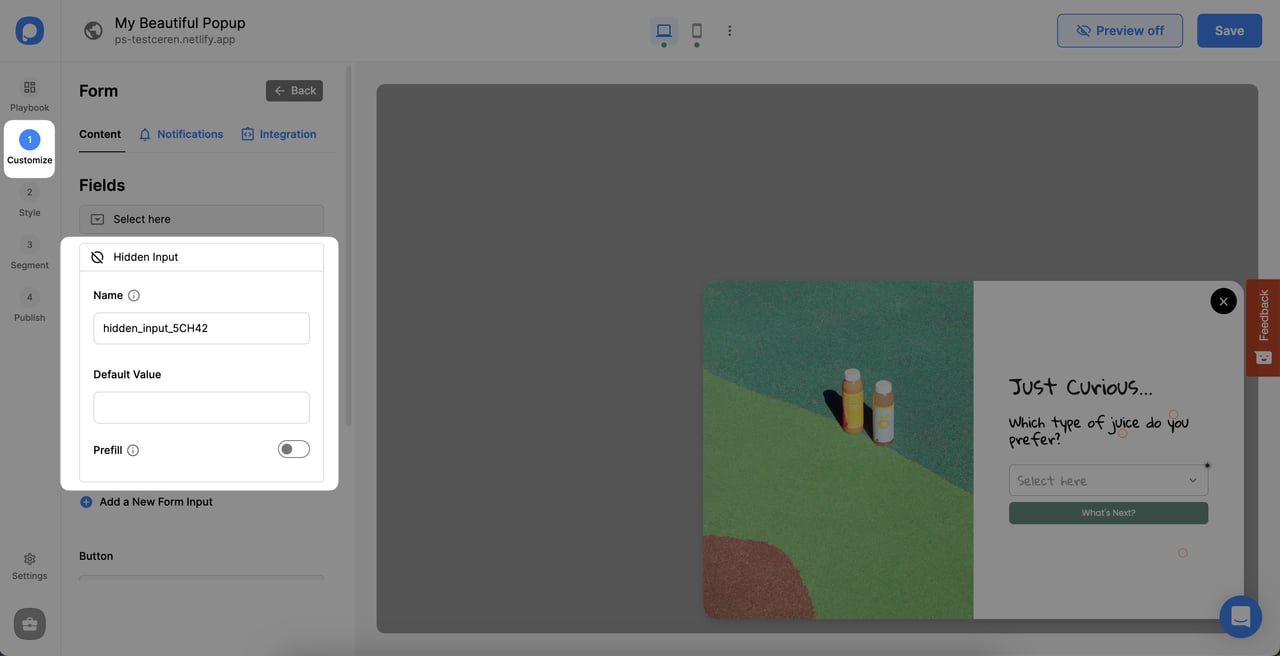
Invisible to Visitors
Hidden Inputs are invisible to visitors, ensuring that the inclusion of hidden input remains unnoticed.
How to Collect Data for Hidden Inputs
Upon incorporating a Hidden Input into your popup, it is essential to publish your campaign initially to commence data collection. Subsequently, as visitors begin to input their data, the corresponding Hidden Input values will be presented in your Leads table.
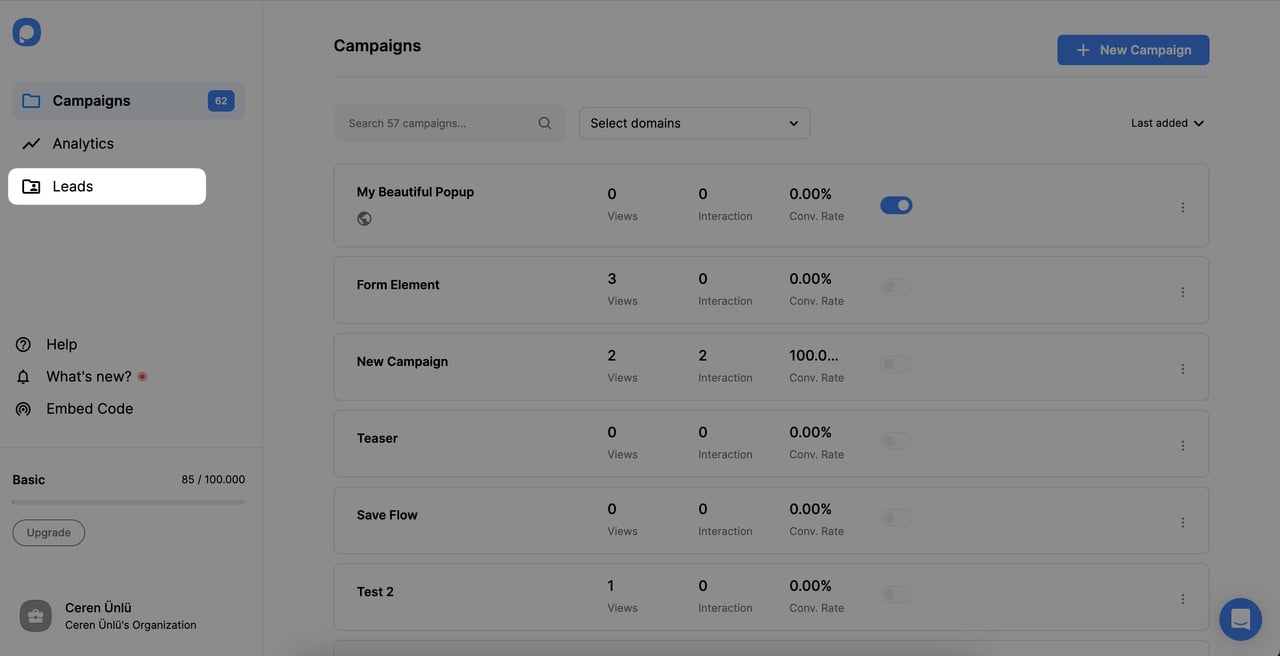
Navigate to Leads
To see collected data, navigate to the Leads section in the Dashboard from your Popupsmart account.
View Hidden Input Data
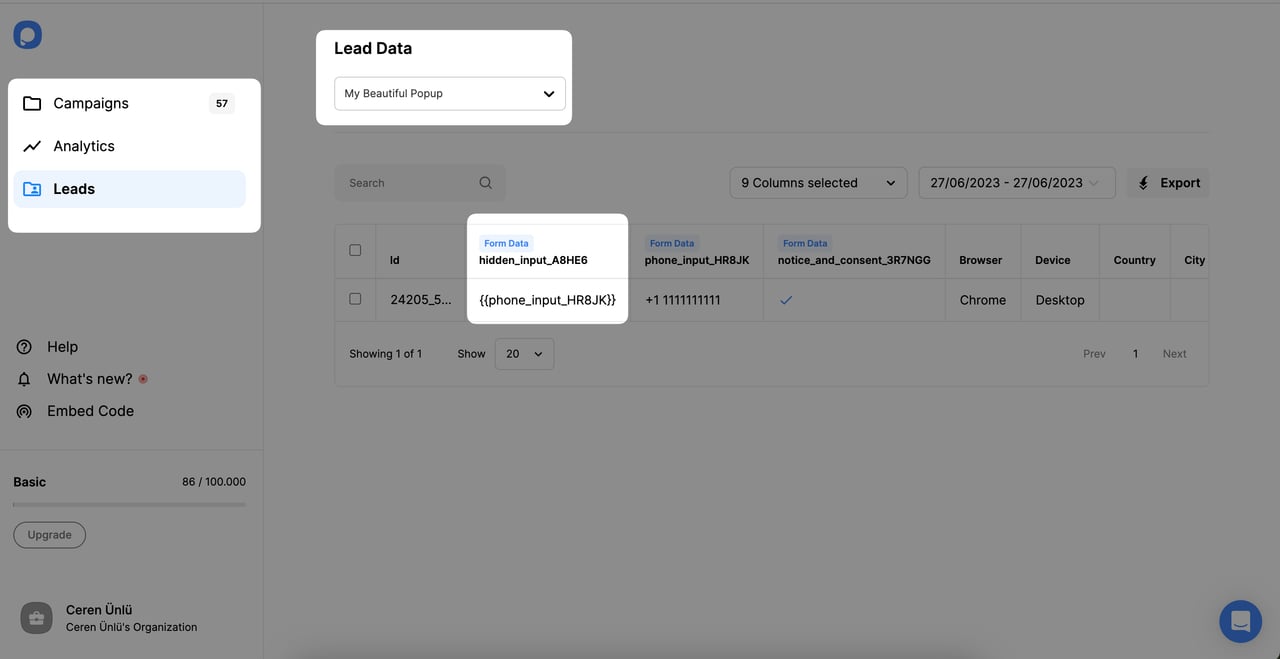
Find your campaign name from the Lead Data section and you will see Hidden Input data listed.
How to Send Hidden Inputs to CRM Integrations
Additionally, during the campaign creation process, it is possible to transmit concealed input data to integrations.
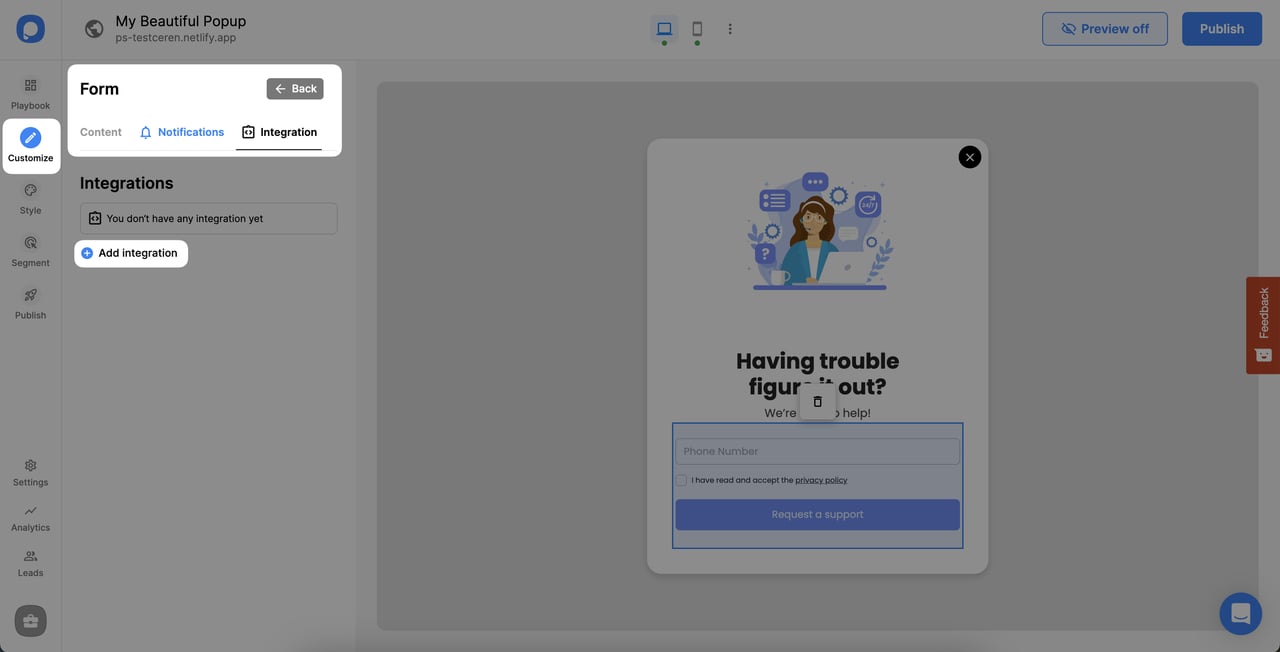
Go to Integration
After adding the Hidden Input to your popup, go to the Integration tab within the Form Element block and click the "Add Integration" part.
Match Fields
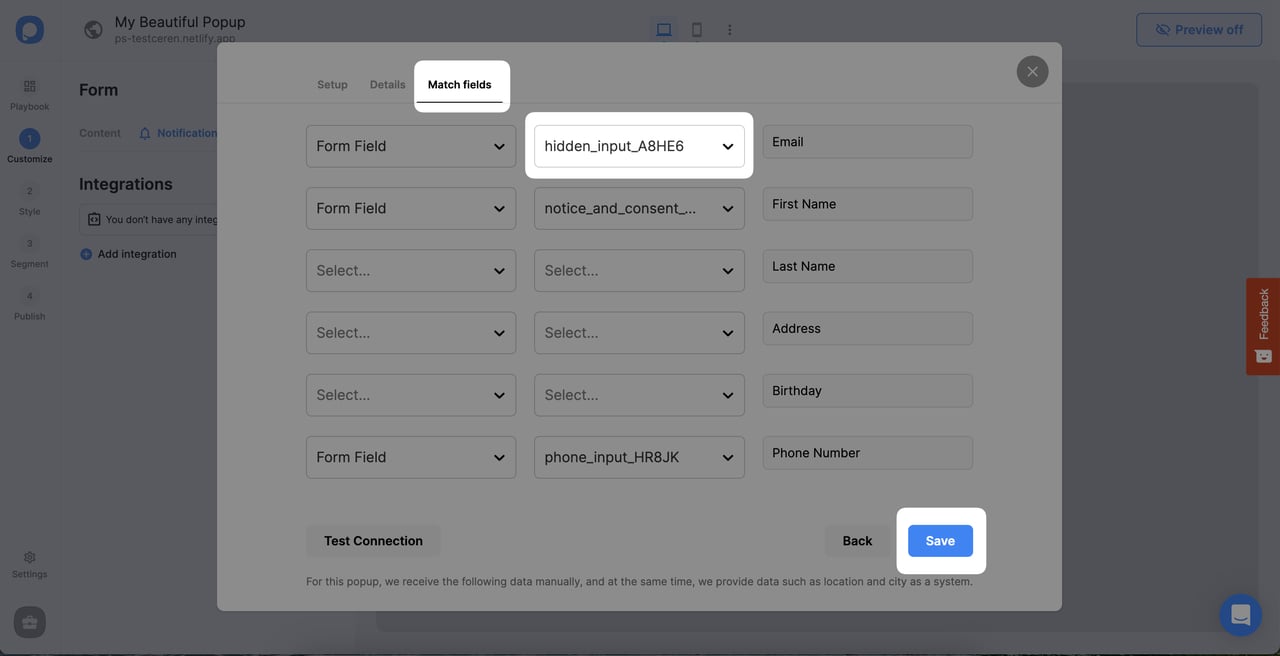
After selecting a CRM Integration from the list and completing the setup, in the "Match Fields" section, add the hidden input to send the data connection.
Publish and Collect
By the time you publish the campaign and start collecting leads, Hidden Input data will be visible in the CRM Integration too.
Still have more questions about Hidden Inputs? Feel free to contact us!
How is this guide?