
How to Connect Popupsmart with Brevo
Optimize email marketing with Popupsmart-Brevo integration. Learn how to seamlessly connect for efficient campaigns and enhanced engagement.
Since marketing is one of a business's most significant growth tools, it is practical and beneficial to integrate tools like Brevo and Popupsmart.
Now it's time to learn how Popupsmart integrates with Brevo easily.
All you need to do is to follow the steps one by one.
Prerequisites
- You need to have a Brevo account.
- You need to have a contact list on Brevo. You can create one by clicking 'Contacts' and choosing 'Lists.'
- You need to verify your website on your Popupsmart account.
How to Set Up Brevo Integration
Create Campaign
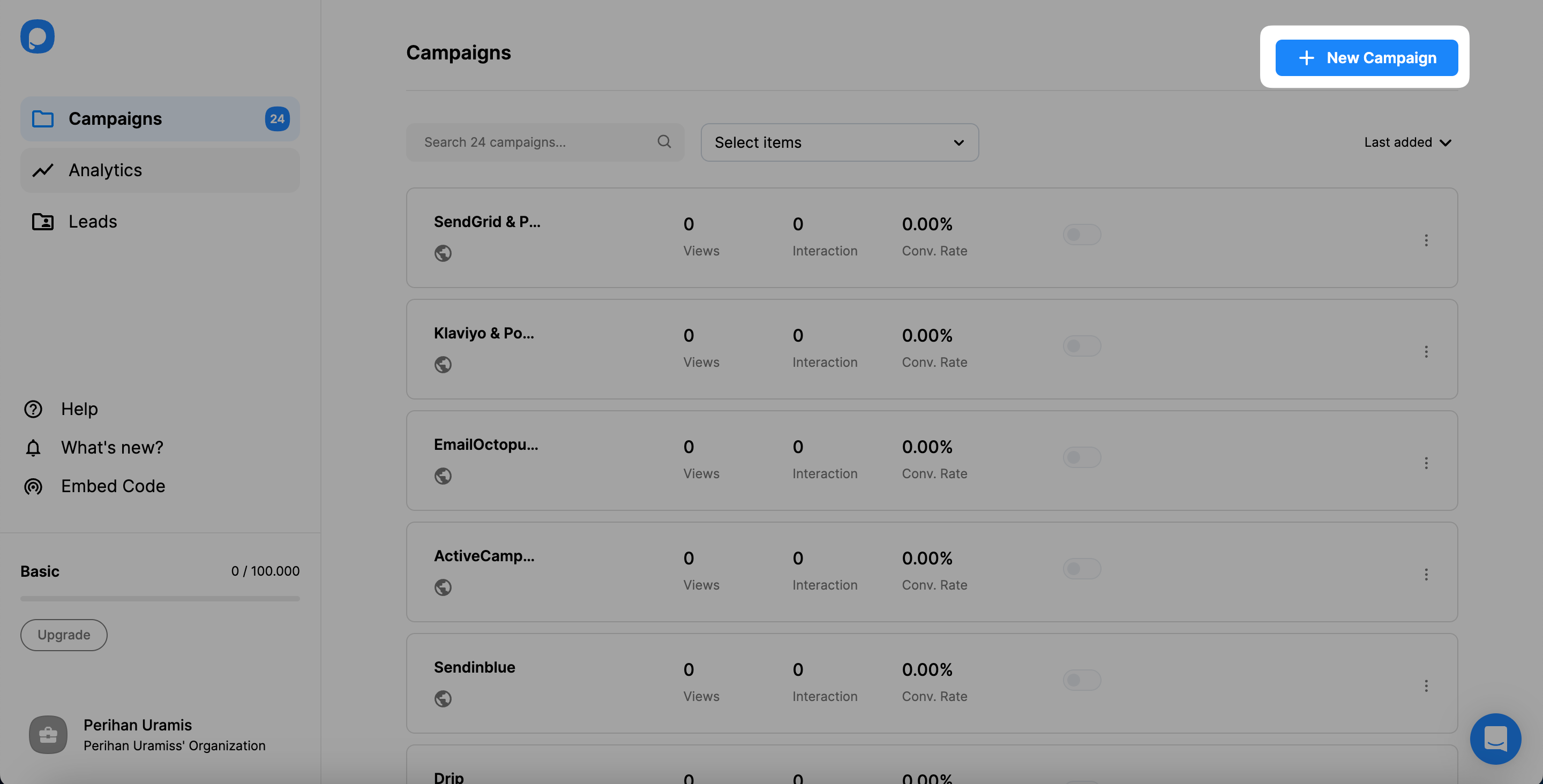
First, sign in to your Popupsmart account and create a new campaign with the best popup that fits your needs.
Select Form Element
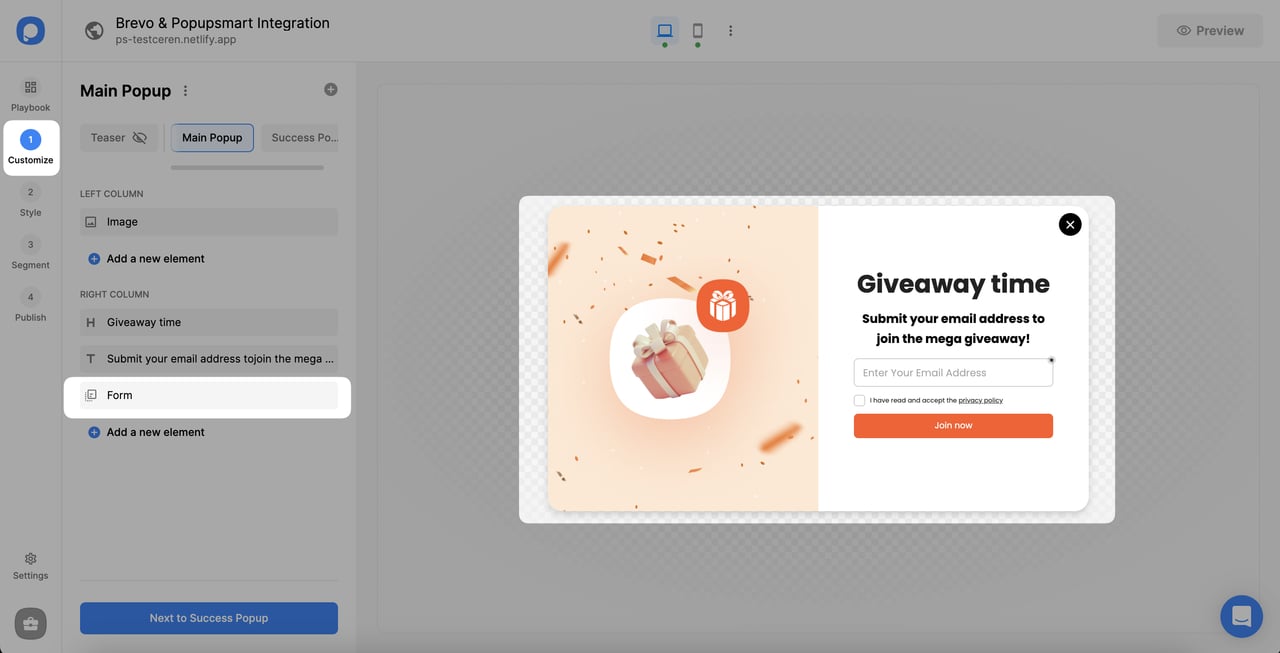
After choosing your popup, choose the form input element on Customize to arrange.
Add API
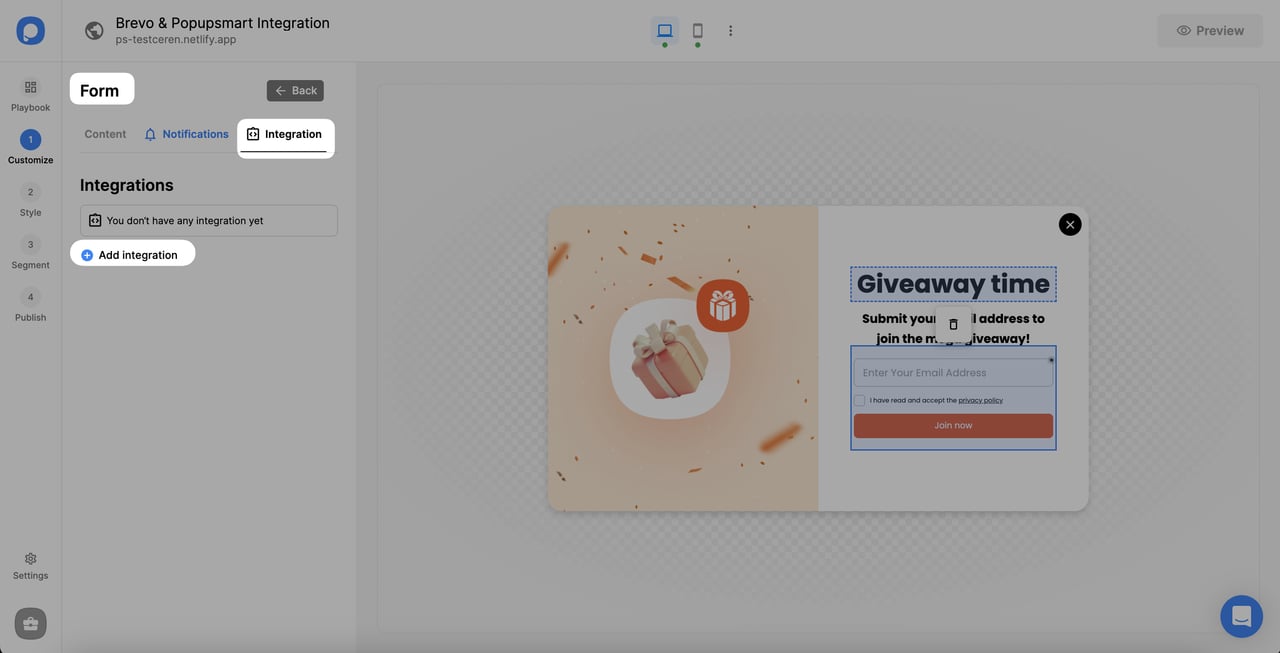
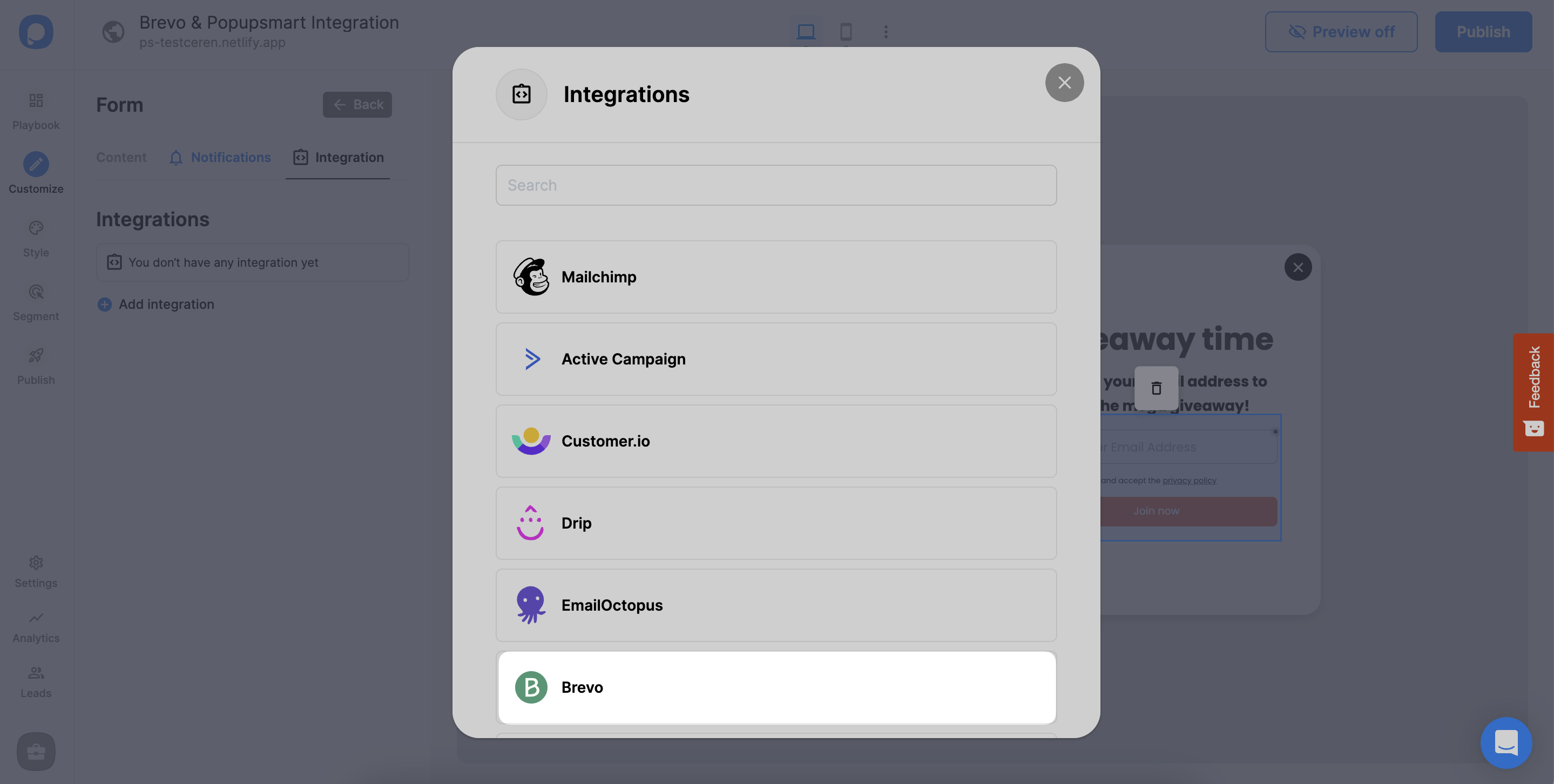
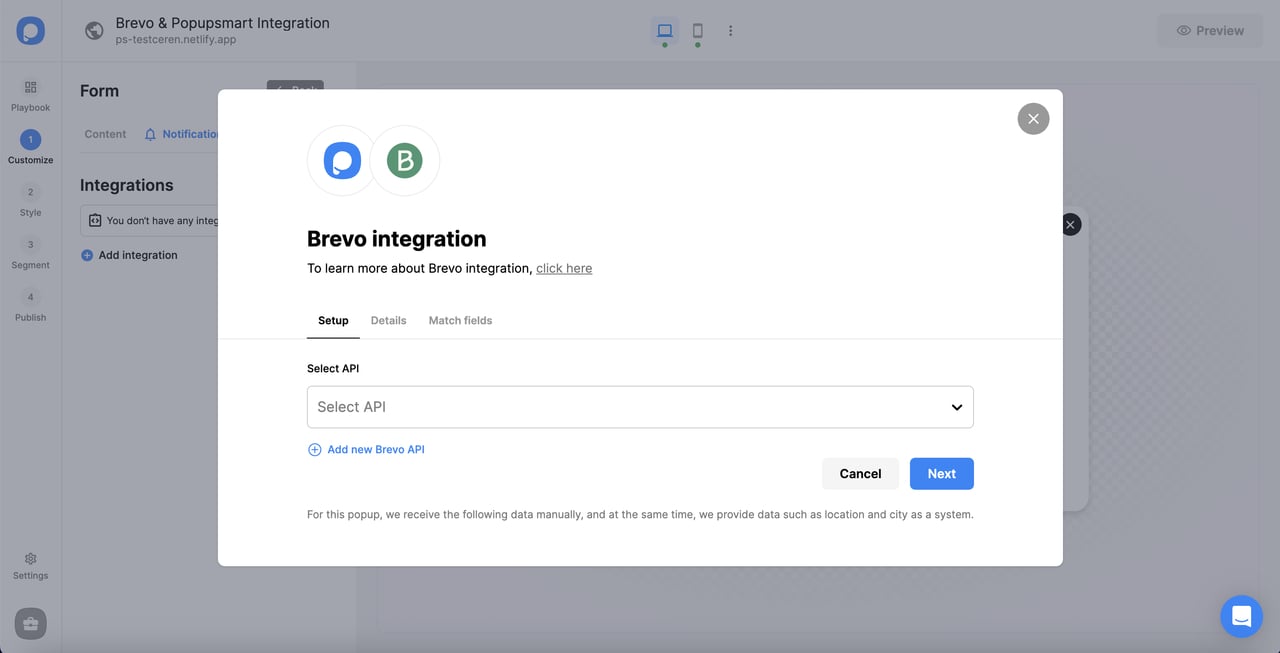
For the Setup, you can add a new Brevo API or choose from the dropdown if you have added your API before.
Access Brevo API
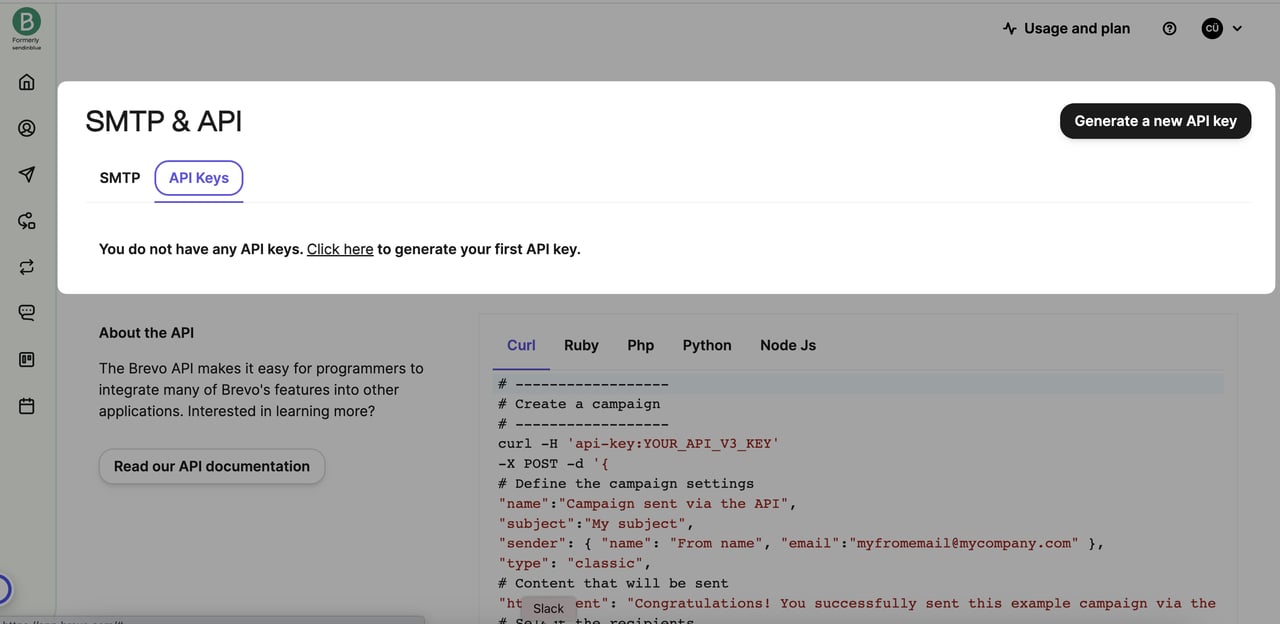
Now, log in to your Brevo account and click the tab on which your company's name is shown on the top right of the page. Then, choose "SMTP & API."
Generate API Key
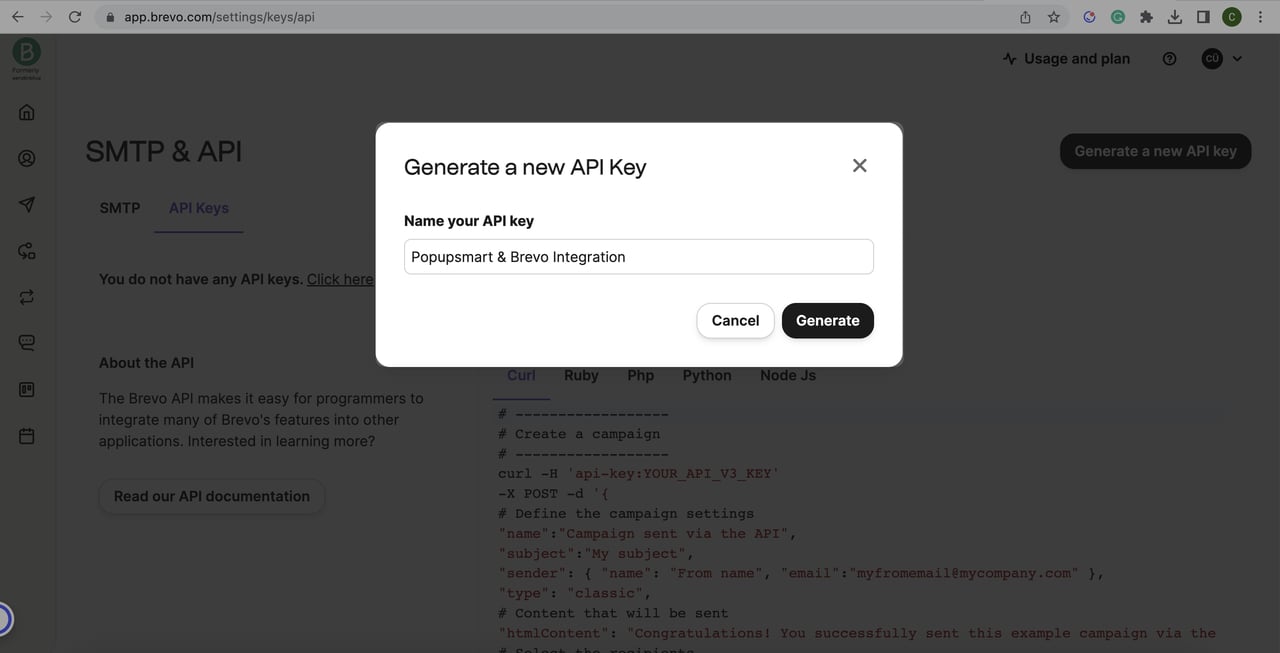
On the SMTP & API page, you need to choose API Keys tab. Then, "Generate a new API key".
Save Connection
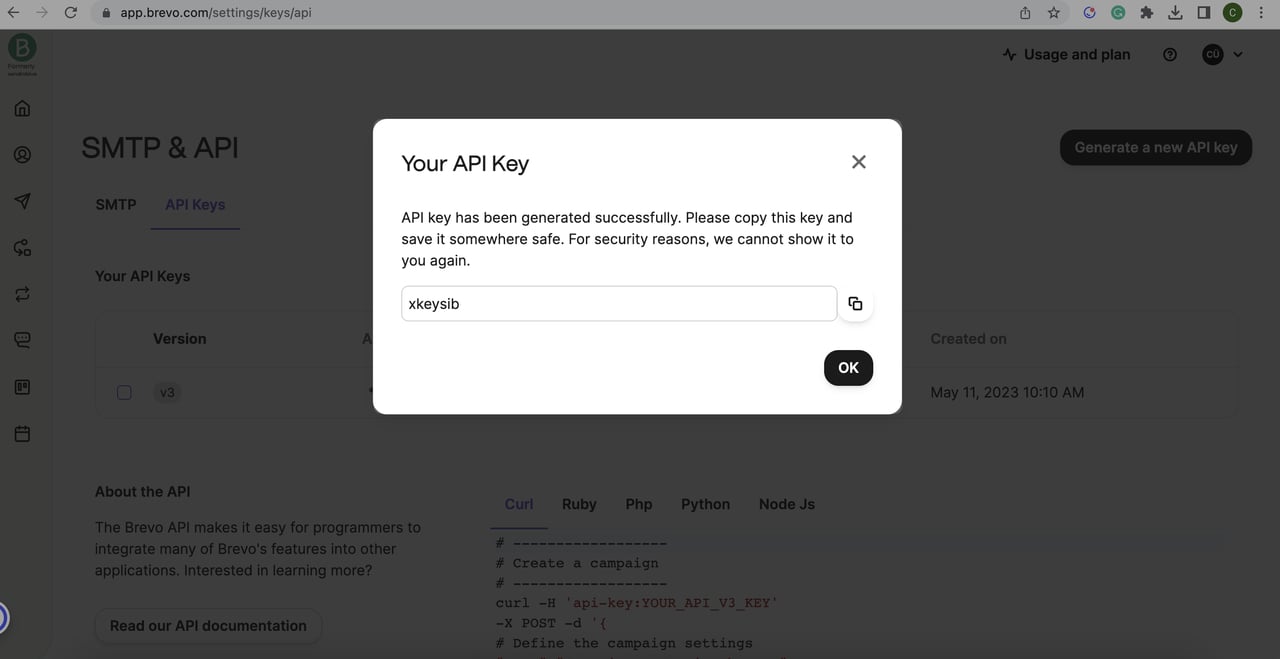
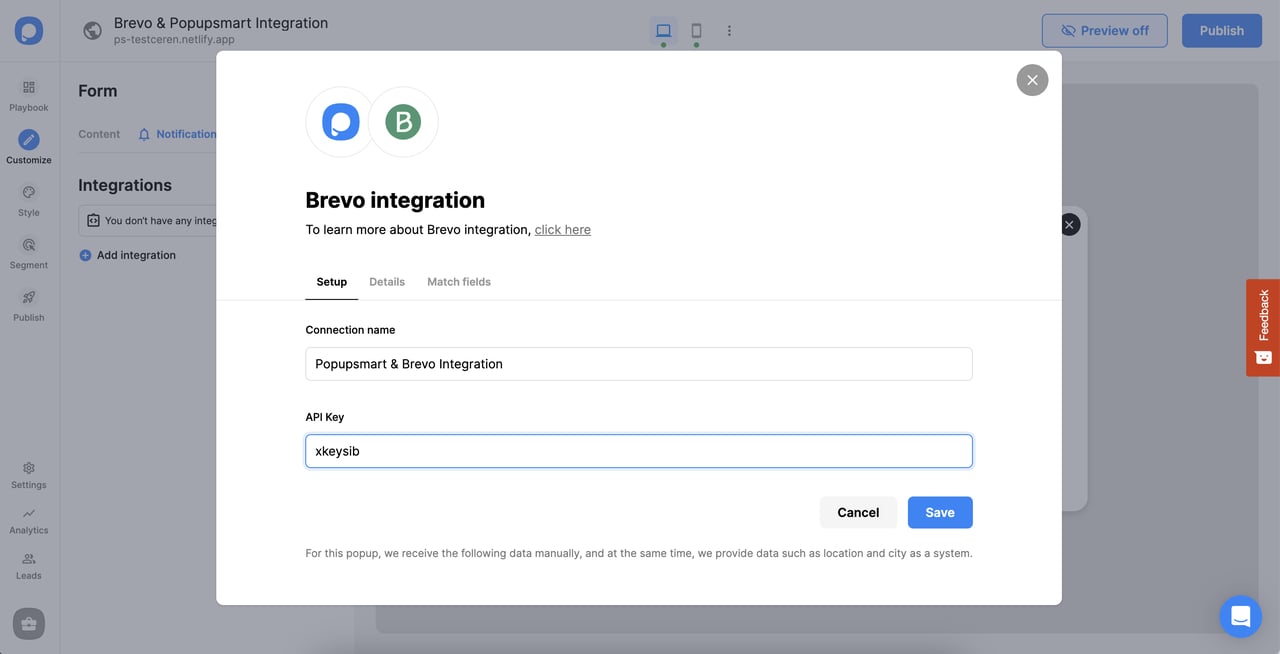
Get back to your Popupsmart account now. Name the connection and paste the API Key, click "Save."
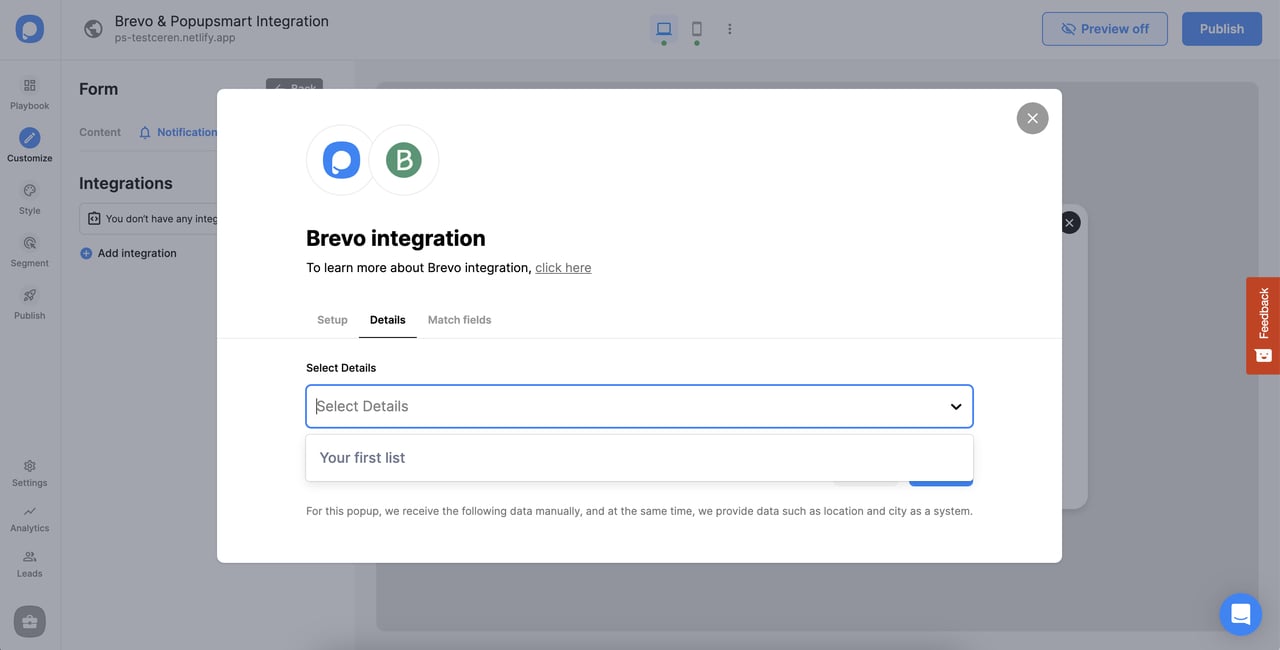
Match Fields
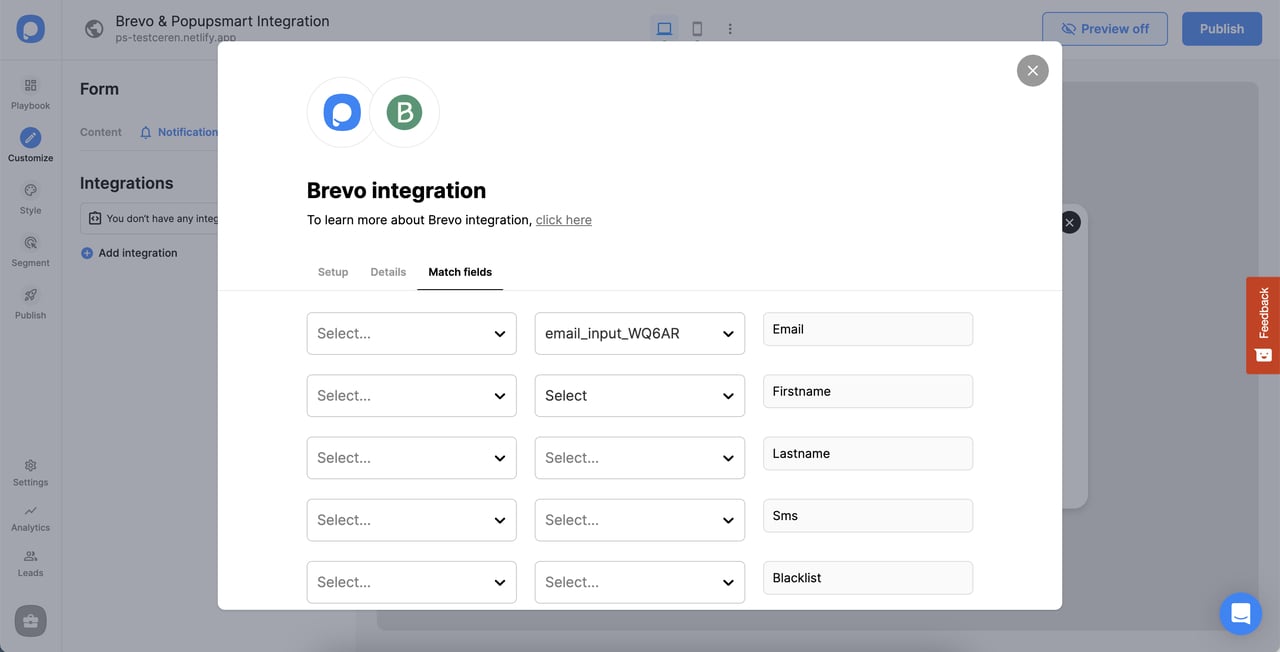
Once you complete the details related to your needs in the Match fields section, click "Save."
Phone Number Format
Mobile Number in SMS or Phone field should be generally passed with proper country code. Once the country code is included, the number will be treated as text. Therefore, if you intend to transmit a phone number as a lead from Popupsmart to the Brevo account, make sure that the phone element's attribute on Brevo is set to text rather than a number.
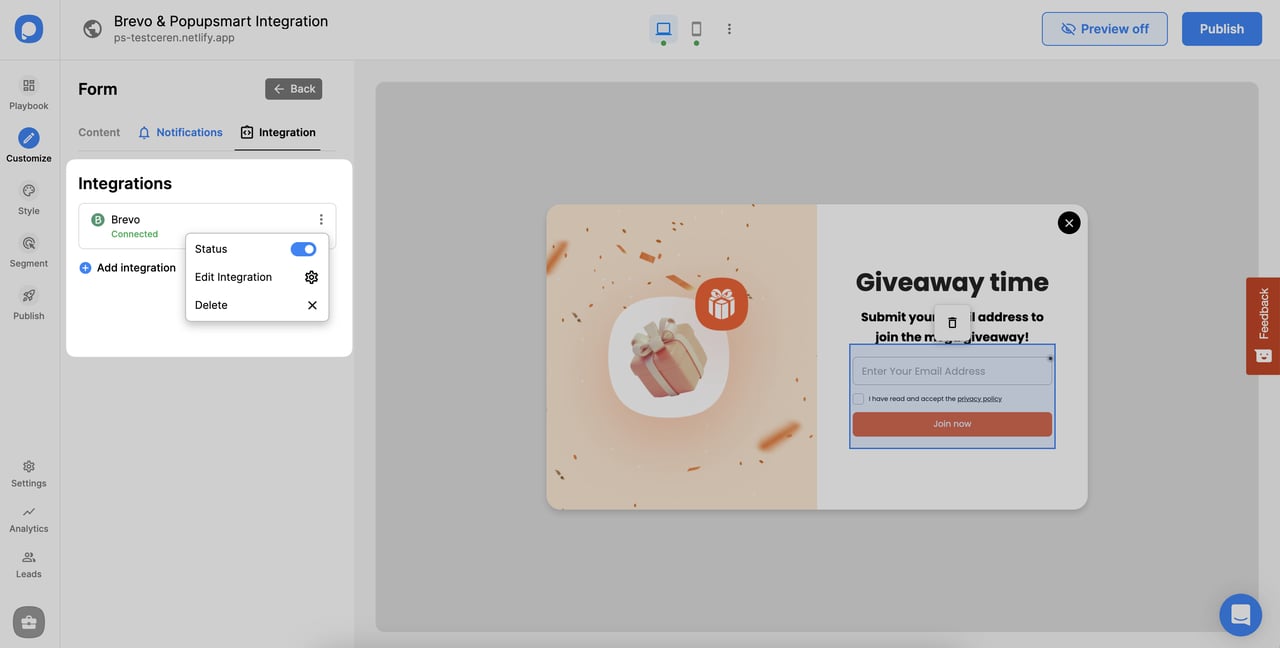
After clicking "Save," your Brevo integration is ready to go!
Note
Once you complete your integration, the status will be on by default; you can change the status whenever you want.
If you have any other questions about Brevo integration, feel free to mail us!
How is this guide?