
How to Add Lottery Ball Gamification on The Popup?
Learn how to add lottery ball gamification to your popup campaigns to have fun and engaging user experiences to increase conversion.
Lottery ball gamification is one thing your visitors need to be used to seeing, in a very good way. The unique look and action of this kind of popup will boost your engagements 100%.
That's why now, let's add some Lottery Ball Gamification to our popups!
Create or edit a campaign
After signing into your Popupsmart account, create a campaign on your dashboard or edit the existing campaigns.
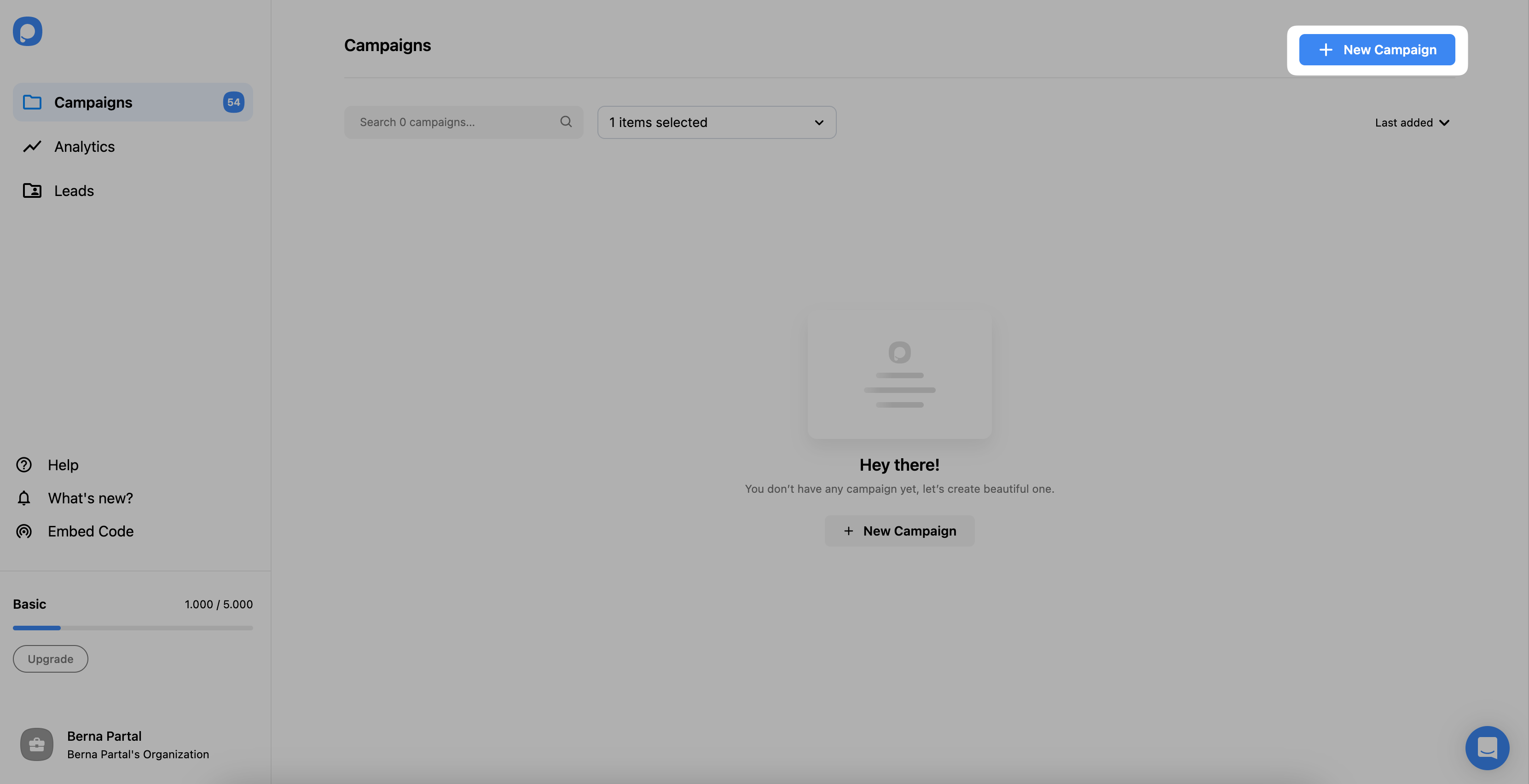
You can choose a blank popup or a ready-made template to customize among different types of popups.
We're moving forward with a ready-made template to show how to add a lottery ball smoothly.
Remove existing image or Lottie
Lottery ball works in your popups, just like an image. First, if you have any image or Lottie on your popup, you need to delete it.

Add the Lottery Ball element
Click "Add a new element" and choose the Lottery Ball among the components.

You can drag and drop it from the left-hand panel until you're happy with its location.

Customize Game Settings
From the "Game Settings," you can customize the weighting factor, label, discount code, and success actions.
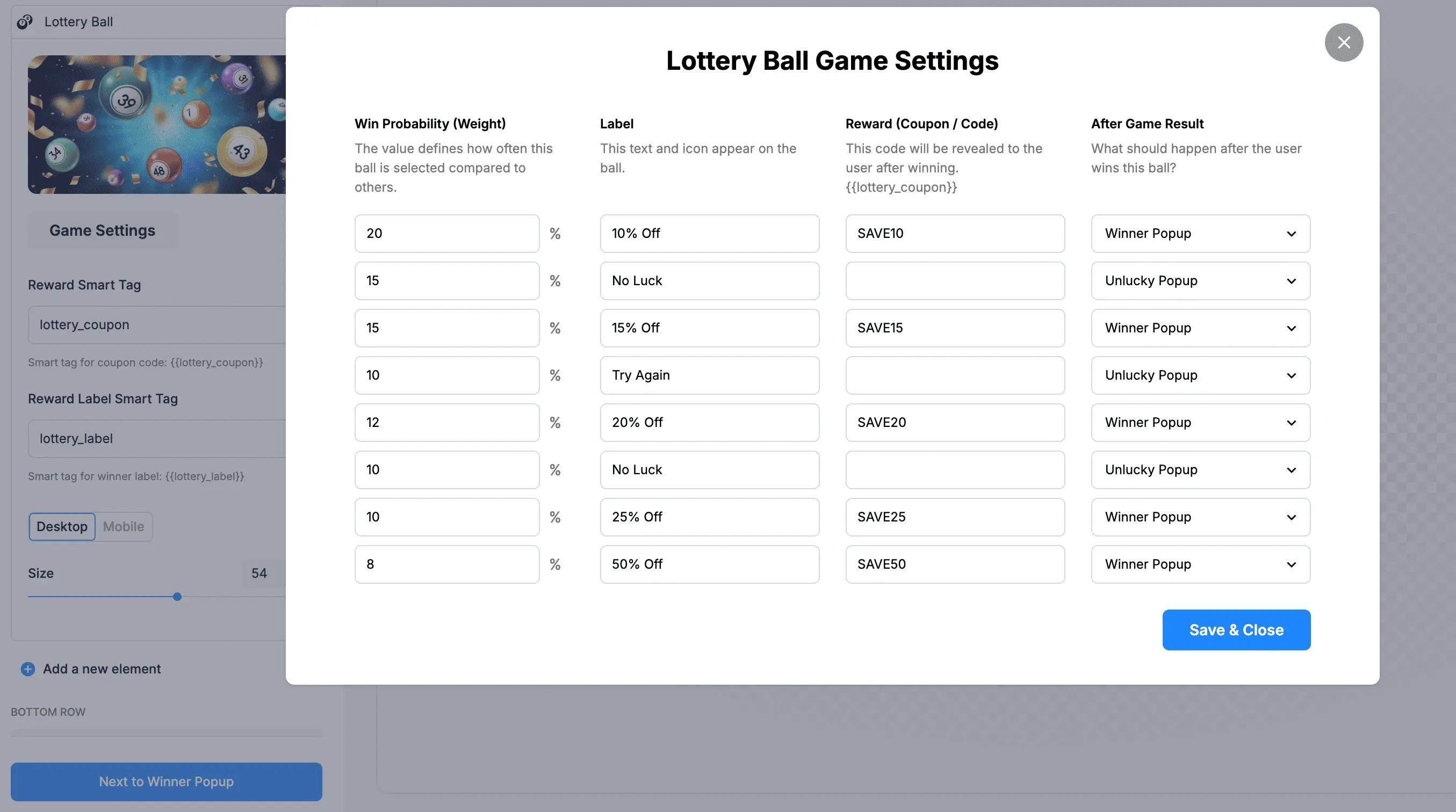
Create Success and Failure pages
By clicking on "Create a new step," you can create a "Success" page for winners or a "Failure" page that unlucky visitors will see.

Add the Reward Smart Tag
Simply add the Lottery Ball element's Reward Smart Tag to the coupon code field on the Success Page. This will allow customers to instantly see the coupon code they've won. You can also use the Reward Label Smart Tag to display the reward they received from the gamification in a separate text element.

See "How to Create a Multi-step Popup?" for further information.
Important
If you choose a ready-to-use template, customization will be super fast and professional-looking for each step.
Customize the Style
In the Style section, select the Lottery Ball element to customize it with beautifully created theme colors.

Customize Success and Failure steps
Don't forget to customize the "Success" and "Failure" steps according to your taste as well. In the example below, we customized the "Success" page.

See "How to Customize Popup Style" for further details.
Preview on mobile and desktop
You can see how your popup looks on mobile and desktop; just click on the desktop and mobile icons above.

Note
Don't forget to save the changes to your popup and publish it if you are happy with the final look.
So, that's how you can add a Lottery Ball to your popups easily!
If you have further questions, please feel free to contact us!
How is this guide?