
How Billing Works
Discover how billing works at Popupsmart! Learn the necessary information about managing your subscription and payment methods for a hassle-free experience.
Understanding how billing works with Popupsmart is crucial for managing your subscription and payment methods.
In this help document, we'll walk you through the different billing aspects of Popupsmart and provide you with the necessary information to ensure a smooth and hassle-free experience.
The Billing Page
Open Account Menu
Click your account from the dashboard (bottom left corner).
Go to Billing
Click Billing from the menu.
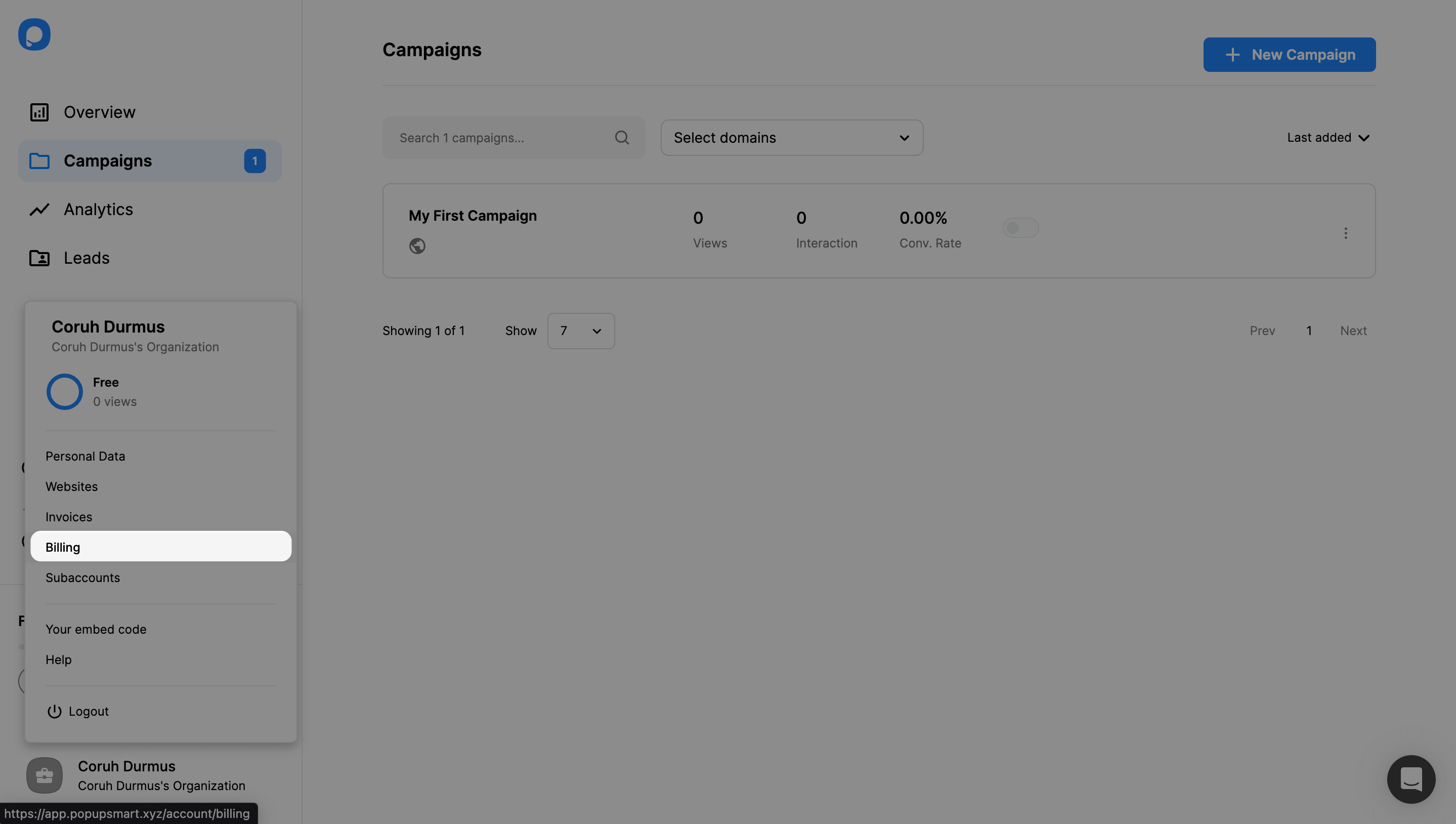
On this page, you can:
- Upgrade or downgrade your current price plan.
- List all plans monthly or annually and pick the best one that fits you.
- Enable Auto-Extend for Email and Pageview in order not to stop sending mails or showing popups even if your quota has finished for the current month.
Annual Plans Save Money
You will be charged for the annual payment amount once you purchase a paid plan. Annual plans cost you less in total. Payments are processed securely through Stripe.
Managing Your Plan
To upgrade your current plan, click on the Upgrade Plan button of the plan you want to change to.
Once you click the upgrade button, you will be directed to the Stripe page, where you can see all your plan information. This page is authorized by Stripe.
On the "Upgrade Your Plan" page, you can edit your current plan, payment method, billing, and shipping information. Your invoice history is available on this page too.
Similar to the upgrading process, you can also downgrade your current plan anytime you wish. Just click a Downgrade Plan button on the Billing page.
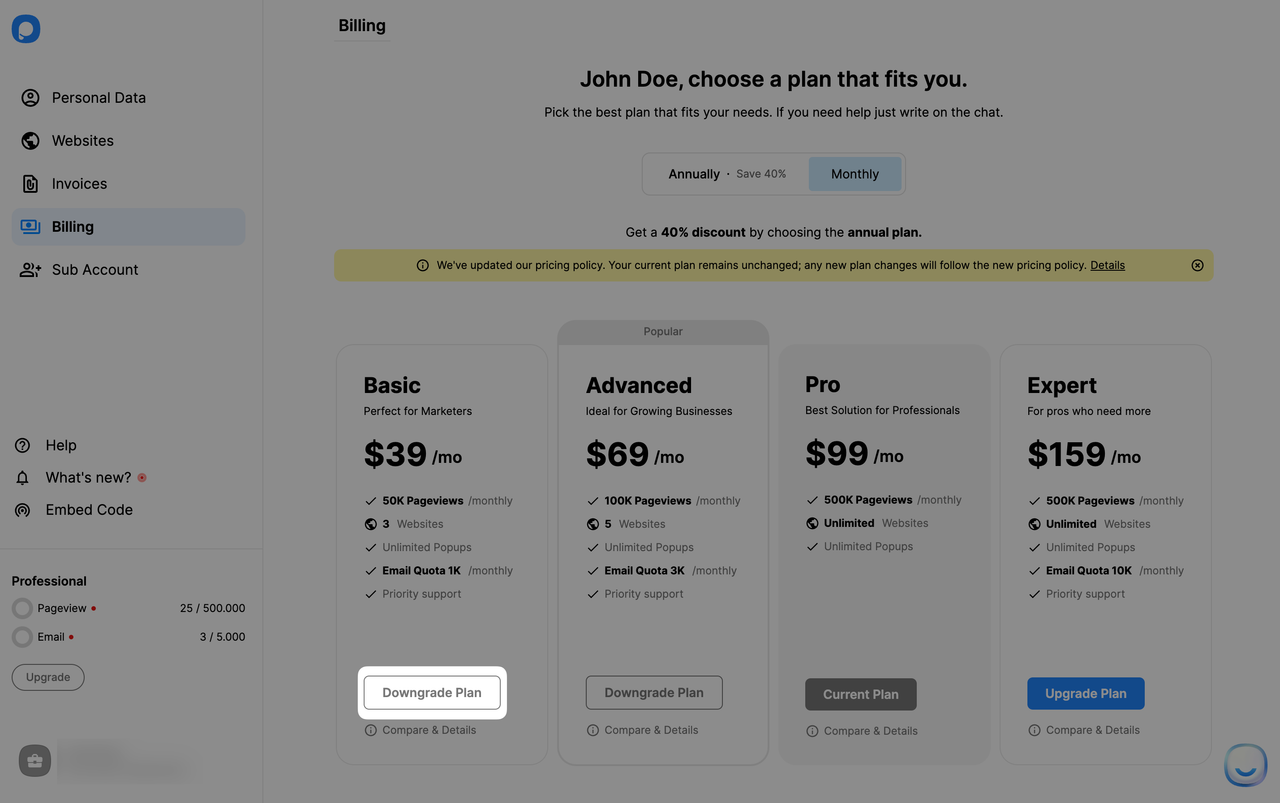
You can observe the amount you will be charged according to the refund calculations.
Enabling Auto-Extend
The Auto-extend feature ensures that even if you use up your pageview or email quota, your popups will still be displayed. This way, you won't lose out on potential sales or leads.
First Extension
The first extension provides an additional 10K pageviews for $10.
Subsequent Extensions
Every subsequent 10,000 pageviews also costs $10 until you spend a total of $99. At this point, instead of just 10,000, you get 250,000 pageviews for the same $99.
Pricing Table
| Total Additional Spend | Total Additional Pageviews | Price per 10K Pageviews | Bulk Bonus |
|---|---|---|---|
| $10 | 10,000 | $10 | None |
| $20 | 20,000 | $10 | None |
| $30 | 30,000 | $10 | None |
| $40 | 40,000 | $10 | None |
| $50 | 50,000 | $10 | None |
| $60 | 60,000 | $10 | None |
| $70 | 70,000 | $10 | None |
| $80 | 80,000 | $10 | None |
| $90 | 90,000 | $10 | None |
| $99 | 250,000 | $2.5* | +160K |
| $198 | 500,000 | $2.5* | +160K |
Bulk Bonus
The price per 10,000 pageviews is consistent at $10. However, once the total additional spend reaches $99 or its multiples (like $198, $297, etc.), a bonus 160,000 pageviews is added on top of the regular 10,000, making the total 250,000 for that $99 increment.
The Email Auto-extend feature allows you to continue sending emails even after reaching your email quota. Here's how the pricing and system work:
- For every set of 500 additional emails you need, there will be a charge of $5.
- It's important to note that Self Email Notifications, or emails you send to yourself, are also included in this count and will contribute to the 500-email limit.
Self Notifications Count
Every email, including notifications to yourself, counts toward the quota. Every 500 emails beyond your base quota costs $5.
The Invoices Page
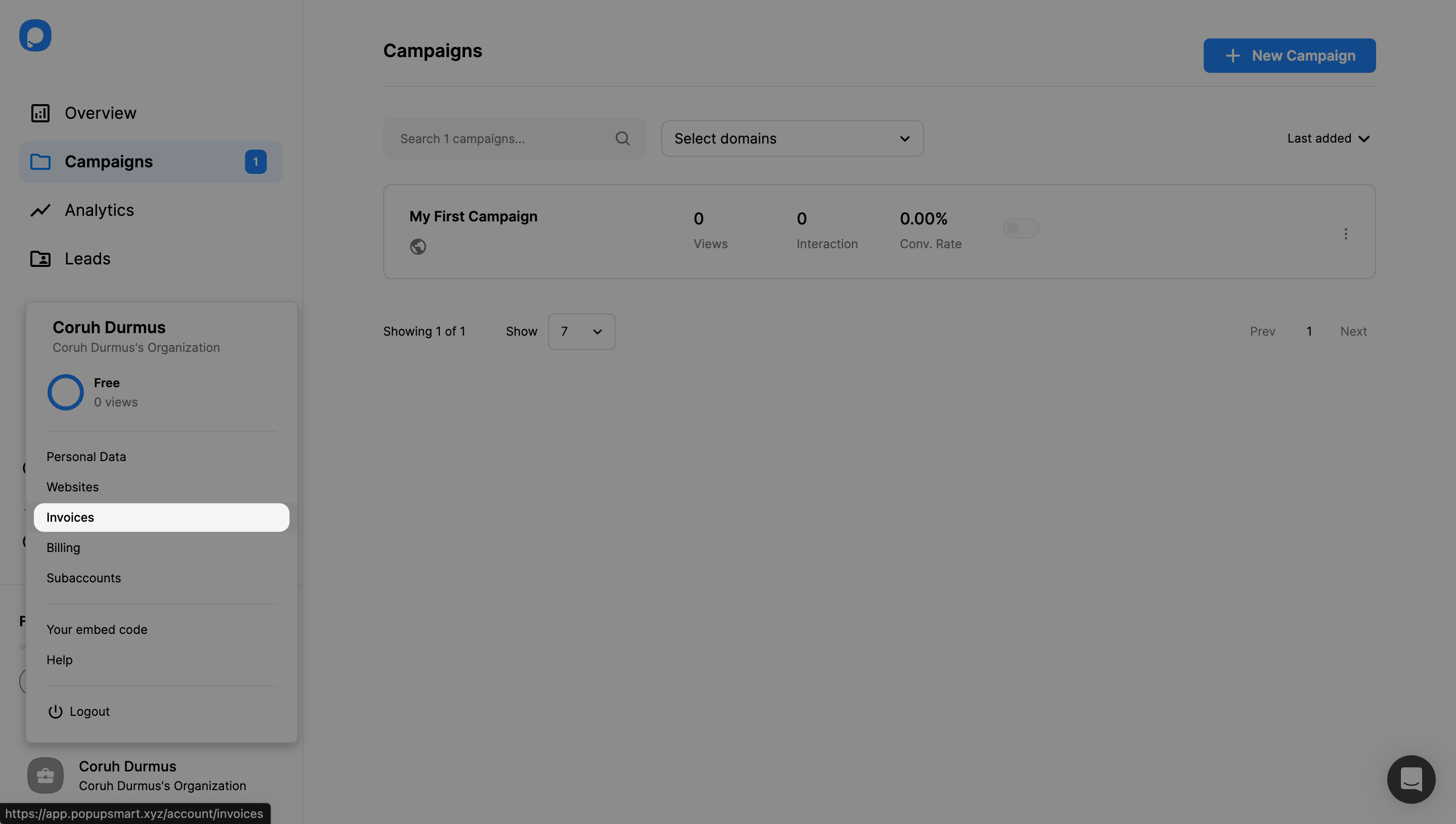
Open Account Menu
Go to your Popupsmart dashboard and click your account from the bottom left corner.
View Invoices
Click "Invoices" from the menu. You will be directed to Stripe's page.
Switching to Free Plan
If you want to switch to the Free Plan from a Premium Subscription, you may contact us through live chat or email (support@popupsmart.com).
How is this guide?