
How to use Custom CSS for Customizing Gamification Elements?
We will guide you on how to customize the colors of our gamification elements, specifically the lottery ball and spin-to-wheel, within our popup builder.
Do you know how easy it is to customize Gamification Elements in accordance with your desires and needs?
Here, we will guide you on how to customize the colors of our gamification elements, specifically the lottery ball and spin-to-wheel, within our popup builder.
Step 1: Identifying and Selecting the Element
Go to Style Step
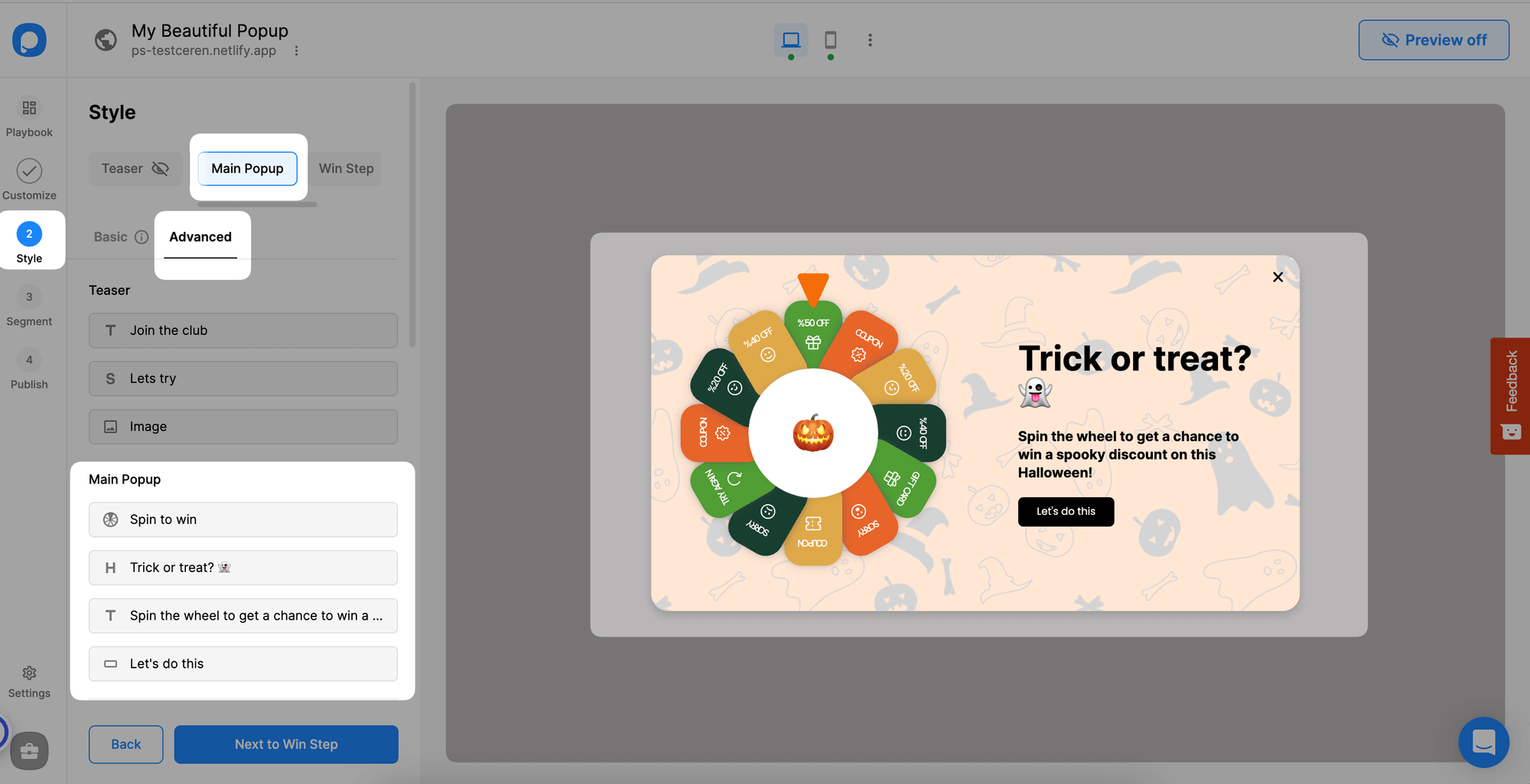
Choose a gamification element you want to add to your popup. Later, go to Popupsmart's popup builder's "Style" step.
Open Advanced Tab
Look for the "Advanced" tab within the editor. Click on it to access the advanced customization options.
Identify Element
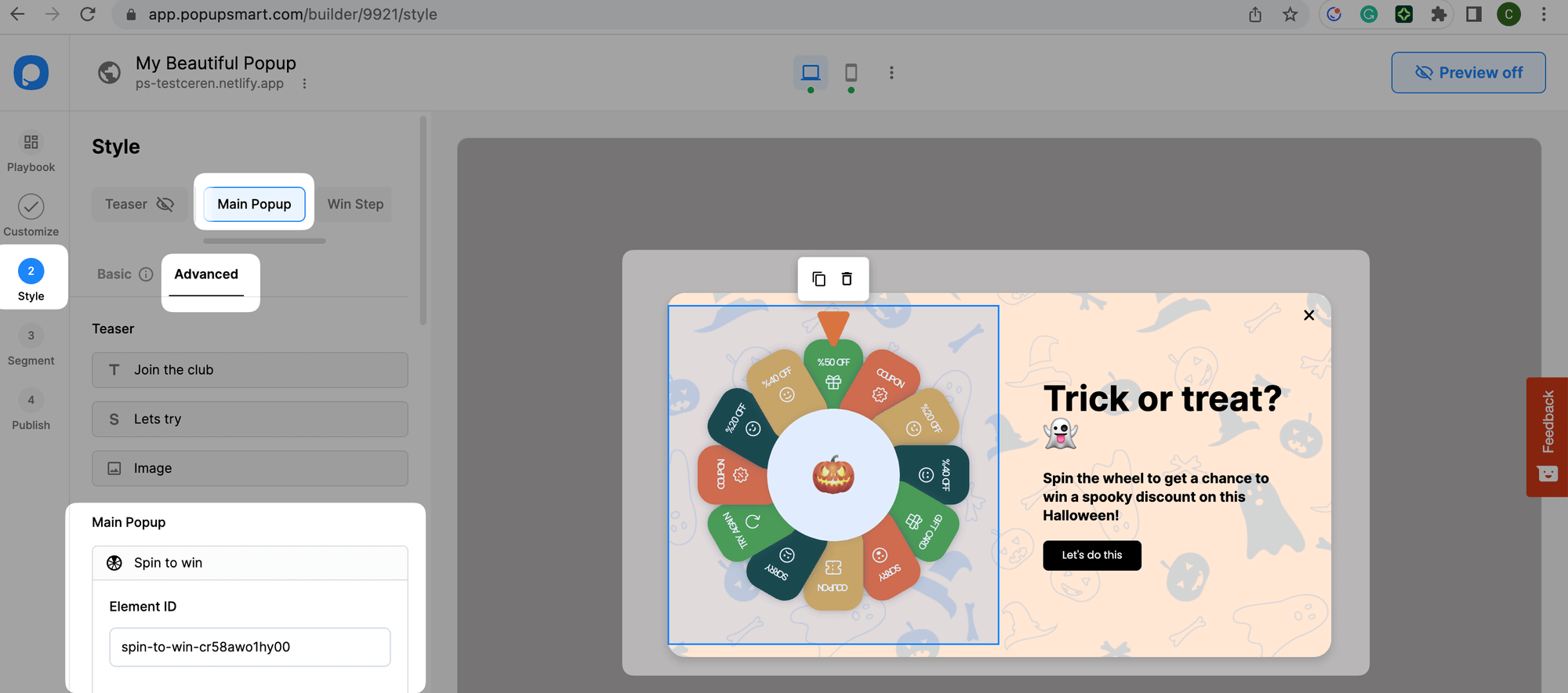
In the advanced customization tab, you will see a list of elements that make up your popup. Identify the gamification element you wish to modify. First, we will show you how to customize the spin-to-win element.
Copy Element ID
Once you've identified the element, copy the spin-to-win element ID for customization.
Step 2: Applying Custom CSS Styles
Find CSS Area
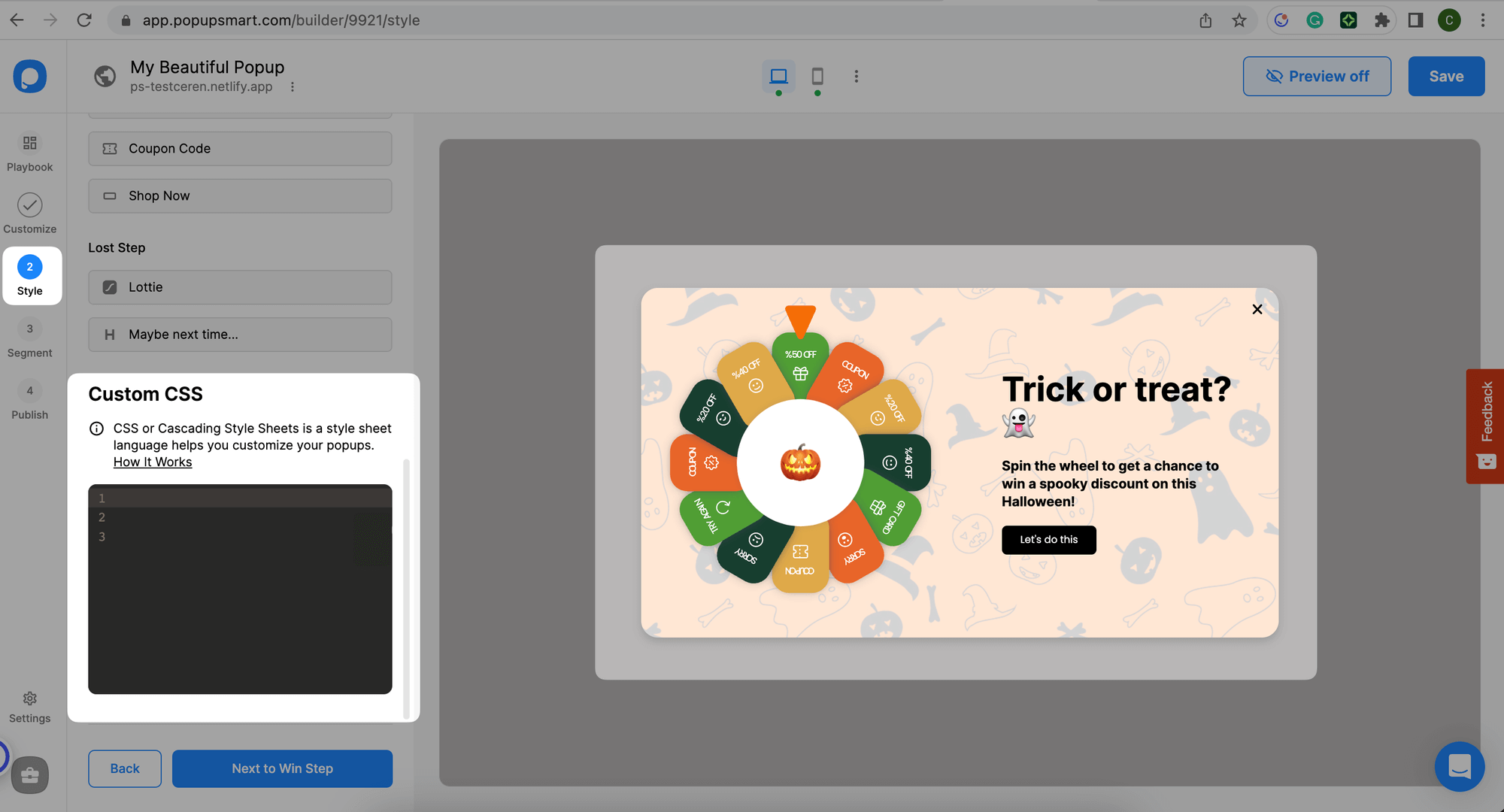
After copying the gamification element ID, you will find a text area to add your custom CSS code.
Add CSS Code
Write or paste your CSS code into the designated area. Make sure to follow CSS syntax and rules for proper styling:
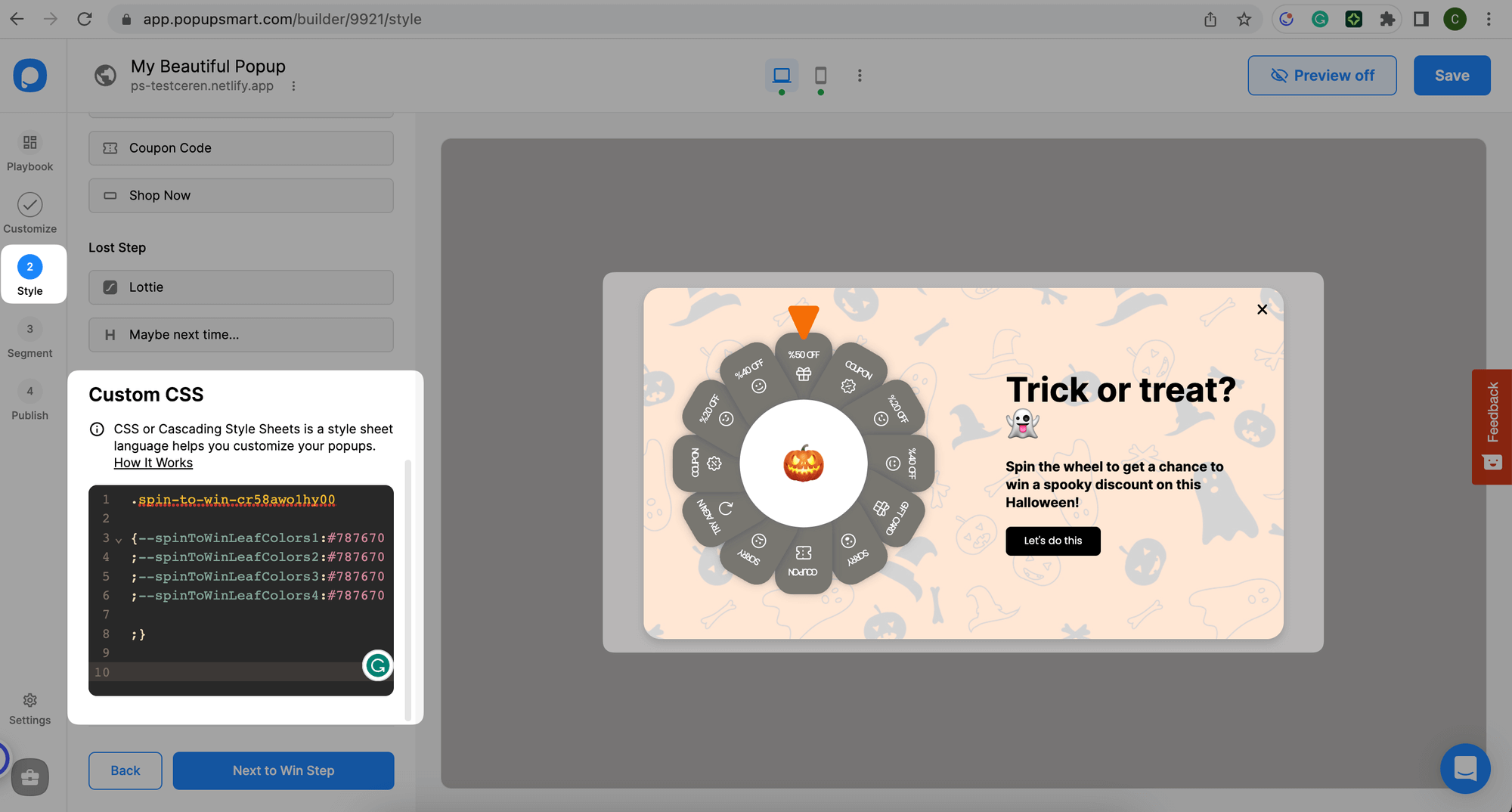
For spin-to-win customization, you can use the code below by changing its element ID and color name:
pre code:not(.hljs):not([class*=language-]) { background: #f8f8f8; line-height: 1.5; display: block; overflow-x: auto; padding: 1rem !important; color: inherit; border-radius: 2px; }
.spin-to-win-p_csqbb7aoq0o0{ --spinToWinLeafColors1:#787670; --spinToWinLeafColors2:#787670; --spinToWinLeafColors3:#787670; --spinToWinLeafColors4:#787670; }
For lottery ball customization, use this code by changing the element ID and color values:
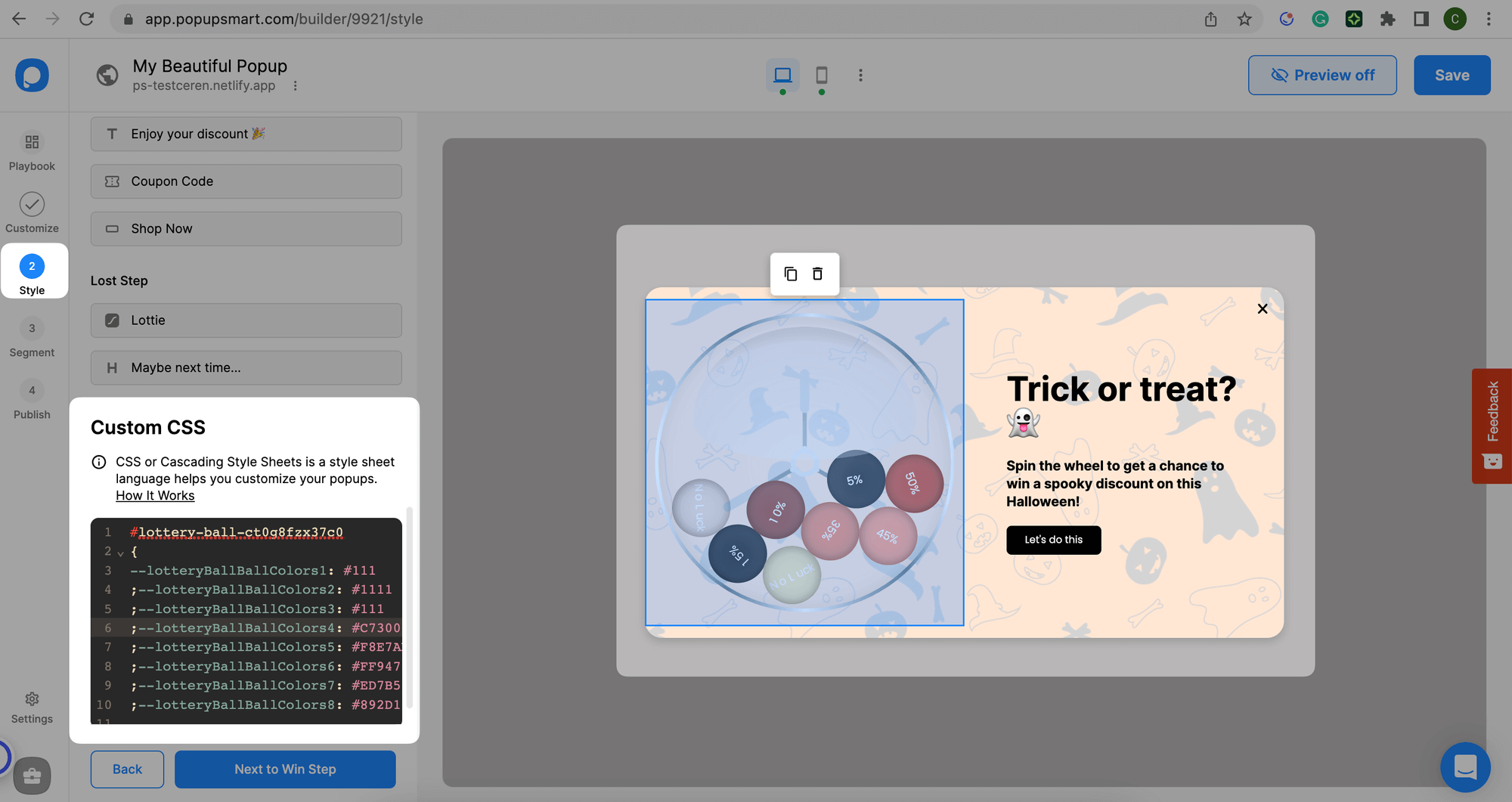
#lottery-ball-ct0g8fzx37c0 { --lotteryBallBallColors1: #111; --lotteryBallBallColors2: #1111; --lotteryBallBallColors3: #111; --lotteryBallBallColors4: #C73000; --lotteryBallBallColors5: #F8E7AE; --lotteryBallBallColors6: #FF9473; --lotteryBallBallColors7: #ED7B57; --lotteryBallBallColors8: #892D11; }
Unique Element IDs
Every element has a unique element ID. Be careful to copy your specific element ID to the required line.
Experiment
Experiment with various CSS properties like font size, color, background, and more to achieve the desired visual effect.
Preview Changes
You can preview the changes in real-time within the popup editor to see how they impact the selected element.
Save & Publish
Make sure your CSS is correctly formatted. Once you complete all the settings, save and publish the popup. Do not forget to turn the status toggle on to make your popup visible on your website.
Do you have additional questions about how to add custom CSS to your popup? Contact Us!
How is this guide?