
How to Add Team Members in Popupsmart?
Effortlessly expand your Popupsmart capabilities with team members. Learn how to add your teammates for organized and efficient campaign management.
Do you need to give your teammates access to your Popupsmart account?
Add them as team members, so they can use your account without needing your credentials.
Adding Team Members
Open Team Members
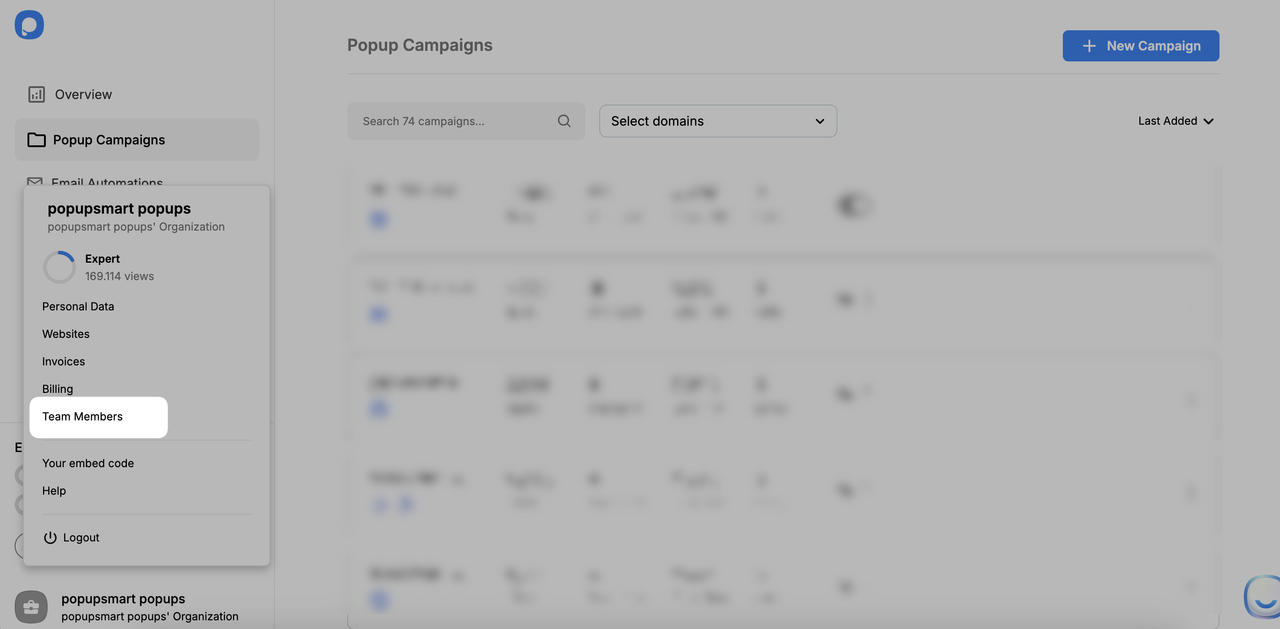
Log in to your Popupsmart dashboard and click "Account" from the bottom left corner, then click "Team members".
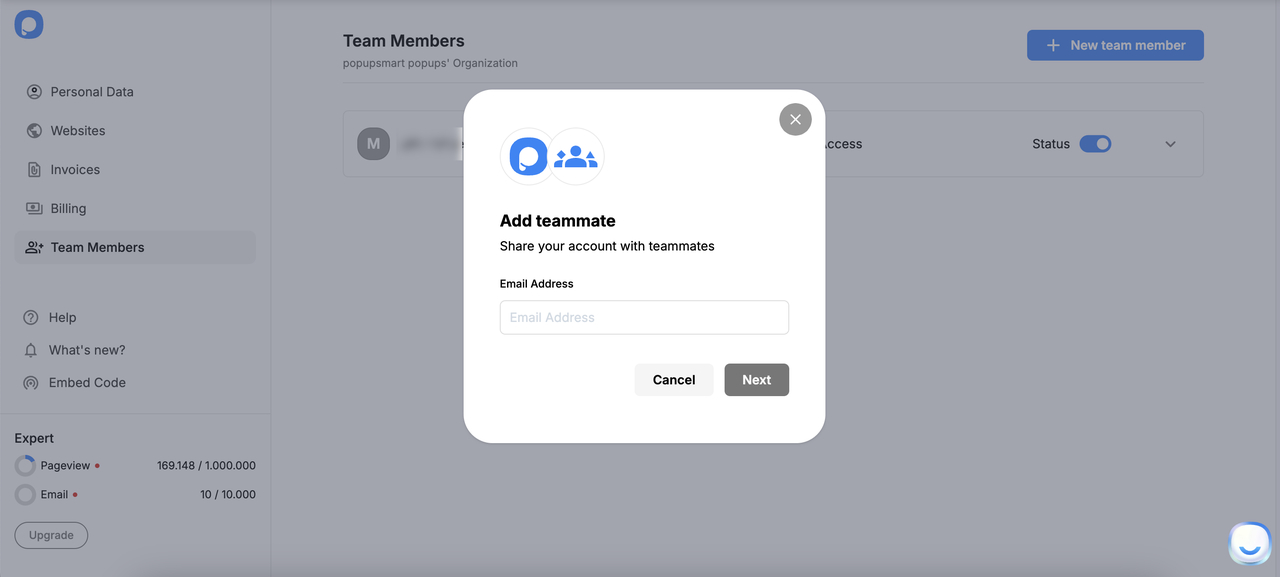
Add Teammate
Click "Add teammate".
Set Access Options
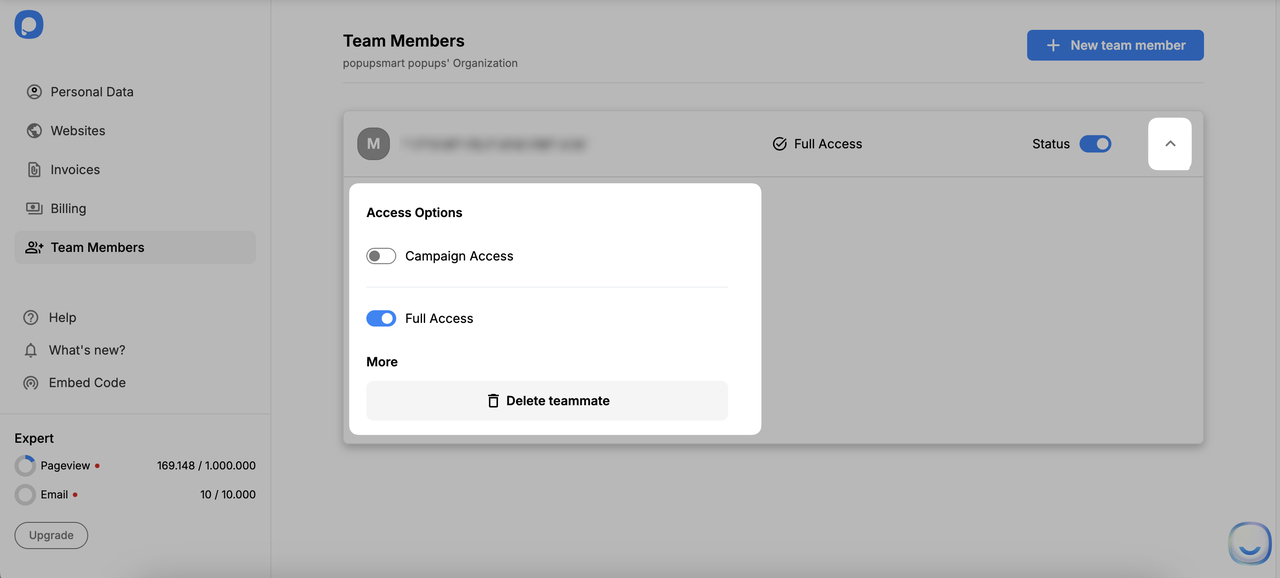
Adjust the "Access Options" by toggling on the "Campaign Access" or "Full Access" buttons. Then, click "Send Invitation".
Manage Permissions
You can manage the permissions of the team member you have added or delete teammates anytime by clicking the arrow on the right.
Switch Between Accounts
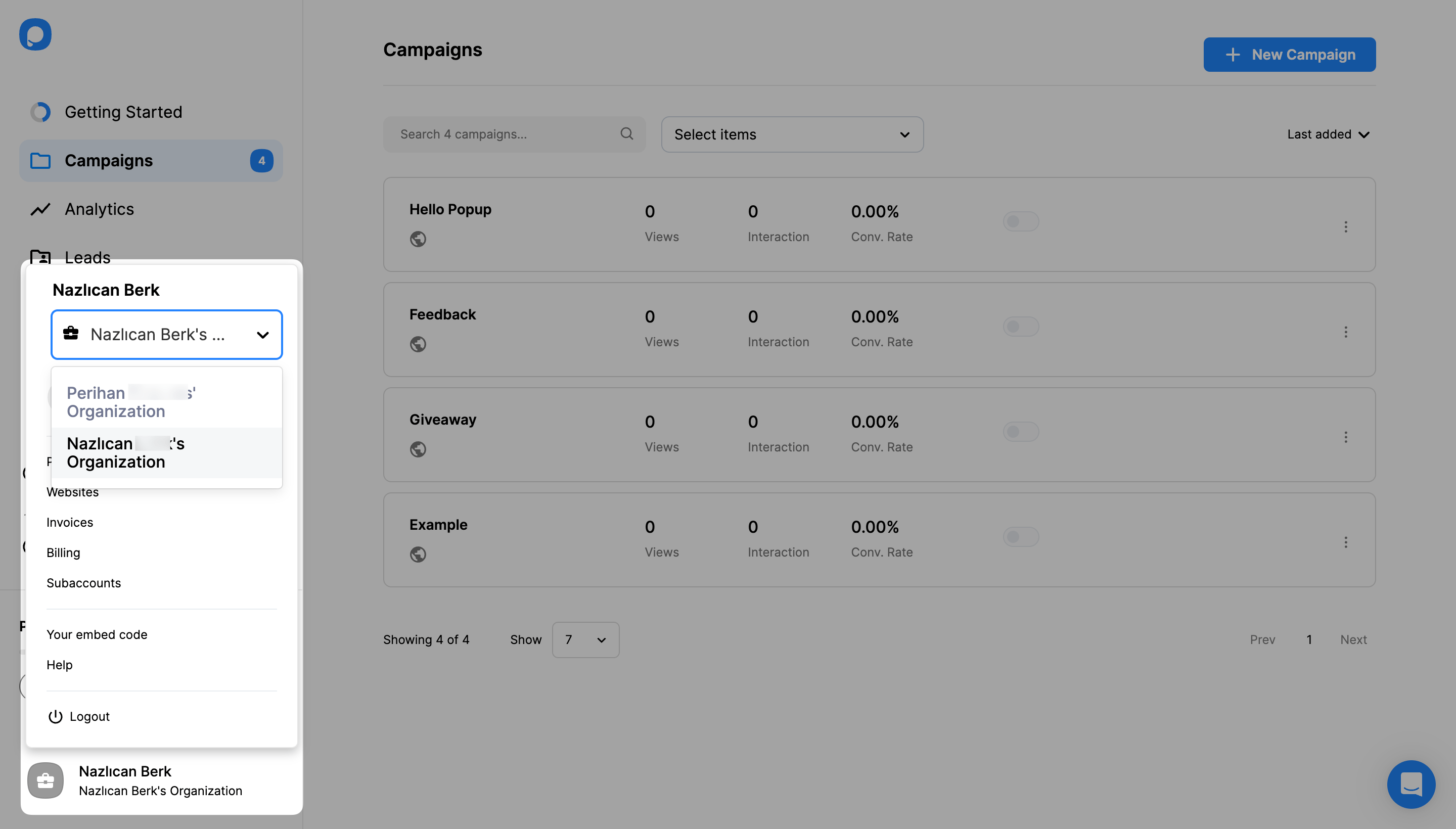
Team members can switch between accounts and see their teammates' campaigns by clicking on the dropdown menu from their accounts.
Team Member Limitations
Team members can use features such as creating new popup campaigns and tracking them like the main account holder, but they don't have access to certain account settings, such as updating your billing information, changing your price plan, or downloading invoices.
Important Update on Team Members Limits
Date of Change: November 1, 2024 - Team member limits have been updated based on each plan.
As of today, we've updated the team member limits based on each plan. This adjustment allows us to offer more tailored features at each subscription level.
| Plan | Sub-Accounts Allowed |
|---|---|
| Free | 0 |
| Basic | 1 |
| Advanced | 2 |
| Professional | 2 |
| Expert | 4 |
What You Need to Know
This change will enable us to enhance our service offerings and improve functionality across all account types.
Do you have additional questions about team members? Contact us.
How is this guide?